This covers OPERATIONS → Sales & Customers: New Sale & Quotation, Customer Center, Sales & Quotation List and Deleted Sales. Together they are the full loop — sell, invoice, get paid, chase what's outstanding.
1. Making a sale
Open New Sale & Quotation (or the green + New Sale button in the top bar, from anywhere).
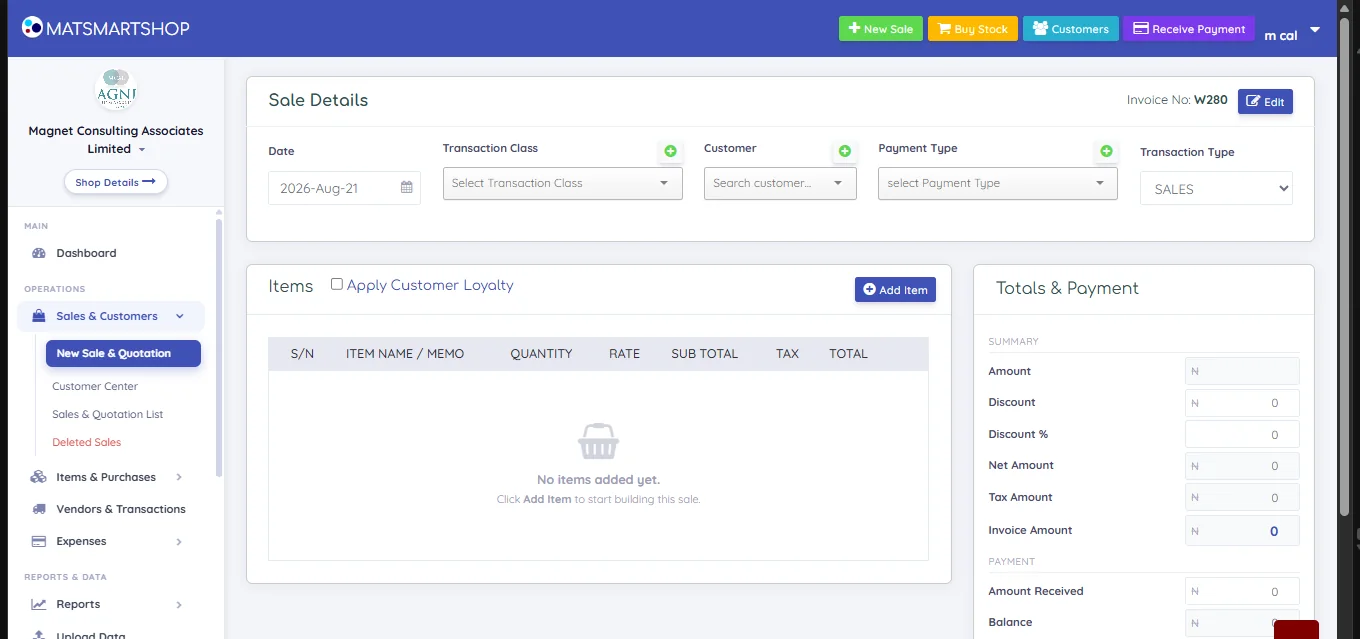
| Field | What it does |
|---|---|
| Date | Defaults to today. Backdate for a sale you're catching up on. |
| Transaction Class | Your own categories for sales — they drive the Transaction Class Report. Different from Expense Types. |
| Customer | Search and pick, e.g. Dozie. The + beside it creates a customer without leaving the sale. |
| Payment Type | Cash, a bank, a wallet. On an unpaid or part-paid sale this decides which bank details the customer is shown. |
| Transaction Type | SALES or QUOTATION — see section 4. |
| Invoice No | Allocated automatically. Edit lets you override it. |
2. Adding items
Click Add Item. Search by name or code and the picker shows a thumbnail and the live stock figure.
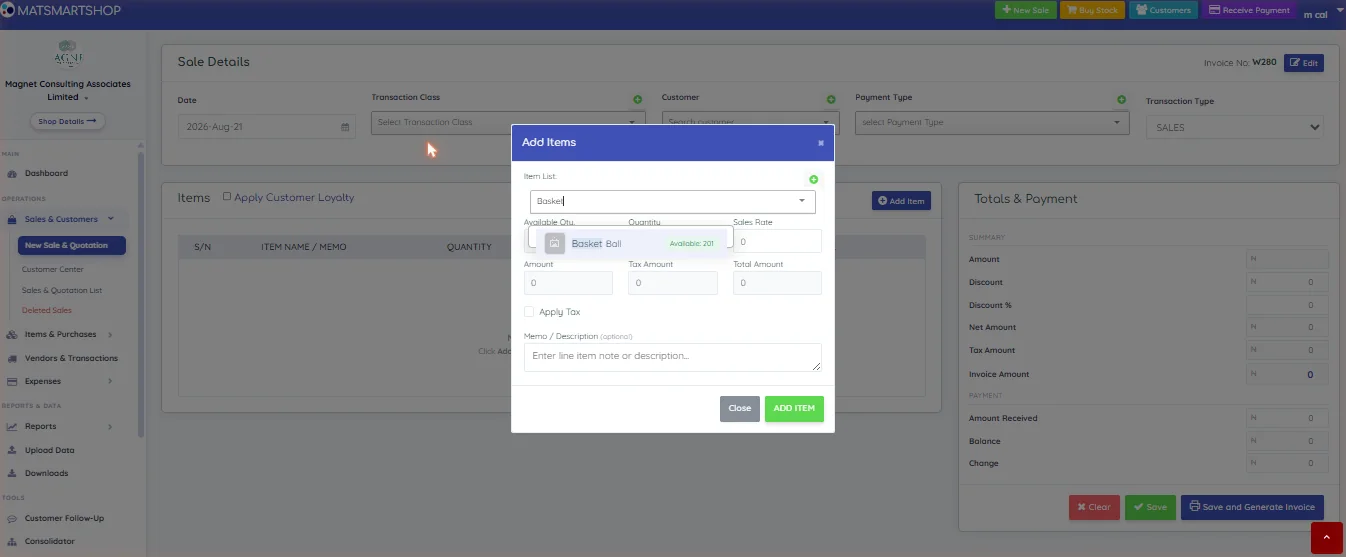
- Type part of the name; pick from the list. Available shows current stock.
- Set Quantity. The rate comes from the item, and you can override it for this line.
- Tick Apply Tax if the line is taxable.
- Add a Memo / Description for anything the item name doesn't say.
- ADD ITEM puts the line on the sale. Repeat, then Close.
Back on the sale, each line has Edit and Remove. Items with a photo carry their thumbnail into the line, which makes a long sale easy to check at a glance.
3. Totals, discounts and loyalty
The Totals & Payment panel stays beside the item list as you build the sale, so nothing is hidden below the fold.
| Field | Meaning |
|---|---|
| Amount | The lines added up. |
| Discount / Discount % | Money off, as a figure or a percentage of the sale. |
| Net Amount | After discount. |
| Tax Amount / Invoice Amount | Tax added, and the final total. |
| Amount Received | What the customer is paying now. Leave short for a part payment. |
| Balance | What they still owe — this becomes their outstanding balance. |
| Change | What to hand back when they've overpaid in cash. |
Apply Customer Loyalty, above the item table, redeems the customer's accumulated points as a discount instead of a percentage off. It's either/or — a loyalty redemption is the discount for that sale. There is no separate coupon-code system; every reduction is set by you here or at the point of order.
4. Saving: sale or quotation
| Choice | Result |
|---|---|
| Save | Records the sale without opening the invoice. |
| Save and Generate Invoice | Records it and opens the invoice ready to print, export or share. |
| Transaction Type = QUOTATION | Saves a quote instead. No stock moves and no balance is created; convert it to an invoice later from the Sales & Quotation List. |
| Clear | Empties the screen and starts again. |
Quotations show no payment-status stamp, because nothing has been sold yet.
5. The invoice
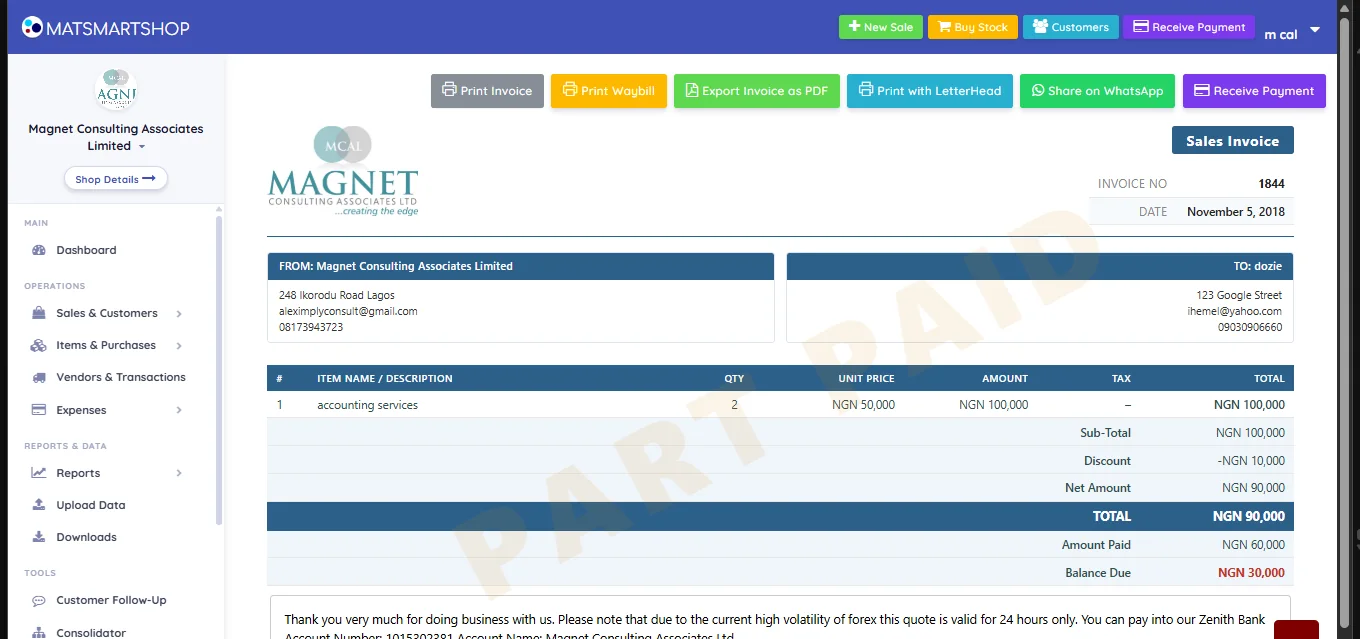
- A PAID / PART PAID / UNPAID stamp appears on screen, in print and on the exported PDF. Quotations carry no stamp.
- The totals block spells out Total, Amount Paid and Balance Due, so a part payment is unambiguous to the customer.
- Payment Details shows the bank or wallet for the payment type used, with the balance — on screen, on the PDF, and in the WhatsApp share text, so the customer never has to ask where to send the money.
- Receive Payment opens the payment form; the invoice re-reads its paid amount and the balance updates.
- Print Invoice, Print Waybill, Export Invoice as PDF, Print with LetterHead and Share on WhatsApp cover the ways it leaves the building.
6. Sales & Quotation List
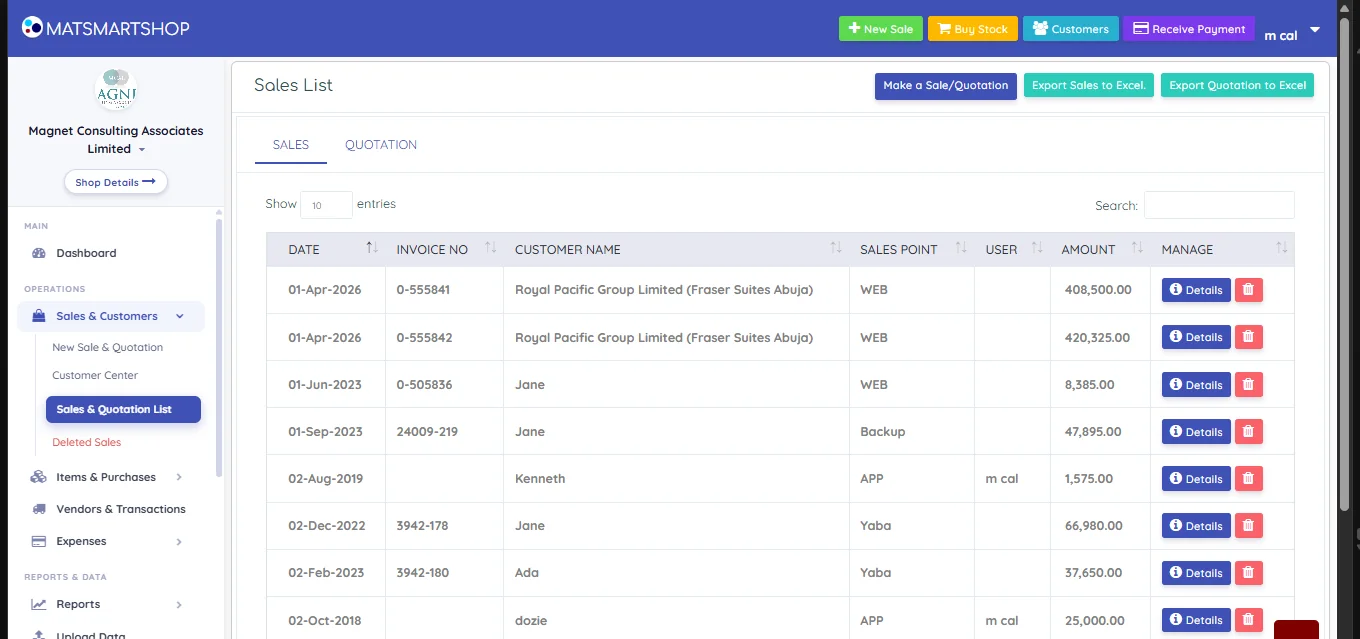
- SALES and QUOTATION tabs. Convert a quote to an invoice from the quotation tab.
- Sales Point and User show which till and which staff member — useful when reconciling a counter at close of day.
- Details opens the invoice; the red bin deletes the sale.
- Export Sales to Excel / Export Quotation to Excel.
7. Deleted Sales
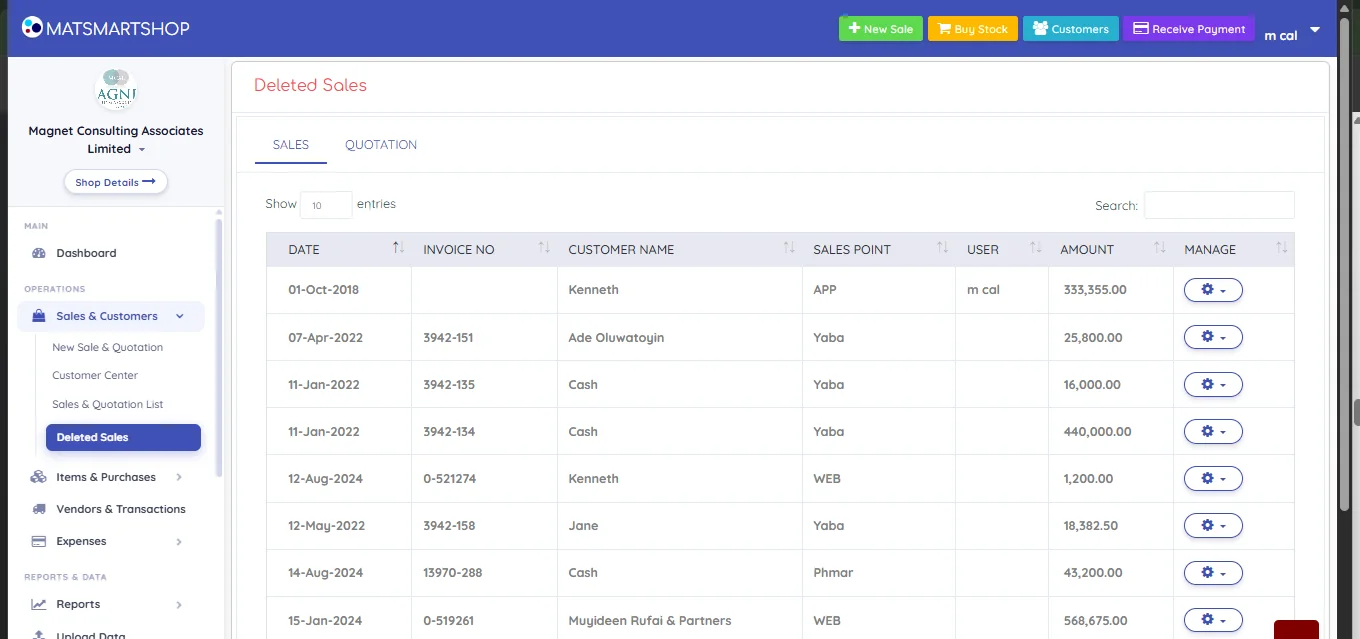
A sale removed in error lands here rather than disappearing, so a wrongly-cancelled ticket can be found and accounted for. Check it when a day's takings don't reconcile — a deleted sale is a common explanation.
8. Customer Center
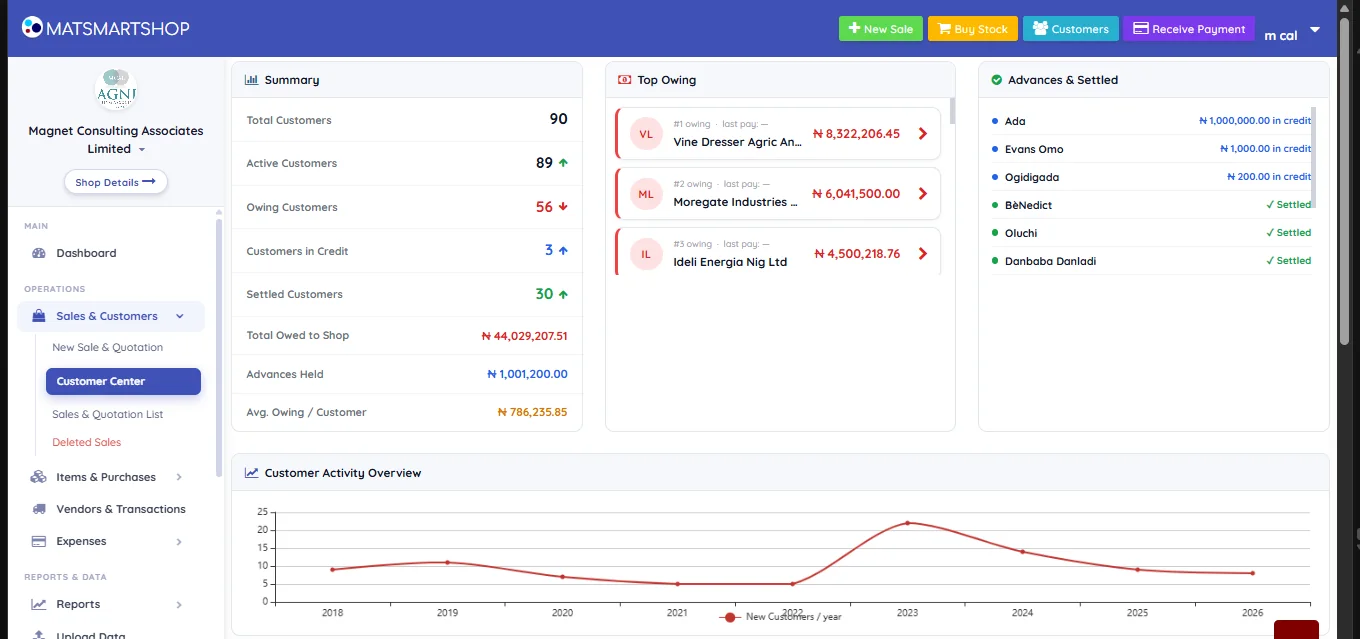
| Panel | What it tells you |
|---|---|
| Summary | Total, active, owing, in-credit and settled customers; Total Owed to Shop; Advances Held; Avg. Owing / Customer. |
| Top Owing | Your biggest debtors, ranked, each with the date they last paid. Click through to the customer. |
| Advances & Settled | Customers in credit (they've paid ahead) and those fully settled. |
| Customer Activity Overview | New customers per year. |
Below sits the Customers List with a search box, Create Customer, Upload from Excel and Export to Excel. Each customer appears as a card showing their phone and whether they're Settled or owing, with three actions: Trans (their statement), Pay (record a payment) and a gear for editing.
8.1 Adding customers
Create Customer takes name, email, phone and address, using the same add-to-list-then-save pattern as items. For a batch, use Upload from Excel — see the Upload & Scan guide.
9. The customer panel
Click any customer — here Dozie — to slide out their full position.
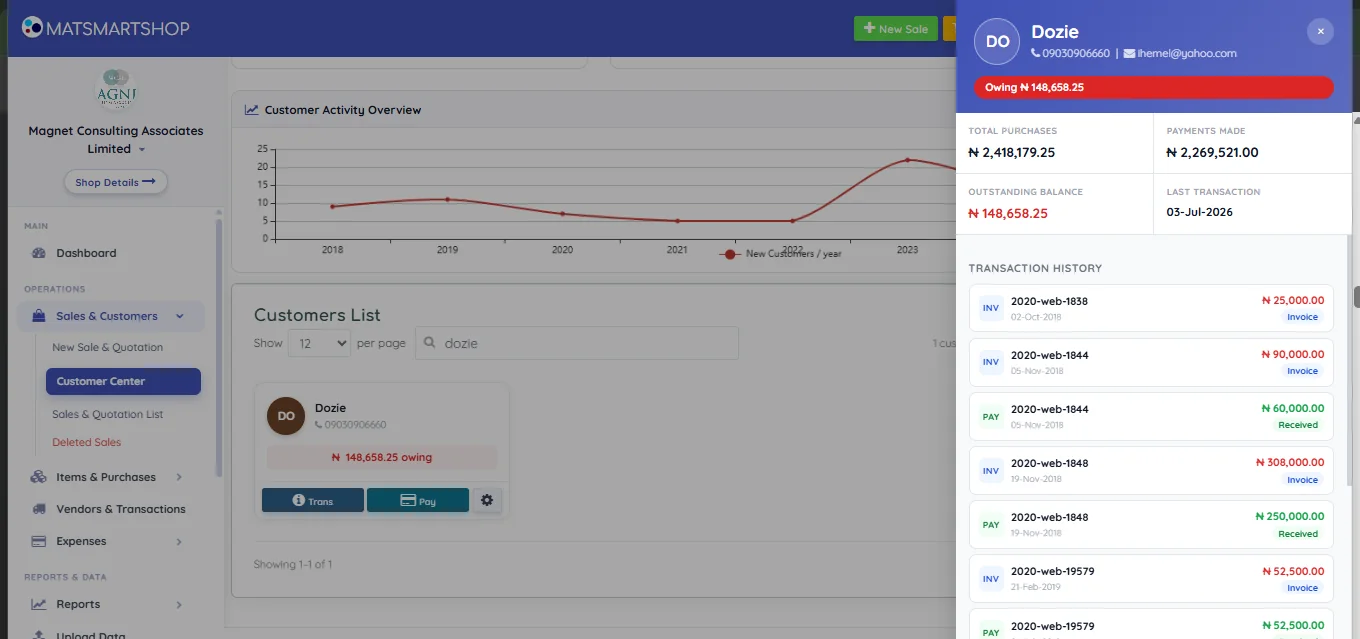
- Total Purchases and Payments Made — the lifetime figures.
- Outstanding Balance — the difference, and what you're chasing.
- Last Transaction — how recently they've been active.
- Transaction History — every invoice (INV) and payment (PAY) in order, so you can see exactly how the balance was built.
- Payment Timeline — the balance over time.
- Contact — call, WhatsApp or record a payment; Notes carries any follow-up note.
To correct a payment entered in error, find it in this history and delete it there.
10. Receiving payment
Two routes to the same result — use whichever matches how you're working.
| Route | Best for |
|---|---|
| Receive Payment on the invoice | You're already looking at the invoice. Fastest for settling one specific sale. |
| Receive Payment in the top bar, or Pay on the customer's card | Someone walks in to pay off part of what they owe, e.g. Kenneth clearing an old balance. |
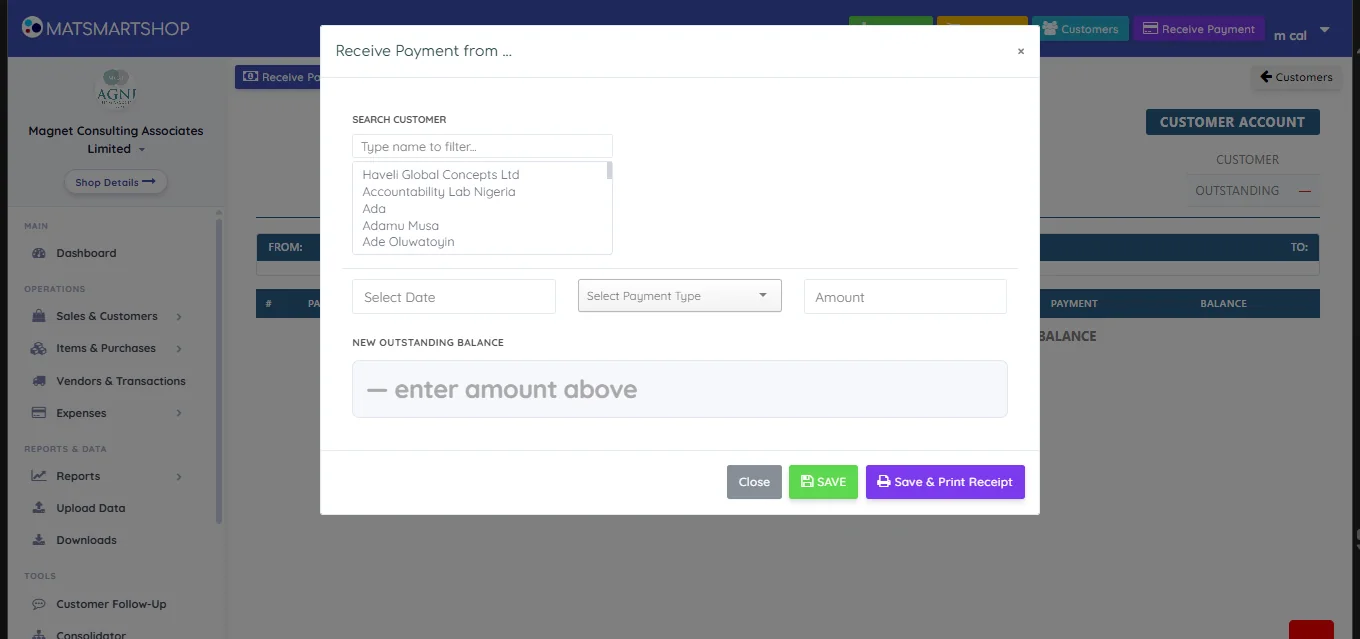
- Find the customer (type to filter, e.g. Adaora).
- Set the Date, the Payment Type the money came in through, and the Amount.
- New Outstanding Balance updates as you type — check it reads what you expect before saving.
- SAVE, or Save & Print Receipt to hand the customer a receipt.
11. The customer account and the statement
Two different things, one behind the other. The account is your working list of everything on a customer; the statement is the dated document you hand or send them.
11.1 The customer account
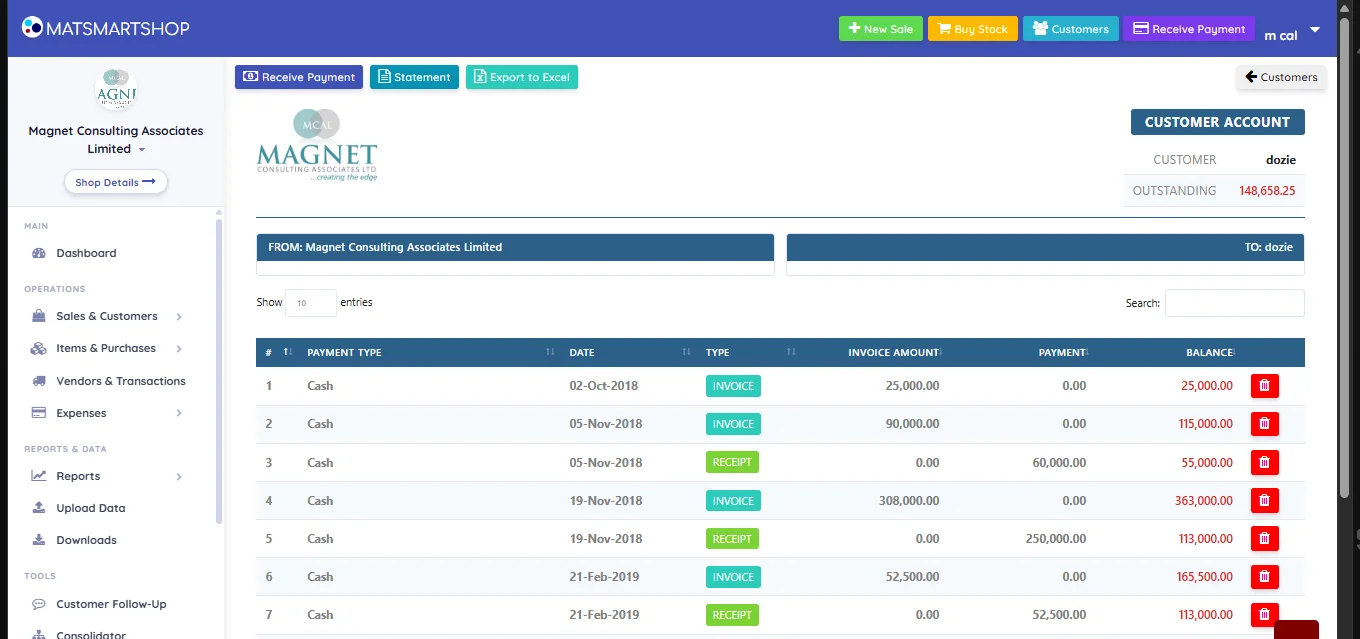
Reached from Trans on a customer's card or Full Transaction History in the panel. Every row is badged INVOICE or RECEIPT, with its Invoice Amount, Payment and the resulting Balance, ending in the Outstanding Balance. A payment entered in error can be removed from here.
Because each receipt appears as its own row with the payment type and date, this is also where you check a payment a customer says they made.
11.2 The statement
Click Statement on that page for the customer-facing document.
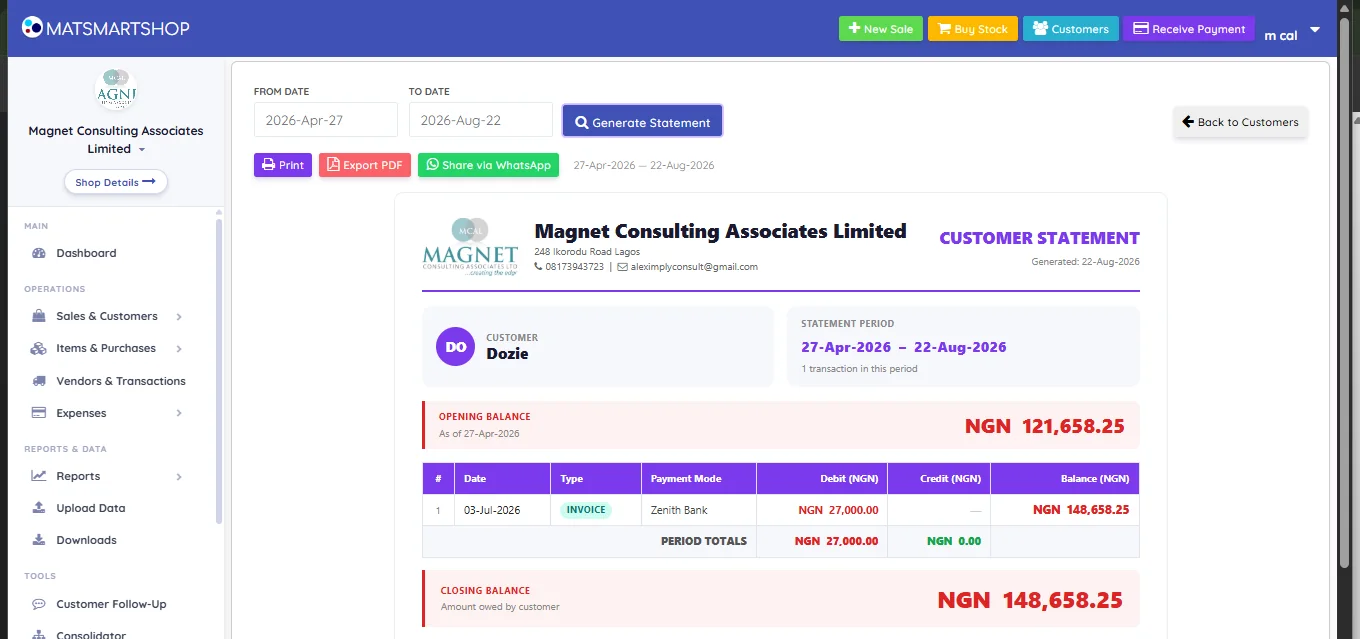
- Set From Date and To Date. It opens on a recent window; widen it to cover whatever the customer is querying.
- Generate Statement builds the document.
- Print, Export PDF or Share via WhatsApp.
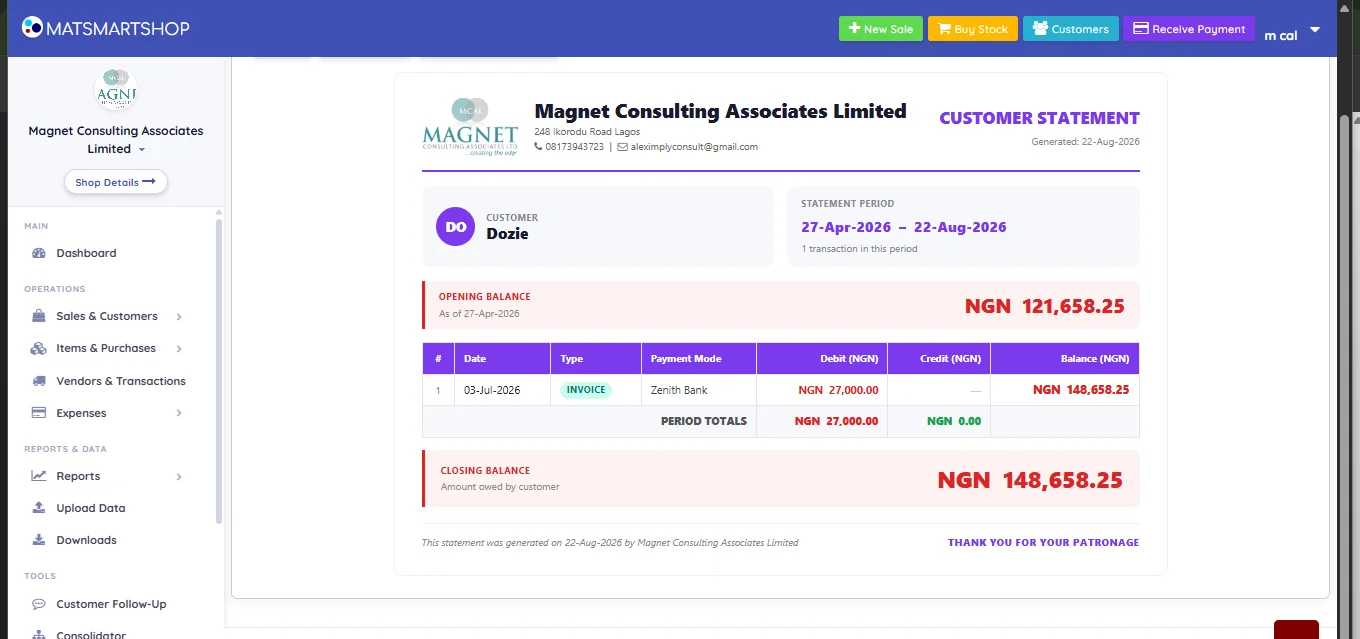
The document is built to be read by someone outside your business:
| Part | What it says |
|---|---|
| Header | Your name, address, phone and email, with the date it was generated. |
| Statement Period | The window covered, and how many transactions fall in it. |
| Opening Balance | What they owed on the first day of the period. |
| The table | Each transaction: date, Type (INVOICE / RECEIPT), Payment Mode, Debit, Credit, and the running Balance. |
| Period Totals | Debits and credits for the period. |
| Closing Balance | The figure being claimed, labelled Amount owed by customer. |
Since the invoice has no receipt button (section 5), a statement narrowed to the day of a payment is also how you produce proof of a payment taken earlier.
12. Chasing what's owed
The screens here tell you who owes; two other tools do something about it:
| Tool | Use |
|---|---|
| Customer Center → Top Owing | Work the biggest balances by hand, calling or WhatsApping from the panel. |
| Customer Follow-Up (TOOLS) | Text a whole segment at once — everyone owing over a threshold for more than N days. See the Customer Follow-Up guide. |
| Dashboard → Money Owed to You | The headline figure, with Chase Details straight into the list. |
A workable routine: settle new sales at the till, review Top Owing weekly and call the top few personally, and let Customer Follow-Up handle the long tail by SMS.
13. Quick reference
| I want to… | Do this |
|---|---|
| Ring up a sale | + New Sale → pick customer and payment type → Add Item → Save and Generate Invoice |
| Quote a price without selling | Same screen, Transaction Type = QUOTATION |
| Turn a quote into a sale | Sales & Quotation List → QUOTATION tab → convert |
| Take part payment now, rest later | Enter a smaller Amount Received; the balance follows the customer |
| Give a discount | Discount or Discount % on the totals panel |
| Redeem loyalty points | Tick Apply Customer Loyalty |
| Collect an old balance | Receive Payment → find the customer → amount → Save & Print Receipt |
| Show a customer what they owe | Their card → Trans → Statement → pick a period → Export PDF or Share via WhatsApp |
| Give a customer a receipt | Save & Print Receipt when recording the payment — there is no receipt button on the invoice |
| Find a sale from last week | Sales & Quotation List → Search |
| Recover a sale deleted by mistake | Deleted Sales |
| See who owes the most | Customer Center → Top Owing |
If something looks wrong
- A customer's balance looks too high. Open their panel and read the INV/PAY history down — a missing PAY row is a payment that was never recorded.
- A sale isn't against the right customer. Credit sales rung against a cash/walk-in customer can't be chased. Delete and re-enter against the real customer.
- Today's cash doesn't reconcile. Check Deleted Sales, and check payment types — a transfer logged as cash creates exactly this gap.
- The invoice shows no bank details. The payment type used has no bank or wallet set. Fix it under Settings → Payment Types.
- A customer never gets reminders. They probably have no phone number saved.
- Stock didn't drop after a sale. Quotations don't move stock — check whether it was saved as a quotation rather than a sale.
- You need a receipt for a payment taken last week. The invoice has no receipt button in this build. Generate a statement narrowed to that date — the payment appears as a RECEIPT row with its payment mode.