Customer Follow-Up is the tool that sends the message. It finds the customers worth chasing, writes to each one by name, tells you what the run will cost before you commit, and can keep doing it on a schedule. Open it from TOOLS → Customer Follow-Up in the sidebar.
1. The screen at a glance
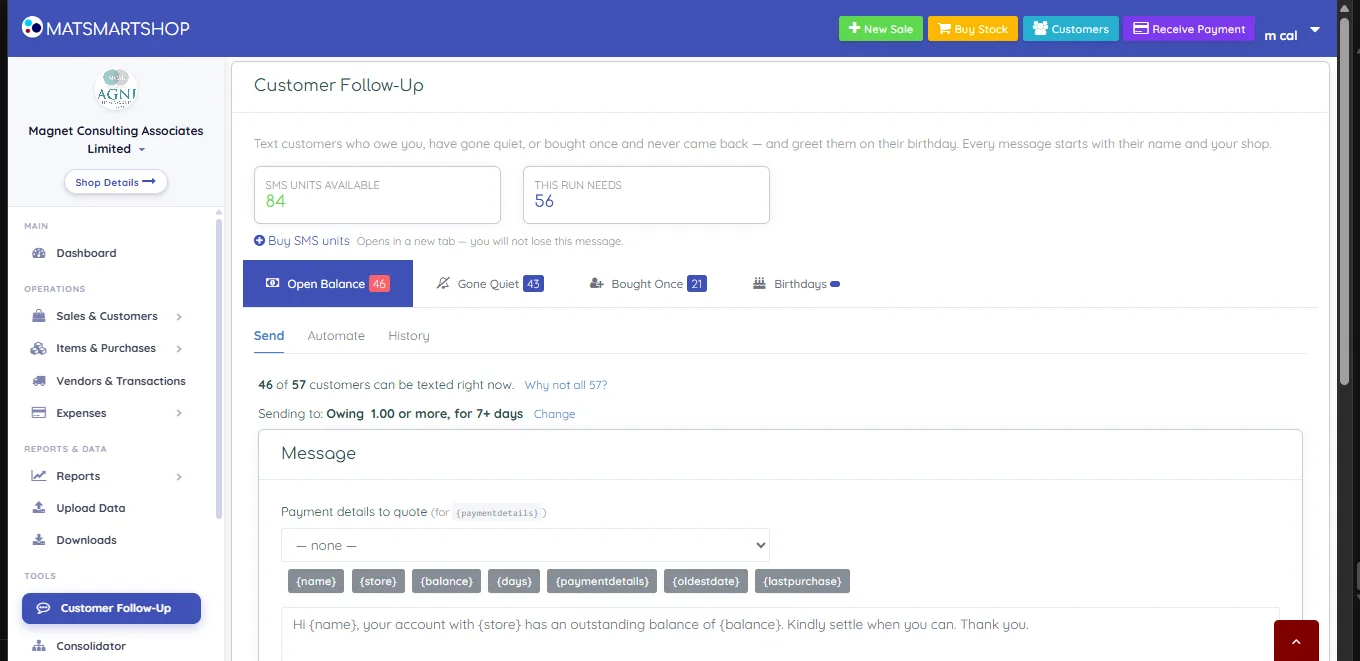
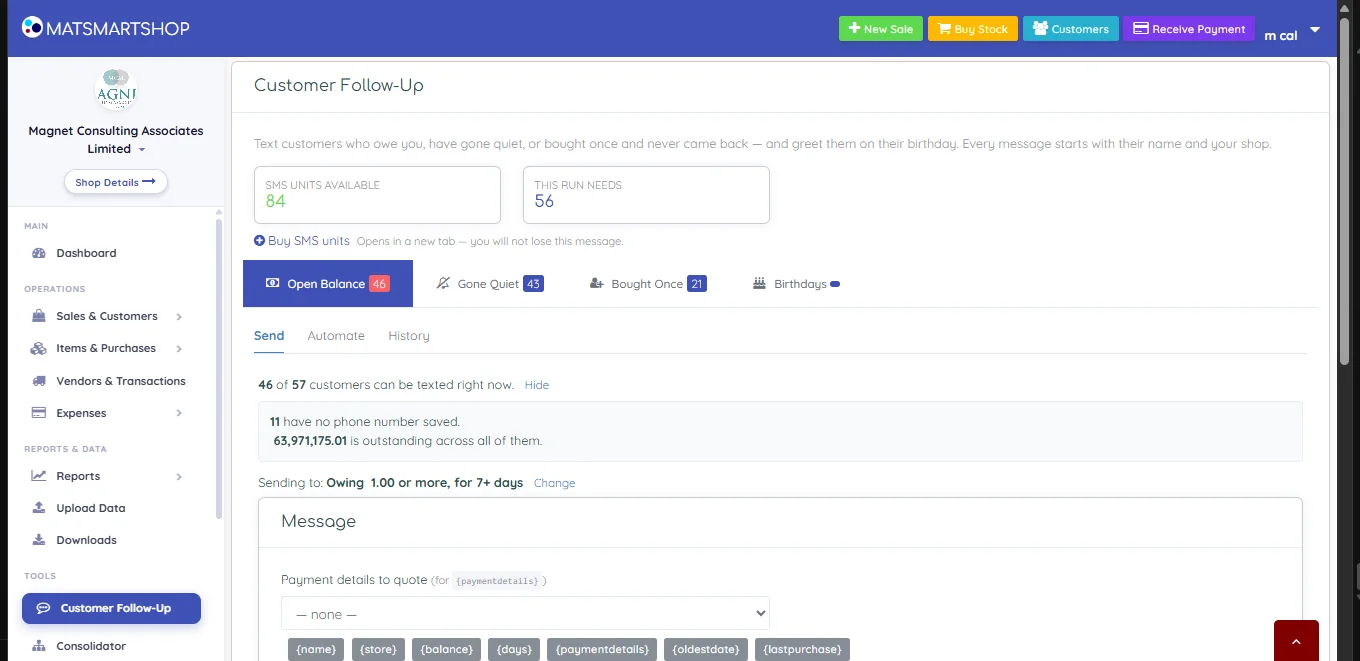
The screen is built in layers, and it helps to read them in order:
| Layer | What it is |
|---|---|
| SMS units available / This run needs | Your balance, and what the run you're currently looking at would cost. This run needs recalculates as you change tabs, filters or wording. |
| Buy SMS units | Opens in a new tab — you will not lose the message you're writing. |
| Four tabs | Open Balance, Gone Quiet, Bought Once, Birthdays. Each is a separate audience with its own filters, its own wording and its own schedule. The number on each tab is how many customers currently qualify. |
| Three sub-tabs | Send (do it now), Automate (do it on a schedule), History (what already went). |
| Coverage line | "46 of 57 customers can be texted right now" with a Why not all 57? link — section 11. |
| Filter summary | "Sending to: Owing 1.00 or more, for 7+ days" with a Change link. |
2. Open Balance — customers who owe you
The default tab: everyone carrying an unpaid balance. Click Change on the filter line to set who counts.
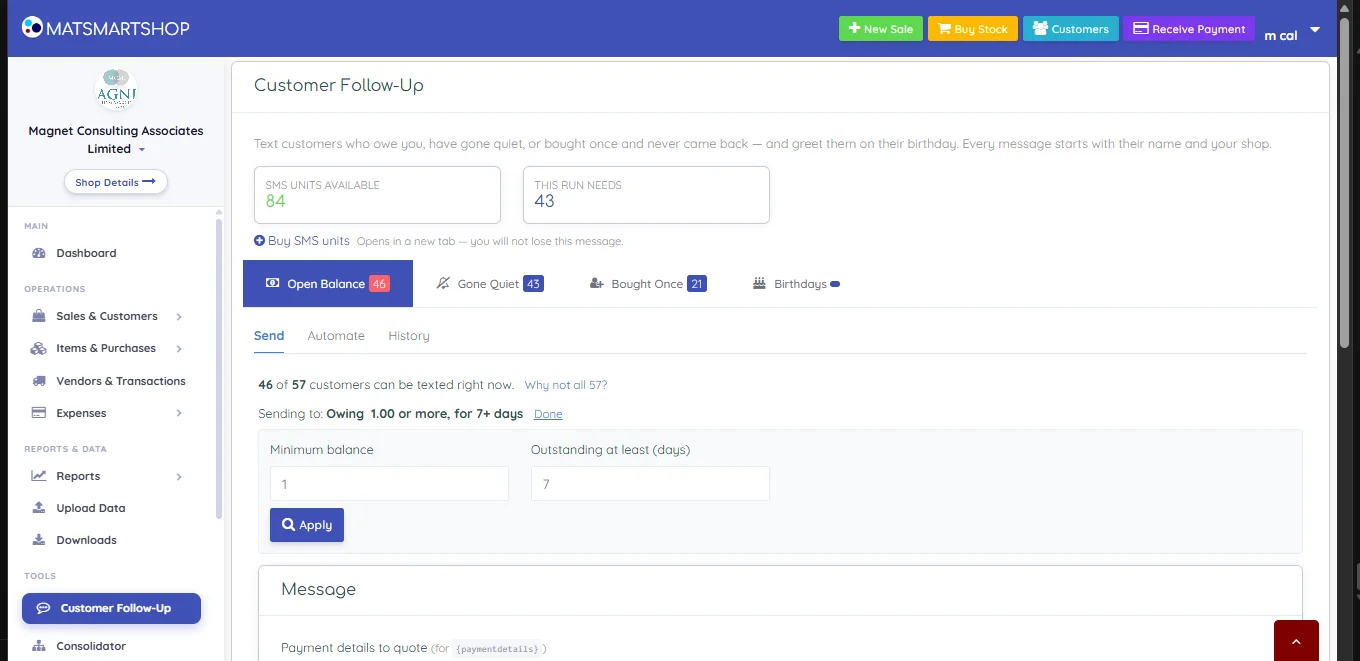
- Minimum balance — ignore anyone owing less than this. Set it high enough that you're not spending a text to chase small change.
- Outstanding at least (days) — how long the debt must have been sitting. Seven days keeps you off the back of someone who bought yesterday.
Click Apply. The tab count, the coverage line and This run needs all update together, so you can see immediately what tightening the filter saved you.
3. Writing the message
3.1 Tokens
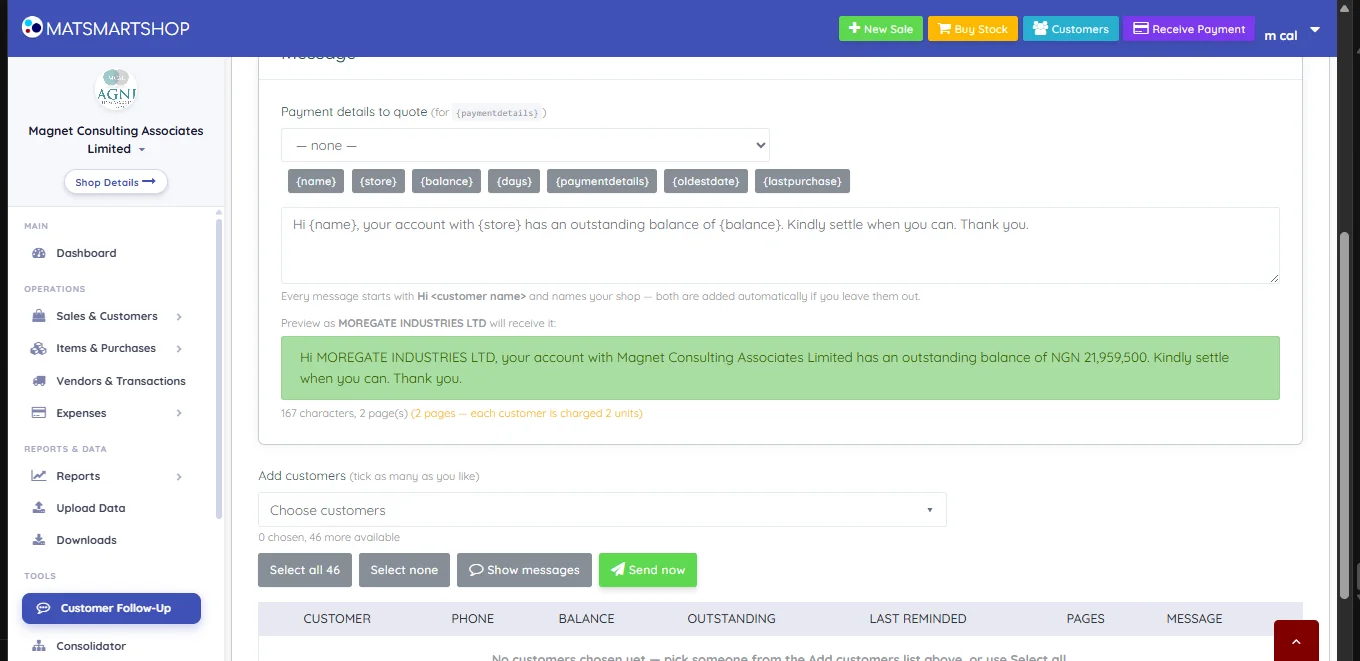
Tokens are placeholders swapped for each customer's own details as the message goes out. Click a button to drop one in at the cursor. Which tokens you get depends on the tab:
| Tab | Tokens offered |
|---|---|
| Open Balance | {name} {store} {balance} {days} {paymentdetails} {oldestdate} {lastpurchase} |
| Gone Quiet | {name} {store} {days} {lastpurchase} {balance} {paymentdetails} {purchases} {storelink} |
| Bought Once | {name} {store} {lastpurchase} {days} {balance} {paymentdetails} {storelink} |
{storelink} is highlighted on the two win-back tabs because it is the one that gives the customer somewhere to go — it drops in your storefront address so they can browse straight from the text.
3.2 The greeting is automatic
Under the box it says: Every message starts with Hi <customer name> and names your shop — both are added automatically if you leave them out. You do not need to open with a greeting; if you write one anyway you'll get it twice.
3.3 Payment details to quote
The Payment details to quote dropdown picks which of your payment types the {paymentdetails} token expands to. Choose the bank or wallet you want the money paid into and the account details are written into every message. Leave it on — none — and the token has nothing to fill in.
3.4 The preview and the price
Beneath the box, Preview as <customer> will receive it shows the finished text for one real customer from your list — tokens filled, greeting added. Under that sits the line that matters most:
167 characters, 2 page(s) — each customer is charged 2 units
SMS is billed per page, not per message. A message that spills to a second page doubles the cost of the entire run. Trim the wording until it fits one page unless the extra words are genuinely earning their keep.
4. Choosing who gets it
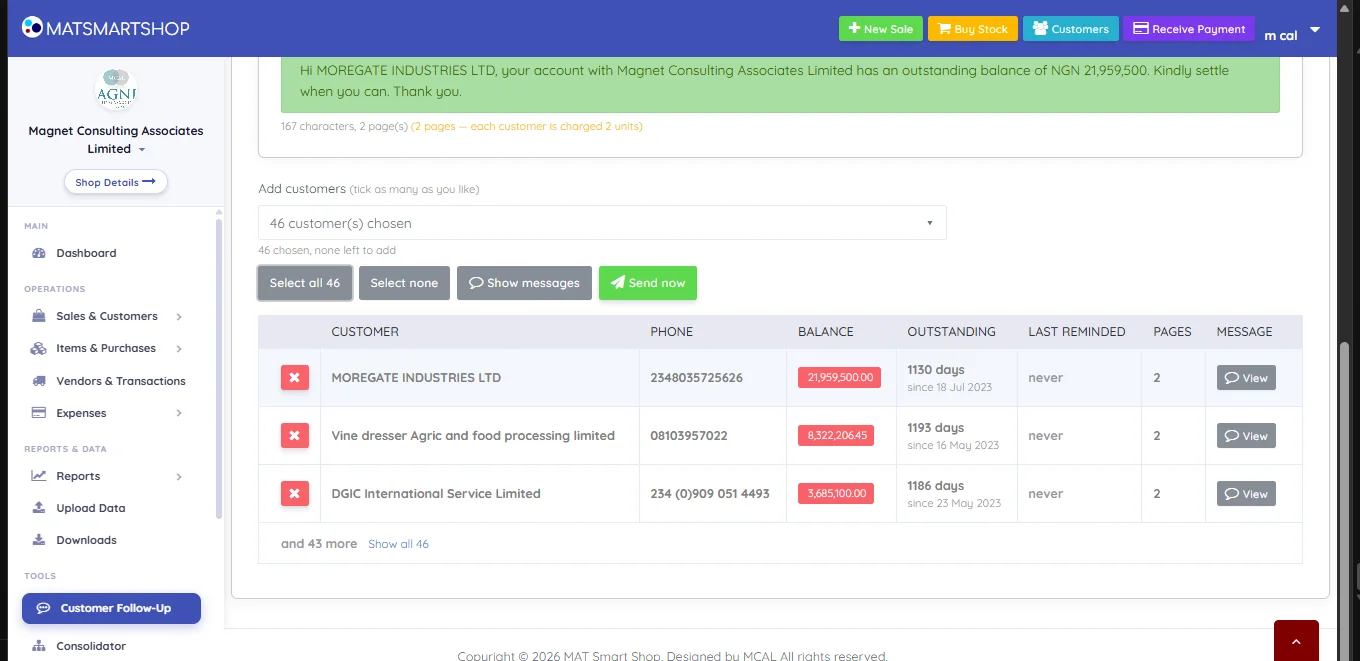
Under Add customers (tick as many as you like) you can pick people individually from the dropdown, or use the buttons:
| Control | What it does |
|---|---|
| Select all n | Adds everyone who currently qualifies. |
| Select none | Clears the list. |
| Show messages | Expands the table to show the exact text each individual customer will get. |
| Send now | Sends. There is a confirmation first that restates the cost. |
| ✕ on a row | Drops that one customer from this run without touching the filters. |
The table's columns change with the tab, and they're chosen so you can sanity-check a recipient before spending a unit on them:
| Tab | Columns |
|---|---|
| Open Balance | Customer · Phone · Balance · Outstanding · Last reminded · Pages · Message |
| Gone Quiet | Customer · Phone · Last purchase · Quiet for · Usual cycle · Buys · Last reminded · Pages · Message |
| Bought Once | Customer · Phone · Bought on · Since then · They spent · Last reminded · Pages · Message |
Last reminded is the column to watch. It reads never for someone you've not chased before — and a recent date is your cue to leave them alone a while longer.
5. Gone Quiet — customers who stopped coming
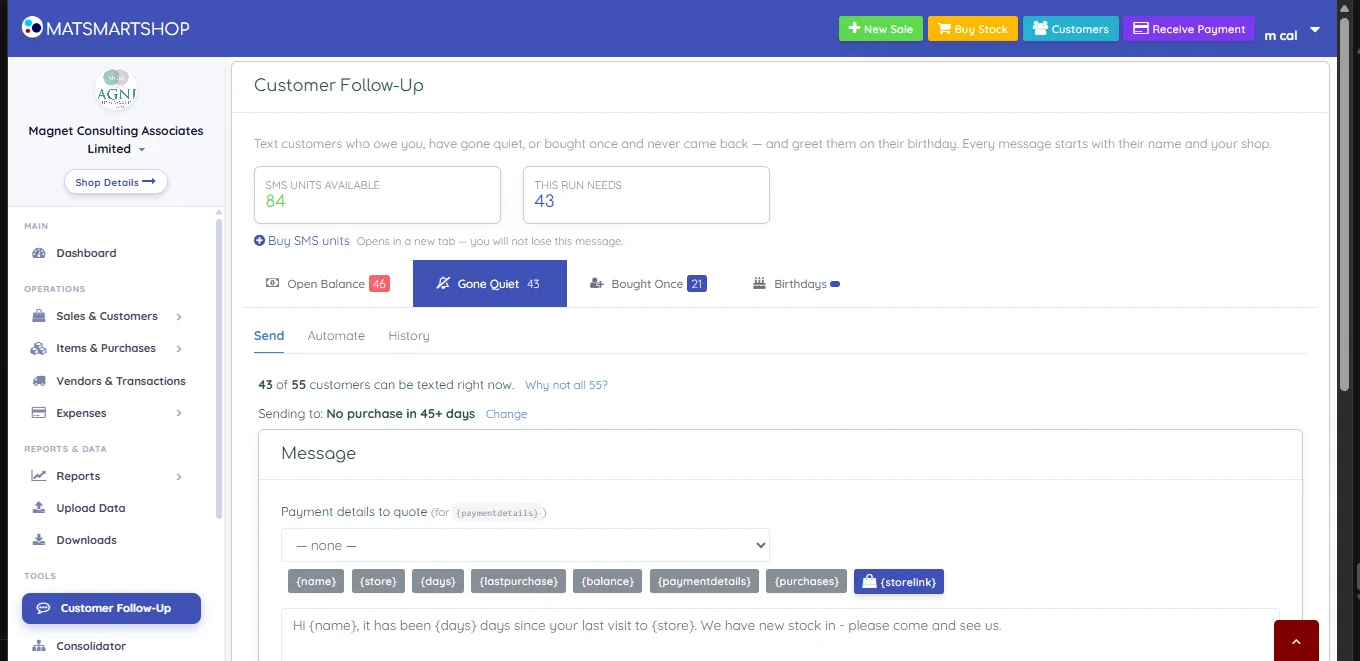
Filters: Quiet for at least (days), and Repeat buyers only. The second one matters — without it you sweep in people who only ever bought once, which is what the next tab is for.
The default wording is a straightforward nudge: "Hi {name}, it has been {days} days since your last visit to {store}. We have new stock in - please come and see us."
The recipient table adds Usual cycle — how often that customer normally buys. Someone whose usual cycle is 39 days and who's now at 100 is genuinely overdue; someone whose cycle is 383 days is not. Use it to avoid pestering people who were never frequent.
6. Bought Once — one-time buyers
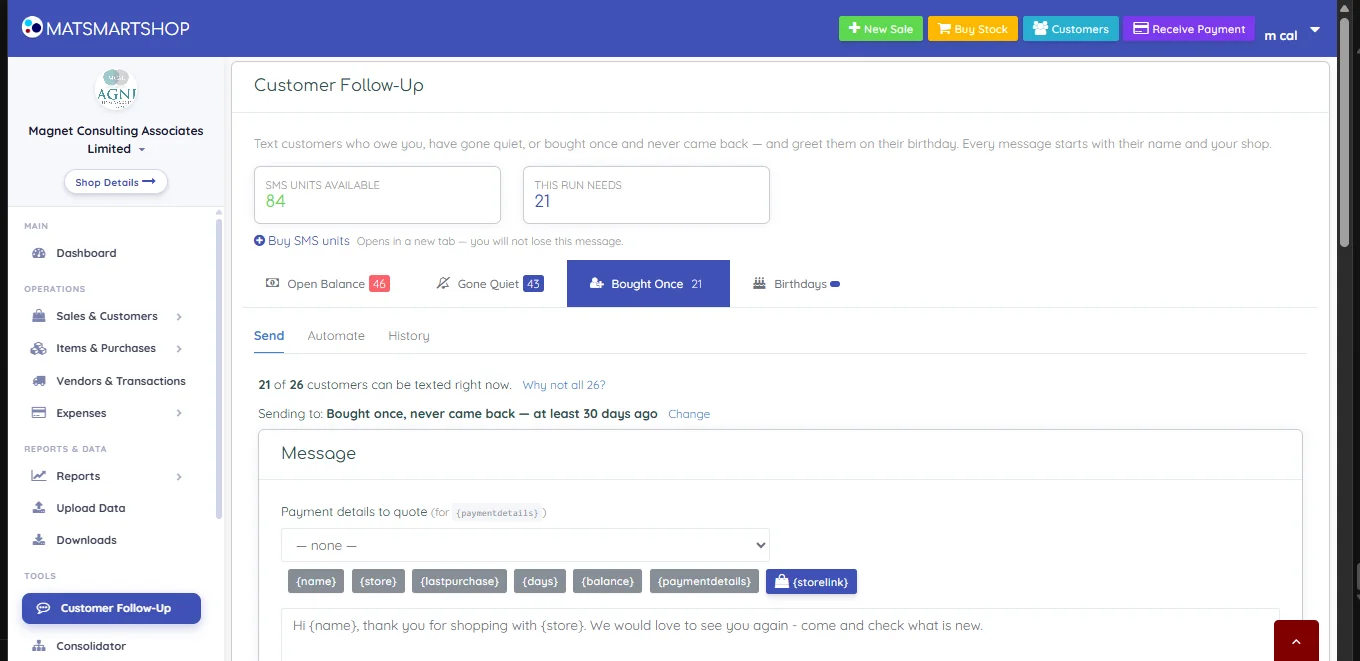
One filter: Bought at least this long ago (days). The default wording thanks them and invites them back: "Hi {name}, thank you for shopping with {store}. We would love to see you again - come and check what is new."
The table shows They spent, so you can see whether the single purchase was worth chasing at all before you commit units to it.
7. Birthdays
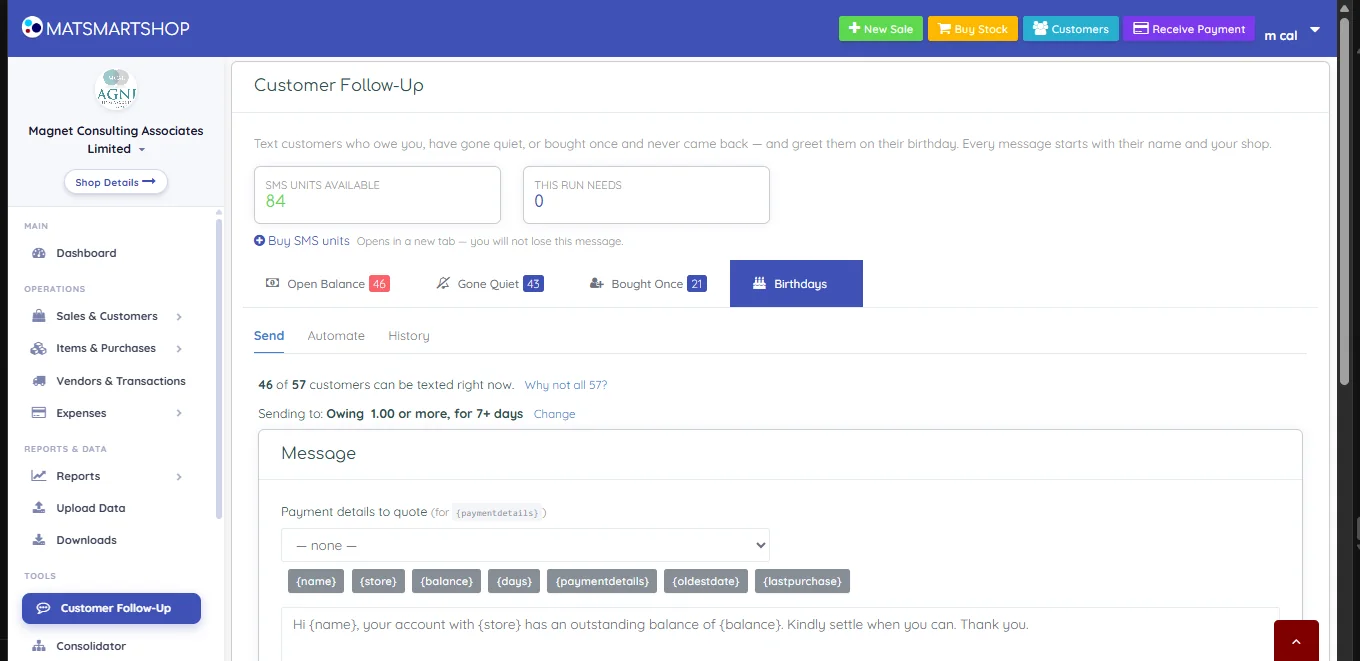
The fourth tab greets customers on their birthday, with one filter — Greet them this many days early — so the message can land before the day rather than on it.
There is a second reason to be careful here even once it works. Birthday selection reads the customer's date of birth, and on most stores that field was never filled in — leaving the box empty stores the date the customer record was created instead. The result is a large group of customers who appear to share a birthday that is really just the day you added them. Before switching birthday greetings on, open a few customer records and confirm the dates of birth are real.
8. Automate — putting a reminder on a schedule
The Automate sub-tab turns the tab you're on into a standing job. Each of the four audiences has its own independent schedule.
| Setting | What it does |
|---|---|
| Send this automatically | The master switch. Nothing is scheduled until you also press Save. |
| How often | Once, at a set time · Every day · Every week · Every month. |
| Day | For a weekly schedule — Sunday through Saturday. |
| Day of month | For a monthly schedule. |
| Send on (your time) | The date for a one-off. It sends once, then switches itself off — no standing job left running behind you. |
| Time (your time) | When the run fires, in your own timezone. |
| Don't repeat within (days) | The safety rail. A customer caught by the filter again inside this gap is skipped, so a daily job doesn't text the same debtor every morning. |
| Most customers per run | A ceiling on how many go out in one run — caps what a single run can cost. |
| Also reach customers on DND | Routes DND-registered numbers via the corporate route. Marked (costs more). |
| Save | Commits the schedule. You're shown what a run will cost and reminded that units are charged on every run. |
| Run it now | Fires the job immediately without waiting for the schedule. |
| What is scheduled right now | A plain-English summary of the live schedule, so you can confirm what you just set. |
9. History — what went out, and whether it landed
The History sub-tab has two parts.
The schedule summary — one row per reminder, showing Reminder, Status, When, Next run, Last run, Per run and Message, with Refresh and Check for updates buttons.
The run log — one row per run: When, Reminder, How (manual or scheduled), Matched, Sent, Delivered, Not delivered, Skipped, Units.
Read those five numbers together:
- Matched — how many customers the filter found.
- Sent — how many were handed to the network. As the screen itself notes, Sent means the network accepted it and charged you.
- Delivered / Not delivered — what the network reported back afterwards.
- Skipped — matched but deliberately not texted: no phone number, already texted today, inside your repeat gap, or on DND with the corporate route off.
- Units — what the run actually cost.
10. The Customer Follow Up Report
Under REPORTS & DATA → Reports → Customer Follow Up Report is the read-only companion to this tool. It sends nothing; it shows you the same populations so you can study or export them.
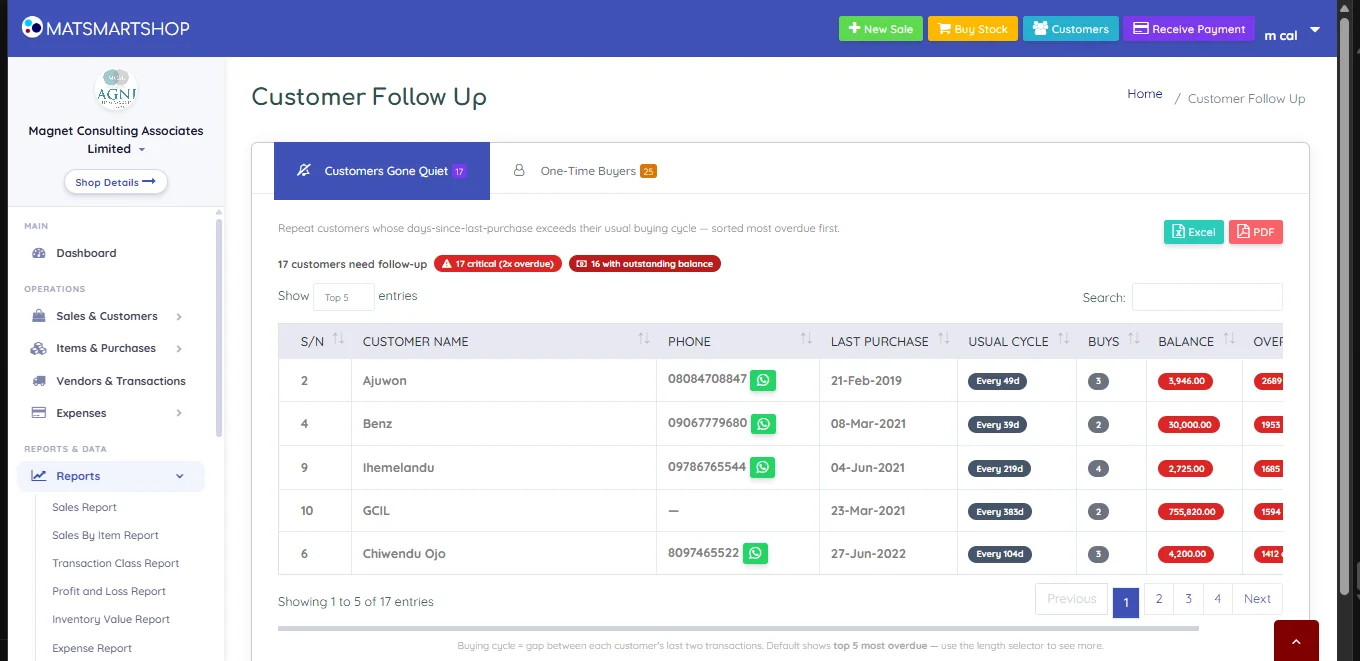
- Two tabs: Customers Gone Quiet and One-Time Buyers.
- Headline badges call out the urgent cases — e.g. 17 critical (2x overdue) and 16 with outstanding balance.
- Excel and PDF export the list.
- Each row has a WhatsApp button next to the phone number, for chasing one person by hand.
- Usual cycle is the gap between that customer's last two transactions; the list is sorted most overdue first and shows the top 5 by default — change the length selector to see more.
| Use the report when… | Use Customer Follow-Up when… |
|---|---|
| You want to read, sort or export the list | You want to actually text them |
| You're chasing a handful of people personally on WhatsApp | You're messaging a whole segment at once |
| You want a document for a meeting | You want it to keep happening on a schedule |
11. Costs, DND and the rules that hold messages back
11.1 Why the coverage number is lower than the tab count
The tab may say 57 while only 46 can be texted. Click Why not all 57? for the breakdown.
A customer is held back when:
- No phone number saved. Nothing to send to. Fix it on the customer's record and they join the next run.
- Already texted today. One text per customer per day, across all four reminder types — so a debtor who is also a quiet customer can't be hit twice in a morning.
- Inside the repeat gap you set. The Don't repeat within (days) value from Automate.
- On the DND register. See below.
11.2 DND
Customers who registered their number on the national Do-Not-Disturb list cannot receive ordinary promotional SMS — their network blocks it. They are excluded by default. Ticking Also reach customers on DND routes them through the corporate route, which does reach them but costs more per page.
If you pick a DND customer by hand without ticking that option, the send is blocked rather than silently failing — the screen tells you the message cannot arrive on the standard route.
11.3 What a run costs
Cost = pages per message × number of recipients, with DND recipients priced higher when the corporate route is on. Both numbers are on screen before you send: the per-message page count under the preview, and the run total in This run needs. Compare that with SMS units available and top up first if it's short — Buy SMS units opens in a new tab and your draft survives.
12. Quick reference
| I want to… | Do this |
|---|---|
| Chase everyone who owes me | Open Balance → set Minimum balance and days → Select all → Send now |
| Stop chasing trivial amounts | Open Balance → Change → raise Minimum balance |
| Win back regulars who drifted | Gone Quiet → tick Repeat buyers only |
| Nudge people who tried me once | Bought Once |
| Put my storefront link in the text | Insert the {storelink} token |
| Quote my bank details | Pick a type under Payment details to quote, then use {paymentdetails} |
| See exactly what one customer gets | Show messages, or View on their row |
| Make it run by itself | Automate → How often → set the repeat gap and per-run cap → Save |
| Check whether the texts arrived | History → the run log → Delivered / Not delivered |
| Export a list instead of texting | Reports → Customer Follow Up Report → Excel or PDF |
| Halve the cost of a run | Get the message under one page |
If something looks wrong
- Fewer customers than the tab says. Click Why not all …? — usually missing phone numbers.
- "This run needs" is more than I expected. Your message runs to two pages. Check the counter under the preview.
- A customer never gets the text. They may be on DND, may have been texted already today, or may be inside your repeat gap.
- Sent but not delivered. The network took the message and charged you, then failed to deliver — usually a dead or barred number. Correct it on the customer record.
- The Birthdays tab does nothing. Known — the pane doesn't load in this build. See section 7.
- Messages arrive with the greeting twice. You typed one as well; the greeting is added automatically.