Smart Shop was built for shops, but an association runs on the same things: money comes in from people, some of it is owed, and someone has to account for every naira. Tell Smart Shop you are an association and it talks your language — members instead of customers, contributions instead of sales, bills instead of invoices — and it adds what a shop does not need: funds, dues billed to everyone at once, and reports by fund.
1. Tell Smart Shop you are an association
Go to Settings → Shop or Association. Only the owner, or someone allowed to change the store's details, can do this.
- Choose An association.
- Under Your words, pick a word for each thing from the list, or choose Type my own. Leave a word as it is to keep Smart Shop's choice.
- Check How your menu will read — it changes as you choose, with the old name crossed out beside the new one.
- Press Save.
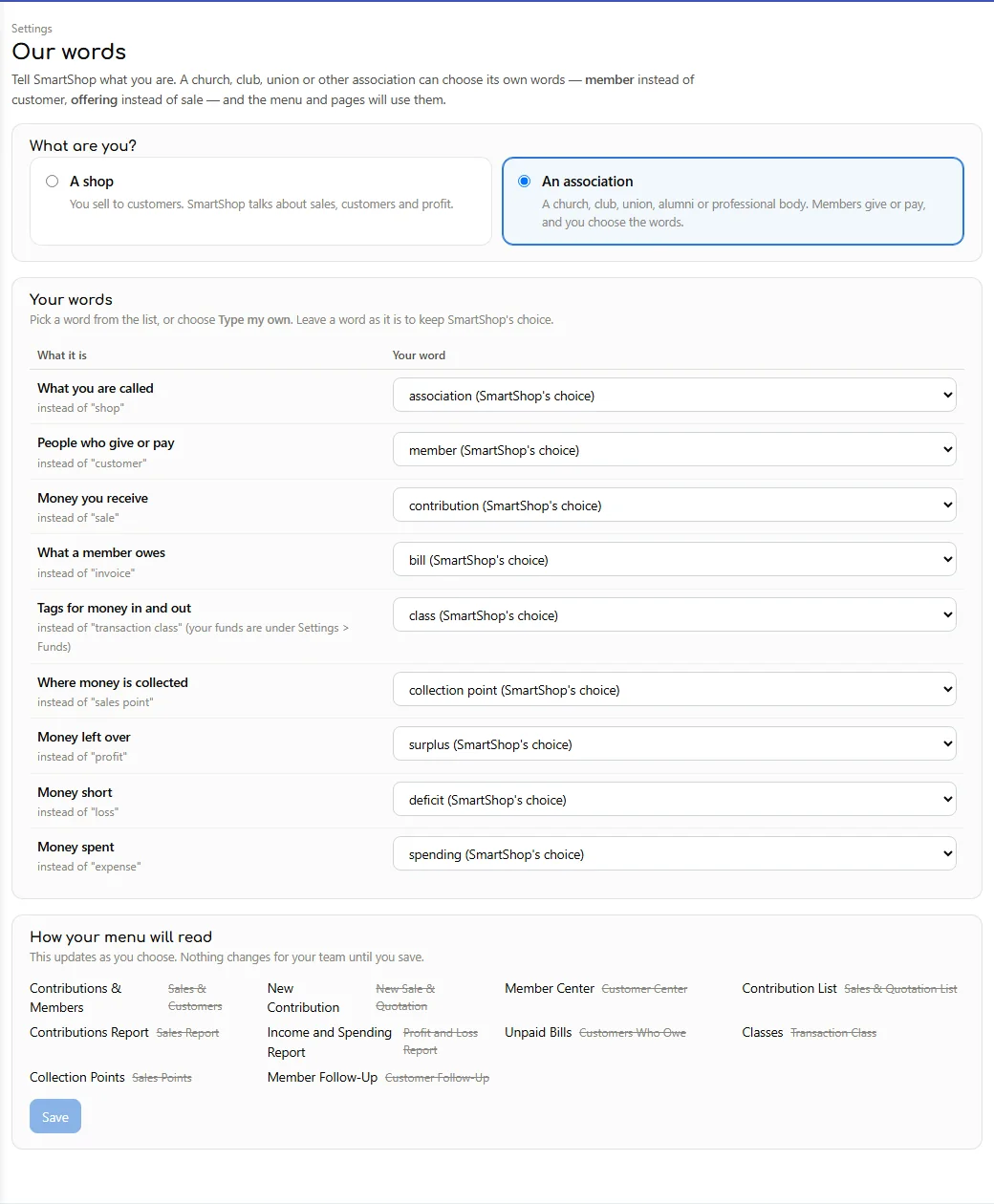
| Smart Shop says… | …for an association | Words other associations chose |
|---|---|---|
| shop | association | church, club, union, society |
| customer | member | worshipper, parishioner, alumnus |
| sale | contribution | offering, donation, dues payment |
| invoice | bill | pledge, levy |
| transaction class | class | account, project, department |
| sales point | collection point | branch, parish |
| profit / loss | surplus / deficit | |
| expense | spending |
Everyone else signed in gets the new words within the hour, or straight away when they sign in again.
2. Your menu
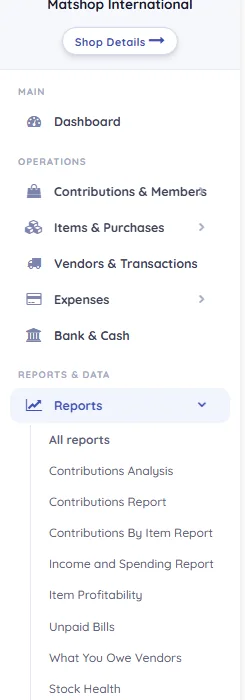
The pages are the same ones a shop uses; only the words change. These appear for an association only:
- Record Contributions, Bill Dues and Meetings & Attendance, under Contributions & Members.
- Funds, under Settings.
- Income by Fund, Dues Register, Member Statement and Meeting Report, under Reports — and a Funds & dues group on the Reports page.
Under Spending you also find Advances to Officers (section 15). Shops have it too, as advances to staff.
The waybill is a shop's paper for goods sent out, so an association does not see the Print Waybill button.
3. Funds — what money comes in for
A fund is a named purpose: Tithe, Offering, Building fund, Welfare, Monthly dues. Every contribution and every dues bill goes to one fund, and the reports add them up by fund. A fund holds no money by itself — it is the label that says what the money was for.
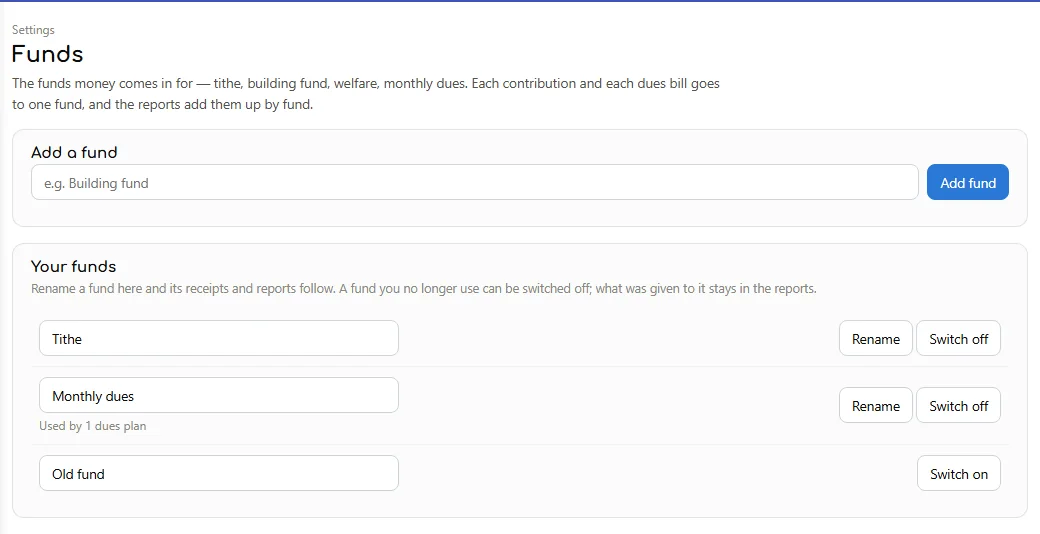
- Add a fund: type its name and press Add fund.
- Rename: change the name and press Rename. Its receipts and reports follow the new name.
- Switch off a fund you no longer use. What was given to it stays in the reports; it just stops appearing in the lists.
4. Recording contributions
Contributions & Members → Record Contributions is the quick way to enter a Sunday's offerings, a meeting's dues or a pile of envelopes: one line per member, saved together.
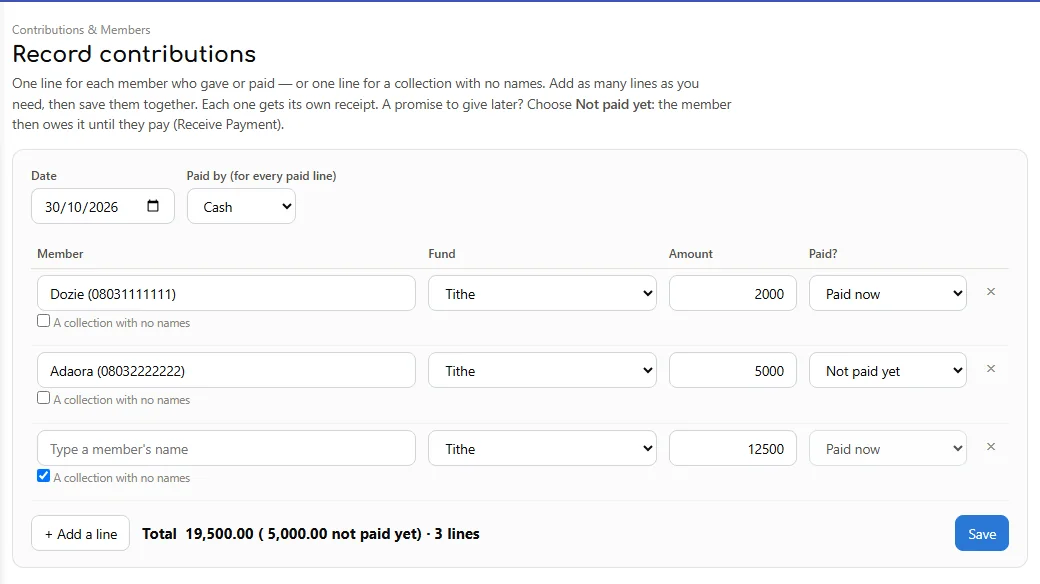
- Set the Date and how the money was paid (Paid by — cash, transfer, POS). It applies to every paid line.
- On each line, start typing the member's name or phone and pick them from the list, choose the Fund, and type the Amount.
- For money from a basket or plate with no names, tick A collection with no names. It counts towards the fund, but is on nobody's statement.
- Leave Paid? on Paid now for money in hand. For a promise, choose Not paid yet (see section 5).
- Press + Add a line for more. The total at the bottom shows how much is not paid yet.
- Press Save. Each line becomes its own contribution with its own number and receipt; open one from the list to print or share it.
A line with no amount is ignored. If something is wrong — a name that is not a member, a missing fund — the message under the lines says which line, and Save stays off until it is fixed.
5. Promises — money given later
A member promises ₦50,000 to the building fund and will pay over the next months. Record the promise once; Smart Shop keeps track of what is still owed.
- On Record Contributions: choose Not paid yet on the line. Many promises can be saved together — for example, everything pledged at a launch.
- On New Contribution: save it with nothing (or only part) received.
Either way the promise becomes a bill the member owes. It shows on their account and statement, in Unpaid Bills, and as Still owed in Income by Fund. When they pay — all at once or a little at a time — record it with Receive Payment (section 9) and the amount owed goes down.
6. One contribution in detail — New Contribution
New Contribution (the green button at the top, or the menu) is the full form, the same one a shop uses for a sale. Use it when one member gives for several funds at once, when there is a discount, or to keep a draft.
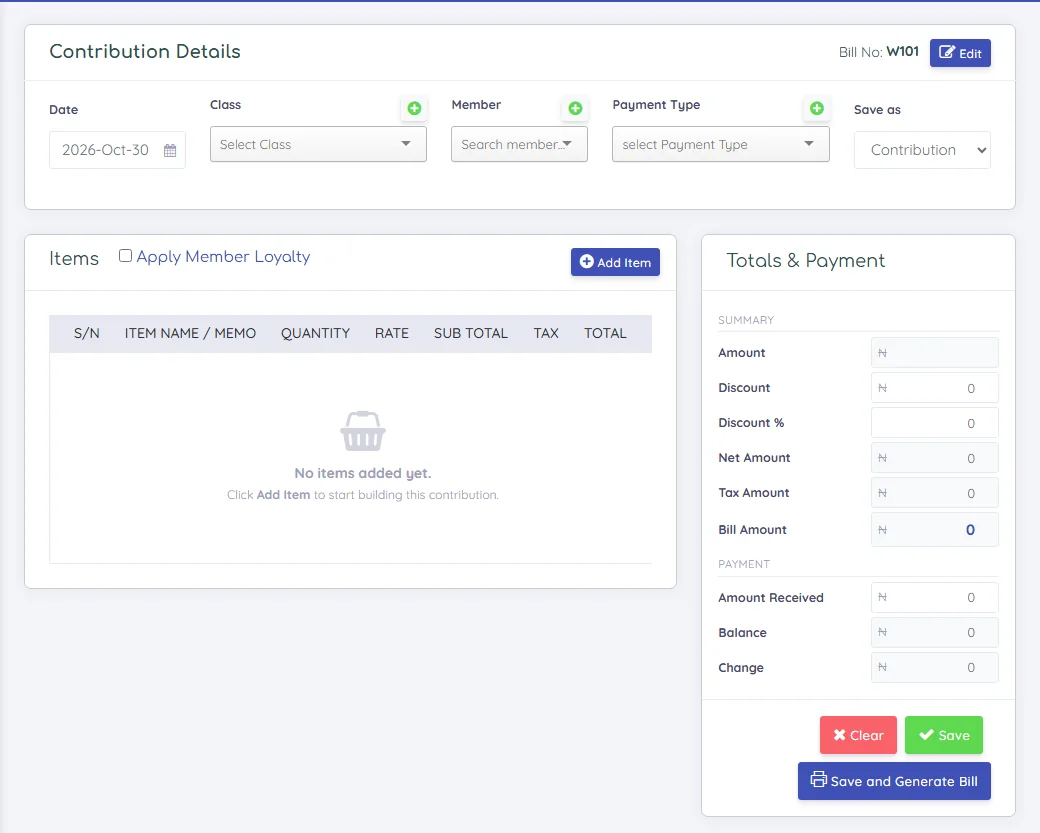
- Each fund is in the item list under its own name. Add one line per fund.
- Save as: Contribution records it. Put what was received in Amount Received; anything less is owed.
- Save as: Draft (not counted yet) keeps it for later — it is not counted anywhere, and nobody owes it, until you open it from the Drafts tab of the Contribution List and press Convert to Bill.
7. Member groups
Groups let you bill dues to some members only — Financial members, Choir, Youth, Elders. Open Member Center → Member Groups.
- General is built in: it is every member.
- New group, then add members one by one (Add members) or from a sheet (Add from Excel — a
PhoneorNamecolumn; members are found by phone first). - A member can be in several groups.
8. Billing dues
Contributions & Members → Bill Dues. Set a plan up once — who pays, which fund, how much — then press Bill now each month, or whenever dues fall due. Smart Shop never bills by itself; only the button does.
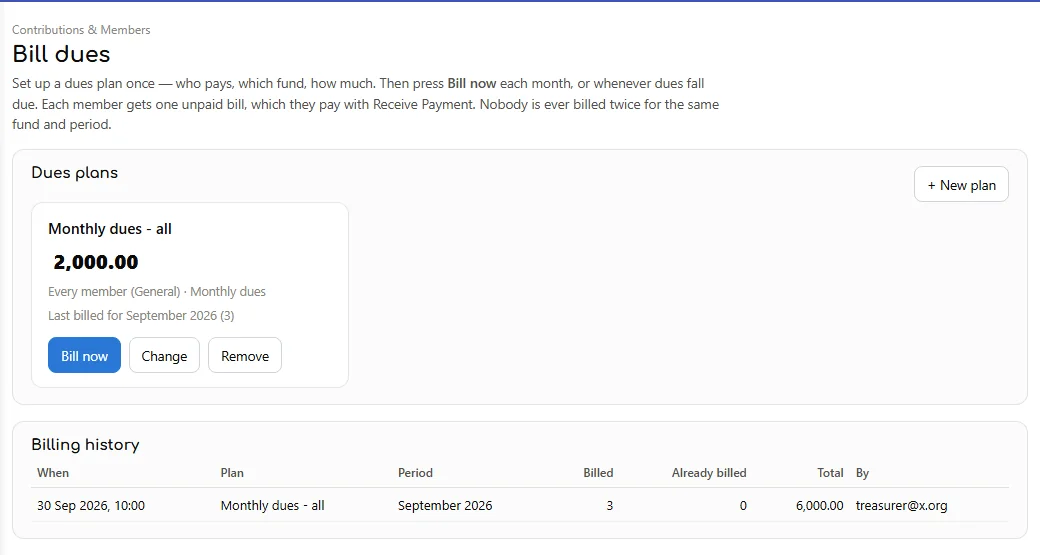
- New plan: give it a name, choose the group (or General for everyone), the fund, and the amount each member owes.
- Bill now: choose the month, or type a period of your own (for example Harvest 2026) and the date for the bills.
- Before anything is saved, Smart Shop tells you how many members will get a bill and the total, and who already has a bill for that fund and period.
- Confirm. Each member gets one unpaid bill, which they pay with Receive Payment.
9. When a member pays — Receive Payment
Press Receive Payment (top of every page), or Pay on the member's card in Member Center. Choose the member, the amount and how they paid. What they owe goes down by that amount, and they get a receipt you can print or share on WhatsApp. A member can pay a bill in parts.
10. A member's account and statement
In Member Center, click a member's card to see what they have been billed and paid, and what they owe now. From there:
- Trans opens their Member account: every bill and payment with the running balance.
- On that page, Statement lets you choose dates and produce a Member Statement to print, save as a PDF, or share on WhatsApp.
For a treasurer's view by fund, use the Member Statement report (next section): it says what each bill was for — "Monthly dues (2026-10)", "Building fund" — and totals by fund.
11. Reports for funds and dues
The Reports page has a Funds & dues group for associations. Every other report is there too, in your words: Contributions Report, Income and Spending, Unpaid Bills and so on. Each one exports to Excel, with column names in your words.
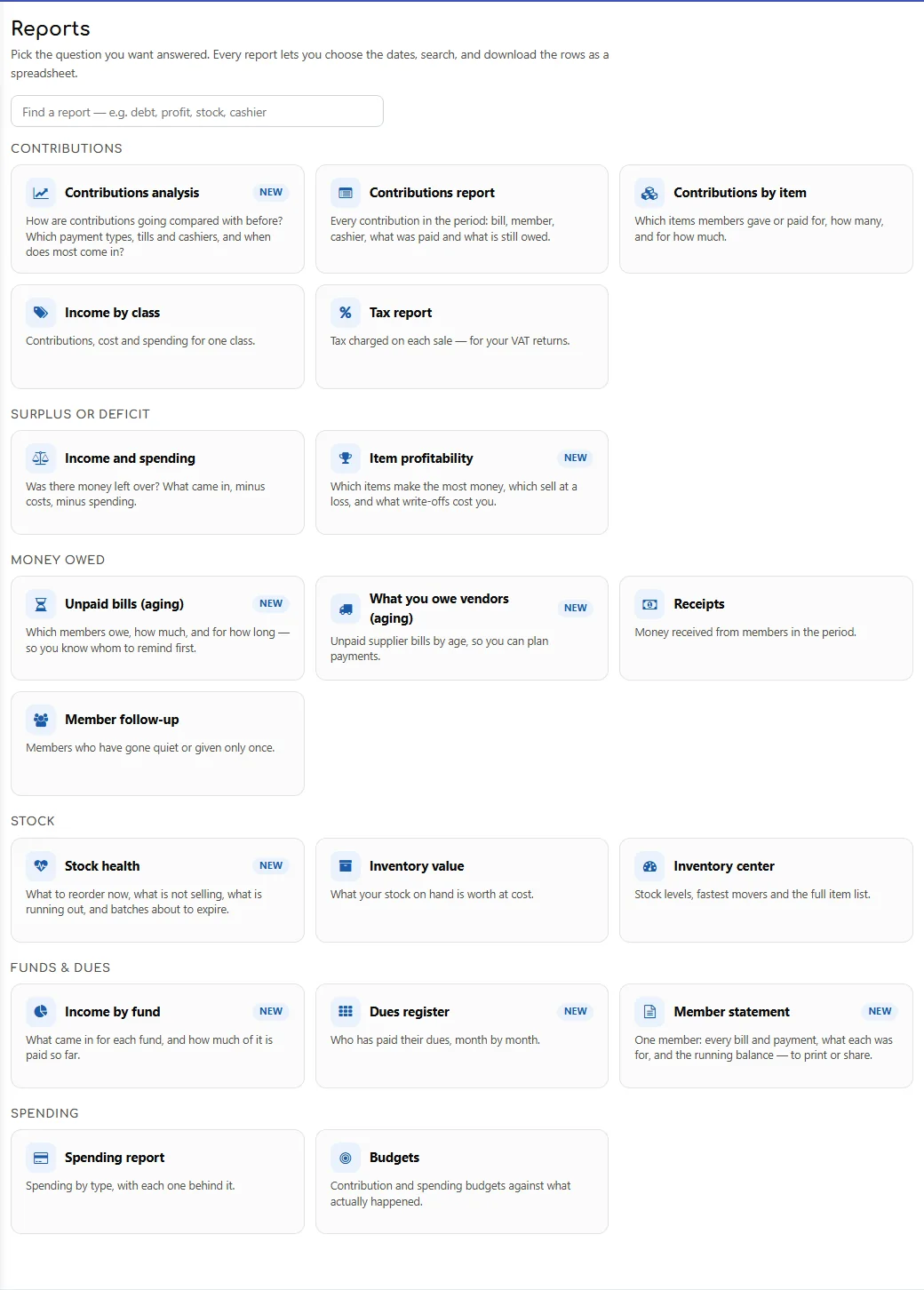
Income by fund
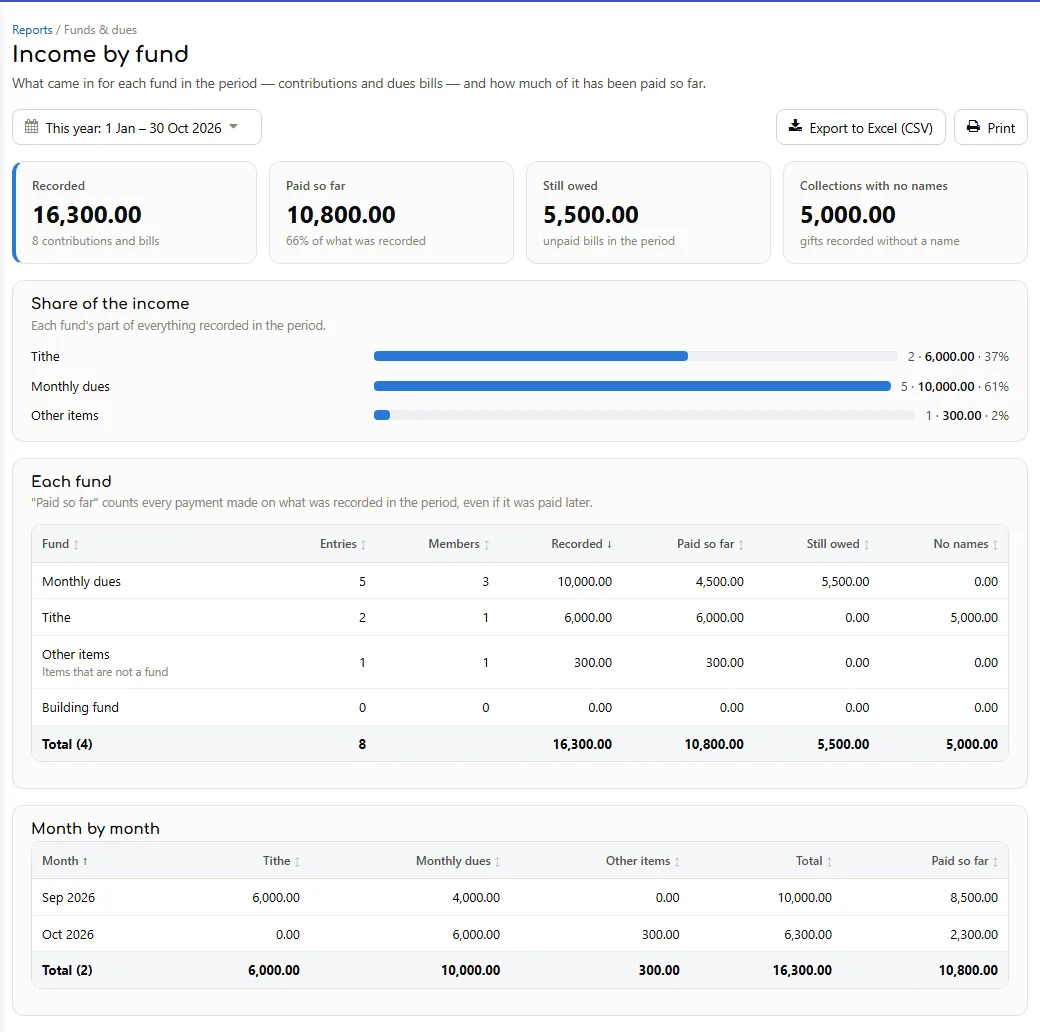
For the dates you choose: what was recorded for each fund, how much of it is paid, what is still owed, and how much came from collections with no names. When the dates cover more than one month, it also shows month by month. Items that are not a fund show as Other items.
Dues register
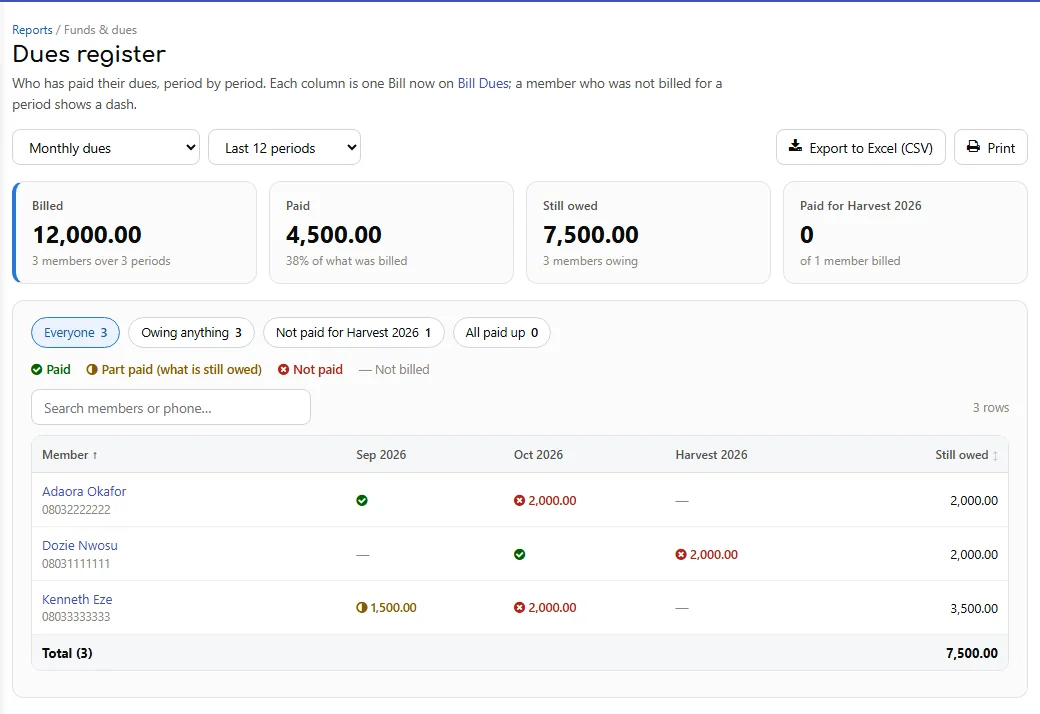
Pick a fund. One row per member, one column per period billed: a tick for paid, the amount still owed for part-paid or unpaid, a dash where they were not billed. Filter to Owing anything, Not paid for the latest period, or All paid up. Click a cell to open that bill; click a name to open the member's statement.
Member statement
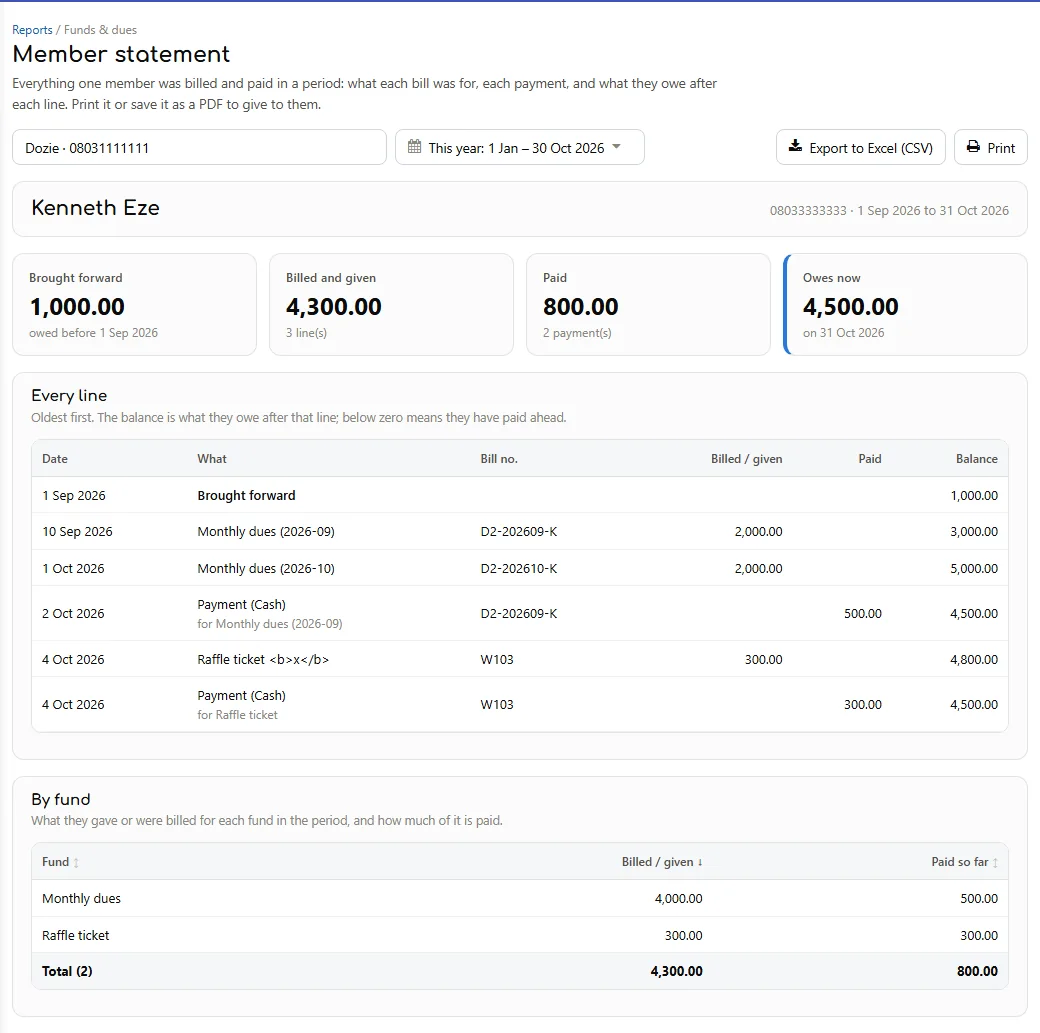
One member and the dates you choose: what they owed before, every bill and payment with what it was for and the balance after each, and totals by fund. Owes now is the same figure Unpaid Bills shows for them. Print it, or save it as a PDF to give them.
12. What members owed before Smart Shop
Unpaid dues and promises from your old notebook can be brought in so members' balances are right from the first day. Open Member Center → Balances brought in, then press Set beside a member, or Upload from Excel for many at once (Name, Phone, Amount owed — the sheet may call the name column Member). A minus amount means your association owes them, for example dues paid ahead. When they pay, the payment clears this amount first.
13. Paying money out — spending
Spending is where every payment the association makes is recorded: hall hire, welfare support, refreshments, repairs. It is the page a shop calls Expenses, with three things added for an association.
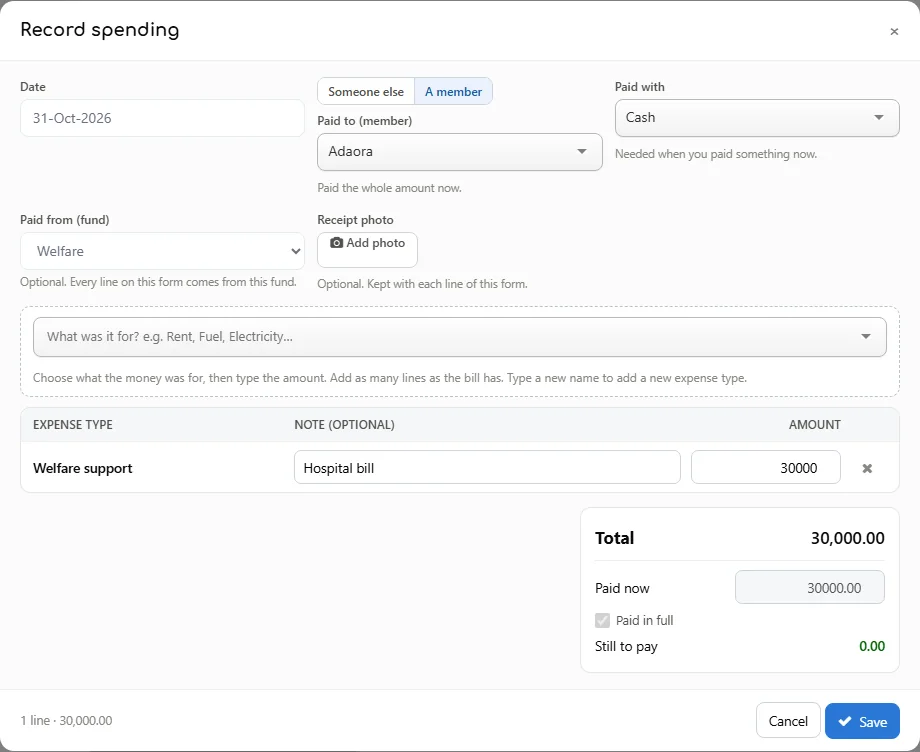
- Press Record spending. Set the Date and how it was paid (Paid with).
- Paid to: choose Someone else for a supplier, a hall or a shop — type a new name to add one — or A member to pay one of your members, for example welfare support. A payment to a member shows on their record in Member Center.
- Paid from (fund): choose the fund the money came out of. It is optional, but the funds page and the meeting report can only take the payment off a fund you chose.
- Receipt photo: optional. Take a photo of the receipt or upload one; it is kept with the payment. A paper-clip in the list opens it again.
- Choose what the money was for (the spending type), add a note if you like, and type the amount. Add a line for each thing on the same bill.
- Press Save. Every payment gets its own voucher number — PV-000001, PV-000002 and so on — to write on the receipt and file.
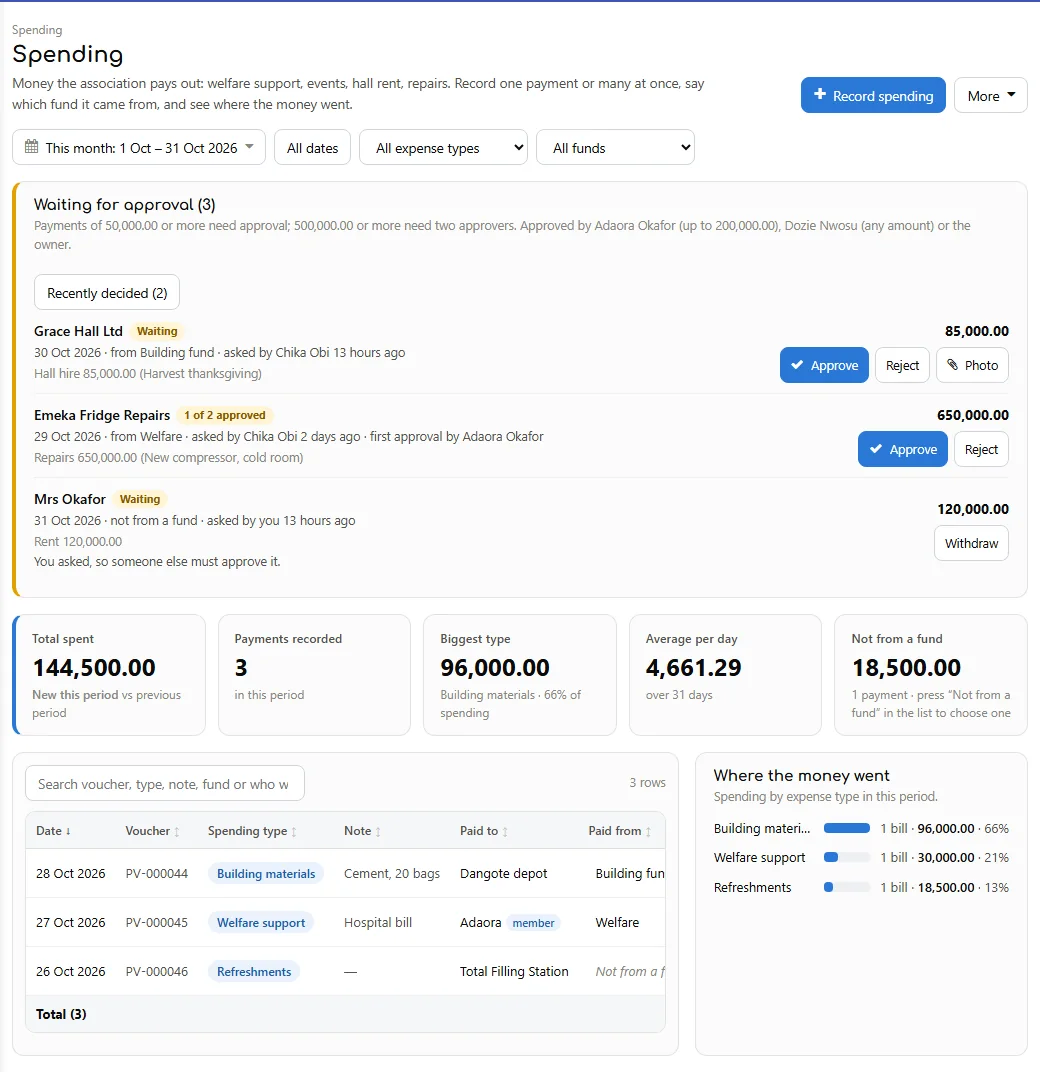
The list shows the voucher, who was paid (with a member tag) and the fund. The All funds box shows one fund only. A payment saved without a fund — or recorded on the phone app or the desktop — shows Not from a fund: press it to choose the fund afterwards.
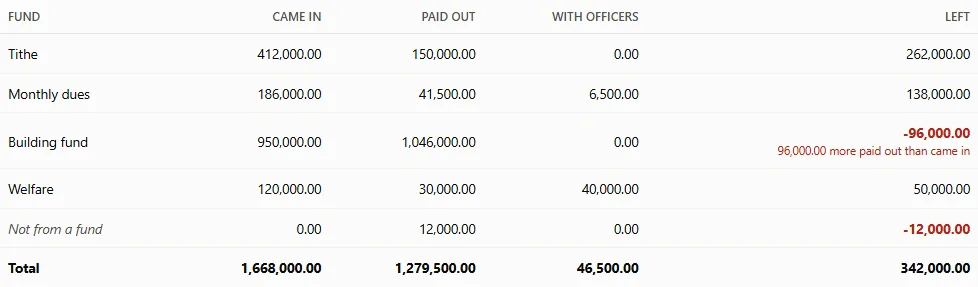
What is left in each fund
Settings → Funds now shows, for each fund since the start: what came in, what was paid out, the cash officers still hold from it (With officers, section 15) and what is left. A fund in red has paid out more than came in.
14. Approvals — who approves what
You can decide that big payments need someone else's yes before they are recorded. Until you set a rule, nothing needs approval.
Setting the rule
On the Spending page press More → Approval rule. Only the owner, or someone allowed to change Settings, can change it.
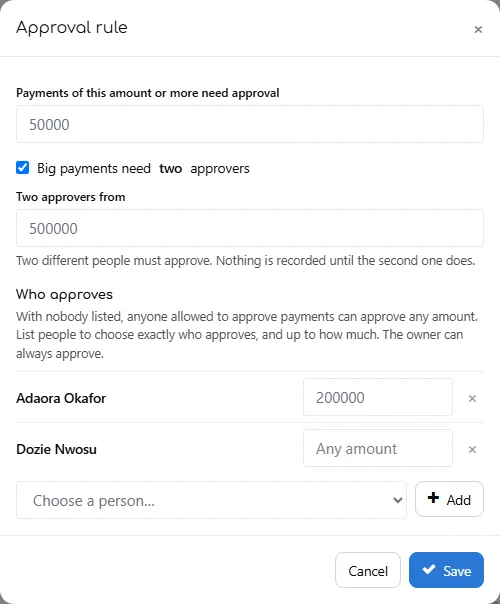
- Payments of this amount or more need approval — for example ₦50,000. Leave it empty to switch approval off.
- Big payments need two approvers — tick it and choose the amount, for example ₦500,000. Two different people must approve; nothing is recorded until the second one does.
- Who approves — choose a person and press Add, then type the most they may approve, or leave it as Any amount. With nobody listed, anyone given Approve Payments and Give Advances (Settings → User Management) may approve any amount. Once you list people, only they approve — they do not need that permission — each up to their amount.
- The owner can always approve, any amount.
Sending a payment for approval
Record the payment as usual. When the total reaches the approval amount, the Save button becomes Send for approval. Nothing is recorded yet: the payment waits on the Waiting for approval card at the top of the Spending page, with the receipt photo if you added one.
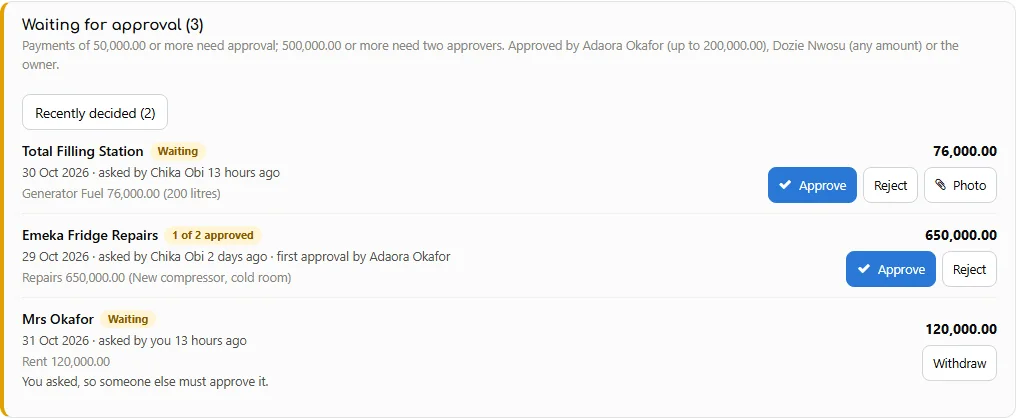
- Approve — the payment is recorded straight away, with its voucher numbers. If two approvers are needed, the first approval shows 1 of 2 approved and a different approver gives the second.
- Reject — type the reason. The person who asked sees it under Recently decided.
- Withdraw — only the person who asked can take it back, even after a first approval.
- Nobody approves their own payment. Yours shows "You asked, so someone else must approve it". One bigger than your limit shows "More than you can approve".
15. Advances to officers
An officer takes ₦40,000 for hospital visit gifts, or for the AGM's refreshments, and comes back with receipts and change. Record the cash when it goes out, and settle it when the receipts come back. Open Spending → Advances to Officers.
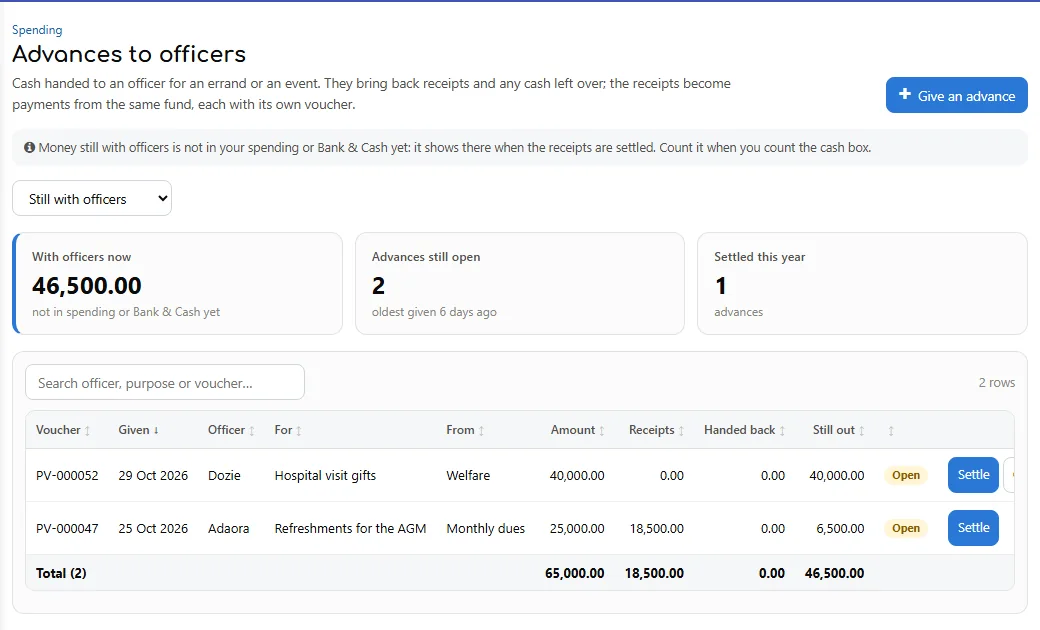
- Give an advance: choose the officer (a member), the amount, the date, what it is for, the fund it comes from (optional) and how it was paid. Giving one needs the Approve Payments and Give Advances permission — handing over the cash is the approval.
- The advance gets a voucher number. It is not spending yet: the money is "with officers" on this page, on the Funds page and in the meeting report.
- Settle when the officer comes back: one line per receipt (what it was for, a note, the amount), and any Cash handed back. The box at the top shows what is still with the officer afterwards.
- Each receipt becomes a payment from the same fund, with its own voucher, marked as from an advance. Settle in parts if receipts come in over several days.
- Spent more than the advance? That is allowed: the extra receipts pay the officer back.
- Cancel an advance given by mistake — only while nothing has been settled or handed back.
16. Meetings and attendance
Contributions & Members → Meetings & Attendance keeps every meeting and who came.
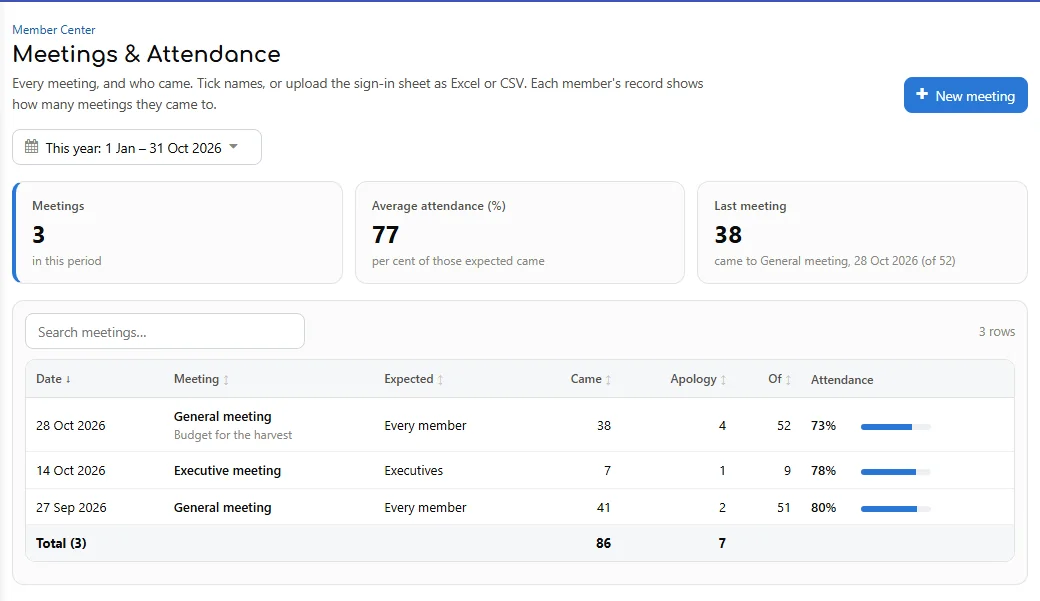
- New meeting: a name, the date, who is expected — every member, or one member group such as Executives — and notes if you like.
- Click the meeting to mark who came. For each member choose Came, Apology or leave Absent. Mark all shown present ticks everyone in the list at once; the search box finds a name or phone.
- Or press Upload a list and choose the sign-in sheet as Excel or CSV (Get a blank sheet gives you one to fill). Members are found by phone first, then by exact name. Rows that match nobody are listed so you can pick the member by hand, or skip them.
- Press Save who came.
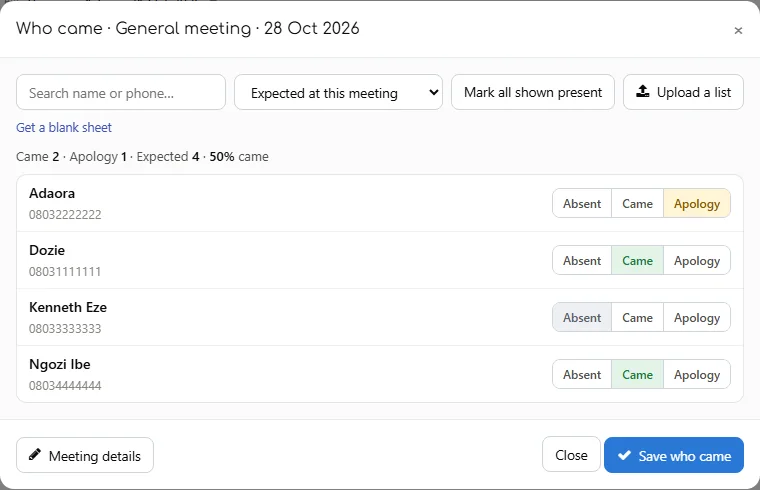
Recording attendance needs the Record Meeting Attendance permission. Each member's card in Member Center shows "Came to N of M meetings in the last 12 months".
17. The meeting report
Reports → Meeting Report (in the Funds & dues group) is the treasurer's report for the period you choose, ready to print and sign:
- Money in each fund: brought forward, came in, paid out, carried forward, bills still unpaid, and cash still with officers.
- What was paid out: totals by type, then the payments with their vouchers — the 15 biggest, or tick Every payment.
- Cash still with officers and Meetings held, with attendance.
- Signature lines for the treasurer and the chairperson. Press Print.
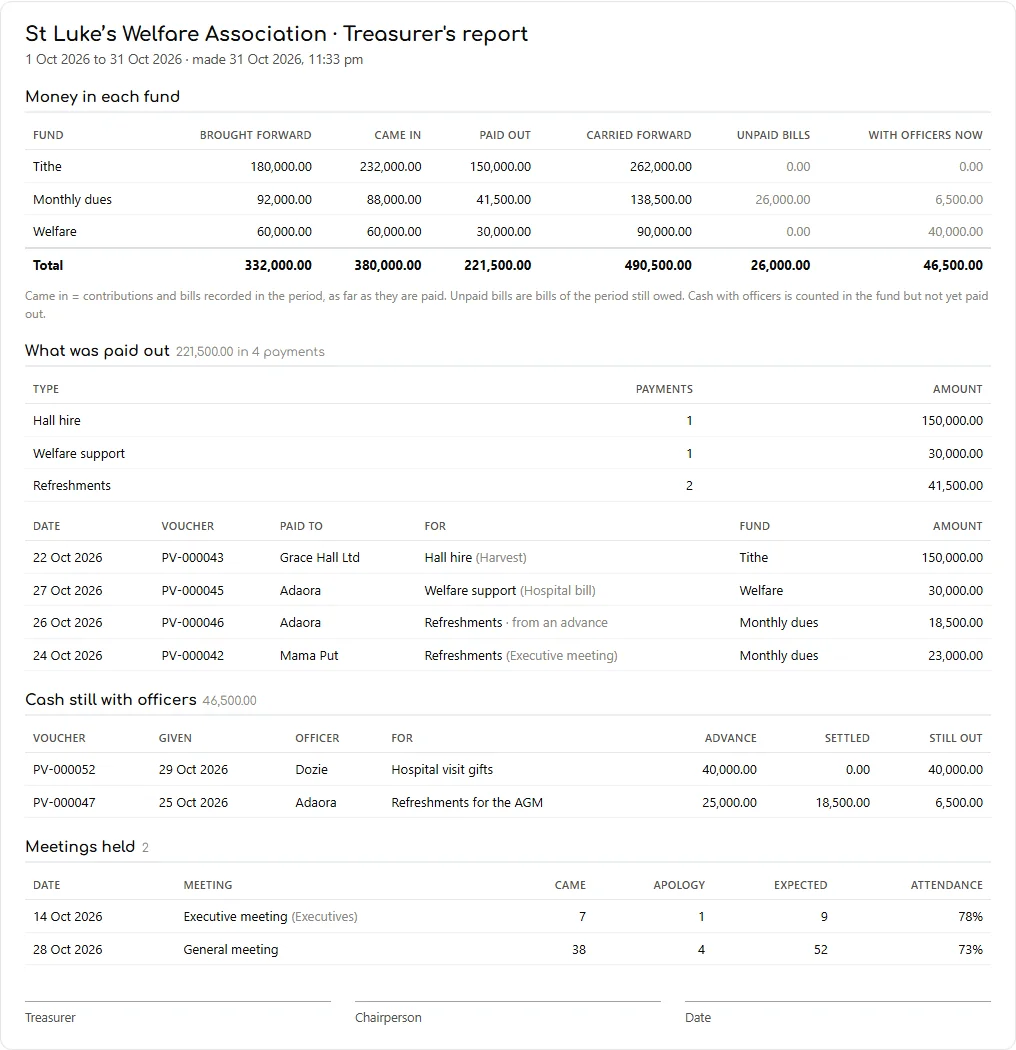
"Came in" counts a contribution or bill in the period it was recorded, as far as it is paid — the same numbers as Income by fund. It is not the day the cash arrived.
18. Things to know
- A draft is not counted. Nothing on a draft appears in any report or balance until it is converted to a bill. A promise the member owes is a contribution saved with nothing paid, not a draft.
- A collection with no names is recorded against the walk-in Cash member. It counts towards its fund in Income by fund, but is on no member's statement.
- Renaming a fund renames it everywhere, including old receipts. To start a new fund for a new year, add a new one instead.
- Usage: Record Contributions and Bill now each count as one use per batch, however many lines or members are in it.
- The Android app and the desktop till still use shop words and do not have the association reports yet. Money recorded on them still shows on the web portal in your words.
- Switching back to a shop (Settings → Shop or Association) changes only the words. Funds, dues plans and everything recorded stay.
- Approvals are a web portal rule. Spending recorded on the Android app or the desktop till is not sent for approval.
- A payment's fund can be chosen afterwards from the Spending list (press Not from a fund). Funds left and the meeting report only count payments with a fund against that fund.
19. Quick reference
| I want to… | Where |
|---|---|
| Use my association's words | Settings → Shop or Association → An association → Your words → Save |
| Add a fund | Settings → Funds → type the name → Add fund |
| Enter a Sunday's offerings or a meeting's dues | Contributions & Members → Record Contributions → one line each → Save |
| Record a basket collection | Record Contributions → tick "A collection with no names" |
| Record a promise | Record Contributions → Paid? → Not paid yet (or New Contribution with nothing received) |
| Bill everyone their monthly dues | Bill Dues → New plan (once) → Bill now → choose the month → confirm |
| Bill one group only | Member Center → Member Groups → New group; then a dues plan for that group |
| Take a payment | Receive Payment → member → amount → Save |
| See who has not paid this month | Reports → Dues register → "Not paid for …" |
| See what each fund brought in | Reports → Income by fund → choose the dates |
| Give a member their statement | Reports → Member statement → choose the member → Print, or Member Center → Trans on their card → Statement → Export PDF |
| Bring in what members owed before | Member Center → Balances brought in → Set, or Upload from Excel |
| Pay a member, or pay from a fund | Spending → Record spending → Paid to: A member → Paid from (fund) → Save |
| See what is left in each fund | Settings → Funds → What is left in each fund |
| Make big payments need approval | Spending → More → Approval rule → amount, approvers → Save |
| Approve or reject a payment | Spending → Waiting for approval → Approve, or Reject with a reason |
| Give an officer cash for an errand | Spending → Advances to Officers → Give an advance |
| Record the officer's receipts and change | Advances to Officers → Settle |
| Record who came to a meeting | Contributions & Members → Meetings & Attendance → New meeting → tick, or Upload a list |
| Print the treasurer's report for a meeting | Reports → Meeting Report → choose the dates → Print |