Bank & Cash keeps track of the money in your till, your bank accounts, your wallet apps (Opay, Palmpay, Moniepoint, Kuda…) and your POS. When a customer pays you, SmartShop already knows how they paid. Bank & Cash puts that money in the right place and adds it up. Then, once a month, you upload your bank statement and SmartShop helps you check that the bank and SmartShop agree. That is how you catch fake transfer alerts, money that never arrived, and bank charges you did not know about.
1. Opening Bank & Cash
In the web portal, click Bank & Cash in the left-hand menu (under Operations, below Expenses).
- Bank & Cash is for the shop owner and managers. Cashiers do not see it. A cashier can still check a customer's transfer receipt on its own page (section 13).
- It works on a computer and on a phone's browser. On a phone, the Back button takes you back one screen.
2. The home page at a glance
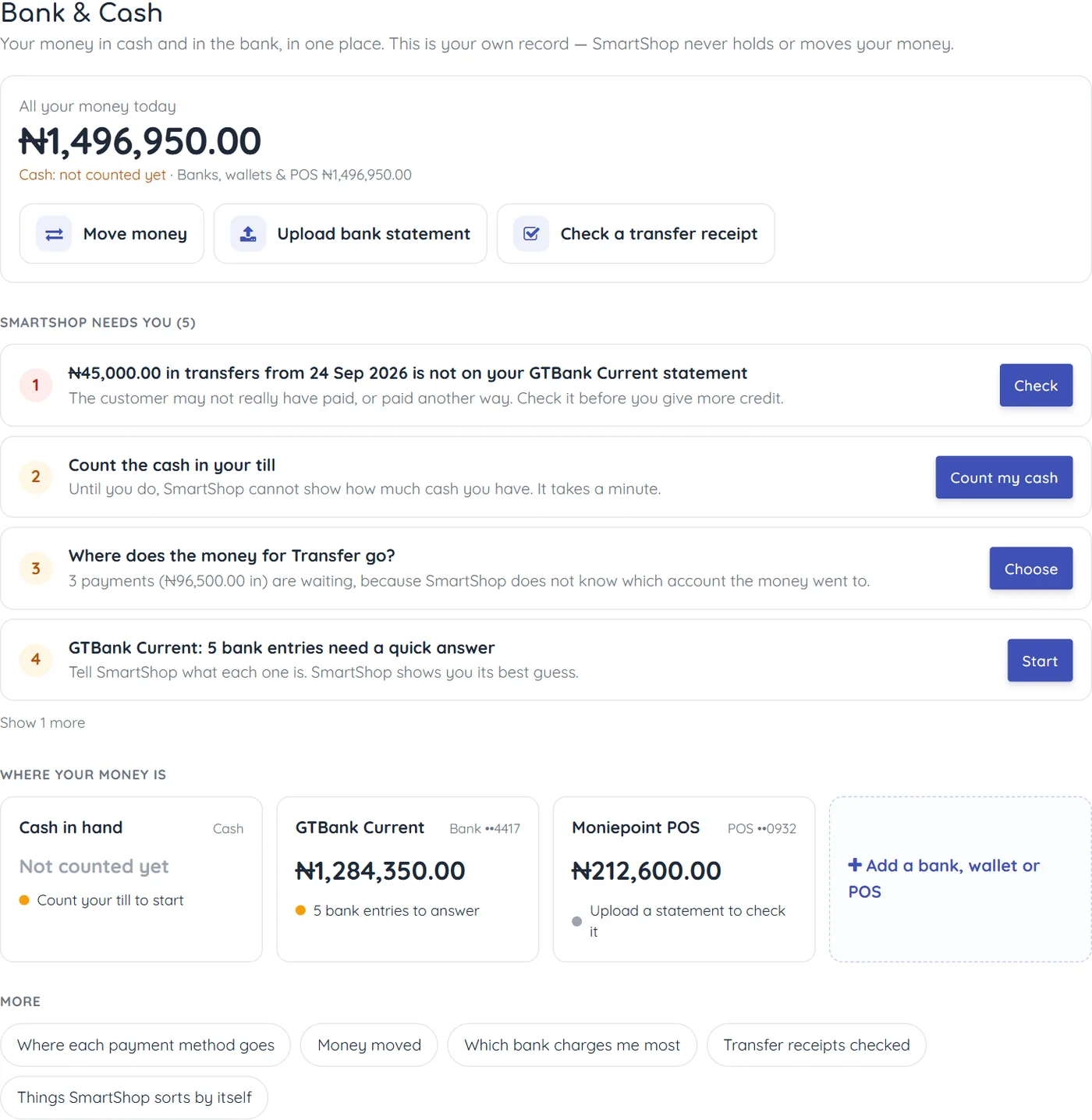
The page answers three questions, from top to bottom:
| Part of the page | What it tells you |
|---|---|
| All your money today | The money in all your accounts added together, as SmartShop sees it today. Underneath it you see cash and banks separately. If you have not counted your cash yet, the cash is left out of the total and it says Cash: not counted yet. |
| Three buttons | Move money (section 12), Upload bank statement (section 8), Check a transfer receipt (section 13). |
| SmartShop needs you | A short, numbered list of things to do, most important first. Each one has one sentence and one button. Red numbers are the urgent ones — usually money that should be in your bank but is not. When the list is empty, it says Nothing needs you right now. |
| Where your money is | One card for each account: its name, how much SmartShop says is in it, and one line about its state (see below). Click a card to open that account (section 7). |
| More | Pages you will use less often: where each payment method goes, money moved, which bank charges you most, transfer receipts checked, and things SmartShop sorts by itself. |
2.1 The coloured dot on each account card
| Dot | Example | Meaning |
|---|---|---|
| Green | Checked with bank to the end of September | All is well up to that month. |
| Orange | 5 bank entries to answer · Count your till to start · Starting balance missing | Something is waiting for you. It is also on the "SmartShop needs you" list. |
| Grey | Upload a statement to check it · Ready to check with your bank | Nothing is wrong. You just have not checked this account with the bank yet. |
Bank & Cash does not show how much your customers owe you or how much you owe suppliers. For that, use Reports → Customers Who Owe and the vendor reports (see the Dashboards & Reports Manual).
3. Getting started: four things to do once
The first time you open Bank & Cash, the "SmartShop needs you" list walks you through these. Do them in this order:
- Count the cash in your till and type the total (section 4).
- Add your bank account, wallet and POS, with how much was in each on the day you start counting (section 5).
- Say where each payment method goes — for example, "Transfer" money lands in your GTBank account and "POS" money in your Moniepoint POS (section 6).
- Upload last month's bank statement for each bank, wallet or POS (section 8), then answer its entries (section 9).
After that, the only regular job is once a month: upload the statement and answer the entries SmartShop could not sort by itself.
4. Count the cash in your till
SmartShop knows every cash sale and every cash payment, but it cannot know how much cash was in the till before you started using Bank & Cash. Until you tell it, the cash card says Not counted yet.
- On the home page, press Count my cash (in the "SmartShop needs you" list).
- Count the notes in your till — and in your safe, if you keep one — and type the total.
- Leave Counted on as today, unless you counted on another day.
- Press Save.
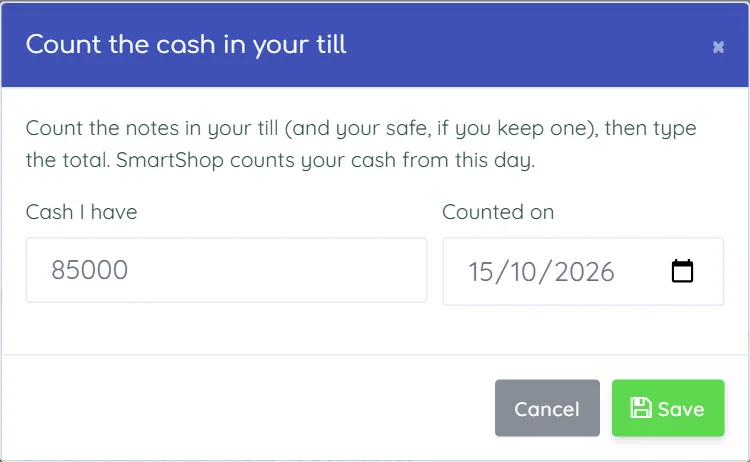
SmartShop counts your cash from that day: the amount you typed, plus cash that comes in, minus cash that goes out. The cash card and the total on the home page change straight away.
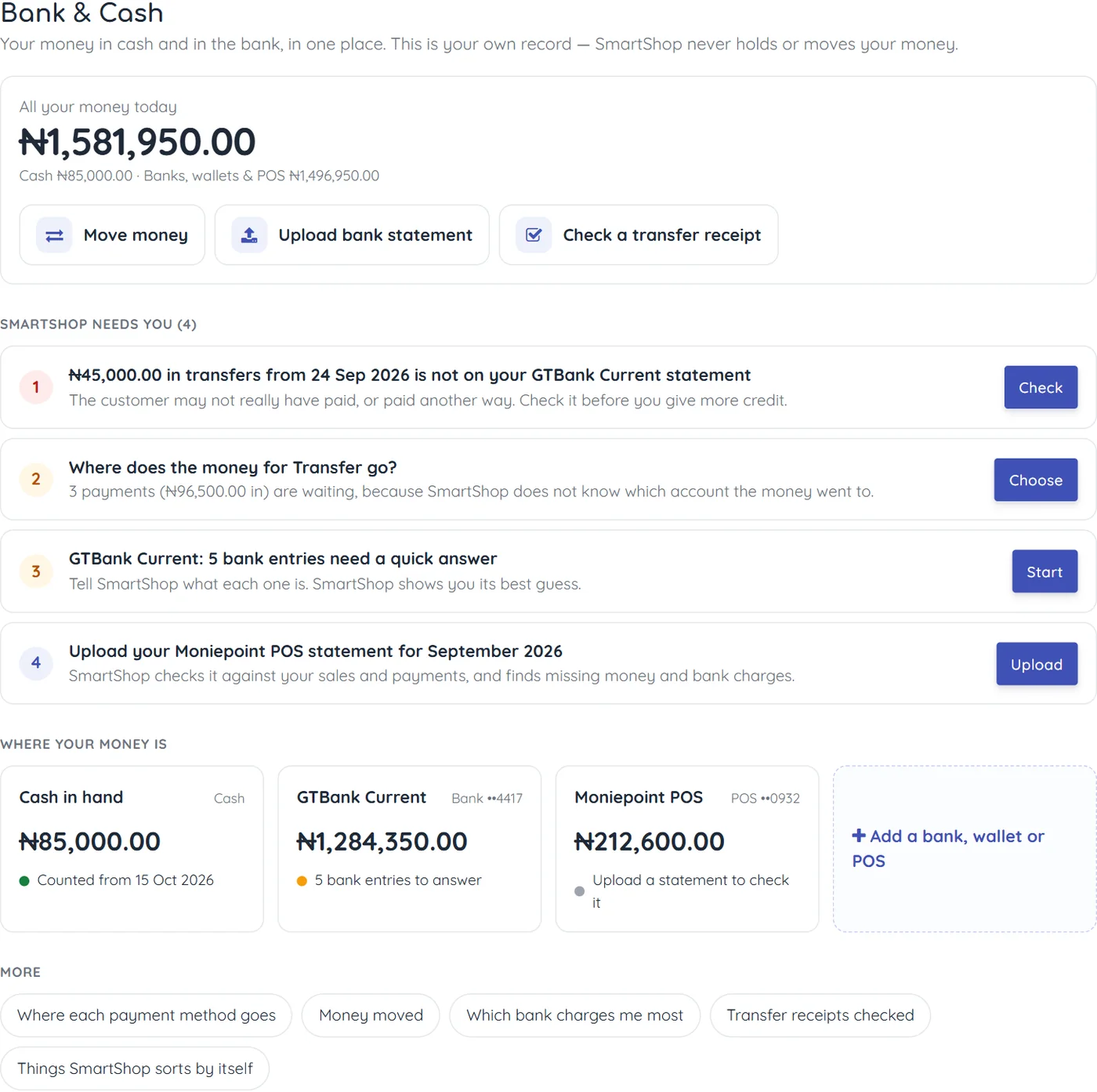
5. Add a bank, wallet or POS
On the home page, click the dashed card Add a bank, wallet or POS.
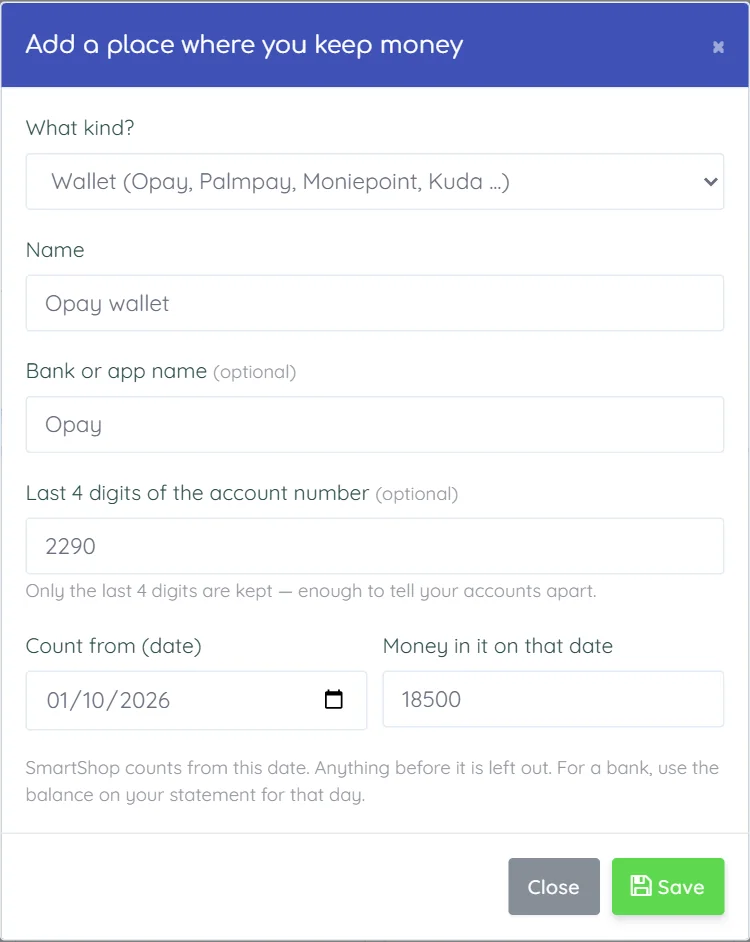
| Box | What to type |
|---|---|
| What kind? | Bank account, Wallet (Opay, Palmpay, Moniepoint, Kuda…), POS terminal, or Cash (a second till or a safe). |
| Name | A name you will recognise, for example GTB Current or Opay wallet. |
| Bank or app name | Optional. For example GTBank. |
| Last 4 digits | Optional, but useful: SmartShop warns you if you upload a statement for a different account. Only the last 4 digits are kept. |
| Count from (date) and Money in it on that date | The day SmartShop starts counting, and the balance on that day. Take the balance from your bank app or from your statement for that exact day. Anything before that date is left out. |
To change an account later, open it and press Change details. If you stop using an account, press Turn off (stop using it) in the same box. Nothing is deleted; turned-off accounts are listed at the bottom of the home page.
6. Where each payment method goes
Your shop has payment methods such as Cash, Transfer and POS. Bank & Cash needs to know which account each one's money lands in. Until you say, those payments wait as not sorted yet, and the home page asks "Where does the money for Transfer go?".
Open it from the "SmartShop needs you" list (Choose), or from More → Where each payment method goes.
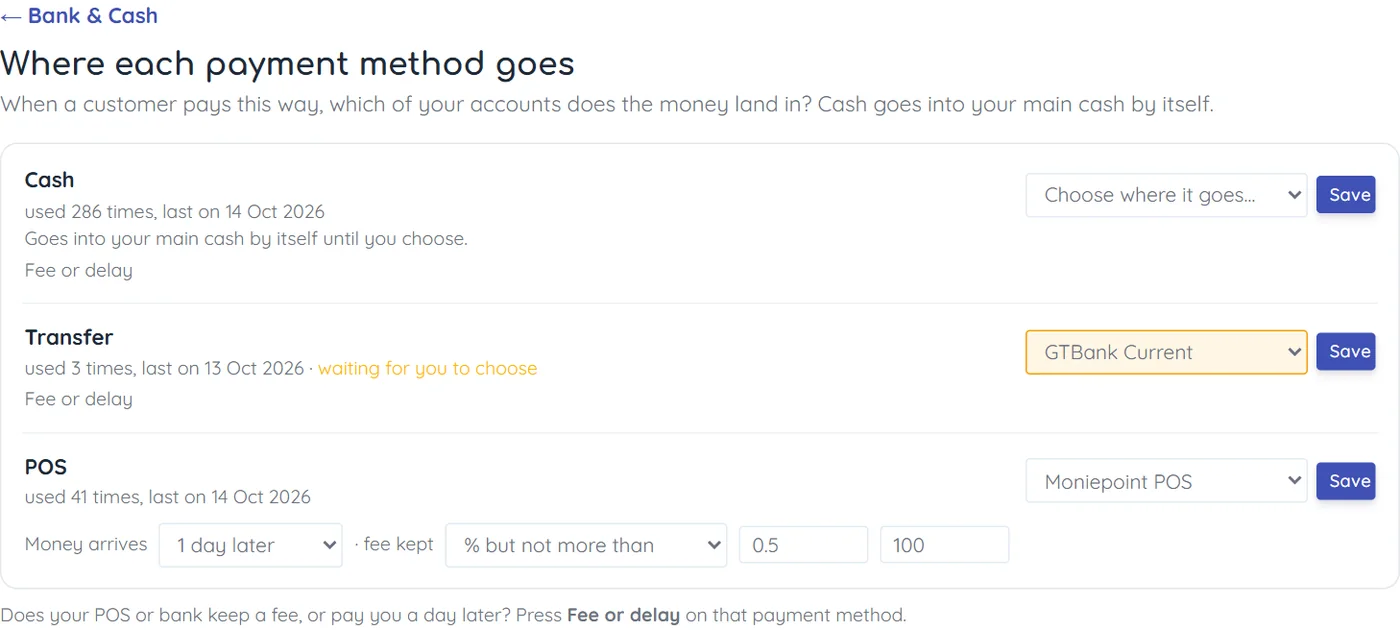
- For each payment method, choose the account the money lands in.
- Press Save on that line. The waiting payments move into that account straight away.
Cash goes into your main cash by itself. Change it only if your cash sales go somewhere else.
6.1 Fee or delay (only if you need it)
Some POS companies and banks pay you a day later, or keep a small fee. Press Fee or delay on that payment method and set:
- Money arrives — the same day, or 1, 2, 3, 5 or 7 days later. SmartShop then does not worry when the money is not on your statement on the same day.
- Fee kept — none, a % of each payment, a % but not more than an amount (for example 0.5% but not more than ₦100), or the same amount each time. SmartShop uses this to work out what the fee should have been, and shows it next to what the bank or POS really kept (section 14).
7. One account's page
Click any account card on the home page.
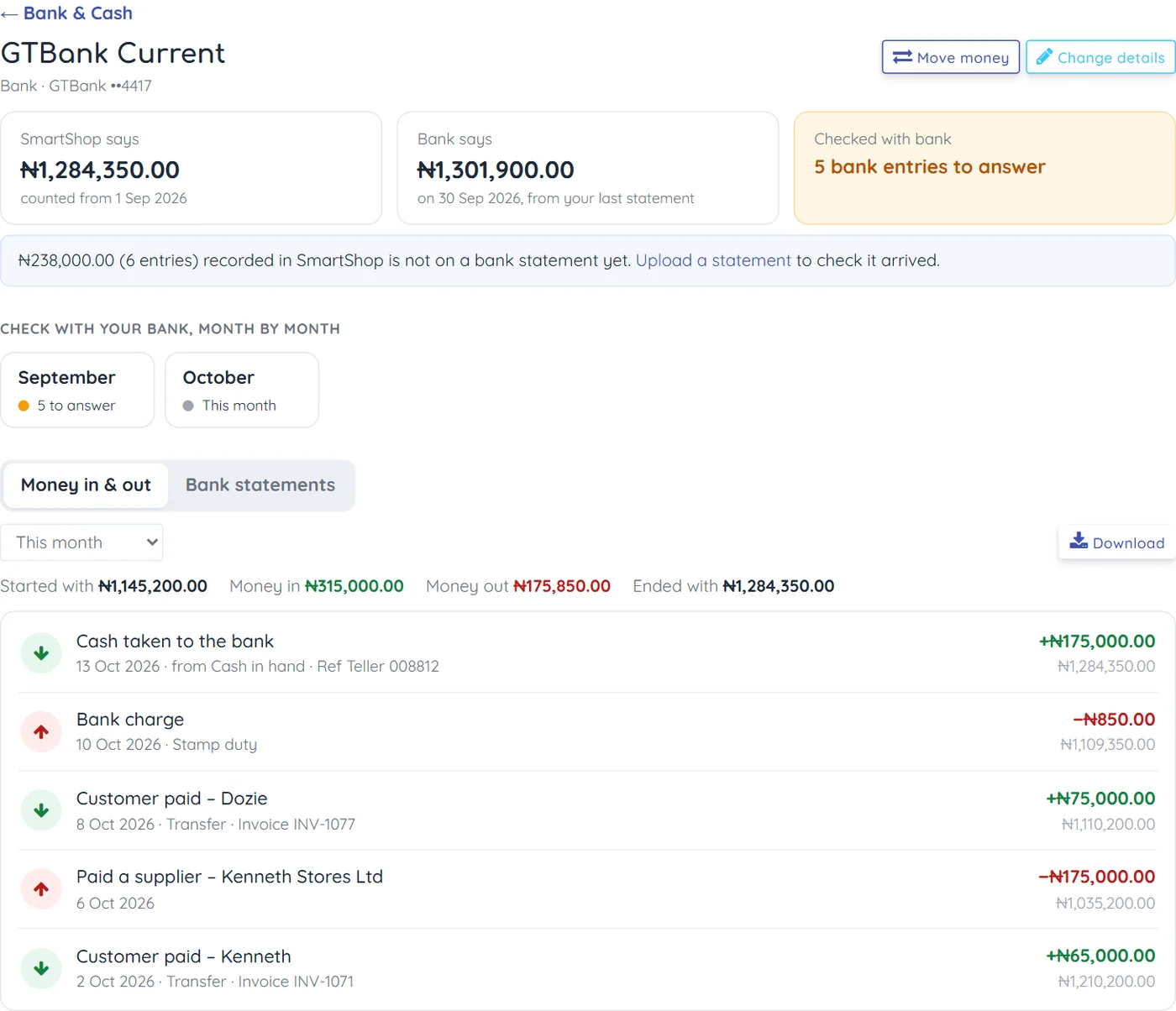
| Part | Meaning |
|---|---|
| SmartShop says | The balance from SmartShop's own records today. |
| Bank says | The ending balance of the last bank statement you used, and its date. It is not today's bank balance — it is only as new as your last statement. |
| Checked with bank | How far you have checked this account with the bank, or what is left to do. |
| The blue note | Money SmartShop recorded (for example transfers from customers) that no statement shows yet, because you have not uploaded the newer statement. Upload it to check the money arrived. |
| Month by month | One box per month. Click a month to check it with the bank (section 9). |
| Money in & out | Every payment, sale, expense and money move for this account, newest first, with the balance after each one. Choose This month, Last month, Last 3 months or your own dates. Download saves it as a spreadsheet file. |
| Bank statements | The statements uploaded for this account (section 8). |
7.1 What each month box says
| Month box | Meaning | What to do |
|---|---|---|
| Checked (green) | You marked this month as checked. | Nothing. |
| 5 to answer (orange) | The statement is in; some bank entries need your answer. | Click it and answer them. |
| Ready to check (orange) | The statement covers the whole month. | Click it and finish the month. |
| Upload statement / Statement part-way (grey) | No statement for the whole month yet. | Upload the statement. |
| This month (grey) | The month is not over. | Nothing yet. |
8. Upload a bank statement
Press Upload bank statement on the home page (SmartShop asks which account it is for), or open the account, choose Bank statements and press Upload a bank statement.

8.1 Which file to upload
| You have | What happens |
|---|---|
| CSV or Excel from your bank or wallet app | Best. SmartShop reads it straight away and shows you the entries. |
| PDF (like the one your bank emails you) | SmartShop reads it for you. If the PDF has a password, type the password your bank gave you — it is used on your own phone or computer to open the file and is not sent to SmartShop. Up to 12 pages at a time. |
| A paper statement | Take a clear photo of each page and choose all the photos together (up to 12). |
On the Freemium plan, saving a statement uses usage units, and reading a PDF or photos uses usage units for each page (section 18). If SmartShop cannot read a page, that page is free. Uploading the same file again costs nothing — SmartShop tells you it is already uploaded.
8.2 Check that it adds up
Before anything is saved, SmartShop shows you what it read.
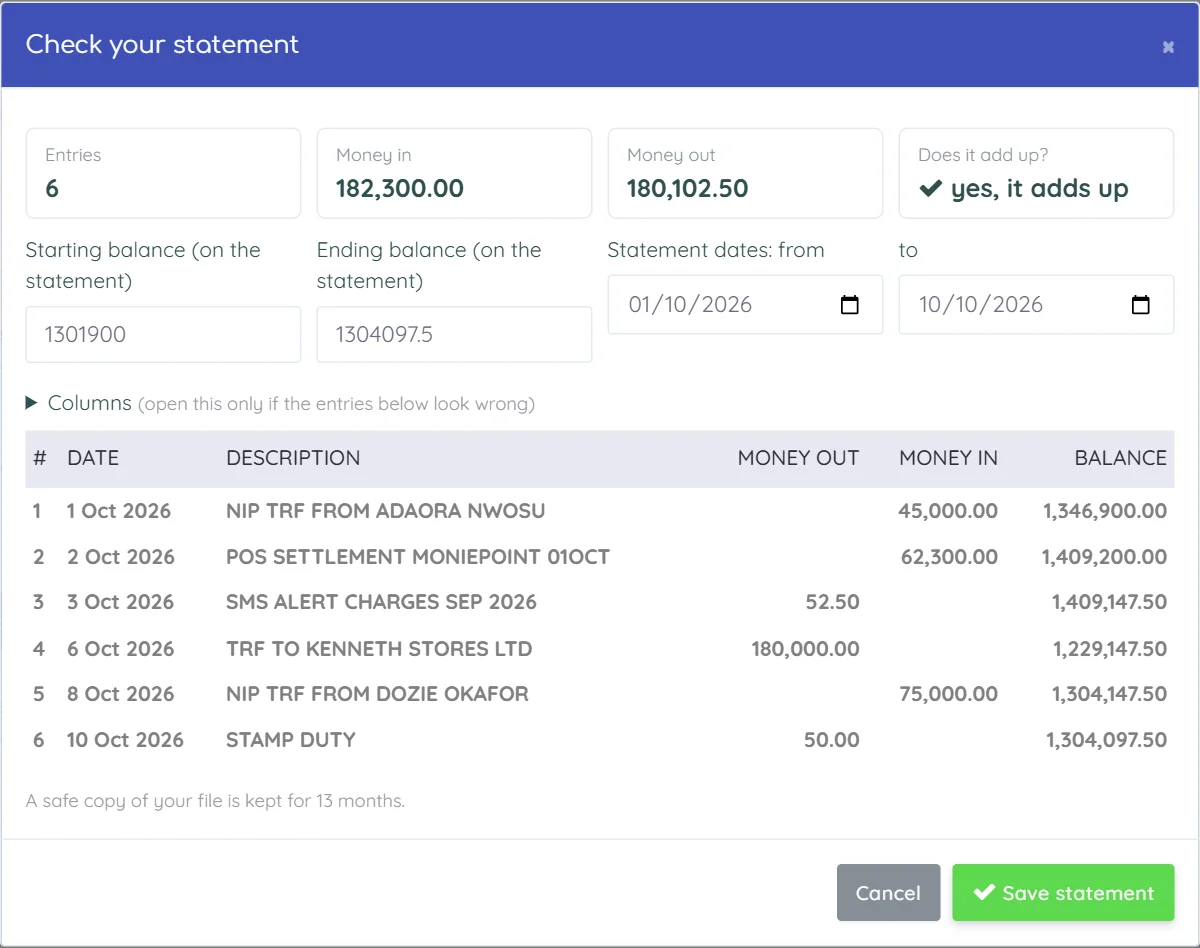
- Does it add up? SmartShop checks: starting balance + money in − money out = ending balance. If it says yes, it adds up, the file was read correctly.
- If it says no, it is off by …, look at your printed statement and correct the starting or ending balance or the dates. Entries marked yellow are the ones SmartShop is unsure about.
- Only open Columns if the entries look wrong (for example money in and money out are swapped). There you say which column is which and press Read the file again.
Press Save statement. Then SmartShop opens the statement so you can look at it once more:
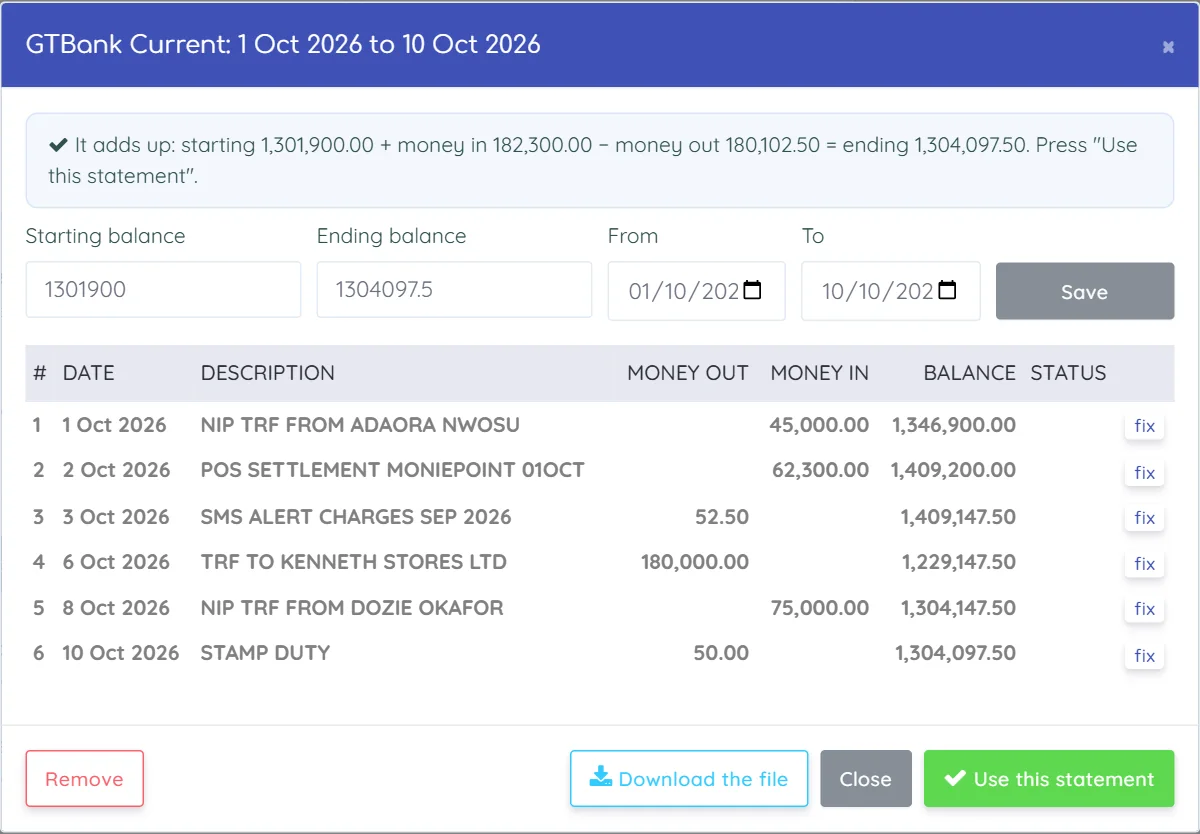
- If a line is wrong, press fix beside it, correct it, and press save.
- When it adds up, press Use this statement. SmartShop links most entries to your sales and payments by itself, records bank charges it knows, and tells you how many are left for you.
- To throw a statement away before using it, press Remove.
9. Check with your bank, one entry at a time
This is where you find out whether SmartShop and your bank agree. SmartShop shows you one bank entry at a time — something your bank says happened — with its best guess of what it was. You give a quick answer, and the next one appears.
Open it from the "SmartShop needs you" list (Start), or by clicking a month on the account's page.
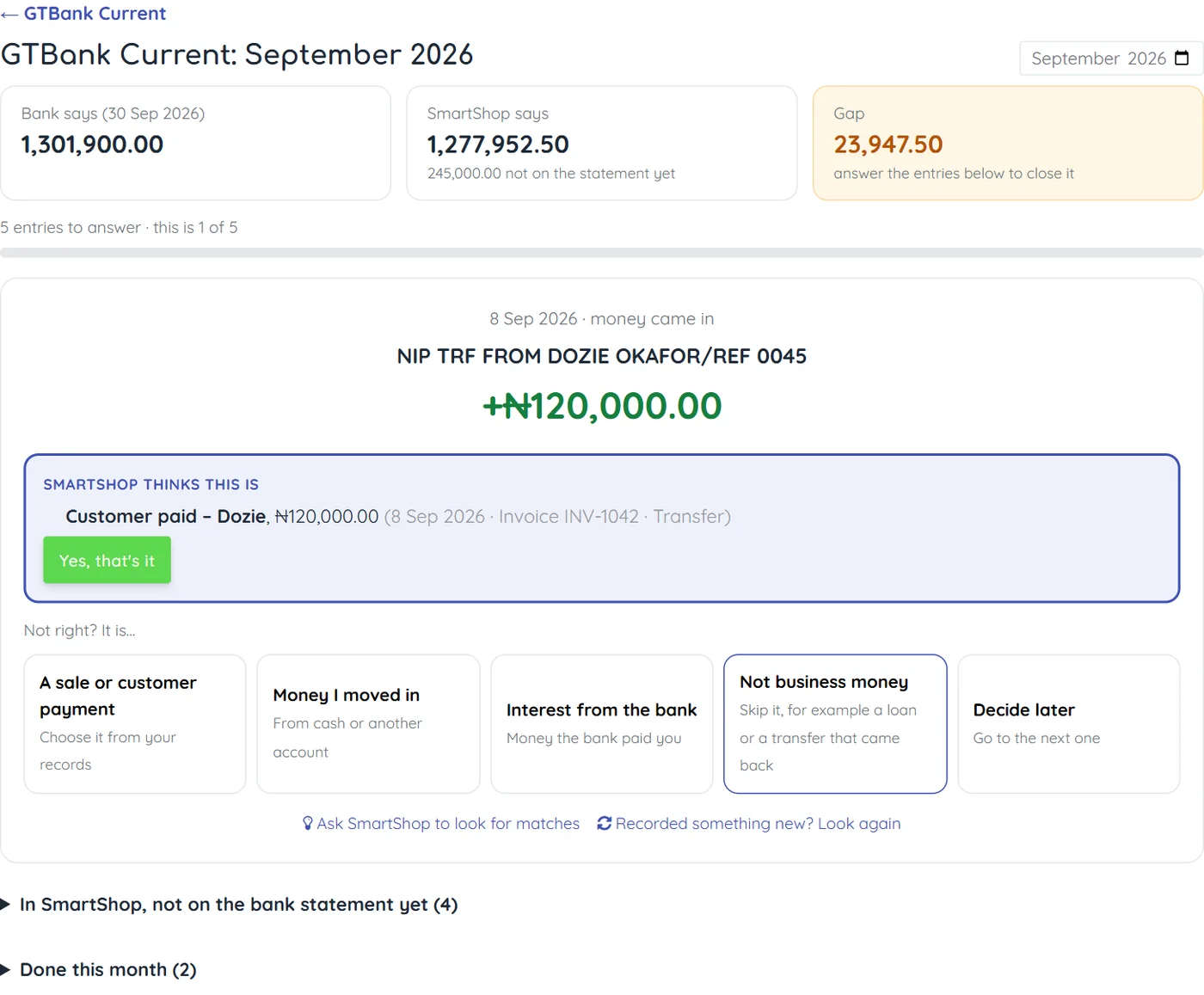
9.1 The numbers at the top
| Box | Meaning |
|---|---|
| Bank says | The balance on your statement at the end of the month. |
| SmartShop says | SmartShop's balance for the same day. The small line underneath is money SmartShop recorded that is not on the statement yet. |
| Gap | The difference. Each answer you give makes it smaller. When it is 0.00 — they agree (green), you can finish the month. |
9.2 Answering an entry
If SmartShop's guess is right, press Yes, that's it. If not, choose what it really is:
| Money came in | What it does |
|---|---|
| A sale or customer payment | Opens your records so you tick the payment(s) it was (section 9.3). |
| Money I moved in | The same, for cash you took to the bank or money from another of your accounts. |
| Interest from the bank | Records it as interest the bank paid you. |
| Money went out | |
| A bank charge | One tap. Records it as a bank charge, added to your expenses so your profit is right. |
| An expense | Asks what it was for (Electricity, Rent, Fuel…) and records the expense. |
| Paid a supplier, or moved money | Opens your records so you tick the payment or money move it was. |
| Either way | |
| Not business money | Skips it — for example a transfer that failed and came back, or a personal loan. SmartShop asks you to say why. (Owner or a manager with "Skip & Correct" only.) |
| Decide later | Goes to the next entry. This one stays for later. |
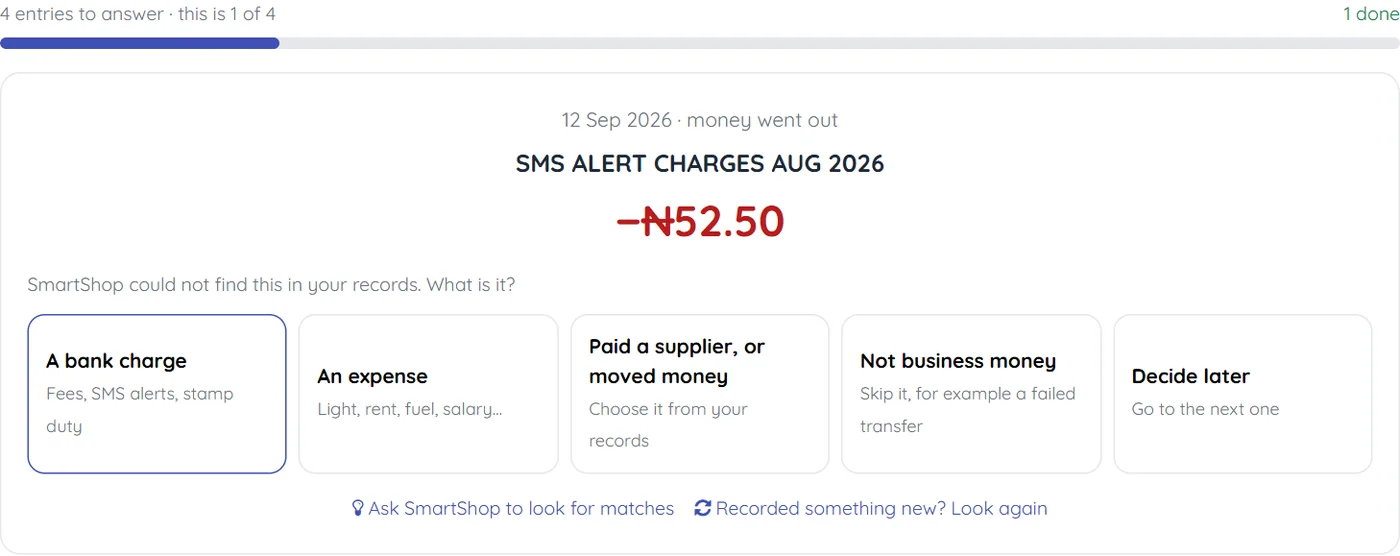
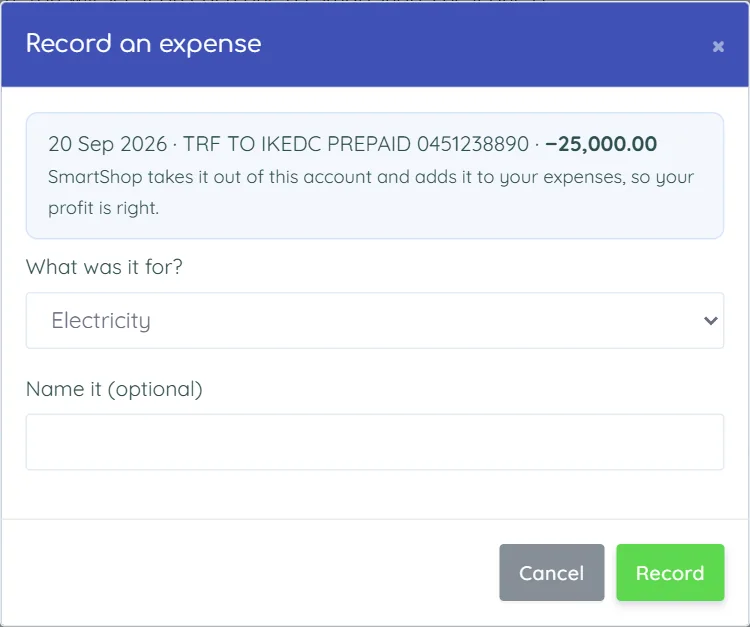
After you answer, SmartShop may say there are more entries like this one (for example two more IKEDC payments) and offer to do the same for all of them — and every month, if you are the owner.
9.3 One bank entry, several sales
A POS company often pays a whole day's card sales into your bank in one amount, less its fee. Choose A sale or customer payment, then tick every sale that makes up the bank entry.
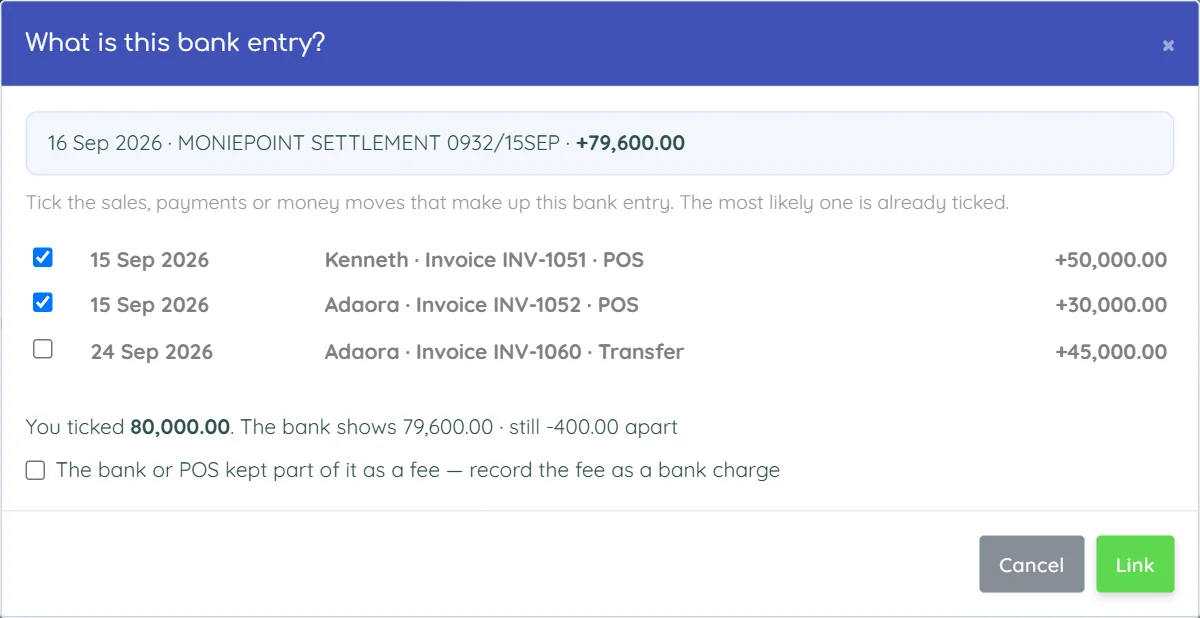
The line under the list compares what you ticked with what the bank shows. If the bank paid in less because the POS kept a fee, tick The bank or POS kept part of it as a fee: the difference is recorded as a bank charge. Then press Link.
9.4 Ask SmartShop to look for matches
If SmartShop has no guess for several entries, press Ask SmartShop to look for matches under the entry. SmartShop looks harder — for example at sales on nearby days, or several sales that add up to one payment.
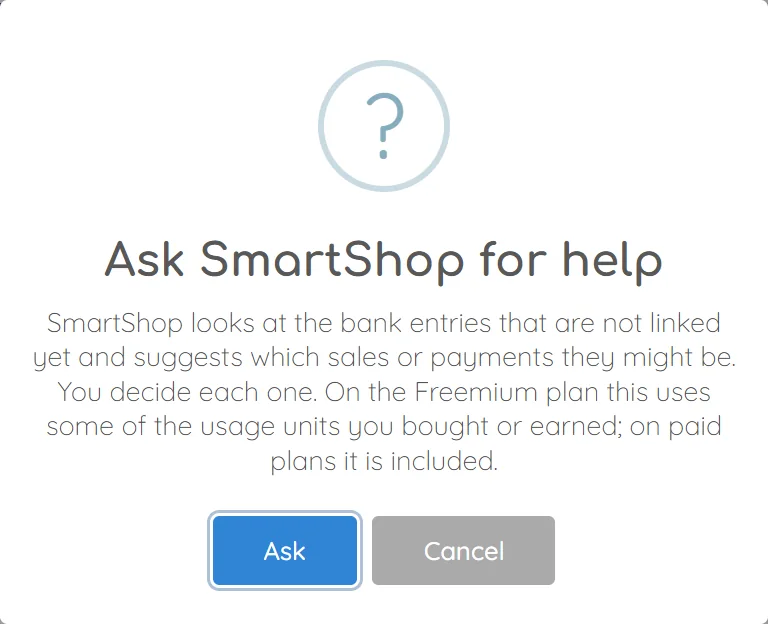
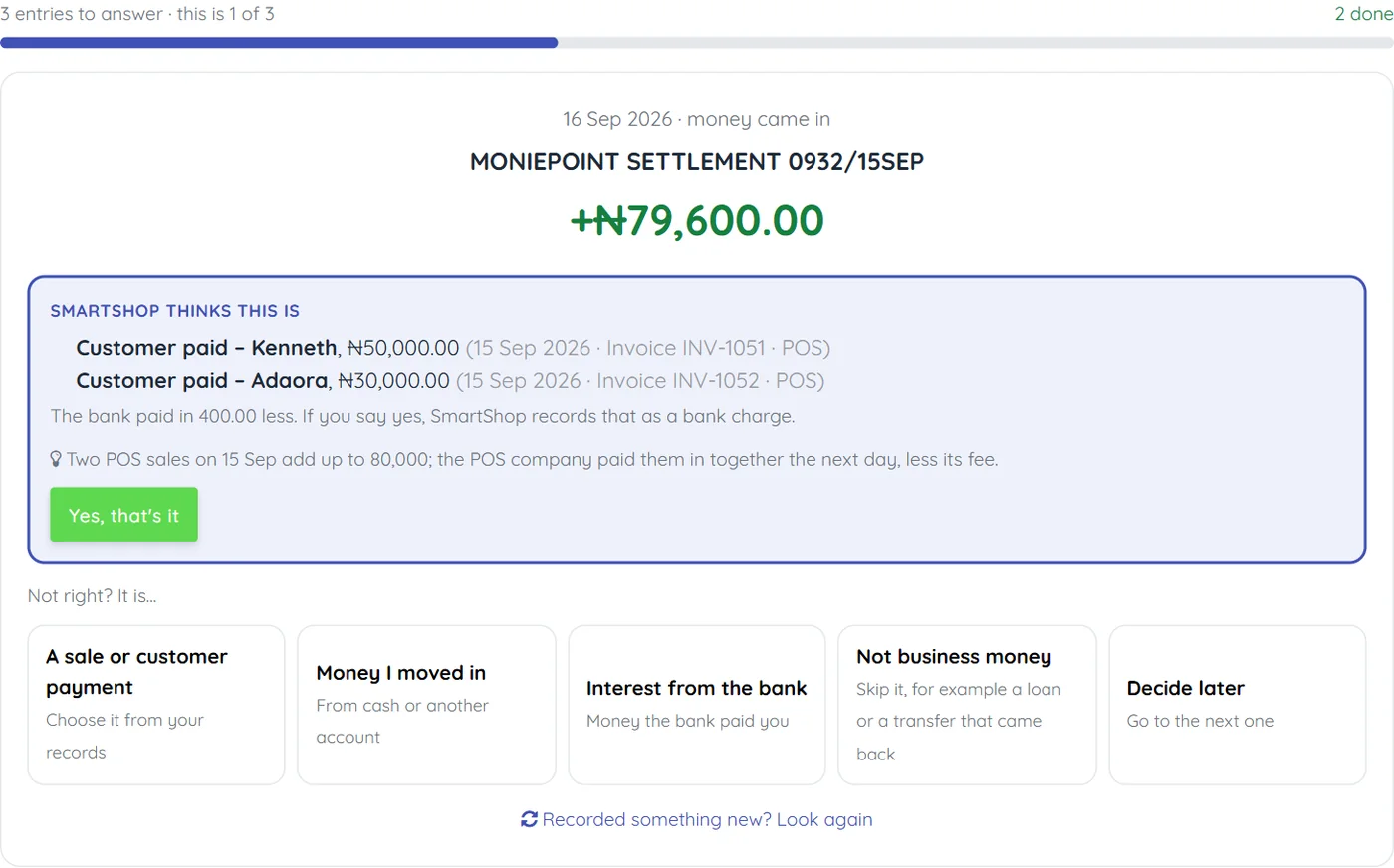
You still decide each one. A suggestion is never applied until you press Yes, that's it.
9.5 Not business money
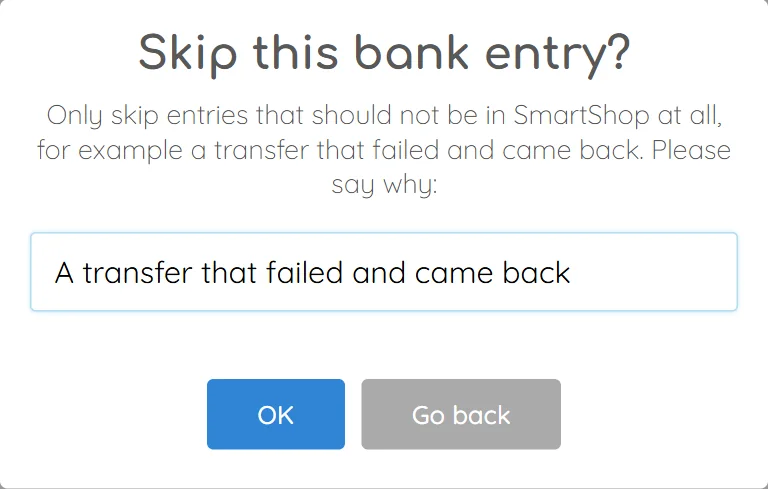
Only skip entries that should not be in your shop's records at all. A sale you forgot to record is not one of these — record the sale first, then press Recorded something new? Look again on the entry.
9.6 The two lists at the bottom
- In SmartShop, not on the bank statement yet — payments SmartShop recorded that the bank does not show. Usually it is money that arrives a day or two later. If something stays here, the customer may not really have paid, or paid another way. Press Paid another way? to change how that customer paid (for example from Transfer to Cash).
- Done this month — every entry already answered, and how: linked by SmartShop, a bank charge recorded by SmartShop, remembered, or answered by a person. Press undo if an answer was wrong.
10. When SmartShop asks you a question
10.1 Bank charges — once per account
The first time SmartShop finds bank charges it knows on a statement (SMS alerts, stamp duty, account maintenance…), it asks you once:
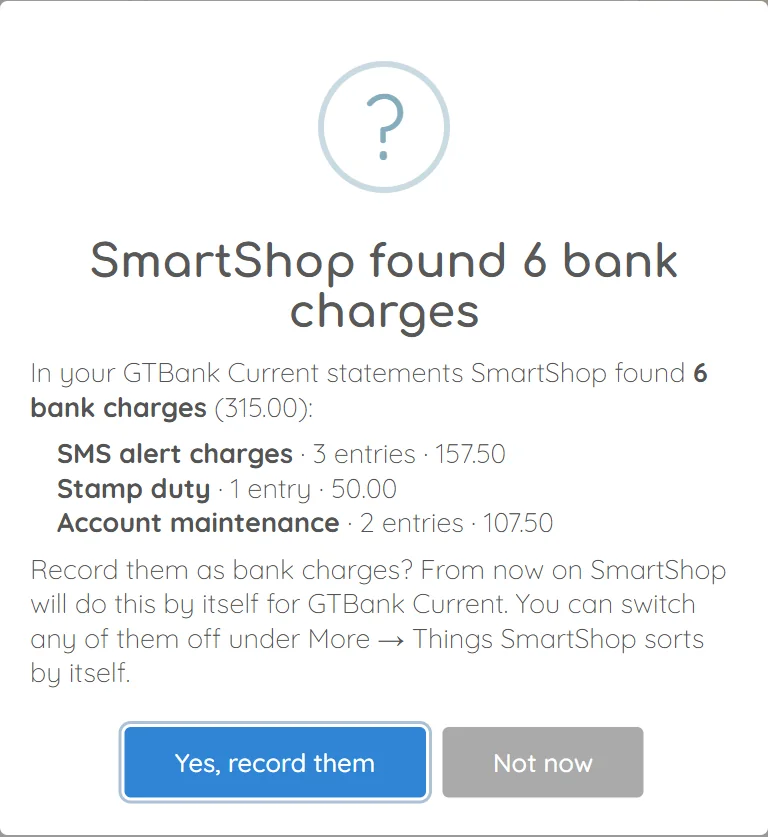
Press Yes, record them. You can switch any of them off later (section 15). Not now leaves them for you to answer one by one; SmartShop asks again on a later visit.
10.2 Entries that repeat
When the same kind of entry appears three times or more, SmartShop asks what they are:

With Do this every month ticked, SmartShop answers them by itself next month too. Only the owner can make SmartShop remember; a manager's answer covers these entries only. Ask me later hides the question for now.
11. Finish a month
When every entry is answered and the gap is 0.00, the check page says so:
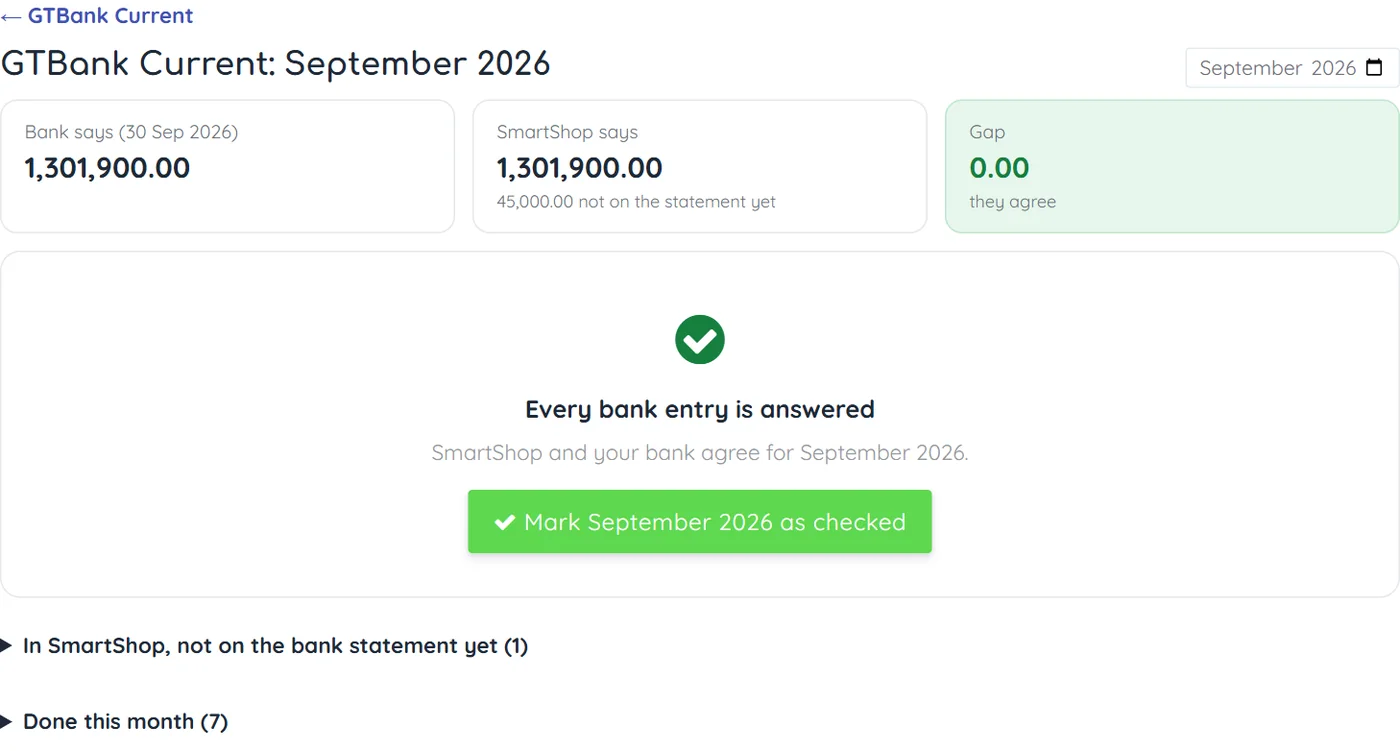
Press Mark September as checked and confirm. SmartShop keeps a report of the month, which you can download.
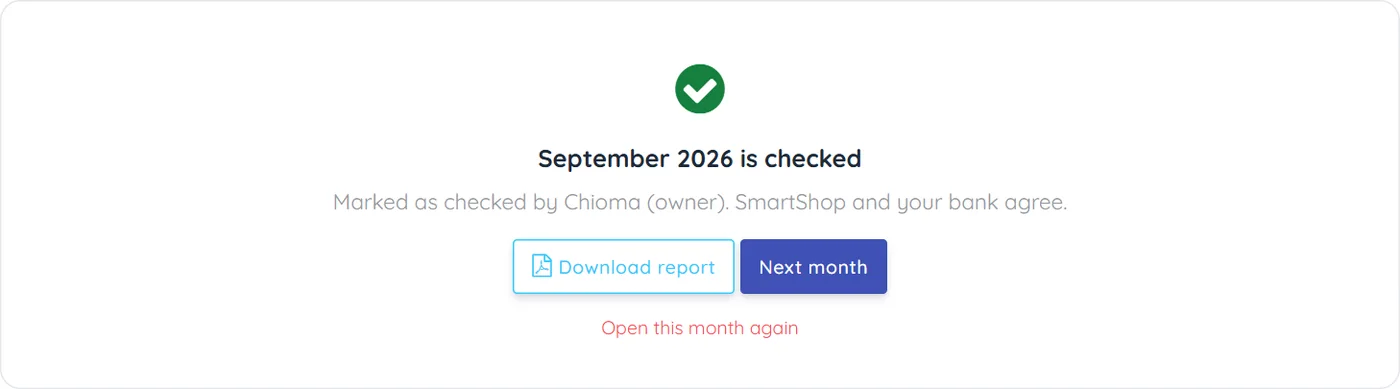
- Months are checked one after the other. If an earlier month is not checked yet, SmartShop tells you to do that one first.
- You can only finish a month once it is over and its whole statement is uploaded.
- If something in a checked month changes later — for example a phone syncs an old sale — the month opens again by itself and appears at the top of "SmartShop needs you" as needs checking again. Nothing is lost; just check it again.
- The owner (or a manager with "Open Checked Months") can open a month again on purpose with Open this month again, saying why.
11.1 When the gap will not go to 0.00
If every entry is answered but there is still a gap, the page lists what is left. The usual causes are:
- A wrong starting balance for the account. If SmartShop sees this, it says so at the top and gives you a link to fix it.
- A sale or payment that was never recorded in SmartShop. Record it, then press Recorded something new? Look again.
Only if you are sure the bank is right and SmartShop is wrong, a manager with "Skip & Correct" can press The bank is right: correct the gap. SmartShop records the correction with the reason you give.
12. Move money
Write down money you moved yourself, so each account stays right. Press Move money on the home page (or on an account's page — then that account is already chosen).
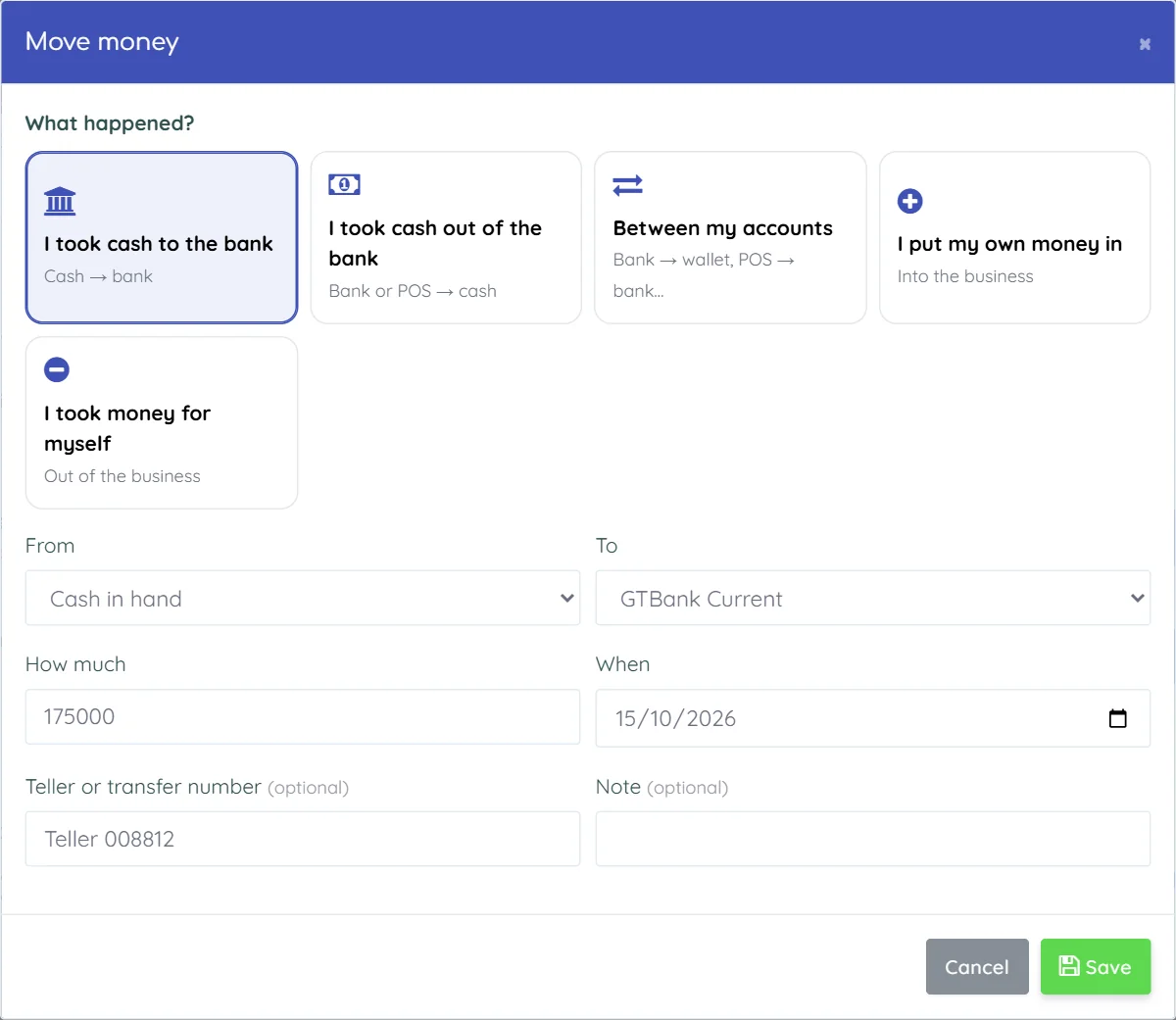
| Choose | When | From → To |
|---|---|---|
| I took cash to the bank | You paid till cash into your bank or wallet. | Cash → bank or wallet |
| I took cash out of the bank | You withdrew cash for the shop. | Bank, wallet or POS → cash |
| Between my accounts | For example your POS money swept into your bank. | Any account → another |
| I put my own money in | You added your personal money to the business. | → any account |
| I took money for myself | You took business money for personal use. | Any account → |
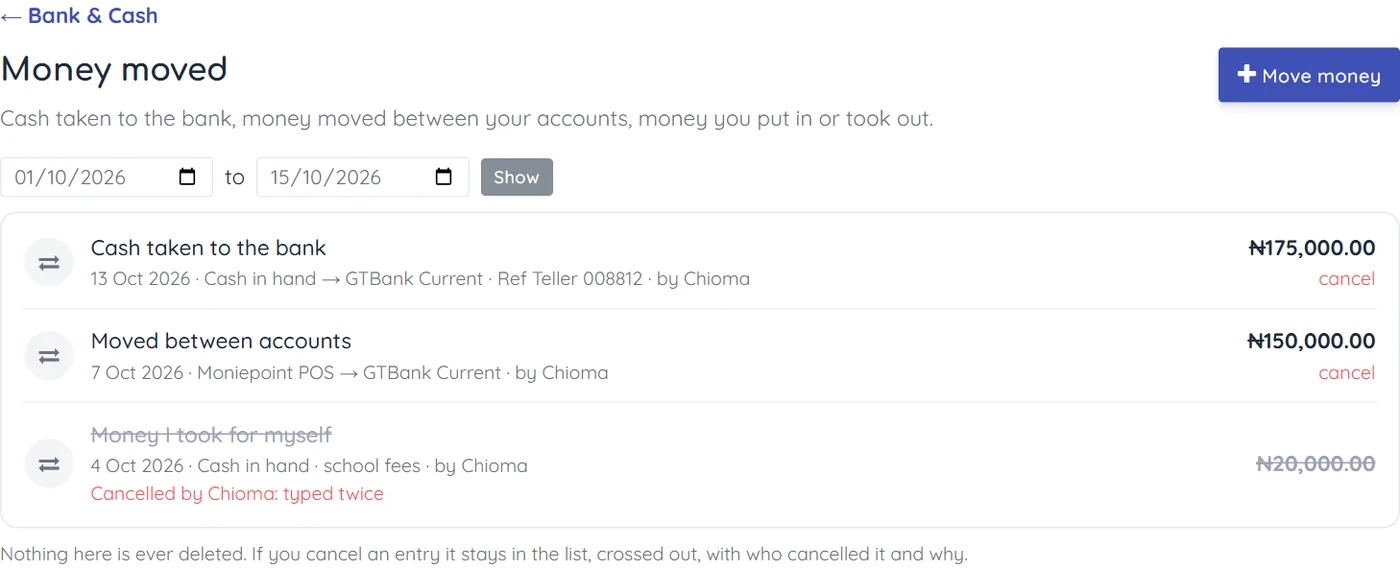
Type how much and when, and the teller or transfer number if you have it — it helps SmartShop find the entry on your bank statement. Press Save.
All moves are listed under More → Money moved. Nothing there is ever deleted: if you made a mistake, press cancel, say why, and the entry stays in the list, crossed out.
13. Transfer receipts: spot a fake alert
When a customer says "I have sent it" and shows you a transfer receipt, SmartShop can check the receipt for signs of a fake before you hand over the goods.
- Press Check a transfer receipt on the home page. (Cashiers use the separate page Check a Transfer Receipt.)
- Upload the receipt: the PDF from the customer's bank app, or a picture of it — a screenshot or what they sent on WhatsApp.
- Optionally type what the customer is paying.
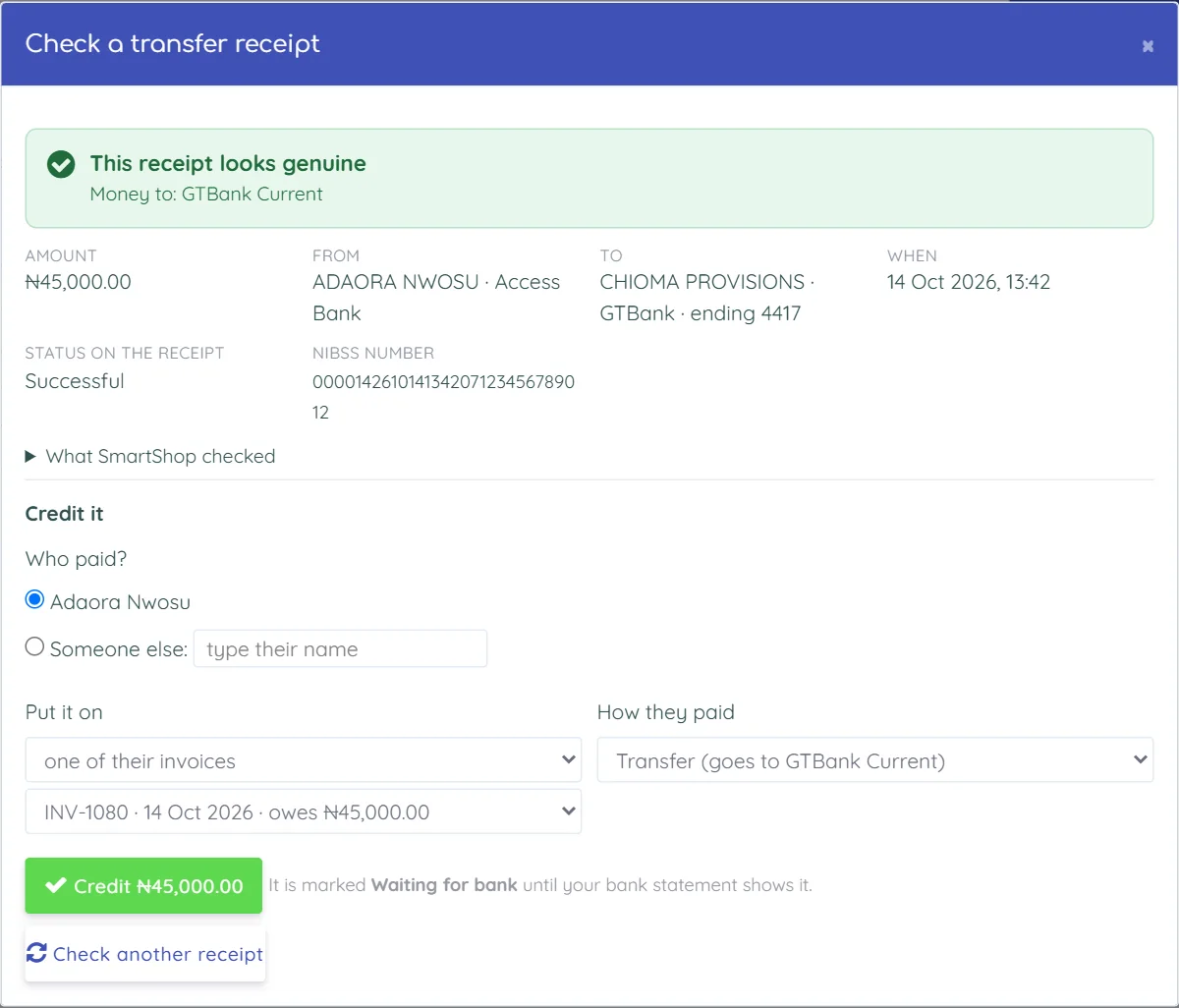
| SmartShop says | What to do |
|---|---|
| Looks genuine (green) | Credit it to the customer: choose who paid, whether it goes on their balance or on one of their invoices, and how they paid. Press Credit. |
| Check carefully (orange) | Open What SmartShop checked to see why. Look in your bank app before you accept it. |
| Don't accept this (red) | Do not give the goods or mark it as paid. Only the owner or a manager with "Accept Anyway" can still accept it, and must say why. |
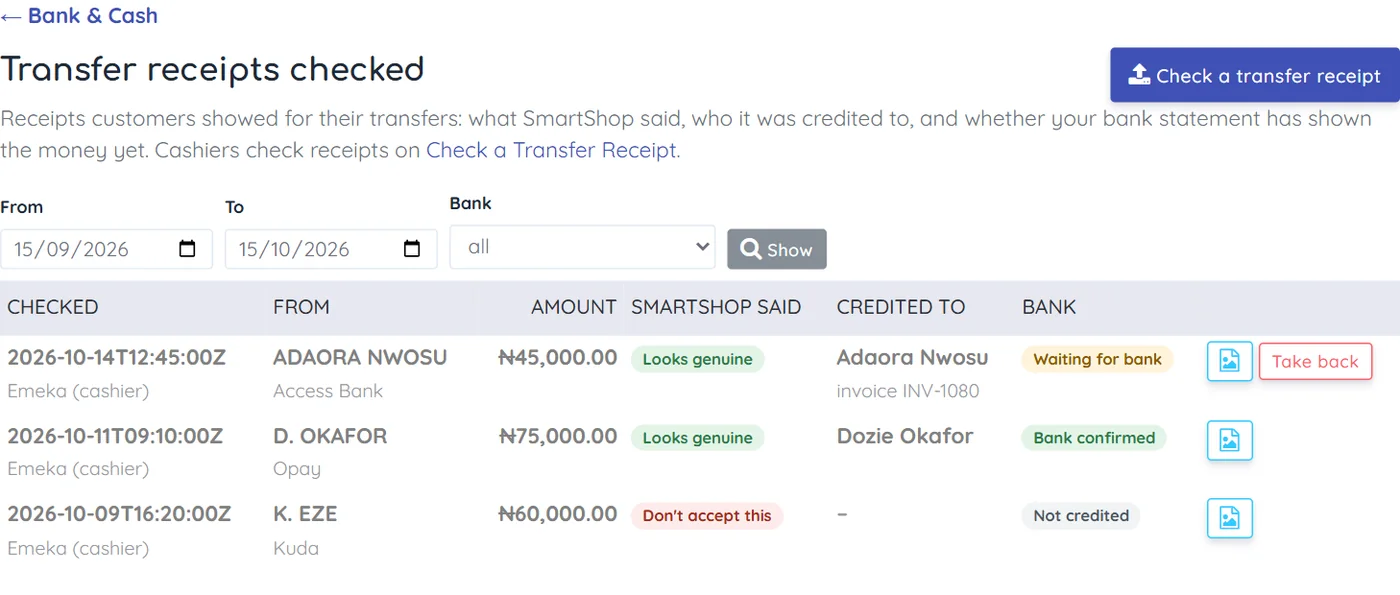
A credited receipt is marked Waiting for bank. When you upload your statement and the money is on it, it becomes Bank confirmed. If the statement covers that day and the money is not there, it becomes Not on your statement — and it shows up in red on the home page.
More → Transfer receipts checked lists every receipt checked, by whom, and where each one stands with the bank. Take back cancels a credit if the money never came; the customer then owes it again.
14. Which bank charges me most
More → Which bank charges me most compares your accounts. Choose the dates (last month is filled in) and press Show.
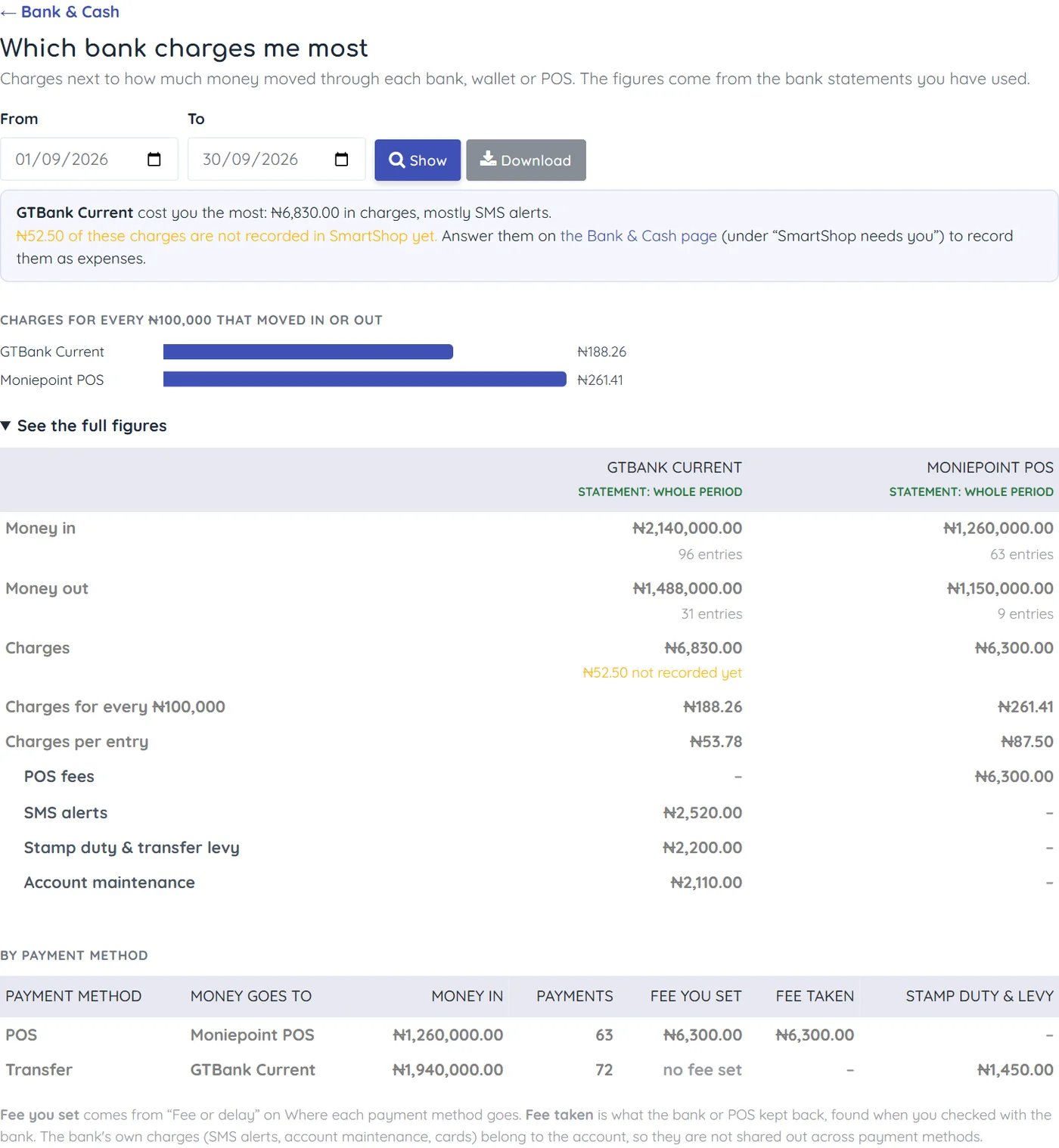
- The box at the top says which account cost you the most, and on what.
- The bars compare charges for every ₦100,000 that moved in or out — the fair way to compare a busy account with a quiet one.
- See the full figures shows each kind of charge and each payment method. Fee you set is what your POS fee setting (section 6.1) says it should be; Fee taken is what was really kept. If "Fee taken" is higher, ask your POS company.
- Only accounts with an uploaded statement for those dates can be compared. Download saves the figures as a spreadsheet file.
15. Things SmartShop sorts by itself
More → Things SmartShop sorts by itself shows what SmartShop answers for you each month.
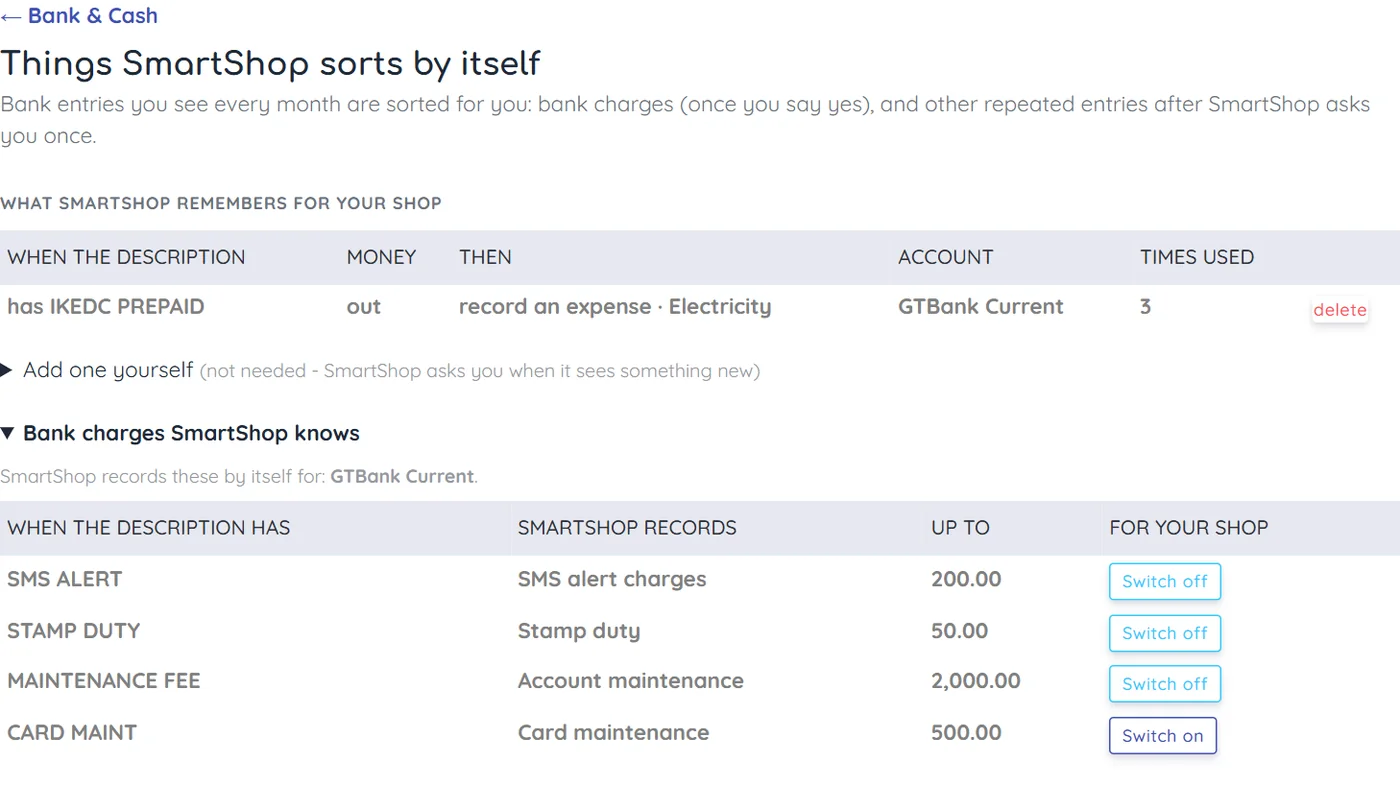
- What SmartShop remembers for your shop — answers you asked it to repeat every month (section 10.2), and how many times each was used. Press delete to stop one.
- Bank charges SmartShop knows — the common Nigerian bank charge wordings. Press Switch off on any you do not want recorded by itself.
- Add one yourself is there, but you should not need it: SmartShop asks you when it sees something new.
16. On your phone
Bank & Cash works in your phone's browser. Everything is the same; it just stacks up. The phone's Back button takes you back one screen — from an entry to the account, from the account to the home page.
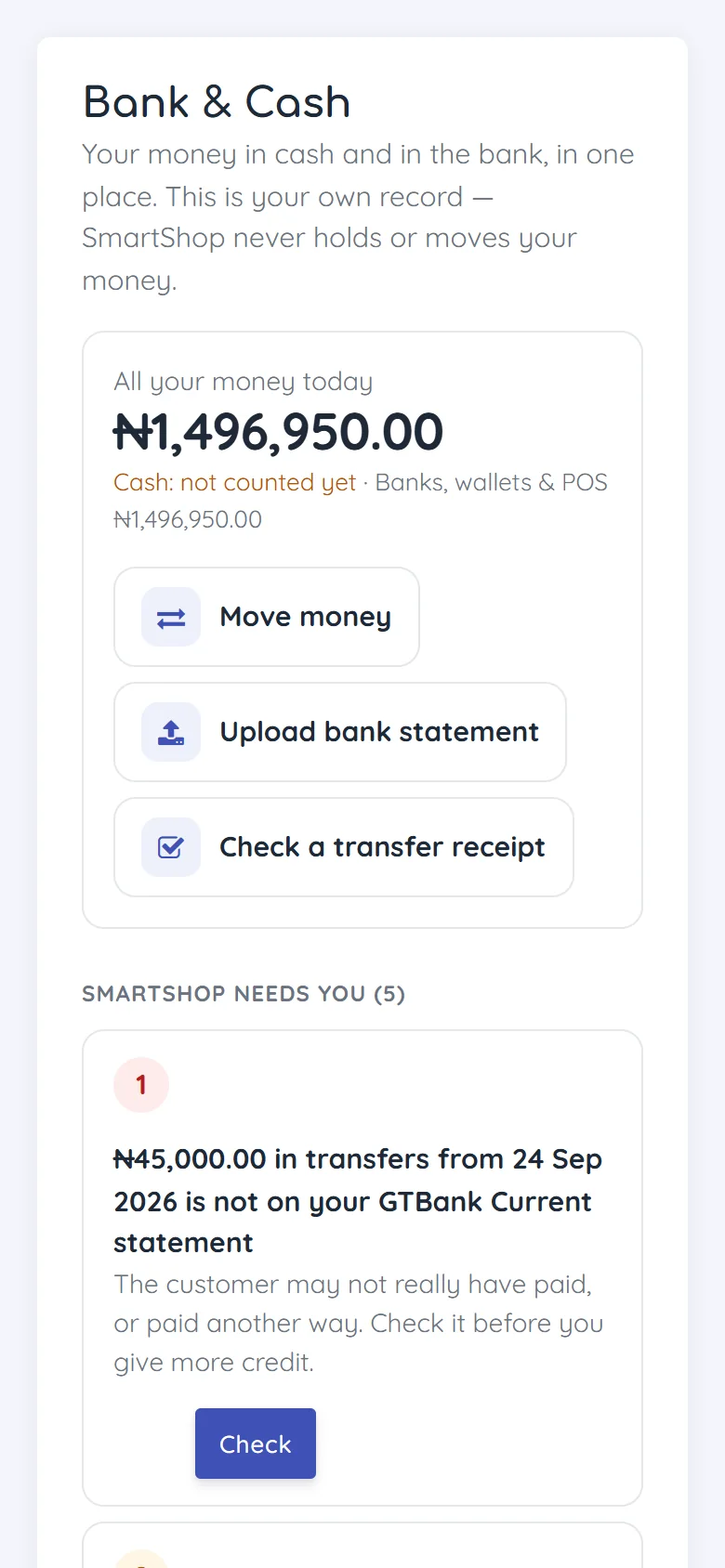
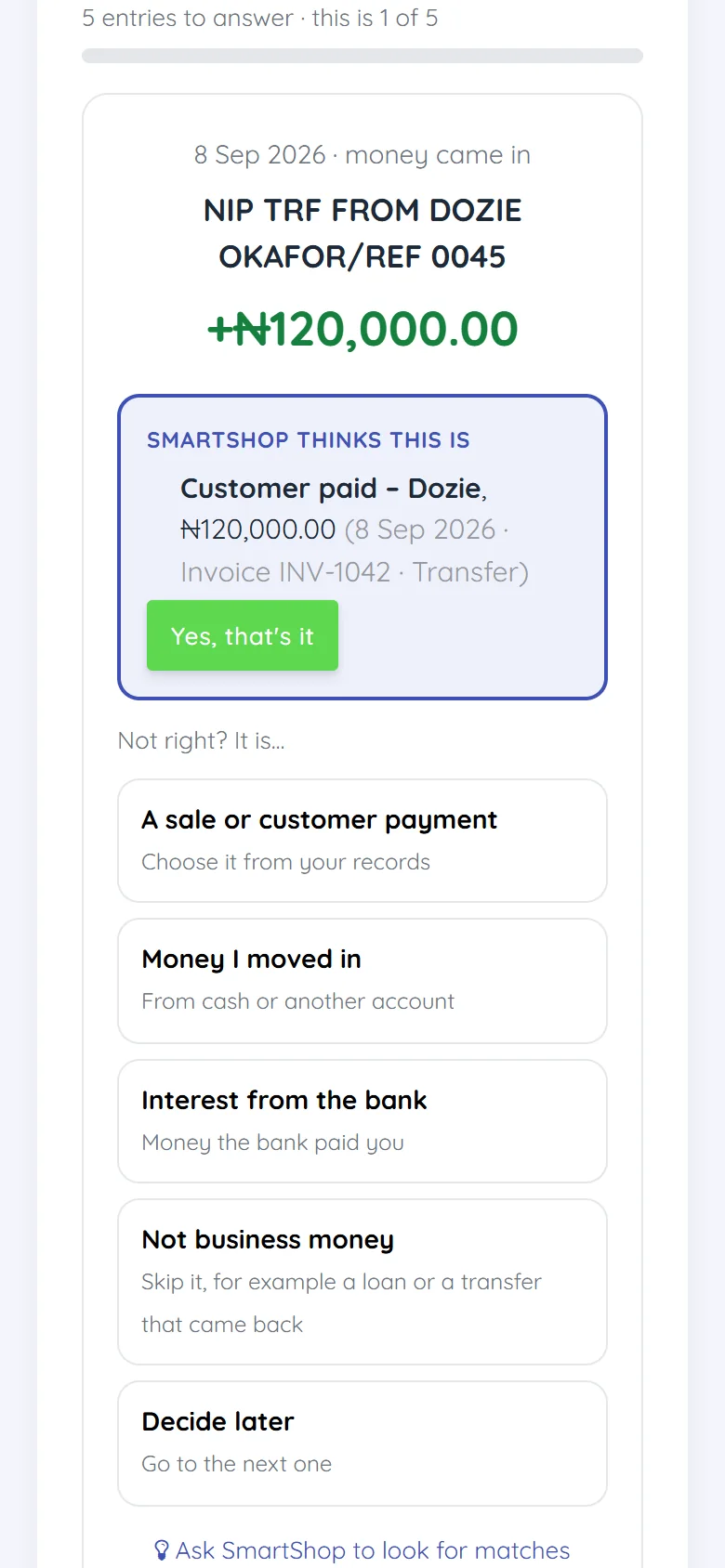
Figure 27 — The home page and an entry to answer, on a phone.
17. Who can do what
The owner sets these under User List → Edit (see the Store Setup, Users & Security Manual). Only the shop owner can give Bank & Cash permissions — a manager cannot pass them on.
| Permission | Lets the person |
|---|---|
| Bank & Cash - See Money | Open Bank & Cash and see everything. |
| Bank & Cash - Set Up Accounts | Add or change accounts, count the cash, choose where payment methods go, switch SmartShop's bank charges on or off. |
| Bank & Cash - Record Money Moved | Move money and cancel a move. |
| Bank & Cash - Upload Statements | Upload, fix, use or remove bank statements. |
| Bank & Cash - Check With Bank | Answer bank entries, ask SmartShop for matches, finish a month. |
| Bank & Cash - Skip & Correct | Mark entries as not business money, correct a gap, change how a customer paid. |
| Bank & Cash - Open Checked Months | Open a checked month again. |
| Transfer Receipts - Check and Credit | Check receipts and credit genuine ones. Comes with the Cashier role. |
| Transfer Receipts - Accept Anyway / Take Back | Accept a receipt SmartShop refused, or take a credit back. |
A button the person is not allowed to use is simply not shown. Where something needs the owner, the page says "Ask the shop owner to do this."
18. Usage units
- On a paid plan, Bank & Cash is included.
- On the Freemium plan, Bank & Cash uses usage units you have bought or earned by inviting shops. Your free monthly units cannot be used here. If you run out, SmartShop offers to let you buy more or invite a shop.
- Saving a statement uses usage units, and reading a PDF or photo statement uses usage units for each page it reads; a page it cannot read is free. Uploading the same file again is free.
- Checking a transfer receipt uses usage units (any kind). If SmartShop cannot read the receipt, it is free.
19. If something looks wrong
| What you see | Why, and what to do |
|---|---|
| Cash shows a large minus number, or "Not counted yet" | You have not counted your cash. Press Count my cash (section 4). |
| A bank account's total looks far off | The starting balance or start date is probably wrong. Open the account → Change details, and use the balance from your statement for that exact day. |
| "Where does the money for Transfer go?" keeps coming back | A payment method is not linked to an account, or the same method was added twice on different phones. Choose the account for every copy (section 6). |
| "Does it add up?" says no | Usually a page is missing from the file, or an amount was read wrong (PDF or photo). Compare the yellow lines with your statement and fix them, or type the correct starting and ending balance. |
| "You already uploaded this file" | It is already there, and you were not charged again. To read it again, open the old one and press Remove first (only before it was used). |
| A PDF will not open | Type the password from your bank's email. If it still fails, download the statement again from your bank, or take photos of the pages. |
| "Do … first" on the check page | An earlier month is not finished. Months are checked in order. |
| A red "is not on your statement" item on the home page | SmartShop recorded a transfer or POS payment that your bank statement does not show. Check your bank app. If the money never came, the customer has not really paid — follow it up, and take back a receipt credit if there was one. |
| A checked month says it needs checking again | Something in that month changed after you checked it (for example an old sale synced from a phone). Open it and answer what is new. |
| I cannot see Bank & Cash in the menu | You need "Bank & Cash - See Money". Ask the shop owner. |
20. Quick reference
| I want to… | Do this |
|---|---|
| See how much money I have | Bank & Cash → All your money today |
| Know what to do next | Bank & Cash → SmartShop needs you |
| Tell SmartShop how much cash is in the till | Count my cash |
| Add a bank, wallet or POS | The dashed card Add a bank, wallet or POS |
| Say where Transfer or POS money lands | More → Where each payment method goes |
| See every naira in and out of an account | Click the account → Money in & out |
| Upload my statement | Upload bank statement |
| Check a month with my bank | Click the account → click the month → answer each entry |
| Record cash I took to the bank | Move money → I took cash to the bank |
| Check a customer's transfer receipt | Check a transfer receipt |
| Find out which bank costs me most | More → Which bank charges me most |
| Stop SmartShop recording a charge by itself | More → Things SmartShop sorts by itself → Switch off |
| See who owes me money | Reports → Customers Who Owe (not on this page) |