Everything here sits under OPERATIONS → Items & Purchases, which opens three screens: Inventory Center (the overview), Item List (the catalogue), and Purchase & Adjustment List (the log of everything that has ever moved stock). A fourth screen, Item Detail, opens from inside the first two and is where most questions actually get answered.
1. Inventory Center
The first stop — what you hold, what it's worth, and what is moving.
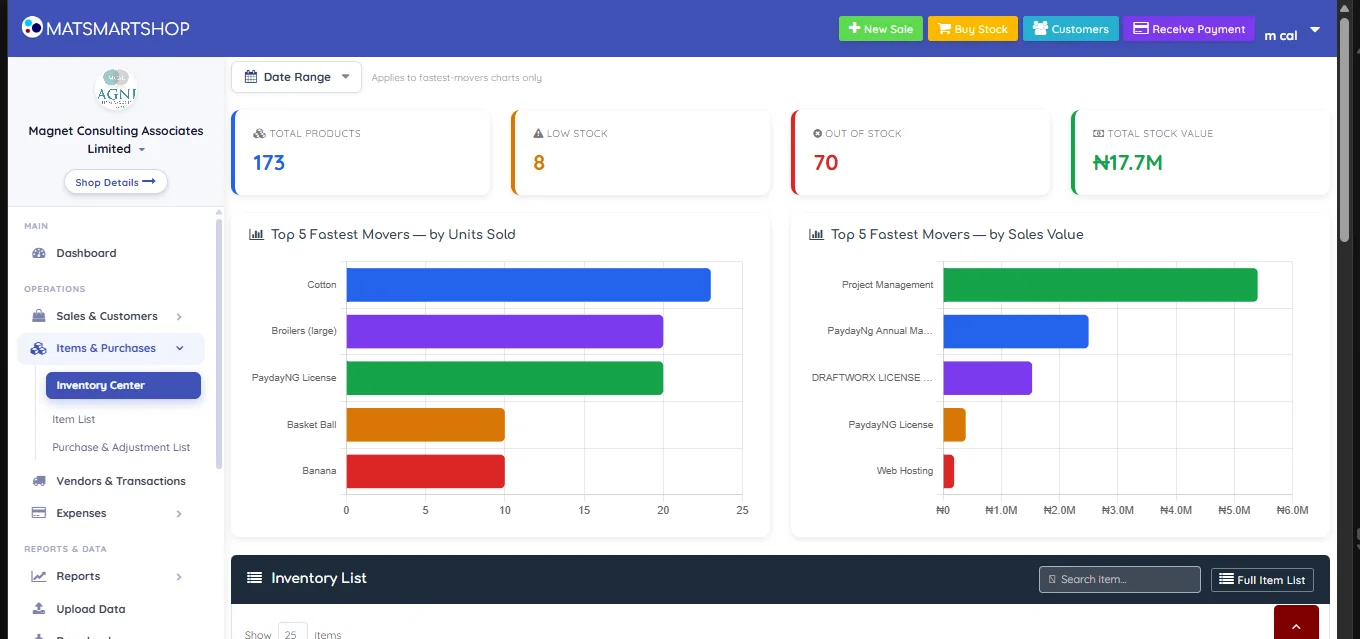
| Card | What it tells you |
|---|---|
| Total Products | How many items are in your catalogue. |
| Low Stock | Items at or below their reorder level — your buying list. |
| Out Of Stock | Items at zero or below. |
| Total Stock Value | What the stock on hand is worth at cost. |
The two Top 5 Fastest Movers charts answer different questions and are worth reading together. By Units Sold shows what leaves the shelf most often; by Sales Value shows what actually brings in money. An item can top one chart and be absent from the other — that gap is usually where a pricing or stocking decision is hiding.
The Date Range selector at the top applies to the fastest-movers charts only. The four cards always describe stock as it stands right now.
2. Item List
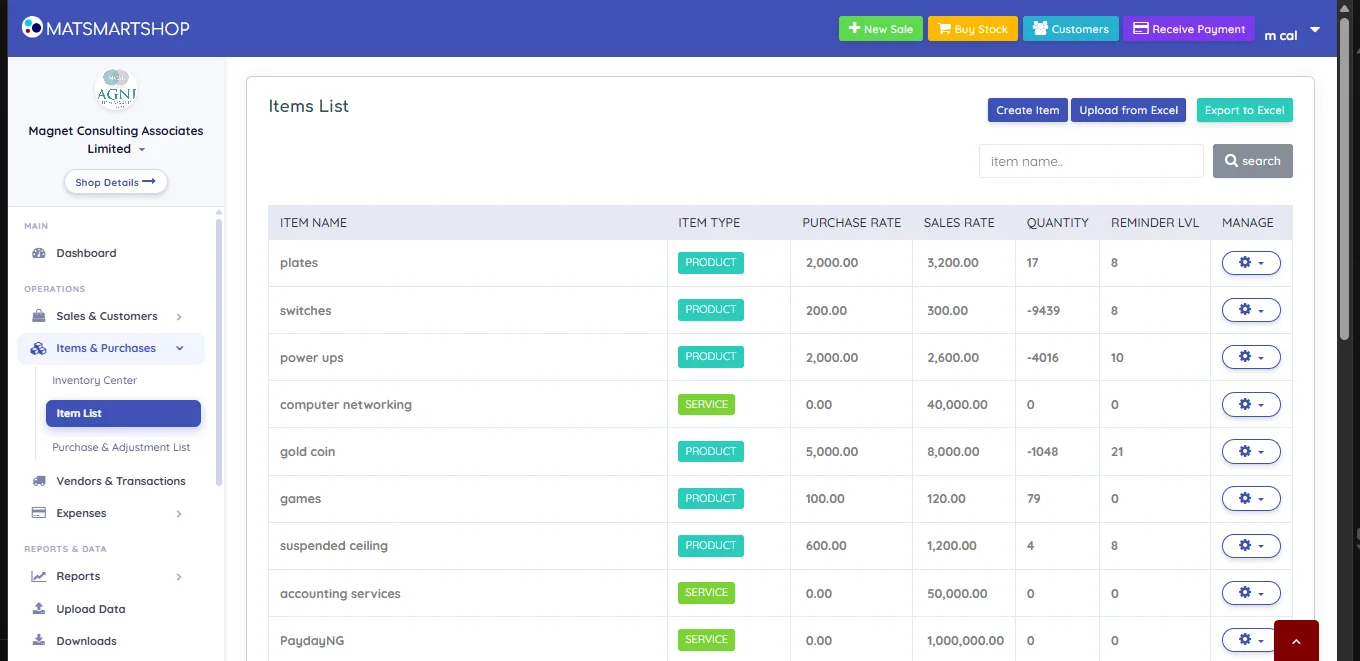
| Column | Meaning |
|---|---|
| Item Name | Your internal name. Click it to open Item Detail. |
| Item Type | PRODUCT (has stock) or SERVICE (does not). Services always show quantity 0 — that is correct, not a fault. |
| Purchase Rate | Cost price. |
| Sales Rate | What you charge. |
| Quantity | Stock on hand. |
| Reminder Lvl | The reorder point — see section 8. |
| Manage | The row's actions. |
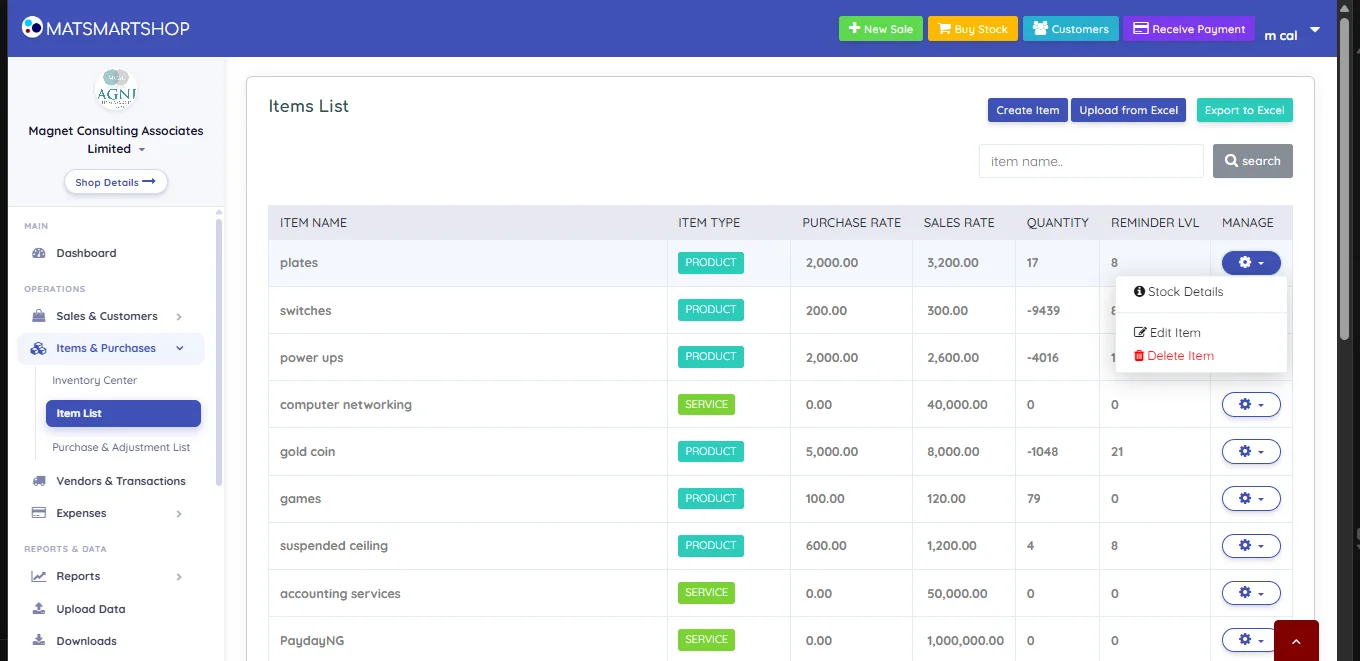
2.1 Negative quantities
A negative figure in the Quantity column means the system has recorded more going out than ever came in. It is almost never a counting error at the till — it is stock that was sold before it was ever entered as received, or purchases that never synced. Fix it with a stock adjustment (section 6) once you have counted the shelf, and treat a large negative as a sign that the item's purchase history is incomplete.
3. Creating items
Create Item opens a form that lets you queue several products before saving any of them.
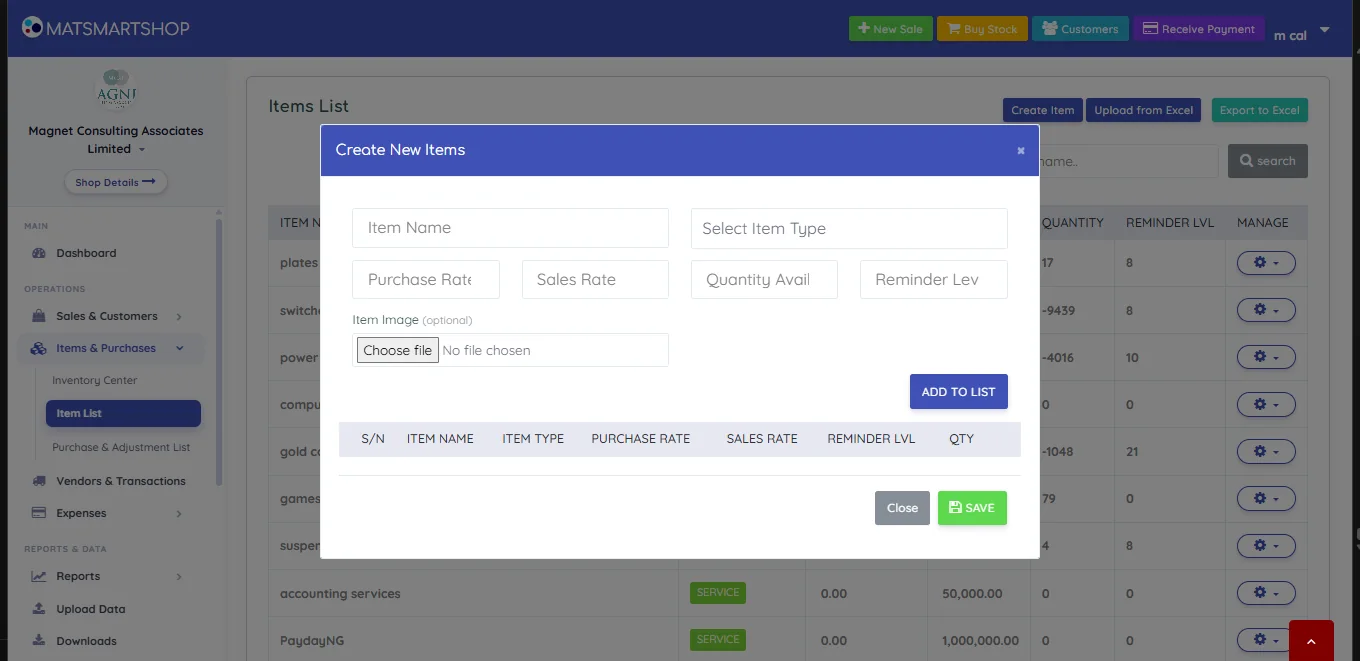
- Item Name and Item Type (Product or Service).
- Purchase Rate — what it costs you. Sales Rate — what you charge.
- Quantity Avail — opening stock. Use it only for what is on the shelf the day you create the item; everything arriving afterwards should come in as a purchase so the cost is recorded.
- Reminder Lvl — the reorder point.
- Item Image (optional) — worth adding. The photo shows as a thumbnail in the New Sale item picker, so staff can confirm they've grabbed the right product at a glance.
- Add To List, repeat for as many items as you're entering, then Save.
4. Item Detail — the stock passbook
Click any item name to open it. This screen answers "why does it say I have this many?"
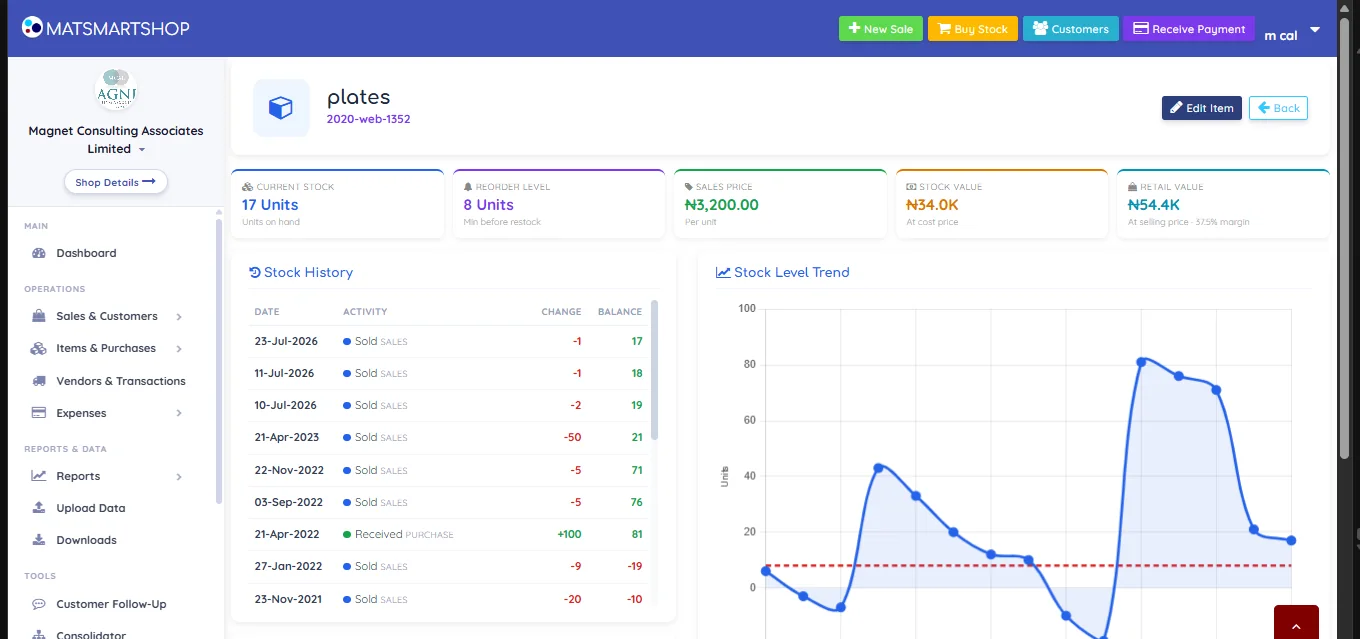
4.1 The five cards
| Card | Meaning |
|---|---|
| Current Stock | Units on hand. |
| Reorder Level | Minimum before restock. |
| Sales Price | Per unit, as charged. |
| Stock Value | What you're holding, at cost. |
| Retail Value | The same stock at selling price, with the margin percentage. |
4.2 Stock History
Every purchase, sale, adjustment and transfer for this item, each with the change it made and the running balance afterwards. Rows run newest first, so the balance on the top row is today's figure.
This is the tool for a disputed stock number. Work down the column until the balance stops matching what you believe, and the row where it diverges is the movement to investigate. A Received PURCHASE +100 against a Sold SALES −5 reads at a glance.
4.3 Trend, sales and the rest
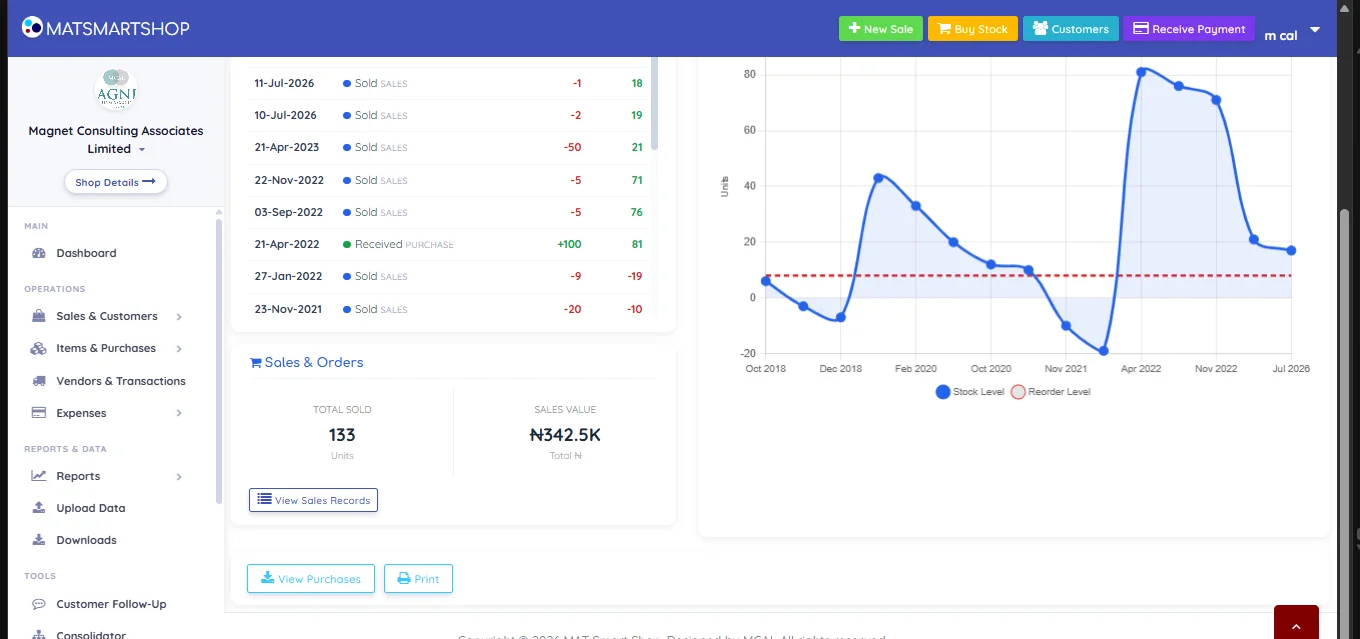
- Stock Level Trend — stock over time, with the reorder level drawn as a dashed line. Stretches below that line are stock-outs you may not have noticed.
- Sales & Orders — total units sold and total sales value for this item.
- View Sales Records / View Purchases — drill into the transactions behind those figures.
- Print — a printable copy of the item's position.
5. Purchase & Adjustment List
Every entry that has ever moved stock, other than sales.
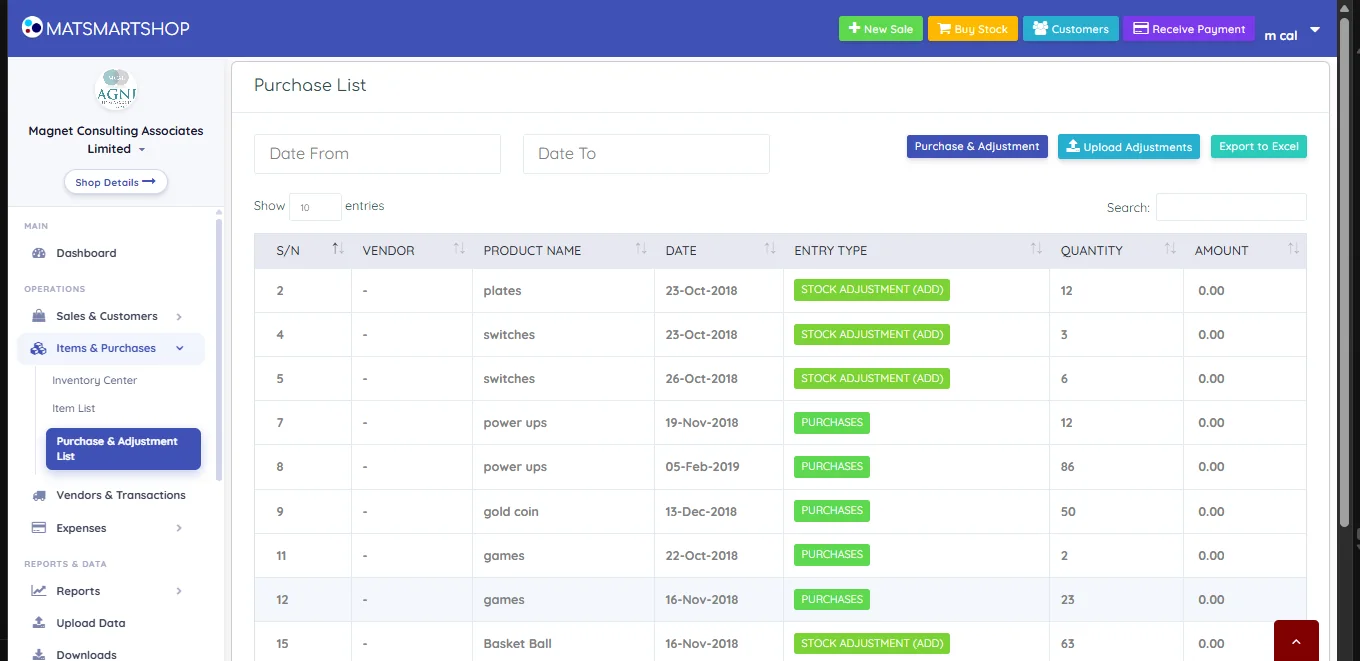
- Date From / Date To narrow the list to a period.
- Purchase & Adjustment opens the entry form (section 6).
- Upload Adjustments goes to the bulk route — see the Upload & Scan guide.
- Export to Excel takes the list out.
- Entry Type is badged PURCHASES, STOCK ADJUSTMENT (ADD) or STOCK ADJUSTMENT (REMOVE).
A row with no vendor and a zero amount is an adjustment; a row with a vendor and a value is a purchase. That distinction is the subject of section 7.
6. Recording a purchase or an adjustment
Purchase & Adjustment opens one form that handles both.
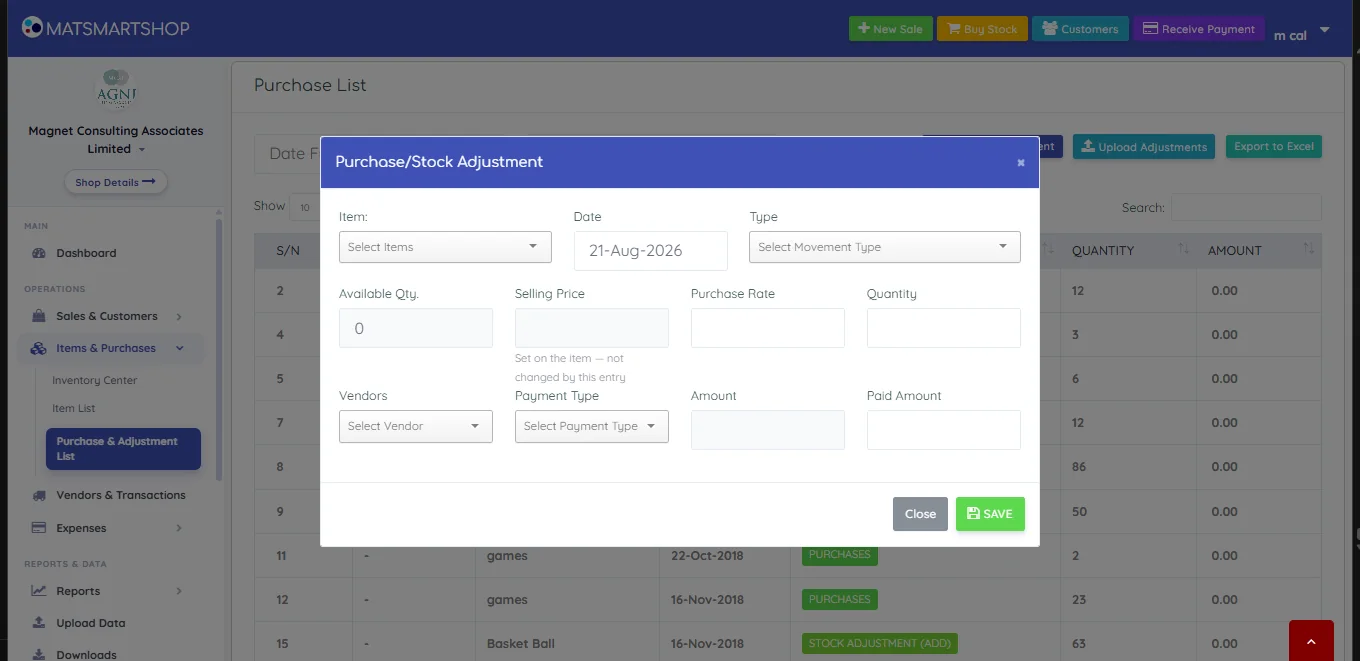
| Field | Notes |
|---|---|
| Item | Search and pick the product. |
| Date | Defaults to today. Backdate it to when the stock actually moved, not when you got round to entering it. |
| Type | The movement type — see below. |
| Available Qty. | Read-only: what you hold right now, shown so you can sanity-check before changing it. |
| Selling Price | Shown for reference and labelled Set on the item — not changed by this entry. To change what you charge, edit the item or use the Prices upload. |
| Purchase Rate | The unit cost of this delivery. This is what feeds your average cost. |
| Quantity | How many units moved. |
| Vendors | Who you bought from. Purchases only. |
| Payment Type / Amount / Paid Amount | What the delivery cost and how much of it you have actually paid. Anything unpaid becomes an outstanding vendor balance and feeds the dashboard's You Owe Vendors figure. |
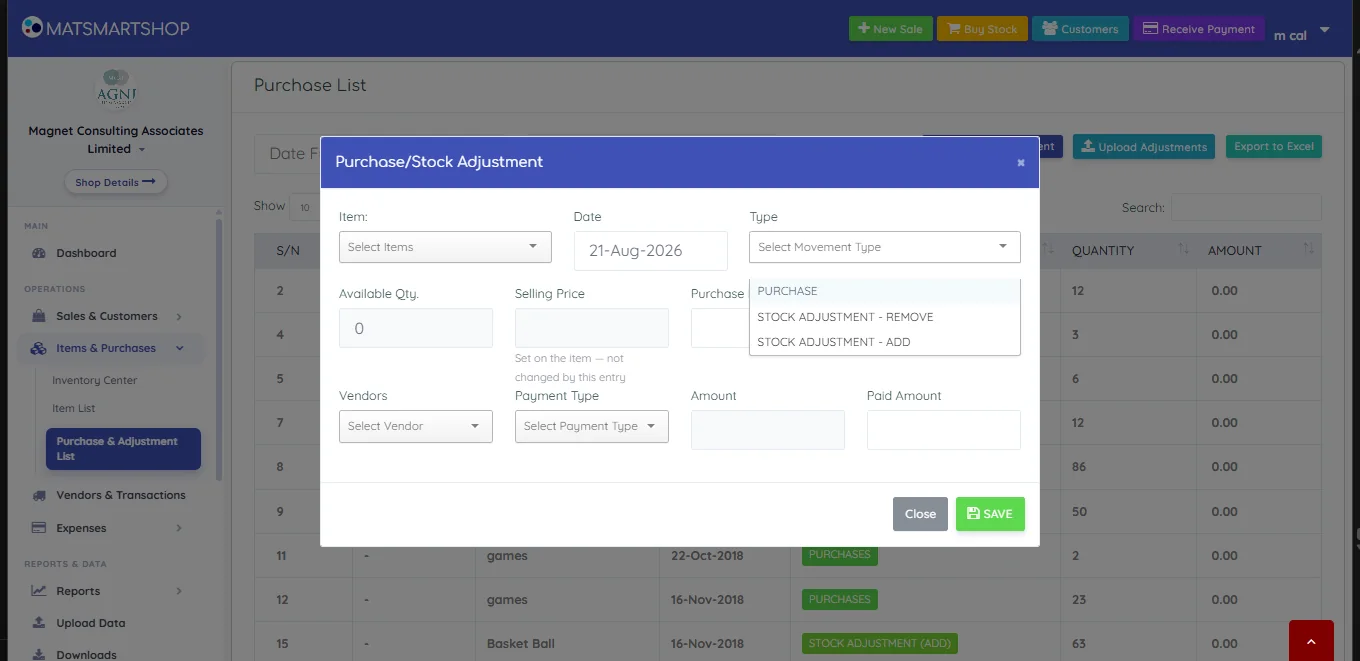
| Type | Use it for |
|---|---|
| PURCHASE | Stock bought from a vendor. Records the vendor, the cost and what you paid. |
| STOCK ADJUSTMENT - ADD | Stock appearing for a reason that isn't a purchase — a recount that found more, a correction, stock returned by a customer. |
| STOCK ADJUSTMENT - REMOVE | Stock leaving for a reason that isn't a sale — damage, expiry, theft, a recount that found less. |
7. Purchases vs adjustments — and why it matters to your costs
Both move the quantity. Only one of them tells the truth about money.
| Purchase | Adjustment | |
|---|---|---|
| Changes stock | Yes | Yes |
| Records a vendor | Yes | No |
| Records what you paid | Yes | No |
| Creates a payable if unpaid | Yes | No |
| Feeds your average cost | Yes, at the rate you entered | At whatever cost is on the entry — zero if you leave it blank |
The reverse mistake is milder but still worth avoiding: recording a recount or a breakage as a purchase invents a vendor liability you don't owe.
8. Reorder levels and low stock
The Reminder Level (called Reorder Level on Item Detail) is the figure that drives your Low Stock alerts — on the Inventory Center card, on the dashboard, and as the dashed line on the item's trend chart.
Set it to cover the time it takes to restock, not to zero. If a product takes a week to arrive and you sell five a week, a reorder level of five means you run out exactly as the new stock arrives; ten gives you a week of cover. Items left at zero never alert, which is why a store can have seventy items out of stock and no warnings.
9. Doing it in bulk
Everything in this guide has a bulk equivalent, covered fully in the Upload & Scan guide:
| One at a time | In bulk |
|---|---|
| Create Item | Upload Data → Items, or Upload from Excel on the Item List |
| Purchase & Adjustment (type = PURCHASE) | Upload Data → Purchases |
| Purchase & Adjustment (type = ADD / REMOVE) | Upload Data → Stock Adjustments, or Upload Adjustments on this screen |
| Editing an item's price | Upload Data → Prices |
| Typing from a paper delivery note or stock count | Upload Data → Scan A Report |
10. Quick reference
| I want to… | Do this |
|---|---|
| See what needs reordering | Inventory Center → Low Stock |
| Know what my stock is worth | Inventory Center → Total Stock Value |
| Find out why a stock figure is wrong | Item List → click the item → Stock History |
| Add a product | Item List → Create Item |
| Record a delivery from a supplier | Purchase & Adjustment List → Purchase & Adjustment → type PURCHASE |
| Write off damage or expiry | …same form → STOCK ADJUSTMENT - REMOVE |
| Correct stock after a count | …same form → ADD or REMOVE for the difference |
| Change a selling price | Edit the item (or Upload Data → Prices) — not the purchase form |
| See everything that moved stock this month | Purchase & Adjustment List → set Date From / Date To |
| See what I owe suppliers | Vendors & Transactions, fed by the unpaid part of each purchase |
If something looks wrong
- Quantity is negative. More has gone out than was recorded coming in. Count the shelf, then post an adjustment — and check whether purchases for that item were ever entered.
- A service shows quantity 0. Correct. Services don't carry stock.
- Profit looks too good. Check whether stock was brought in as zero-cost adjustments instead of purchases.
- Stock value looks too low. Same cause.
- An item never appears in Low Stock. Its reorder level is probably 0.
- A price changed unexpectedly. It did not come from a purchase entry — that form cannot change selling price. Look at item edits and the Prices upload.
- Stock History and current stock disagree. The last row's running balance is the authority; if it doesn't match the card, raise it with support rather than adjusting over the top.