Everything in this guide lives under Upload Data in the sidebar. Six of the seven tiles take a spreadsheet; the seventh, Scan A Report, takes a photograph of a written or printed sheet and reads it for you. The camera route is covered in full from section 9 onward — it is the one with the most that can go wrong, and the most that can be checked before anything is saved.
1. Which upload do I need?
Most upload mistakes are really the wrong tile. This table is the whole decision.
| You have… | Use | Because |
|---|---|---|
| A list of products to add to your catalogue | Items | Creates products with their rates and opening stock. |
| A list of people to add to your customer list | Customers | Creates customer records — name, email, phone, address. |
| Sales already made, to be recorded | Sales | Each row is saved as its own invoice. For backdated or bulk entry, not for ringing up a live sale. |
| Stock you bought from a vendor | Purchases | Adds stock and records the vendor and the cost, which is what feeds your weighted average cost. |
| A stock count, damages, expiry or shortages | Stock Adjustments | Moves stock up or down without a vendor or a payment. |
| New selling prices for products you already sell | Prices | Changes price only — never quantity, never anything else on the item. |
| A photo of a paper sheet, in any of the above shapes | Scan A Report | Reads the sheet and hands you the same preview the spreadsheet route would. |
2. The Upload Data hub
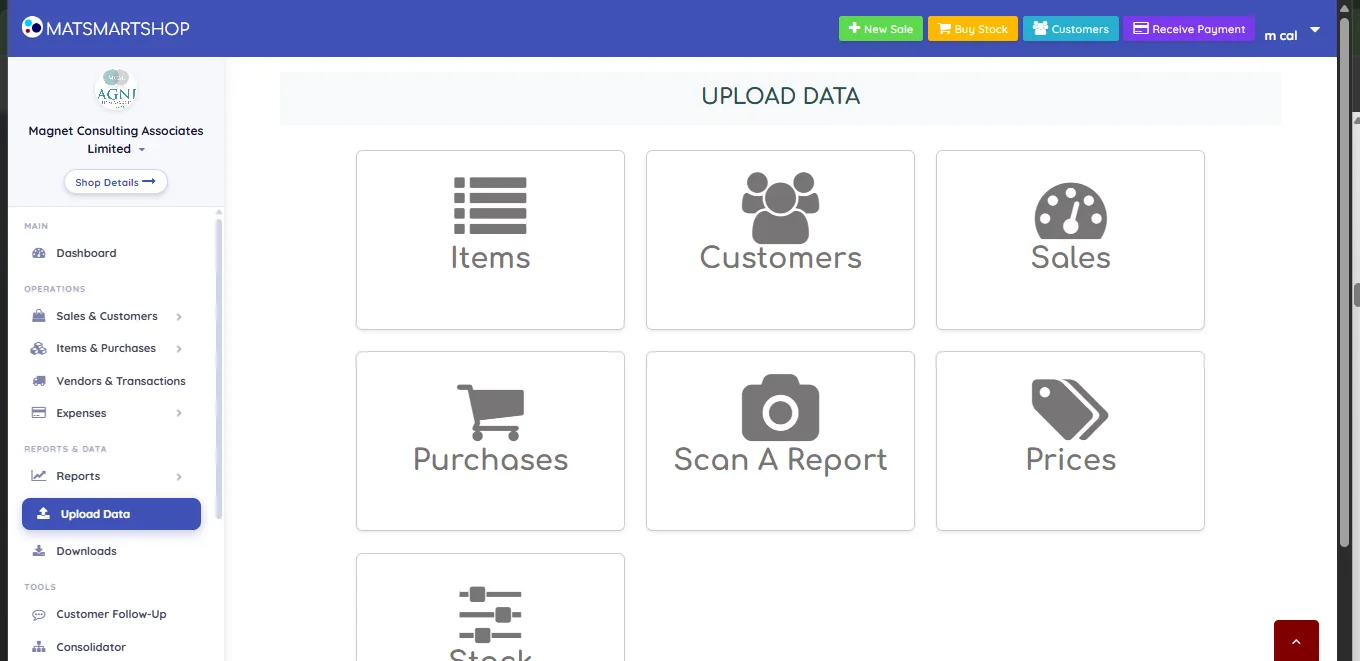
Six spreadsheet tiles and the camera tile, all in one place. Items and Customers open as a pop-up over their own list screen; the rest are full pages.
3. How every spreadsheet upload works
All six follow the same four steps. Learn it once.
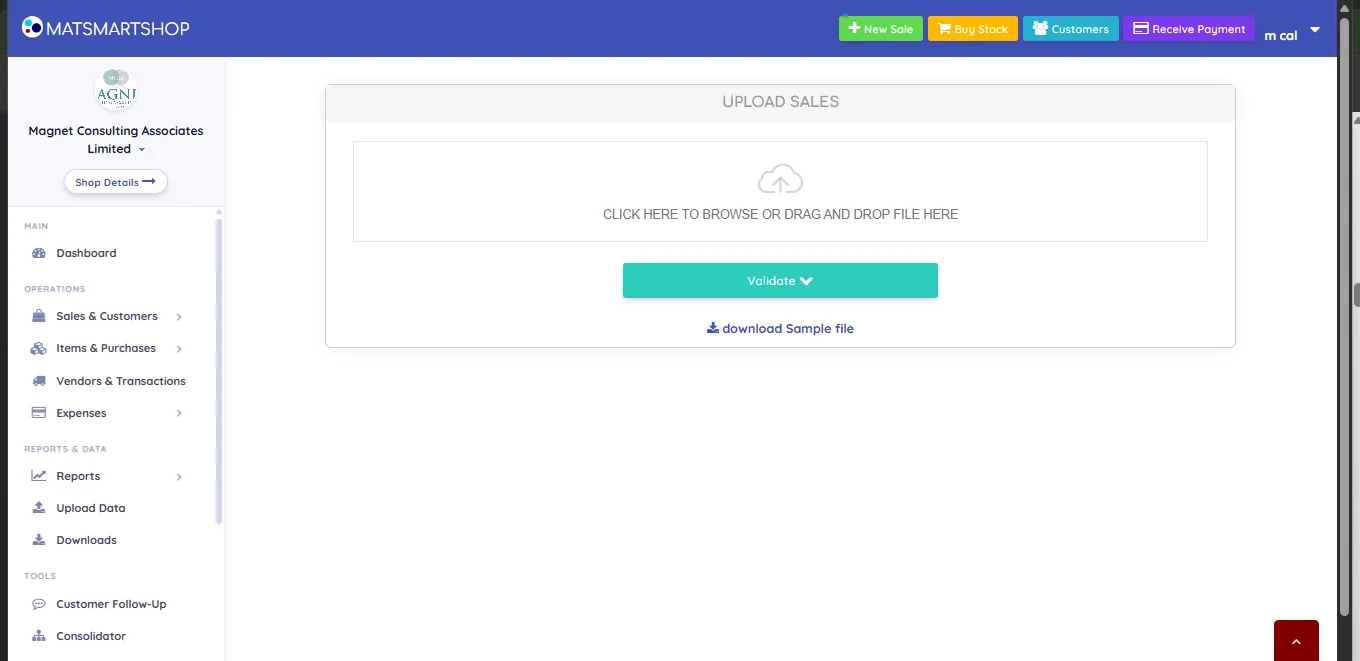
- Download the sample file. The link sits under the drop area. Do this even if you think you know the columns — the template also carries a guide sheet explaining each one.
- Fill it in. Keep the column names exactly as they are. Add your rows on the data sheet, not the guide sheet.
- Upload and Validate. Drag the file onto the box or click to browse, then press Validate. This reads the file and shows you every row — it saves nothing.
- Check the preview, then confirm. Only the confirm button writes to your books.
4. Items
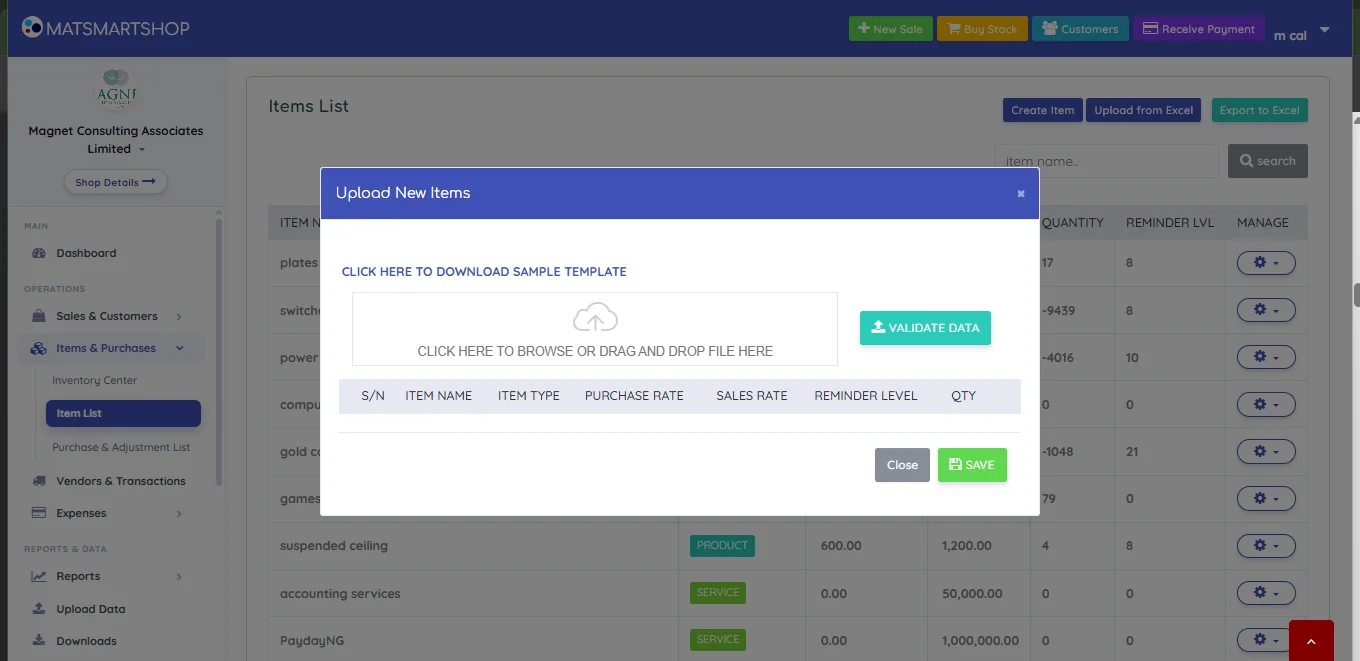
Columns: Item Name, Item Type, Purchase Rate, Sales Rate, Reminder Level, Qty. Press Validate Data, check the table, then Save.
Reminder level is the re-order point — the stock figure at which the item starts appearing in your Low Stock alerts. Qty is opening stock, so use it only for products you are introducing; for stock arriving into products you already sell, use Purchases.
5. Customers
Reached the same way from the Customer Center — Upload from Excel. Columns are name, email, phone and address. The same validate-then-save pattern applies.
Phone numbers are worth getting right at this stage: they are what Customer Follow-Up texts and what the storefront uses to reach a buyer. A customer with no phone number is silently skipped by every reminder you ever send.
6. Sales and Purchases
Sales saves each row as its own invoice. It is meant for backdated or bulk entry — catching up a week of paper tickets, migrating from another system — rather than for recording a sale as it happens.
Purchases records stock bought in from a vendor, against that vendor, at the cost you paid. This is the route that keeps your costing honest, so prefer it over an adjustment whenever money changed hands.
7. Prices
A bulk price change for products you already sell. It touches the selling price and nothing else — not quantity, not cost, not the item's other settings. It cannot create a product: a row naming something you don't stock has nothing to update.
8. Stock Adjustments
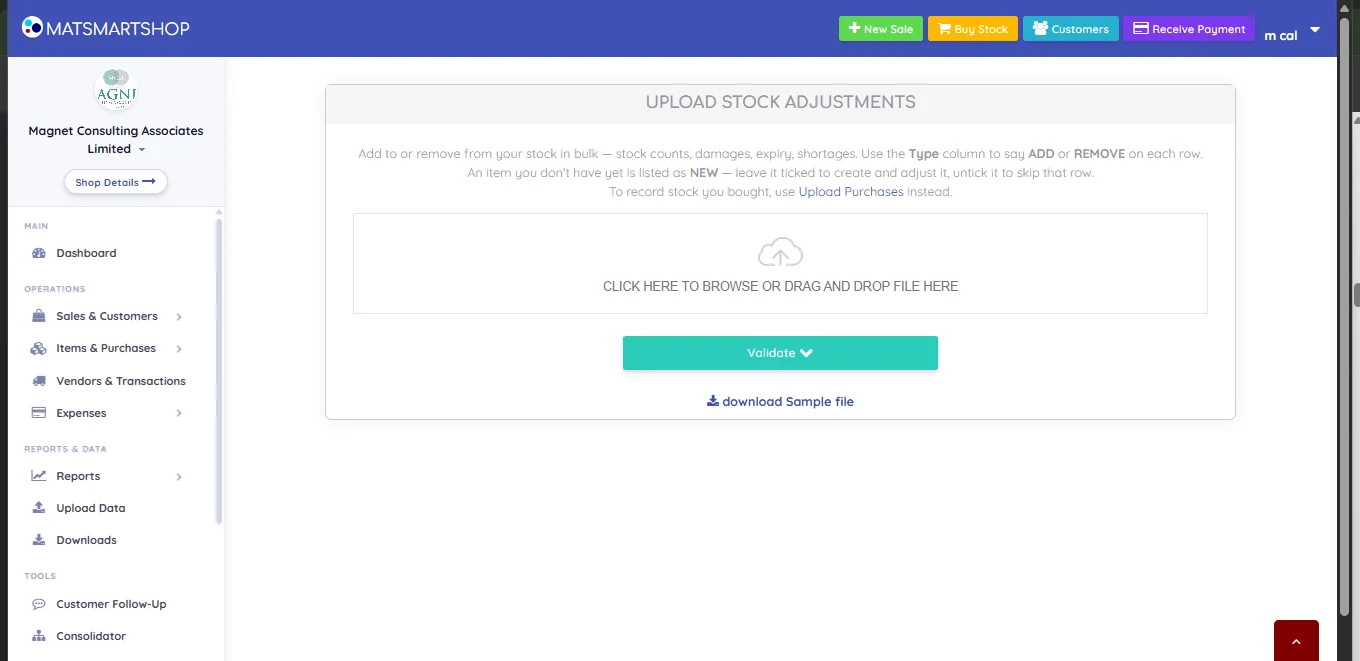
Columns: Item_Name, Type, Date, Quantity, Purchase_Rate, Sales_Rate. The Type column carries the whole meaning of the row — ADD puts stock on, REMOVE takes it off.
8.1 The preview
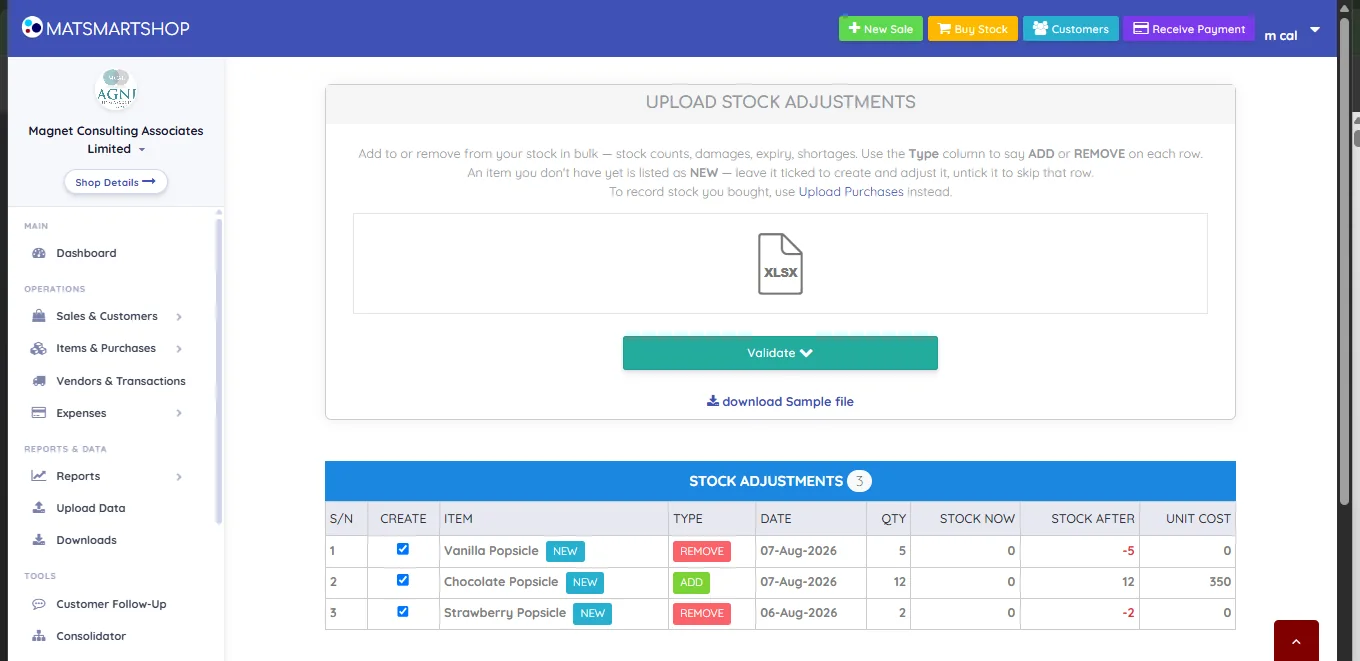
Read the preview right to left:
- Stock Now — what the system currently believes you hold.
- Stock After — what it will hold once you confirm. This is the column to check. A negative figure in red means the row takes off more than you have; that is either a genuine shortage or a mistake in the sheet, and it's much easier to fix now than to unpick later.
- CREATE and the NEW badge — see section 11.
When the numbers read correctly, press Confirm and Save List.
9. Scan A Report — what it is
Scan A Report photographs a written or printed sheet and reads the names and numbers off it, then hands you the same kind of preview a spreadsheet upload would. It exists for the paperwork that never made it into a spreadsheet: a counter book, a stock count on a clipboard, a supplier's delivery note.
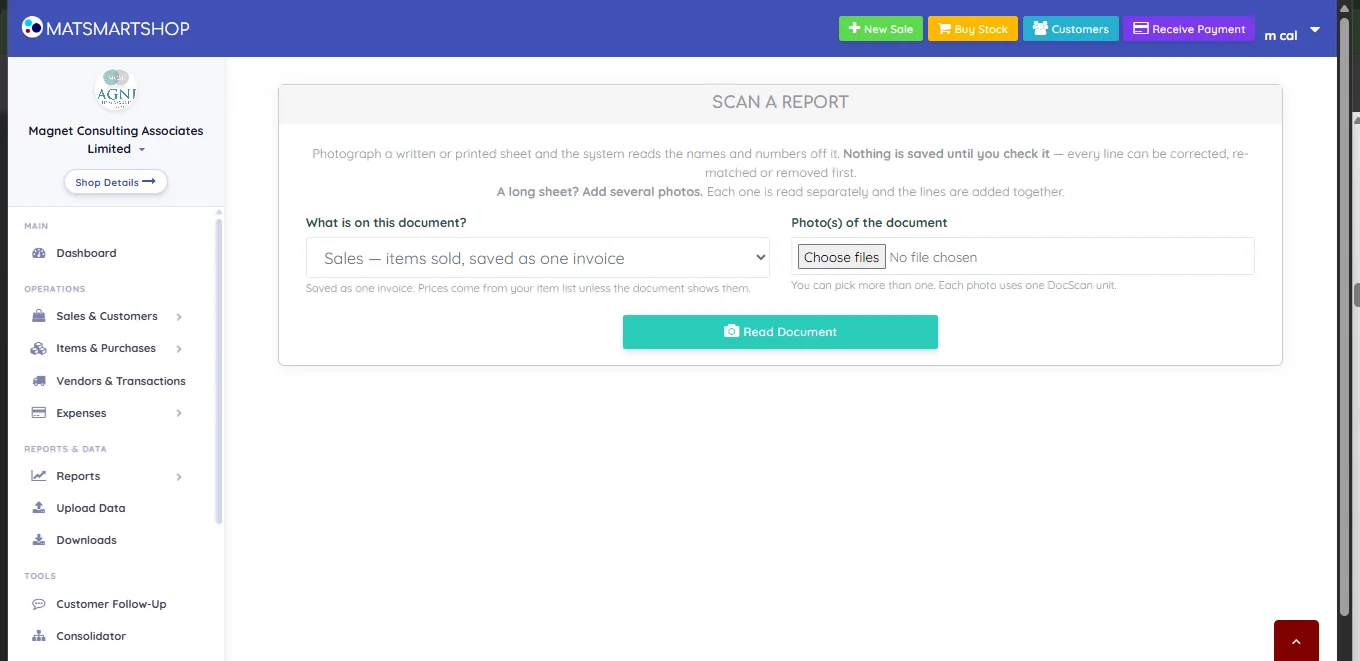
The page states its own contract plainly: Nothing is saved until you check it — every line can be corrected, re-matched or removed first.
10. Scanning step by step
10.1 Say what the document is
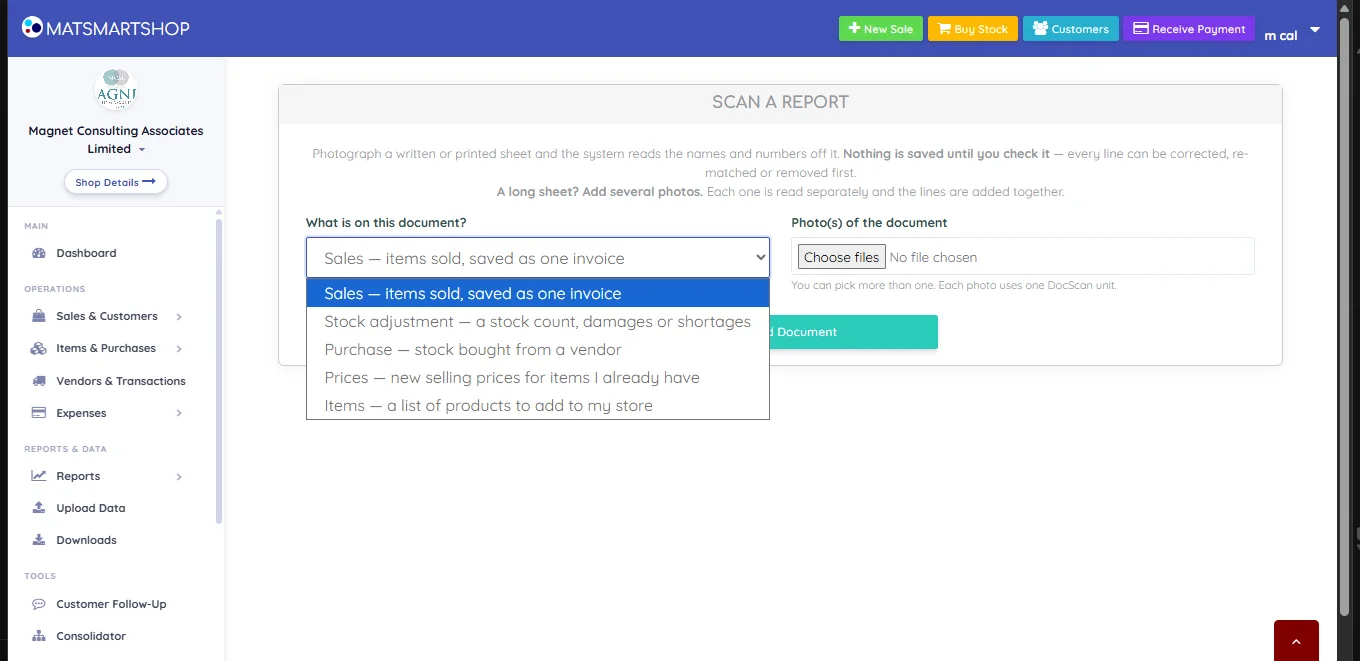
This choice is not cosmetic. It decides which header fields you're asked for, how the numbers are interpreted, and what the confirm button does.
| Type | What it does | Confirm button |
|---|---|---|
| Sales — items sold, saved as one invoice | Saved as one invoice. Prices come from your item list unless the document shows them. | Confirm and Save Sale |
| Stock adjustment — a stock count, damages or shortages | Moves stock up or down. The only type that can create a product. | Confirm and Save Adjustments |
| Purchase — stock bought from a vendor | Recorded against a vendor. Costs come from your item list unless the document shows them. | Confirm and Save Purchase |
| Prices — new selling prices for items I already have | Changes the selling price of items you already have. It never creates products. | Confirm and Update Prices |
| Items — a list of products to add to my store | Creates products. Anything already in your store is flagged so you do not duplicate it. | Confirm and Create Items |
10.2 Photograph the sheet well
The reader is only as good as the photo. In practice:
- Fill the frame with the sheet, square on, not at an angle.
- Even light, no shadow from your own hand, no flash glare across the middle of the page.
- Flatten creases — a fold running through a column is where digits get lost.
- One page per photo. Add more photos for more pages.
10.3 Read the document
Press Read Document and wait — this is the step that calls the reader, and it takes a few seconds per photo. What comes back is a form, not a saved record.
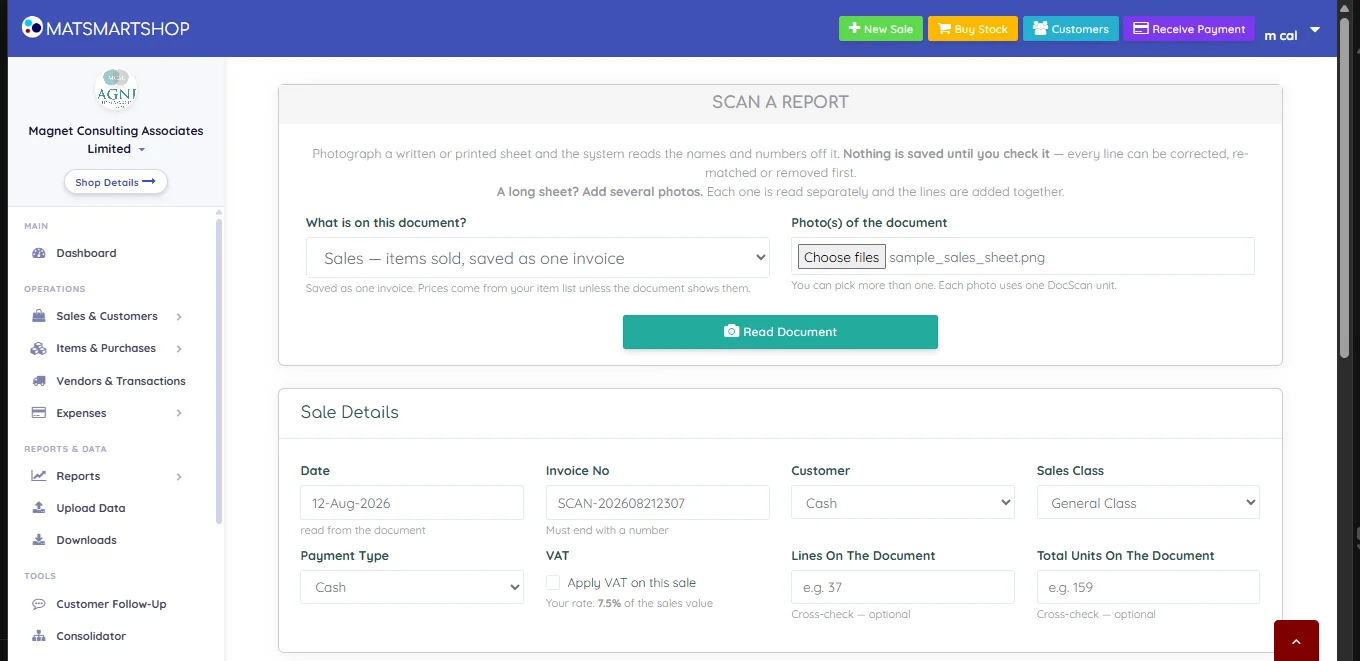
For a Sales document you get:
| Field | Notes |
|---|---|
| Date | Marked read from the document where the reader found one. Check it — a misread date backdates the whole invoice. |
| Invoice No | Generated for you as SCAN-…. You can overwrite it, but it must end with a number. |
| Customer | Defaults to Cash. Pick the real customer if the sale was on credit, or the balance won't be tracked against anyone. |
| Sales Class / Payment Type | Your own categories, exactly as on a normal sale. |
| VAT | Apply VAT on this sale, with your configured rate shown. If no rate is set the screen says so and links you to Shop Details. |
| Lines On The Document / Total Units On The Document | Optional cross-checks — section 12. |
A Stock adjustment swaps this header for What do the numbers mean?, with three answers: Counted stock — set my stock to these figures, Quantities to ADD to my stock, or Quantities to REMOVE from my stock. Get this wrong and a stock count becomes a huge delivery, so read it twice.
11. The lines table: matching, prices and quantities
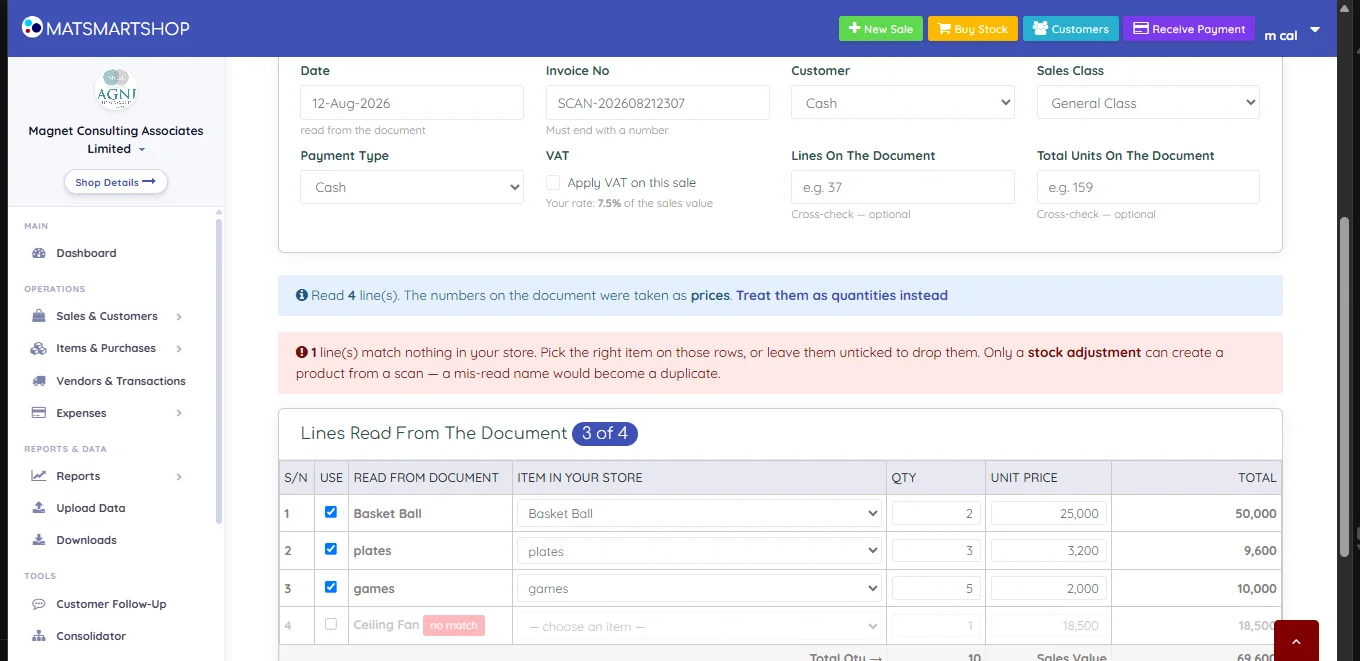
Each row shows the raw text read from the document beside the item in your store it was matched to. The heading counts how many rows are actually in play — 3 of 4 above.
| Column | What to do with it |
|---|---|
| USE | Ticked rows are saved. Untick to drop a row without deleting anything. |
| READ FROM DOCUMENT | The reader's text. Compare it against the sheet — this is where a misread shows up. |
| ITEM IN YOUR STORE | A dropdown. Change it if the match is wrong; a row that matched nothing shows no match and — choose an item —. |
| QTY / UNIT PRICE / TOTAL | All editable. Correct them here rather than re-photographing. |
11.1 Rows that match nothing
When the reader produces a name your catalogue doesn't contain, the row is flagged no match and left unticked, and a red notice explains the options: Pick the right item on those rows, or leave them unticked to drop them.
On a stock adjustment scan you additionally get a Create all n link. Products created that way arrive with no cost and no selling price — set both on the Item List afterwards, or they will sell at zero and drag your costing.
11.2 Prices or quantities?
Above the table sits a line worth reading every single time:
Read 4 line(s). The numbers on the document were taken as prices. Treat them as quantities instead
On a sheet with one number per line the reader has to guess which it is. If it guessed wrong, that link flips the whole table in one click. A stock count read as prices — or a price list read as quantities — is the single most damaging scan mistake, and it is also the easiest to spot: check the QTY column against the sheet before you go further.
11.3 Anything the reader missed
Add A Line at the foot of the table inserts a row by hand — for anything the reader missed. Faint handwriting and lines crossing a fold are the usual casualties, which is why the line count in section 12 matters.
12. Cross-checking before you save
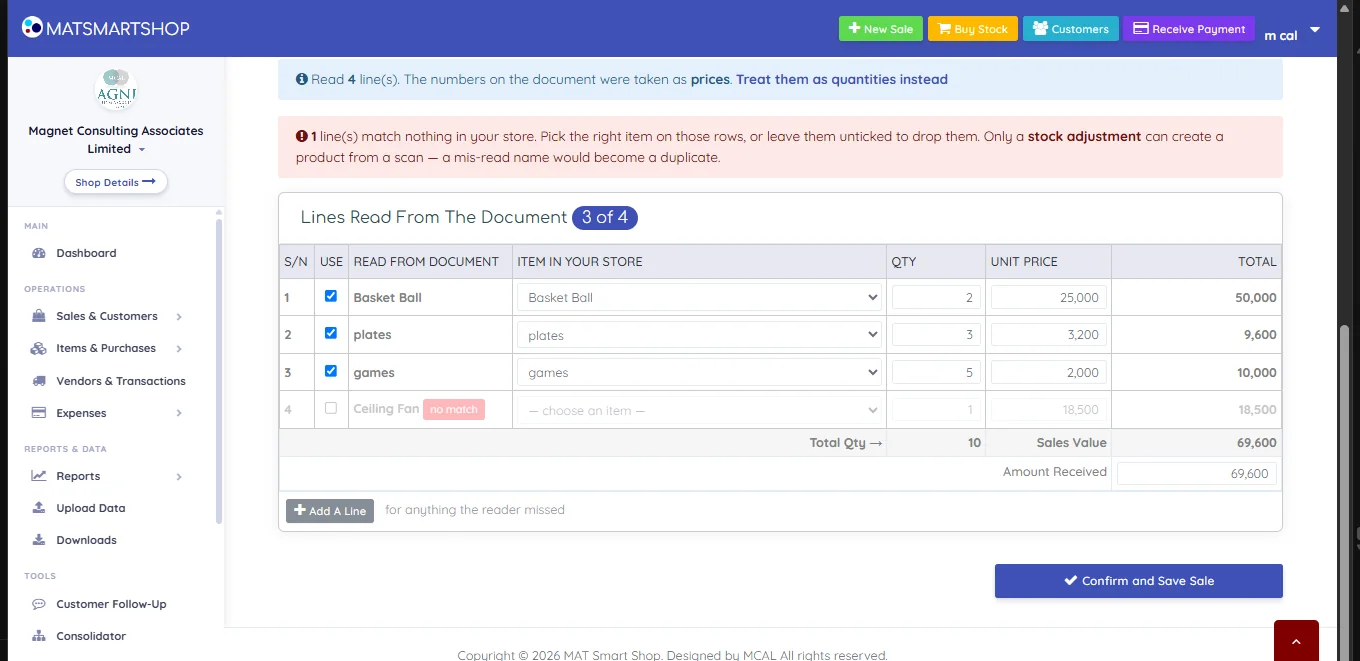
Two optional boxes in the header, Lines On The Document and Total Units On The Document, are the safety net. Count them off the paper yourself and type them in. If the ticked rows don't agree, the screen says Does not match the document and tells you where the gap is.
Check the totals row (Total Qty and Sales Value), set Amount Received if this was a paid sale, and press the confirm button. That is the first and only moment anything is written.
13. What scanning will not do
- It will not create products, except on a stock adjustment.
- It will not fix a bad photo. A shadowed or angled shot loses lines, and lost lines are invisible unless you cross-check.
- It will not always spell things as you did. The reader tidies names — expect "Basket ball" to come back as "Basket Ball". The matching handles that, but check the match rather than assuming.
- It will not know whether a number is a price or a quantity. It guesses; you confirm.
- It will not remember a correction. Fixing a match on one scan doesn't teach it for the next.
- It is not free. Each photo spends a DocScan unit whether or not you go on to save.
14. Quick reference
| I want to… | Do this |
|---|---|
| Add many products at once | Upload Data → Items → template → Validate Data → Save |
| Record stock I bought | Upload Data → Purchases (not Stock Adjustments) |
| Fix stock after a count | Upload Data → Stock Adjustments, Type = ADD or REMOVE |
| Raise prices across the catalogue | Upload Data → Prices |
| Raise prices in every branch at once | Consolidator → Update Prices |
| Enter a book of paper sales | Scan A Report → Sales |
| Enter a paper stock count | Scan A Report → Stock adjustment → Counted stock |
| Scan a sheet longer than one page | Add several photos to the same scan |
| Handle a scanned line that matched nothing | Pick the item by hand, or untick to drop it |
| Catch a line the reader missed | Fill in Lines / Total Units, then Add A Line |
| Undo an upload | You can't — check the preview. Nothing saves until you confirm. |
If something looks wrong
- Stock After is negative. The row removes more than you hold. Either the count is wrong or stock was never received — fix before confirming.
- Quantities came through as prices. Use the Treat them as quantities instead link above the table.
- A product came out duplicated. Something was created from a scan under a slightly different spelling. Only stock adjustments can do this — match by hand next time instead of creating.
- A created product sells at zero. Products created from a scan carry no cost and no selling price. Set both on the Item List.
- The preview has fewer lines than the sheet. The reader dropped one. Re-photograph in better light, or use Add A Line.
- "No VAT rate set." Set your rate on Shop Details, then reload the scan screen.
- Invoice number rejected. It must end with a number.