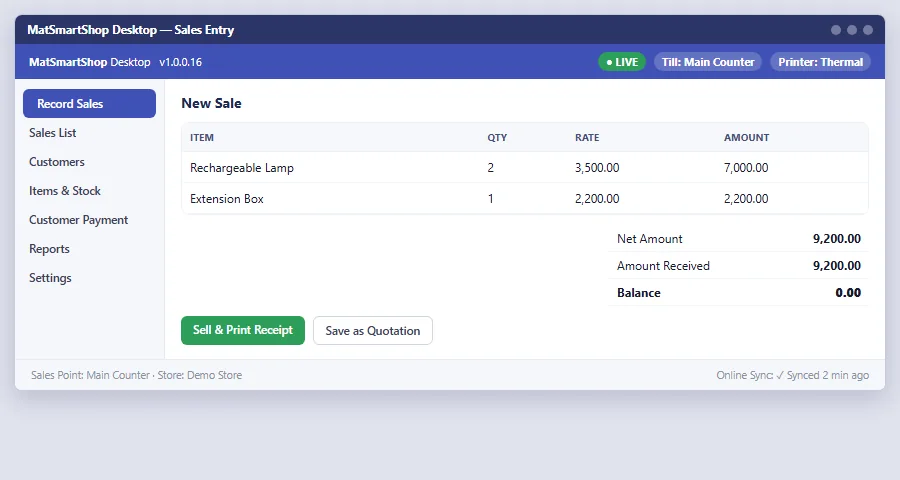
MatSmartShop Desktop is a full Windows app for PCs at a fixed till — same account, same catalog and customers as the Web app and Android, working fully offline with its own local database that syncs whenever you're online. Its day-to-day screens (making a sale, customers, items, reports, permissions) mirror the the web app guides (Sales & Customers, Items & Purchases); this guide covers only what's specific to running it on a Windows PC — installing, printing, and sync/support tools.
Screens shown below use sample data — names, phone numbers and amounts are illustrative, not real customer records.
1. Install & Sign In
- Install from updates.matsmartshop.com: run setup.exe (don't just download and open the
.applicationfile directly — use Setup or the install button on that page). It installs for your Windows user account and adds a Start Menu shortcut under Magnet Group → MatSmartShop. It self-updates from the same site. - Sign in with your existing MAT Smart Shop email and password — the same account you (or your team) use on web or Android. Registering a brand-new store works the same way as on web.
- The login screen shows the app's version and whether it's pointed at the live or a test server, so you always know what you're running.
- If your account has more than one store, you'll be shown a pick-list to choose which store this PC binds to — free on every client, no extra charge just for owning multiple stores.
2. Sales Points & Permissions
Desktop uses the same Sales Point (till) binding, staff permissions, and login audit as the web app. A few Desktop-specific notes:
- Setting up a till for the first time uses the Sales Point Setup screen — confirm which till this PC is.
- A permission change made on web reaches this PC automatically the next time it syncs; there's nothing to configure separately here.
- Every sign-in on this PC is recorded in the same Login Audit your admin sees on web, so you can always tell which till a sale came from.
3. Printer Settings
Under Settings → Printer Settings, choose Thermal Printer or Other Printers per till to match your actual hardware:
- Thermal Printer — receipts print directly to a roll/receipt printer, the usual choice at a checkout counter.
- Other Printers — renders a full A4 invoice, for a standard office printer.
Picking the wrong type for your printer will print garbage, so match it to what's physically connected before you start selling.
4. Auto Sync, Backup & Recovery
- Everything you enter syncs to MAT Smart Shop's cloud servers whenever you're online, so nothing is lost if this PC is damaged or replaced.
- Auto Sync (under Settings) shows your sync history and has View Log and Send Log buttons — Send Log packages a copy for support and opens a pre-filled email to support@matsmartshop.com, handy when troubleshooting a sync issue with the team.
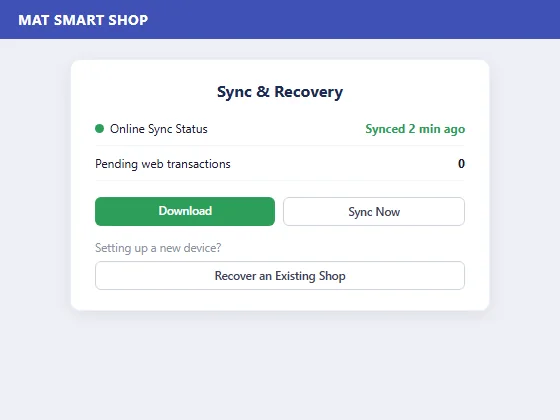
- No signal? Keep working — the app runs fully offline and syncs automatically once you're back online (watch the Online Sync Status indicator). Sync reliability has had a number of fixes recently, including removing duplicate records that used to pile up on repeated syncs and protecting an offline till's sales from being silently lost if its counter gets reassigned while it's away.
- Setting up on a new PC? Install the app, choose Recover an Existing Shop, enter your login details, then Start Recovery — afterwards, run Download to catch up on any web-side activity.
5. Subscription
Subscription checks are forgiving of a flaky connection — if the app can't reach the server, it won't lock you out; it only blocks you when the server has confirmed there's genuinely no active plan. Renewing or buying usage units is done the same way as on web — Desktop reads the same account balance.
6. Get Support
Need help? Use Send Log (section 4) if it's a sync issue — it hands support the exact information they need — or use the in-app Learning Centre, the tutorials at matsmartshop.com/tutorials.php, or contact support by email/phone/WhatsApp.