The Android app is not a smaller copy of the website. It is built to keep working when the internet does not: everything is saved on the phone first and pushed up when a connection returns. That one design decision explains most of what is different about it, and it is the thread running through this guide.
1. Signing in
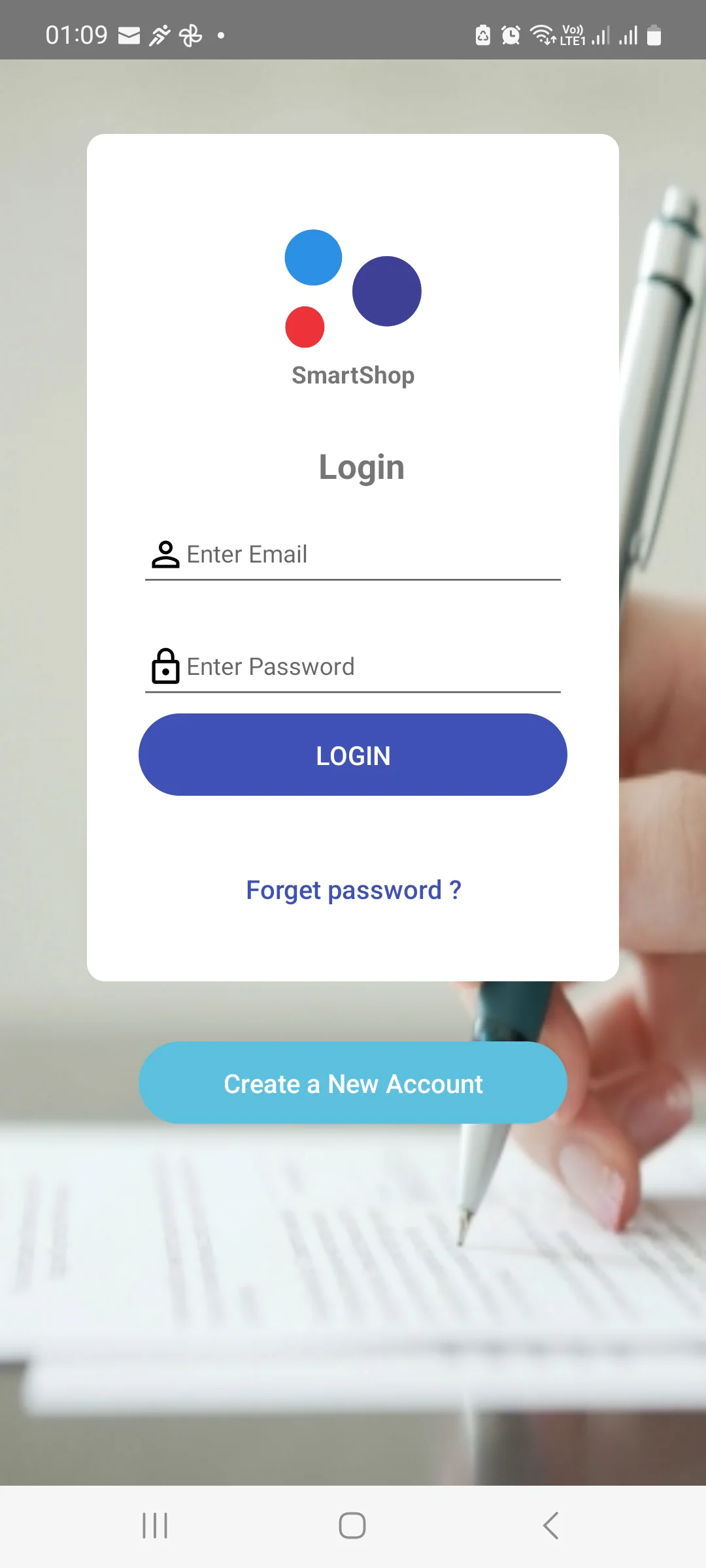
One account, one set of credentials, both clients. Create a New Account registers a new store from the phone; if you already have a store on the web, just sign in.
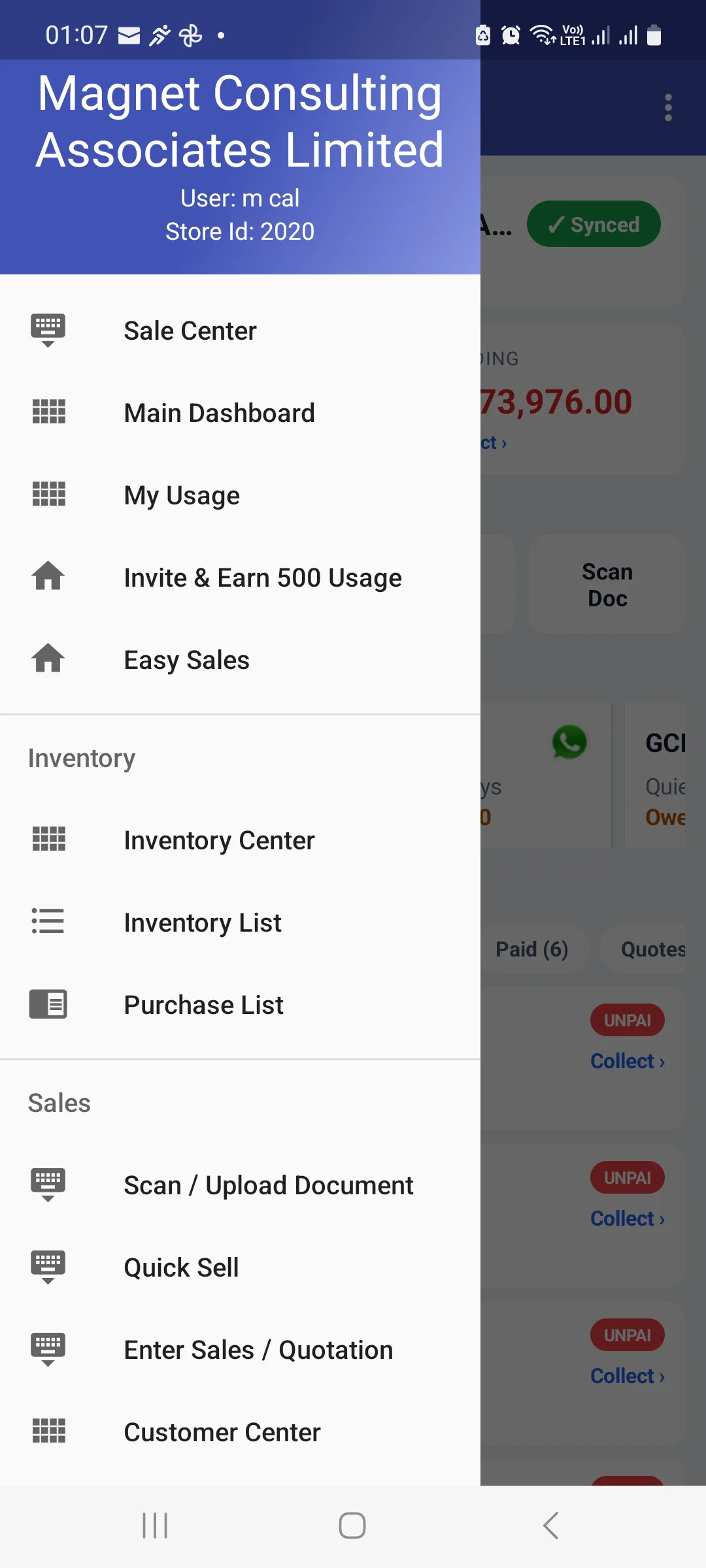
If you have access to more than one store, you're asked which one to open. The drawer header then shows User and Store Id so you can always confirm where you are before entering anything.
2. Sale Center — the home screen
Where the app opens, and where a counter spends its day.
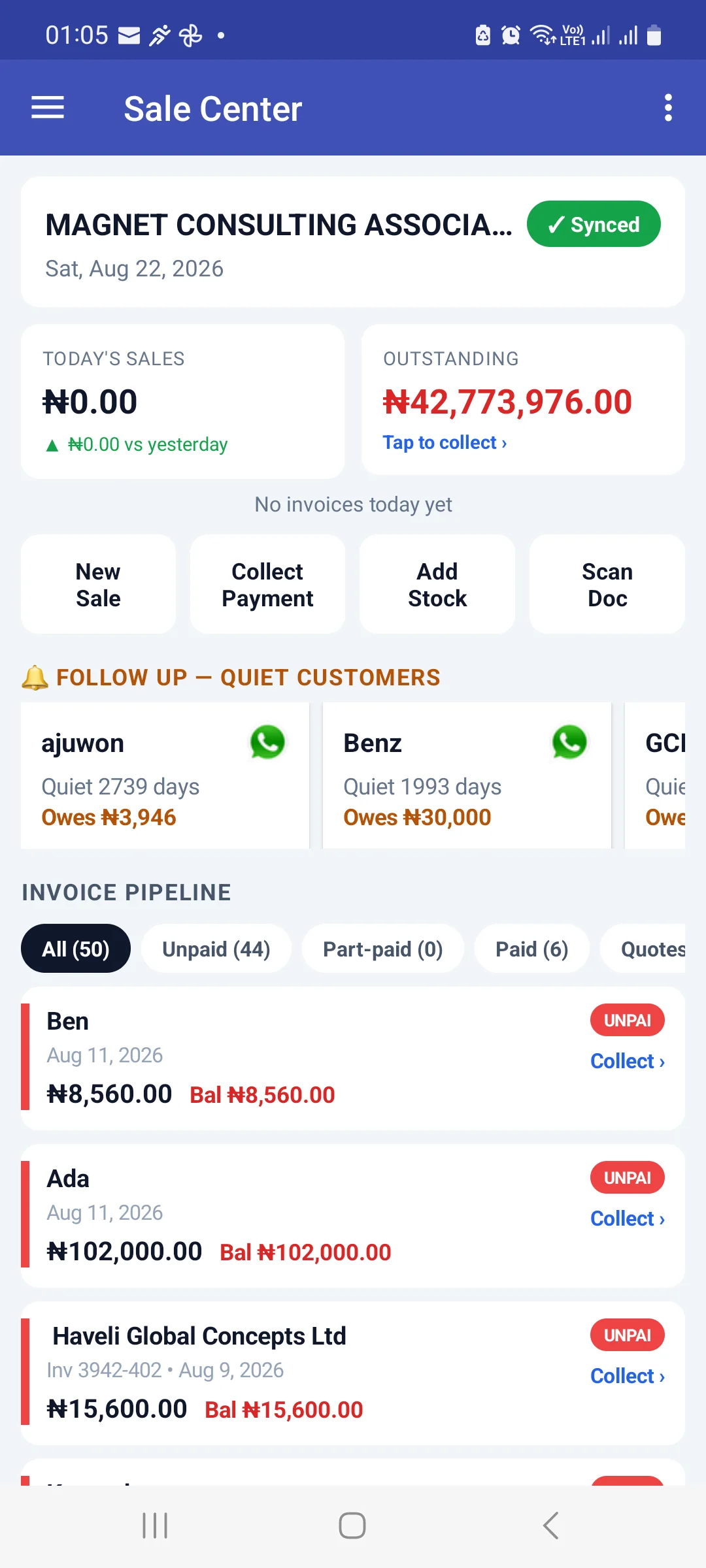
| Element | What it gives you |
|---|---|
| ✓ Synced badge | Whether this phone's data has reached the server. See section 10 — this is the single most important indicator on the screen. |
| Today's Sales | Today's takings, compared with yesterday. |
| Outstanding | Everything owed to you, with Tap to collect › straight into chasing it. |
| New Sale · Collect Payment · Add Stock · Scan Doc | The four things a counter actually does, one tap from the home screen. |
| Follow up — quiet customers | A swipeable row of customers who've stopped buying, each showing how long they've been quiet and what they owe, with a WhatsApp button. |
| Invoice pipeline | Filter chips — All, Unpaid, Part-paid, Paid, Quotes — over recent invoices, each card carrying its balance and a Collect › link. |
3. The menu
Tap the ☰ icon at the top left. The drawer is long — swipe up inside it to reach the lower groups.
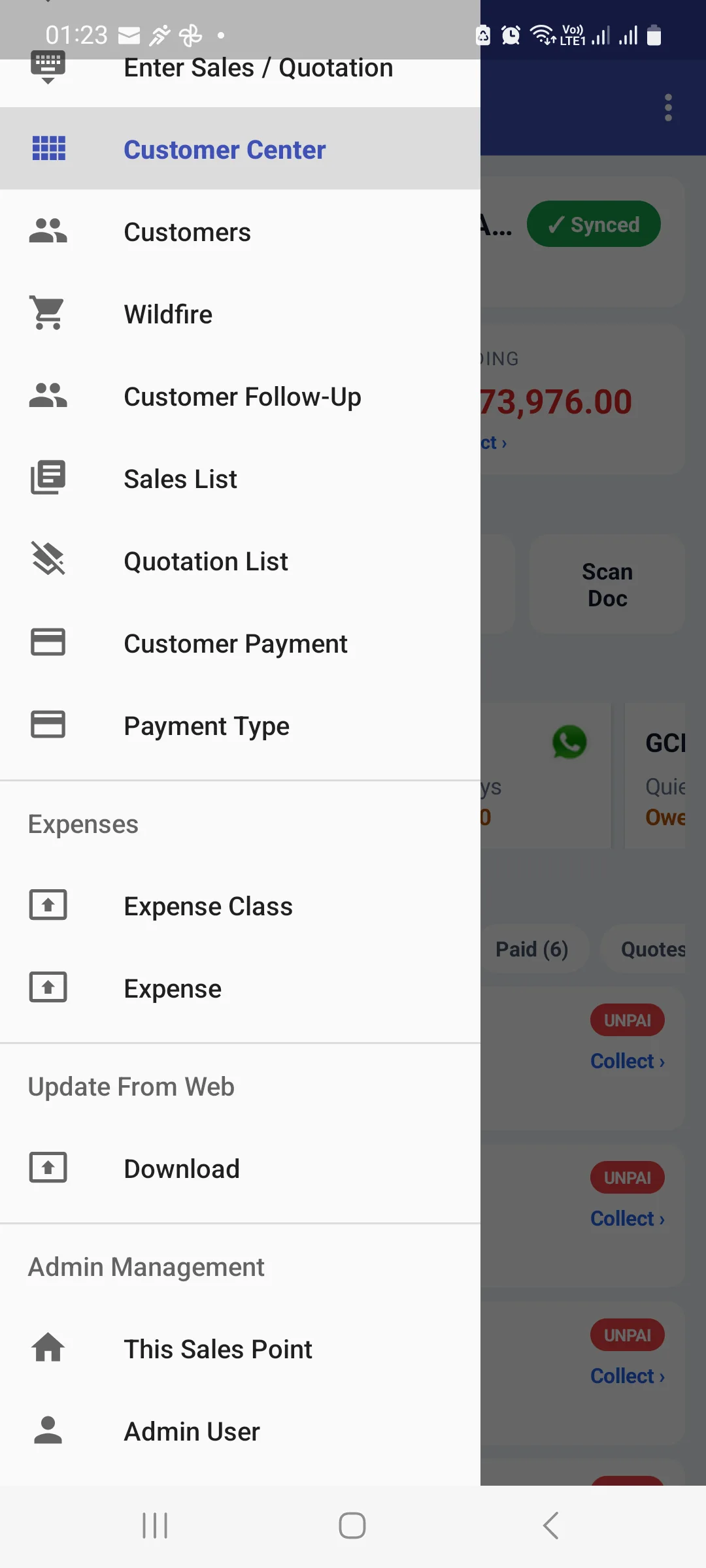
| Group | Items |
|---|---|
| (top) | Sale Center · Main Dashboard · My Usage · Invite & Earn 500 Usage Units · Easy Sales |
| Inventory | Inventory Center · Inventory List · Purchase List |
| Sales | Scan / Upload Document · Quick Sell · Enter Sales / Quotation · Customer Center · Customers · Wildfire · Customer Follow-Up · Sales List · Quotation List · Customer Payment · Payment Type |
| Expenses | Expense Class · Expense |
| Update From Web | Download |
| Admin Management | This Sales Point · Admin User · Other Users · User Permissions · Subscription |
| Report | Sales · Daily Sales · Inventory Value · Profit And Loss · Expense · Tax · Customer Follow Up |
| Settings | Edit Shop · Auto-Sync Interval · Version · Validate Data · Sign Out |
4. Main Dashboard
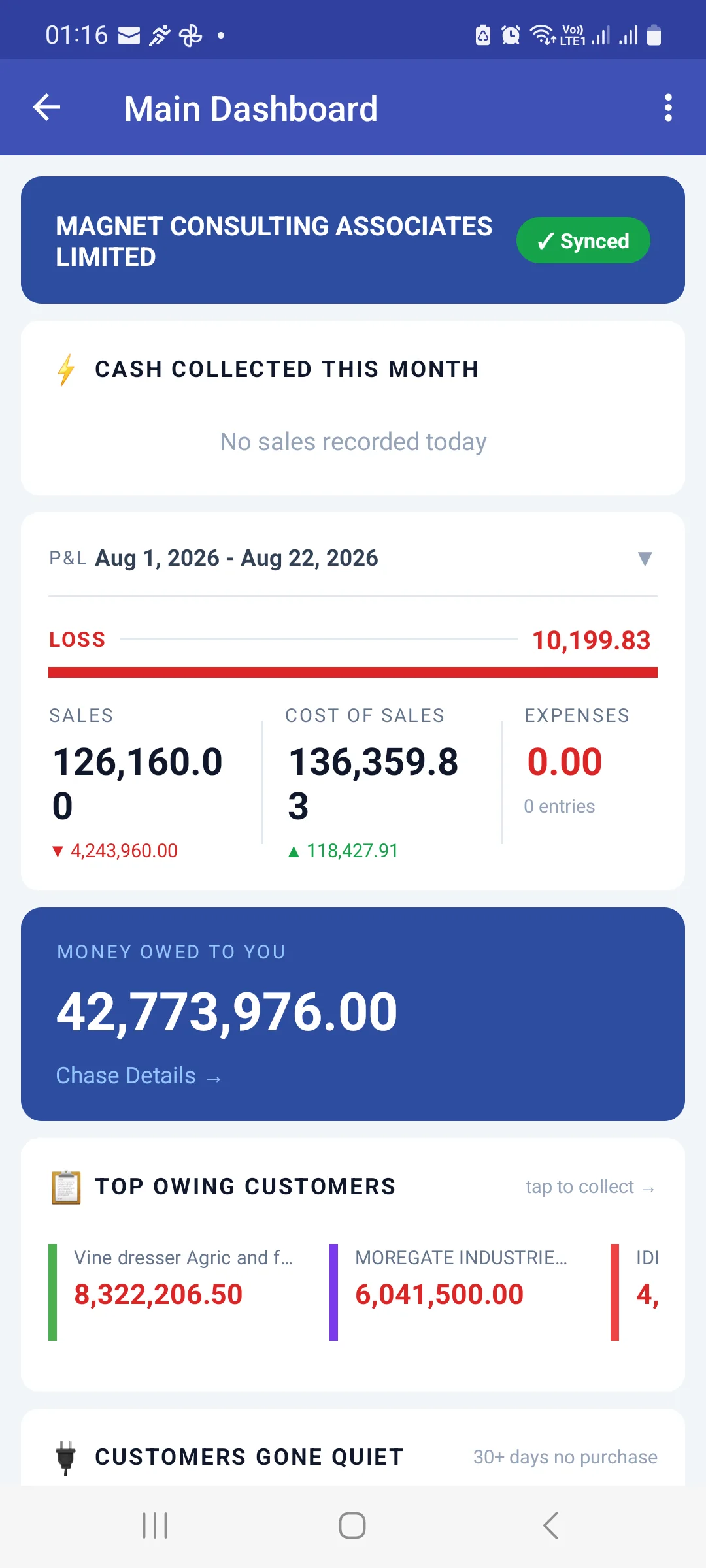
- Cash Collected This Month — money actually received, not invoiced.
- P&L for a date range you can change, with a PROFIT or LOSS bar and the three figures underneath: Sales, Cost of Sales, Expenses. Each carries an up/down arrow against the previous period.
- Money Owed To You, with Chase Details →.
- Top Owing Customers — tap to collect → takes you straight into recording their payment.
- Customers Gone Quiet — 30+ days without a purchase.
5. Quick Sell — the fastest way to ring up a sale
Android-only, and the reason many shops keep a phone on the counter even when a PC is available.
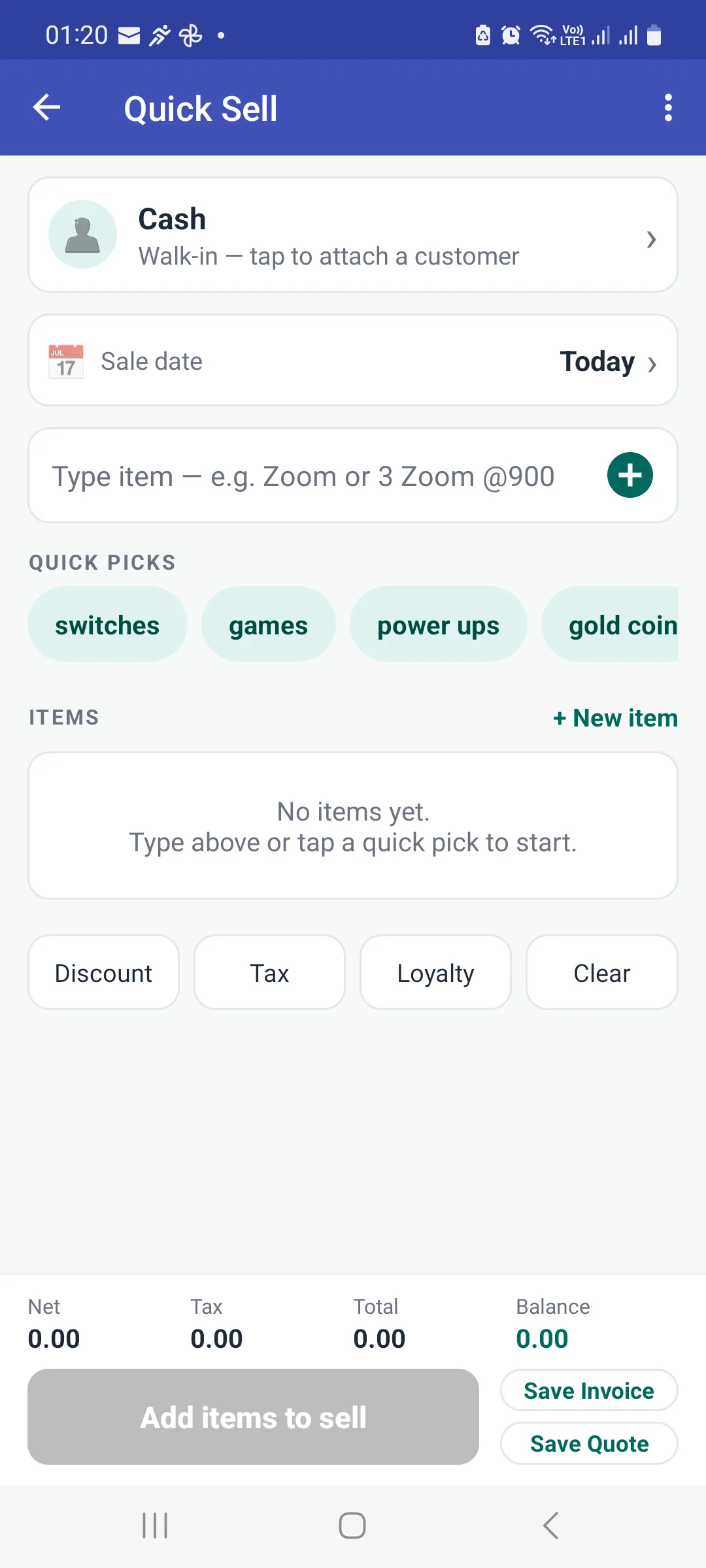
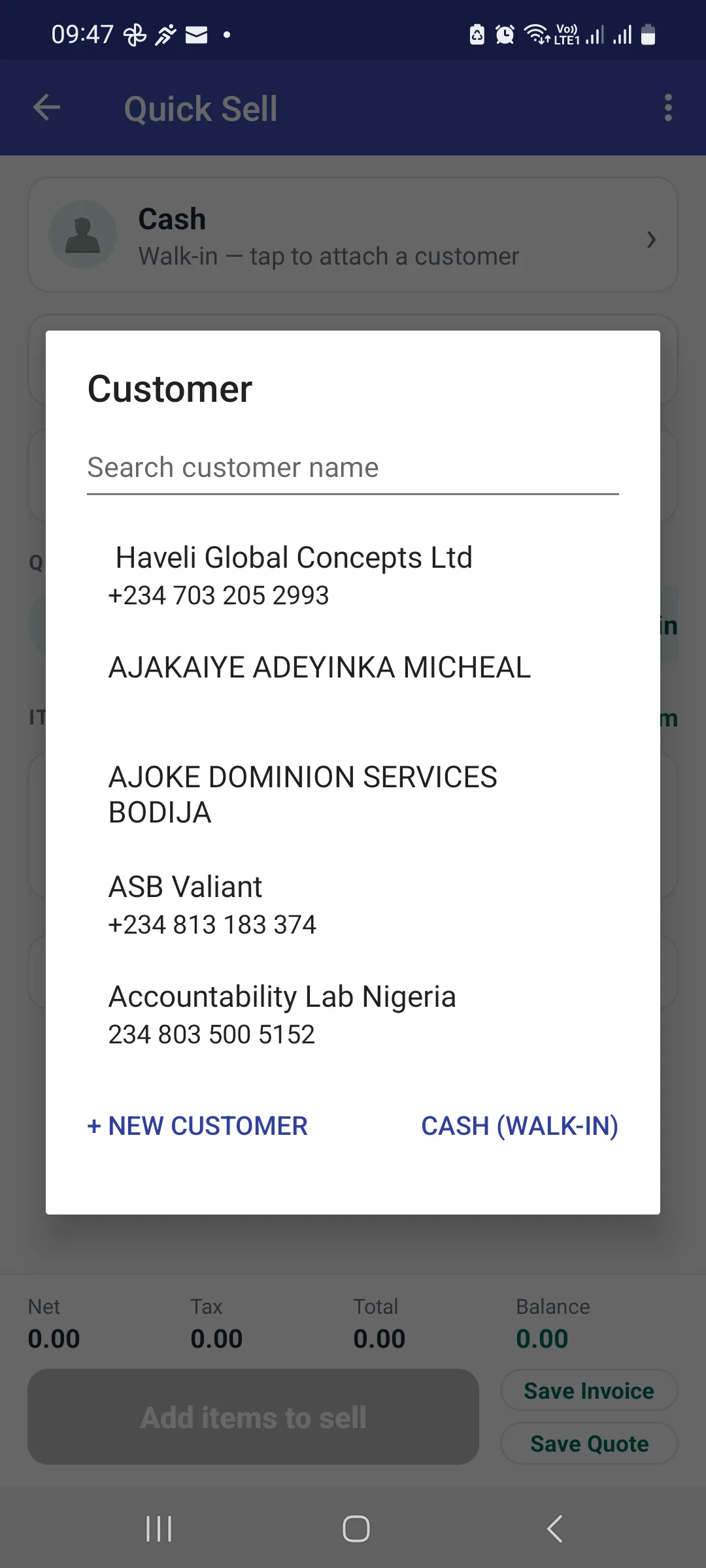
- Customer — starts as Cash — walk-in. Tap to attach a real customer (e.g. Kenneth) if the sale isn't fully paid.
- Sale date — Today unless you change it.
- Type item — the clever part. Enter it as you'd say it:
Zoom, or3 Zoom @900for three at ₦900 each. Quantity and price are read out of what you typed. - Quick picks — chips for your fastest movers; one tap adds a line.
- + New item — create a product you don't stock yet without leaving the sale.
- Discount, Tax, Loyalty and Clear apply to the whole sale.
- The footer keeps Net, Tax, Total and Balance in view. Finish with Save Invoice or Save Quote.
5.1 A full walkthrough: sale → invoice → payment → the customer's account
To show the whole loop end to end, here is one real sale — one Basket Ball to Dozie — followed all the way through to his updated balance.
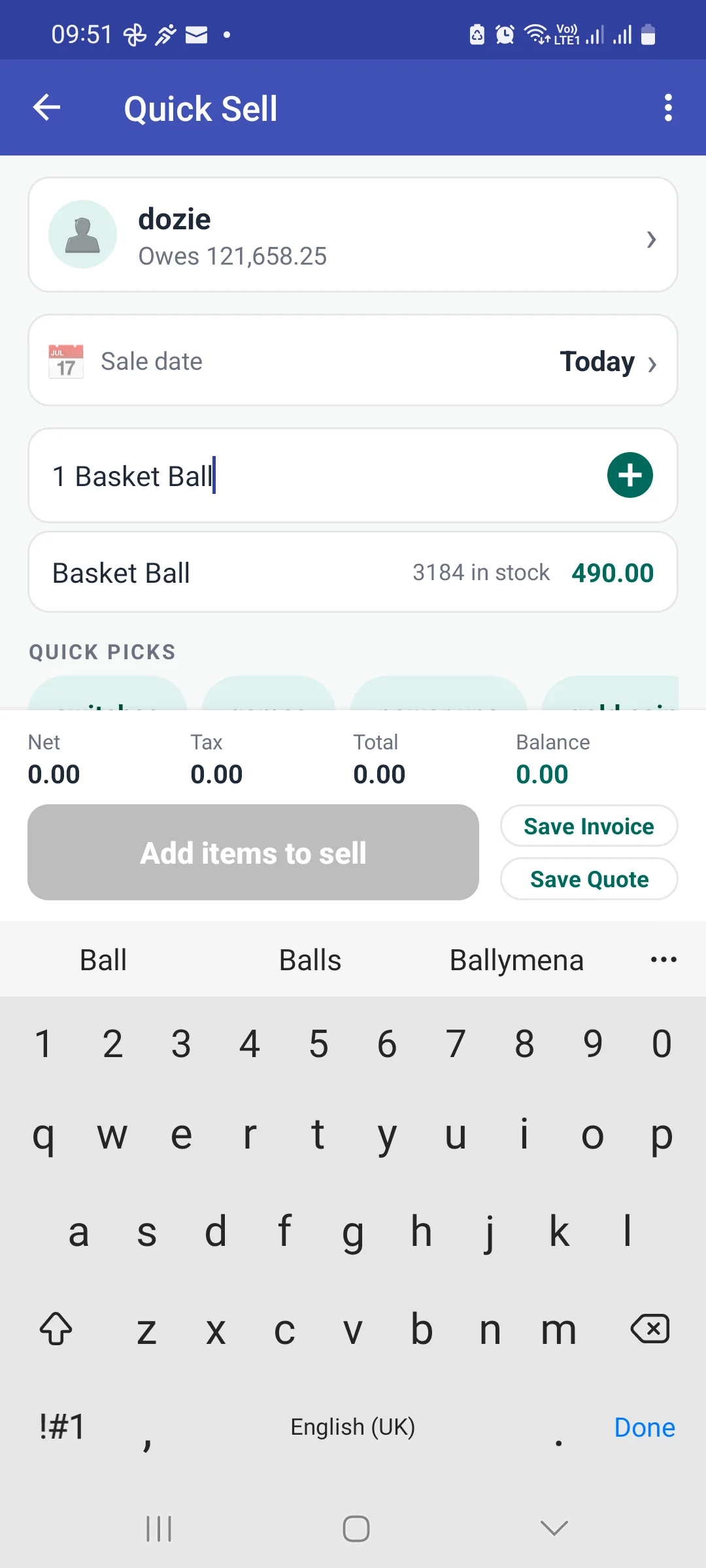
1 Basket Ball — the suggestion shows live stock and price.Dozie is attached — the customer row immediately shows "dozie — Owes 121,658.25", so the till sees his existing balance before adding to it. Tapping the suggestion adds the line:
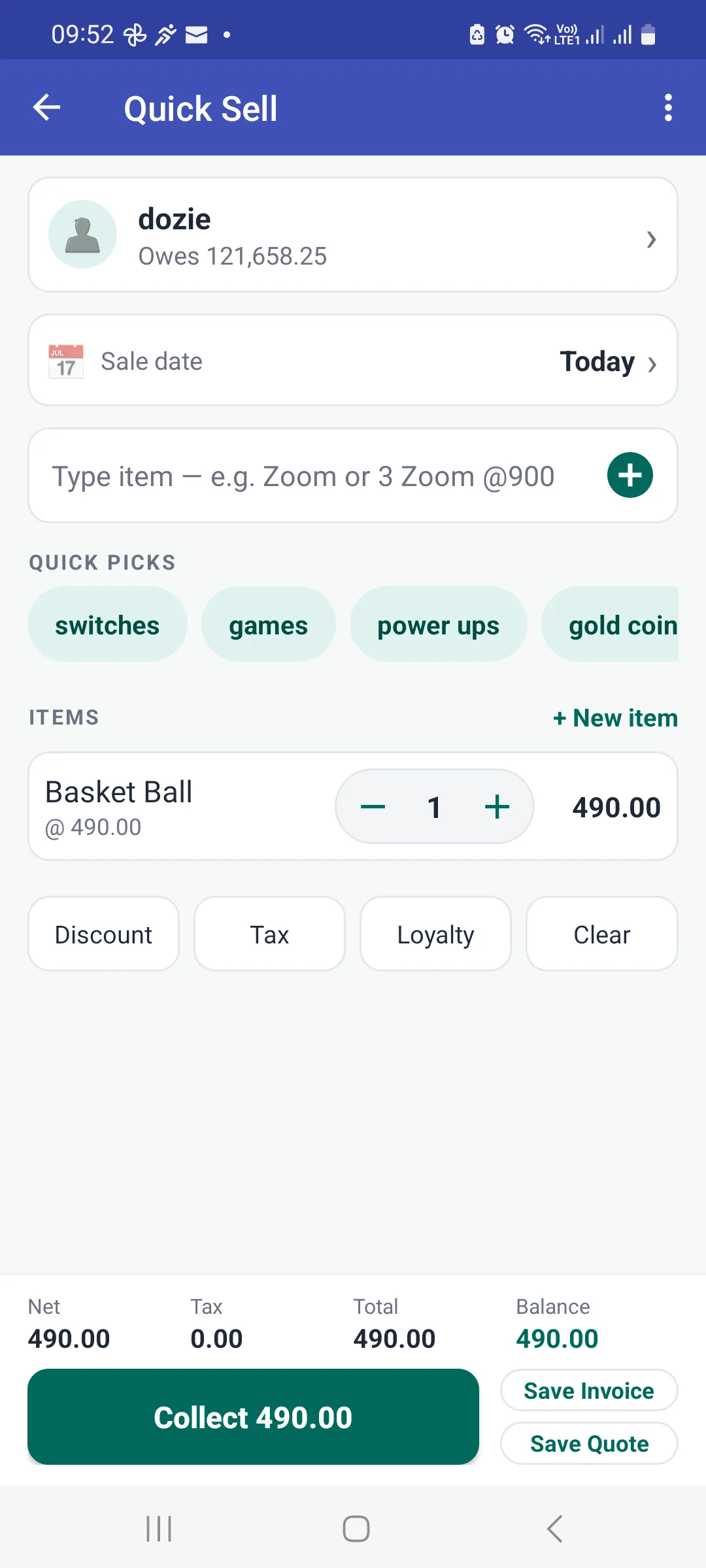
This is the fork mentioned above: with items in the cart the grey Add items to sell button becomes a live green Collect button for the full amount. Tapping it — or Save Invoice for a credit sale — prompts for a payment type before saving:
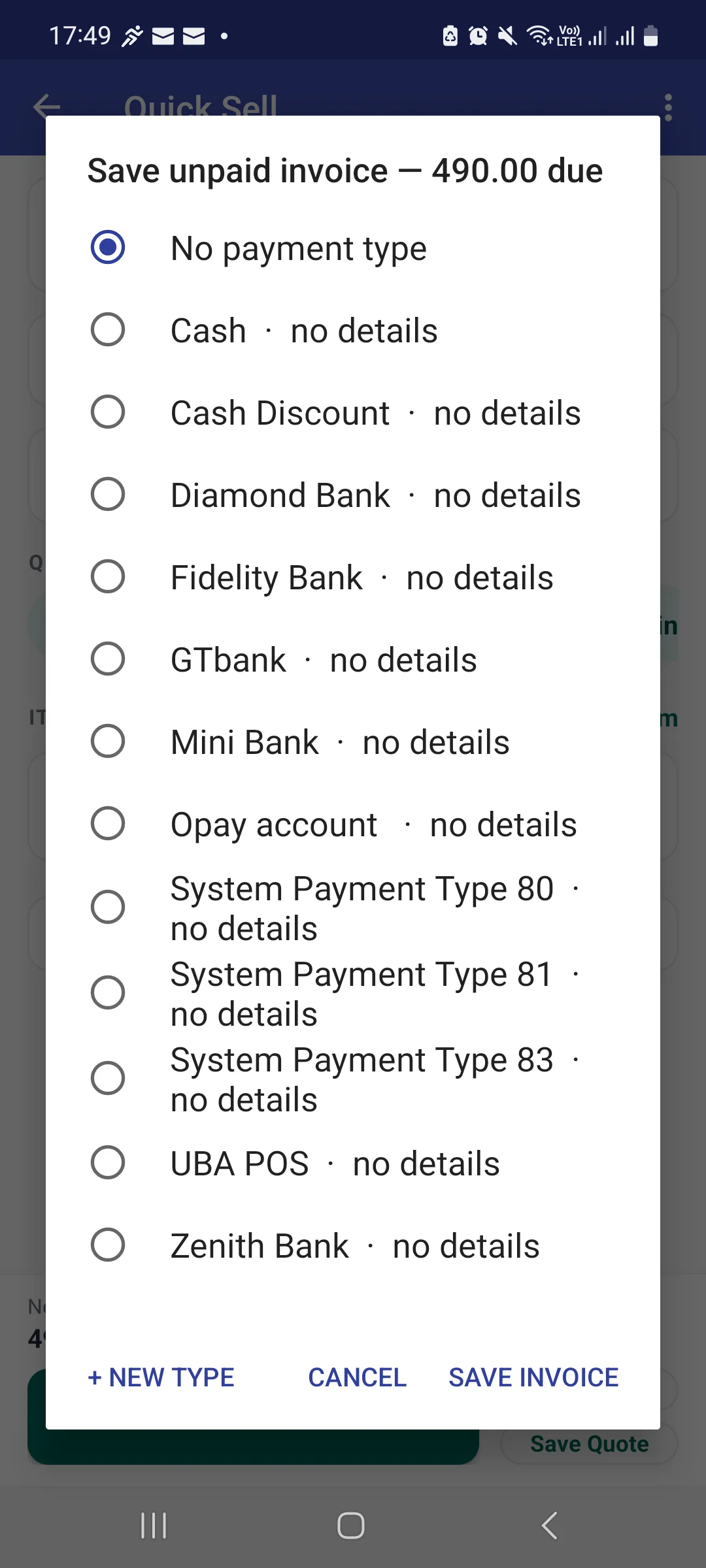
Choosing Zenith Bank and Save Invoice writes a real invoice:
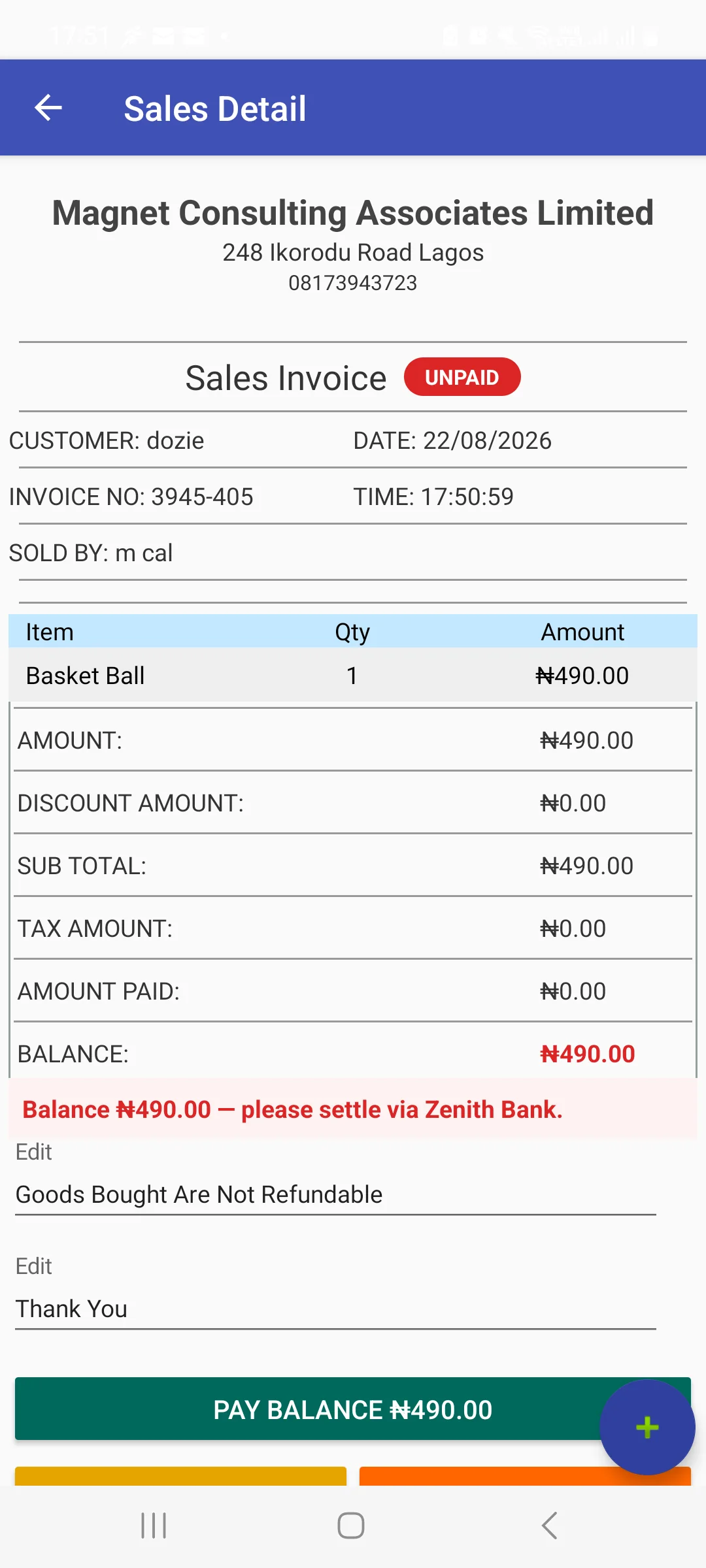
Pay Balance opens a Collect Payment dialog, pre-filled with the outstanding amount and the payment method from the invoice:
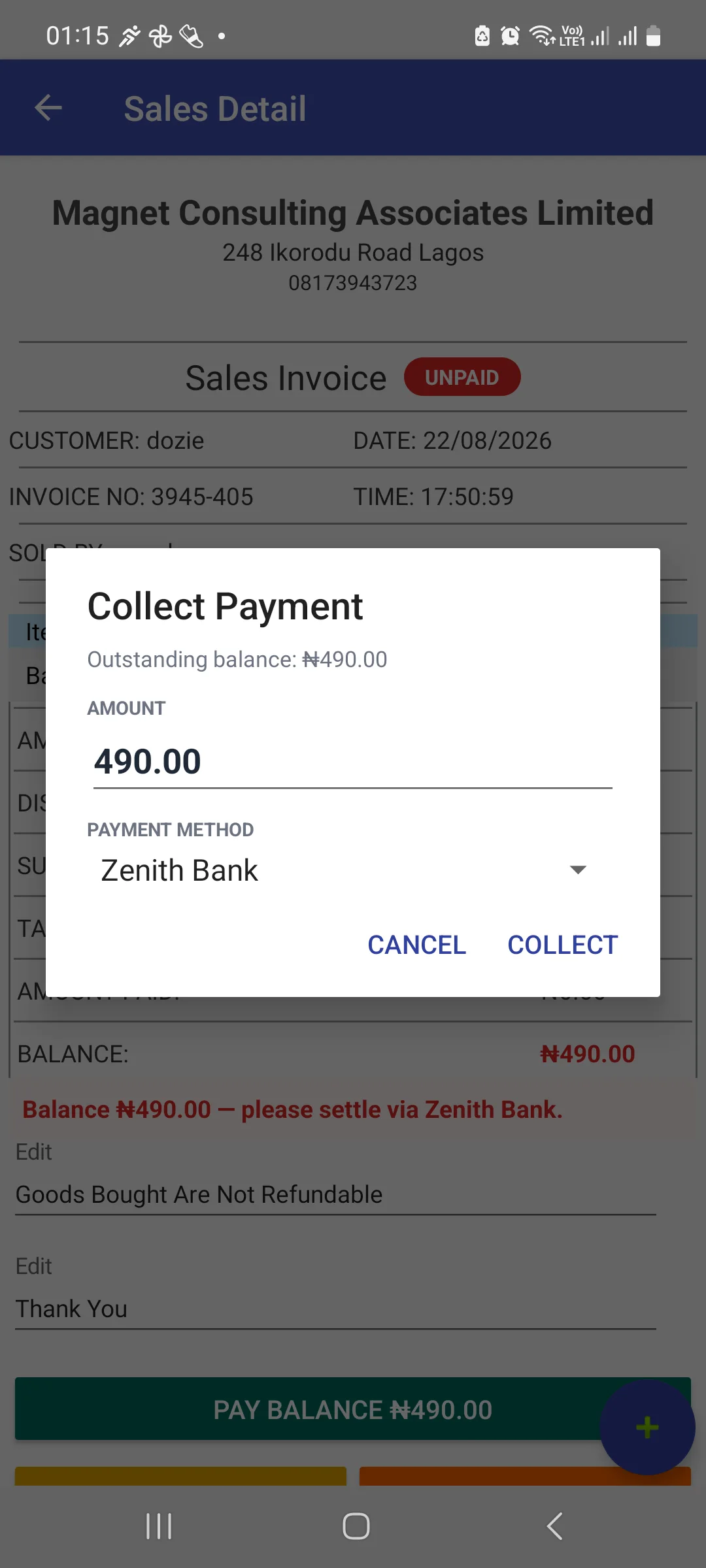
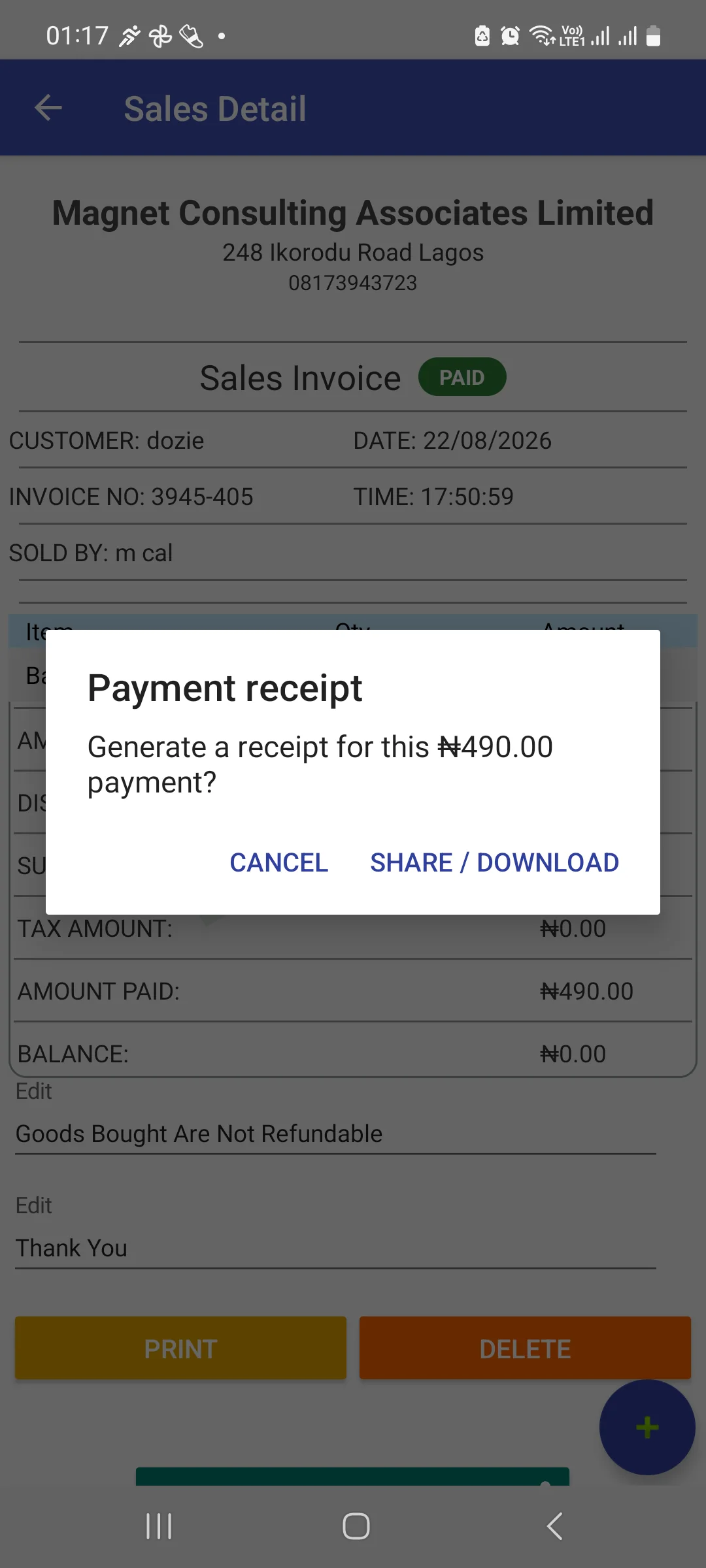
Tapping COLLECT posts the payment immediately and offers a receipt:
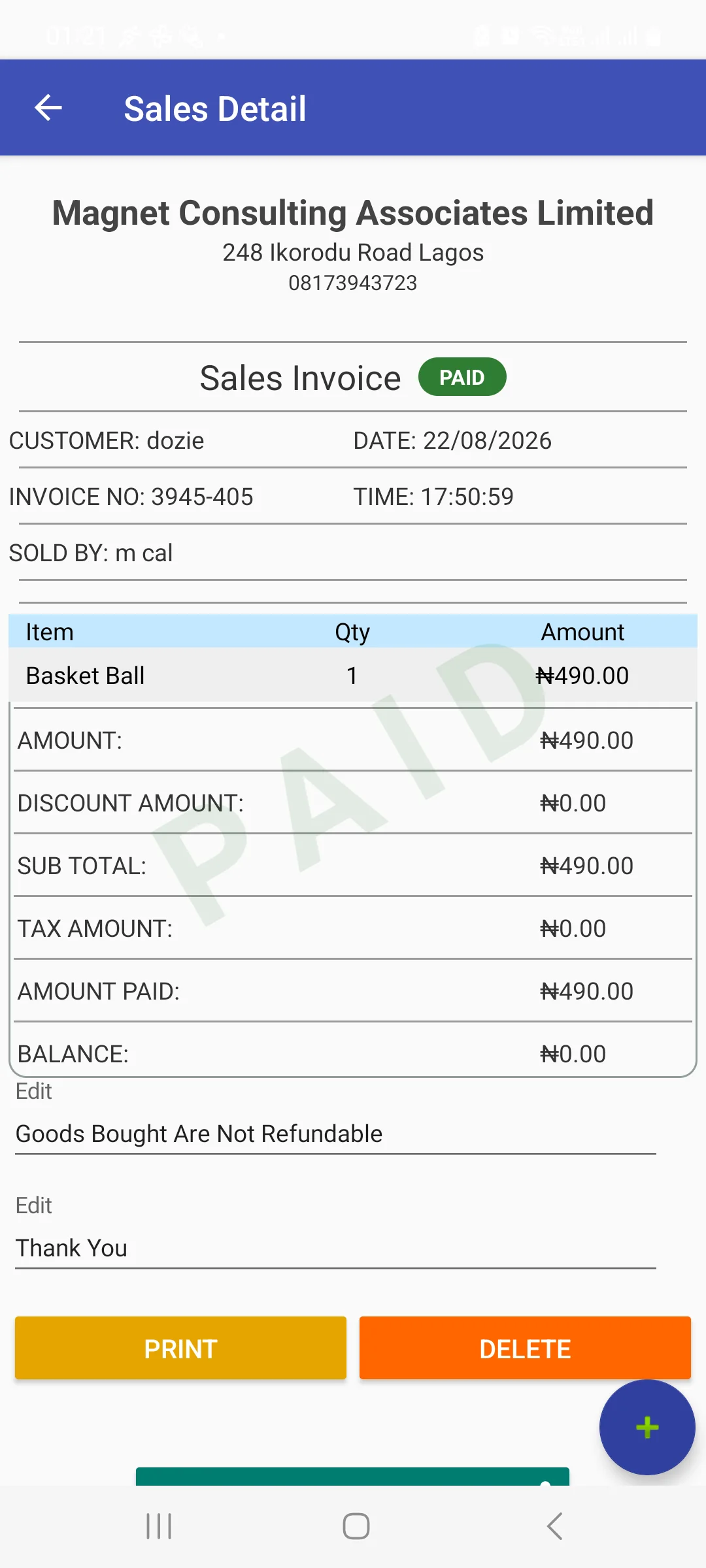
Dismiss or share the receipt, and the invoice reflects the finished sale — PAID, with a diagonal watermark, balance zero:
Back on Sale Center, two things confirm it landed: the Paid filter count moved from 6 to 7, and Dozie's card sits at the top of the pipeline with a Receipt › link where Collect › used to be.
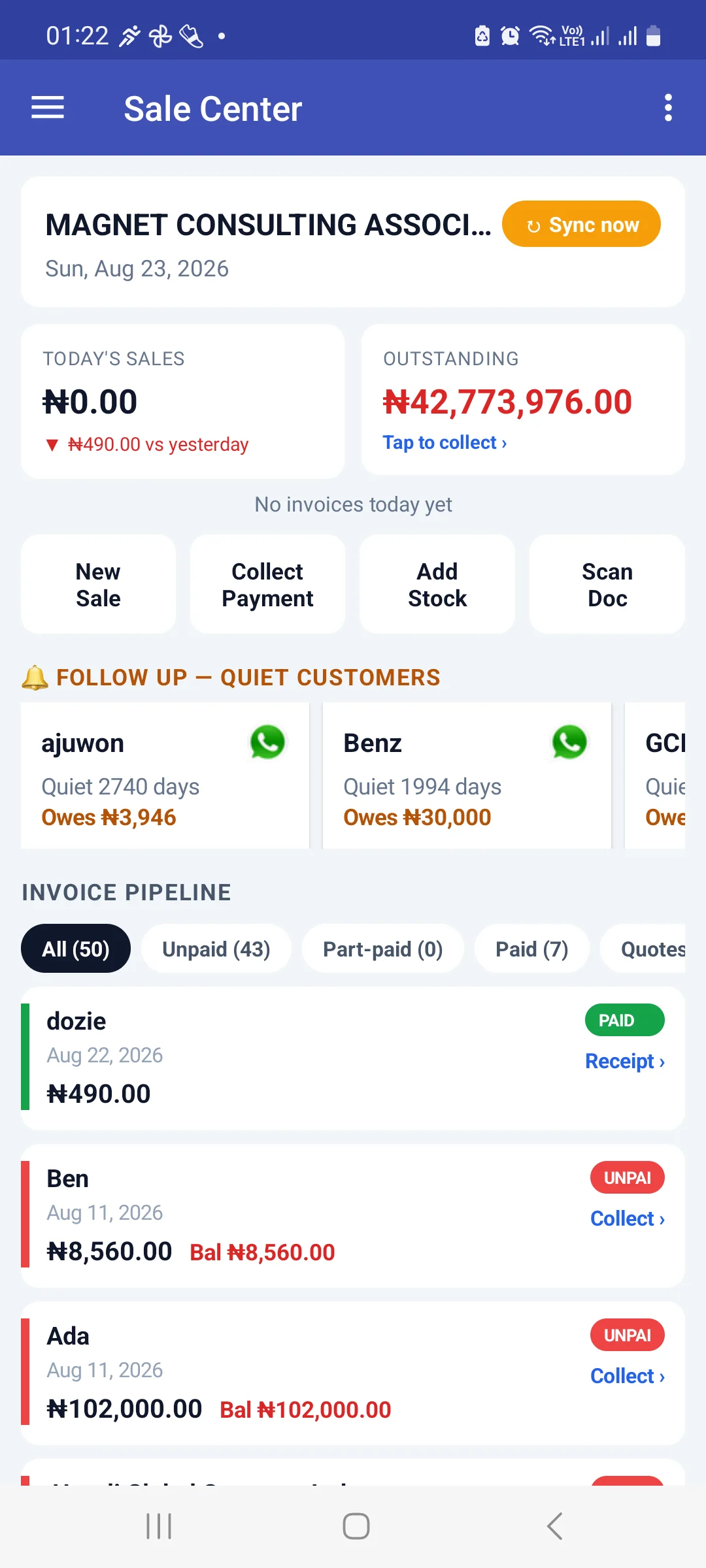
Notice the badge at the top: it now reads Sync now in amber rather than the green ✓ Synced from section 2. That is the offline-first design in action — the sale, the payment and the receipt all exist on this phone the instant they're saved, before the server has seen any of it. Tapping Sync now (or waiting for the auto-sync interval) is what pushes them up; see section 10.
Finally, Dozie's own profile shows both sides of the transaction landed together:
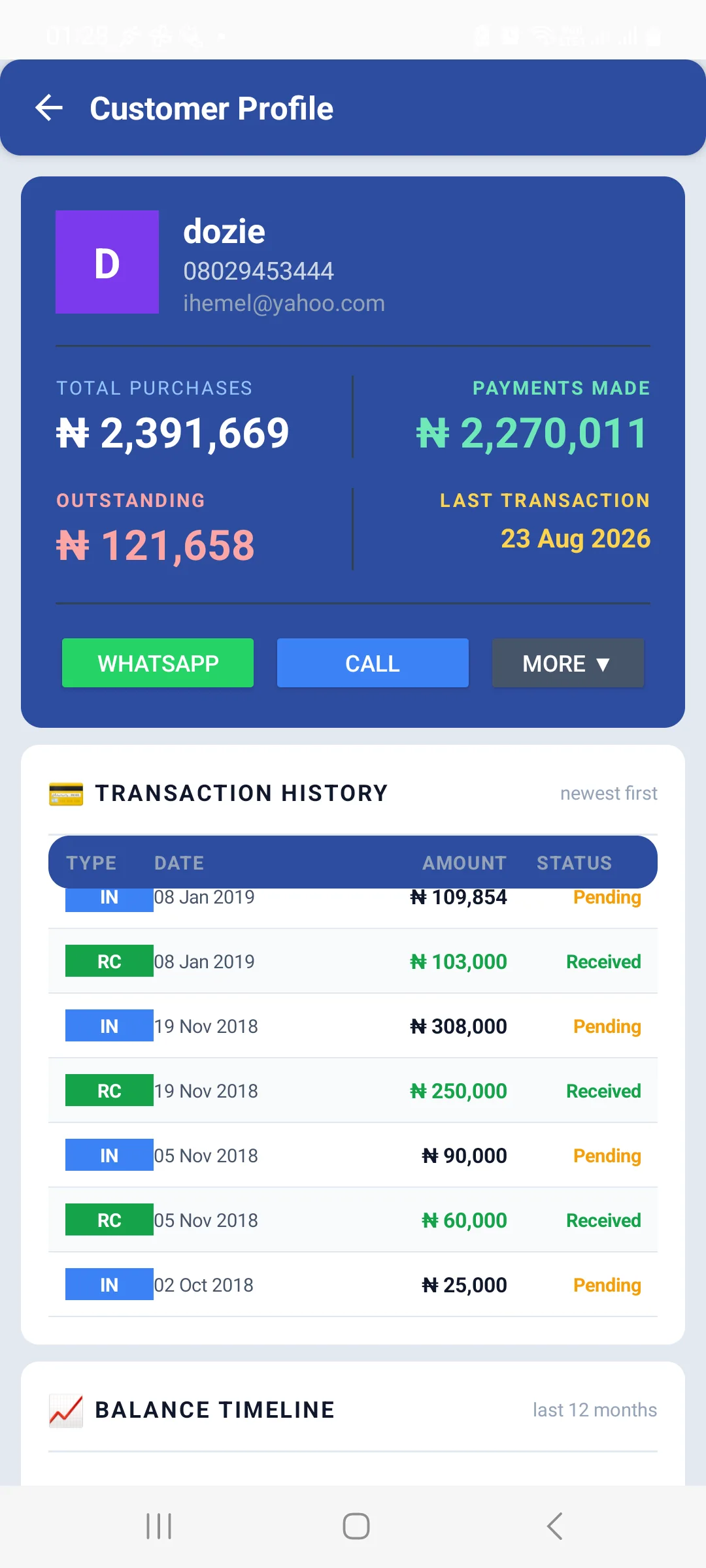
Total Purchases and Payments Made each rose by exactly ₦490 — the sale increased what he owes and the payment reduced it by the same figure in the same moment, which is why Outstanding is unchanged at ₦121,658. That is the correct result for a fully-paid sale: it passes through the balance without leaving anything behind.
6. Enter Sales / Quotation
The full sale screen, matching the web's New Sale & Quotation: customer, payment type, transaction class, line items with quantity, rate and tax, discount and loyalty, then save as a sale or a quotation. Use this when a sale needs more than Quick Sell's speed — several lines, a specific payment type, a quotation to convert later.
Easy Sales, near the top of the drawer, is a further-stripped-down flow for a single item and a price. Between the three, pick by how much detail the sale actually needs.
7. Inventory Center, Inventory List and Purchase List
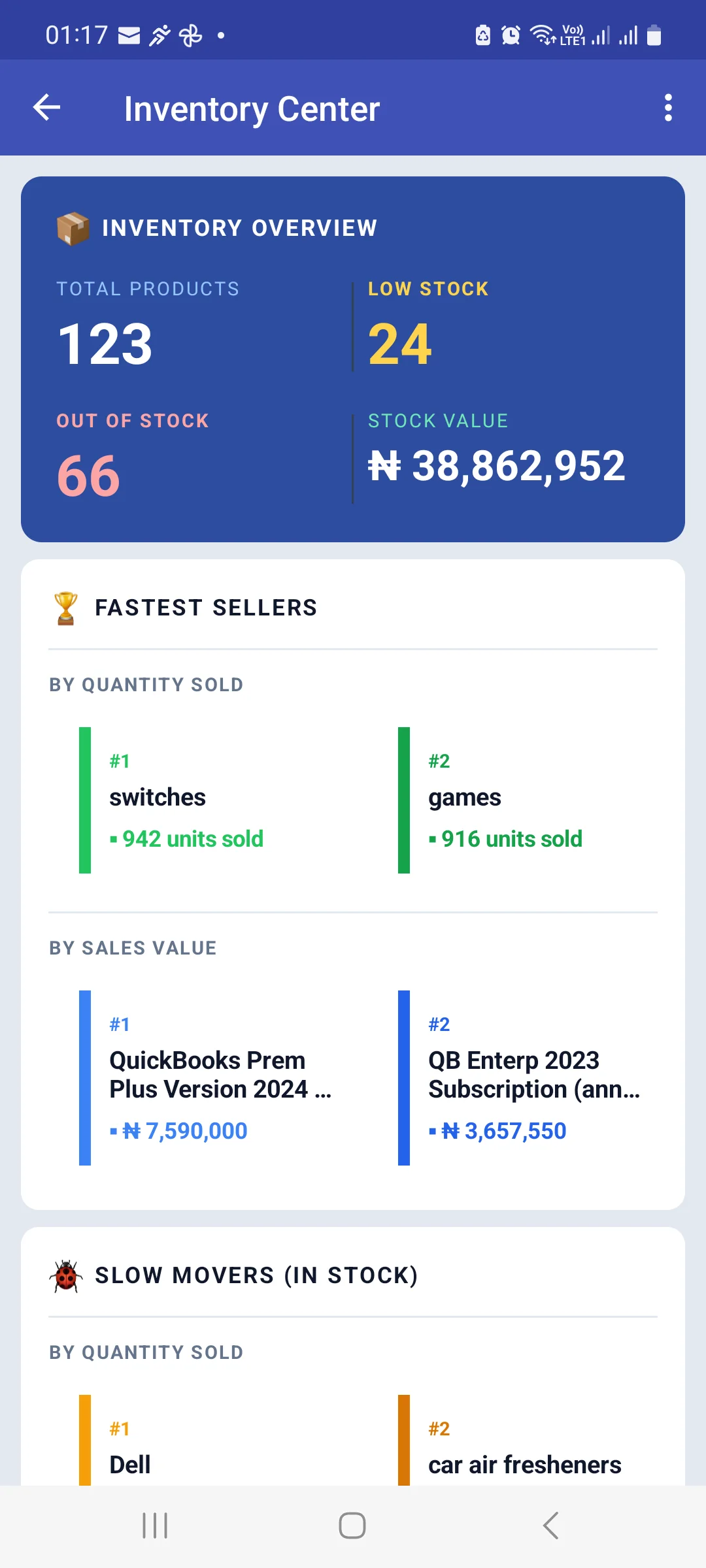
Fastest Sellers is split by quantity sold and by sales value — high-volume cheap lines and low-volume valuable ones are different businesses and this shows both. Slow Movers (in stock) is the money sitting on your shelves.
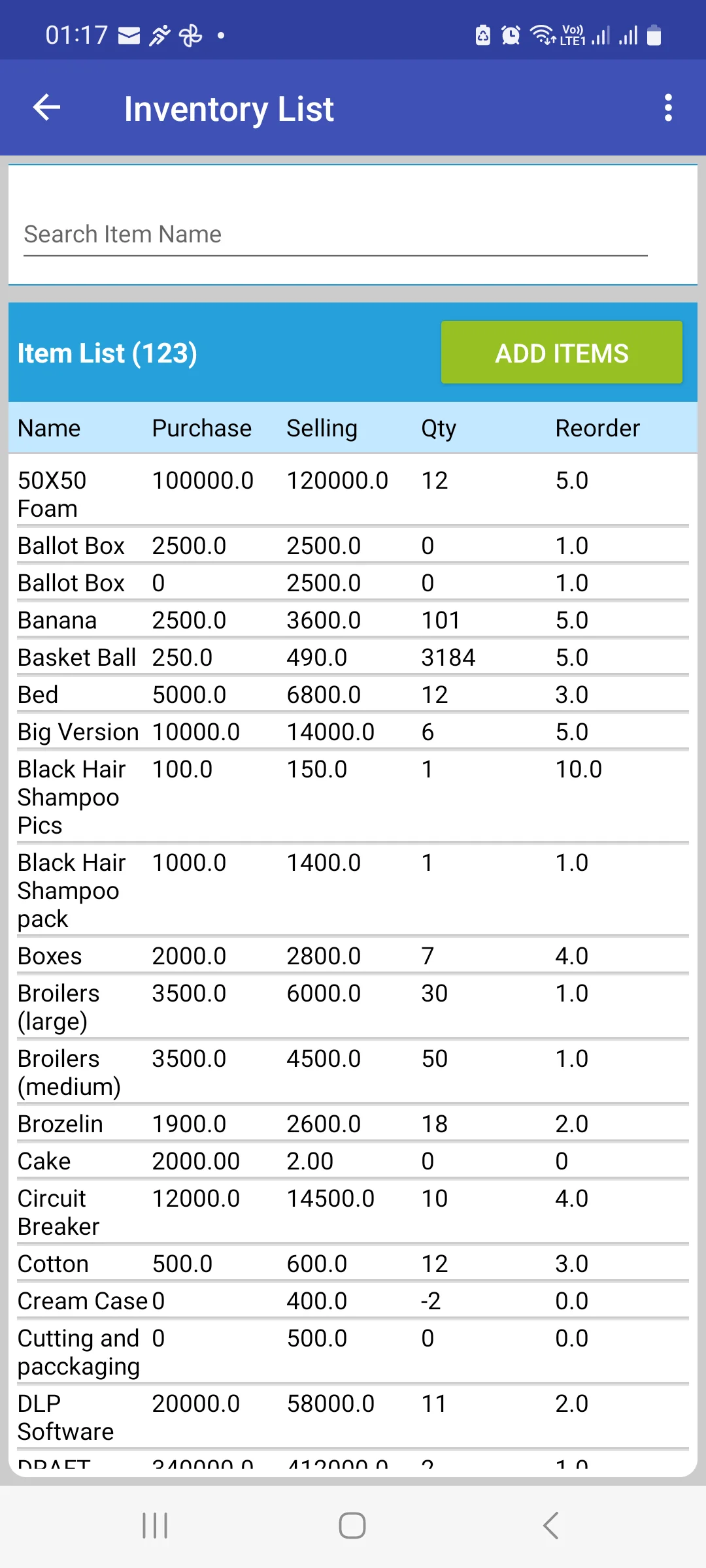
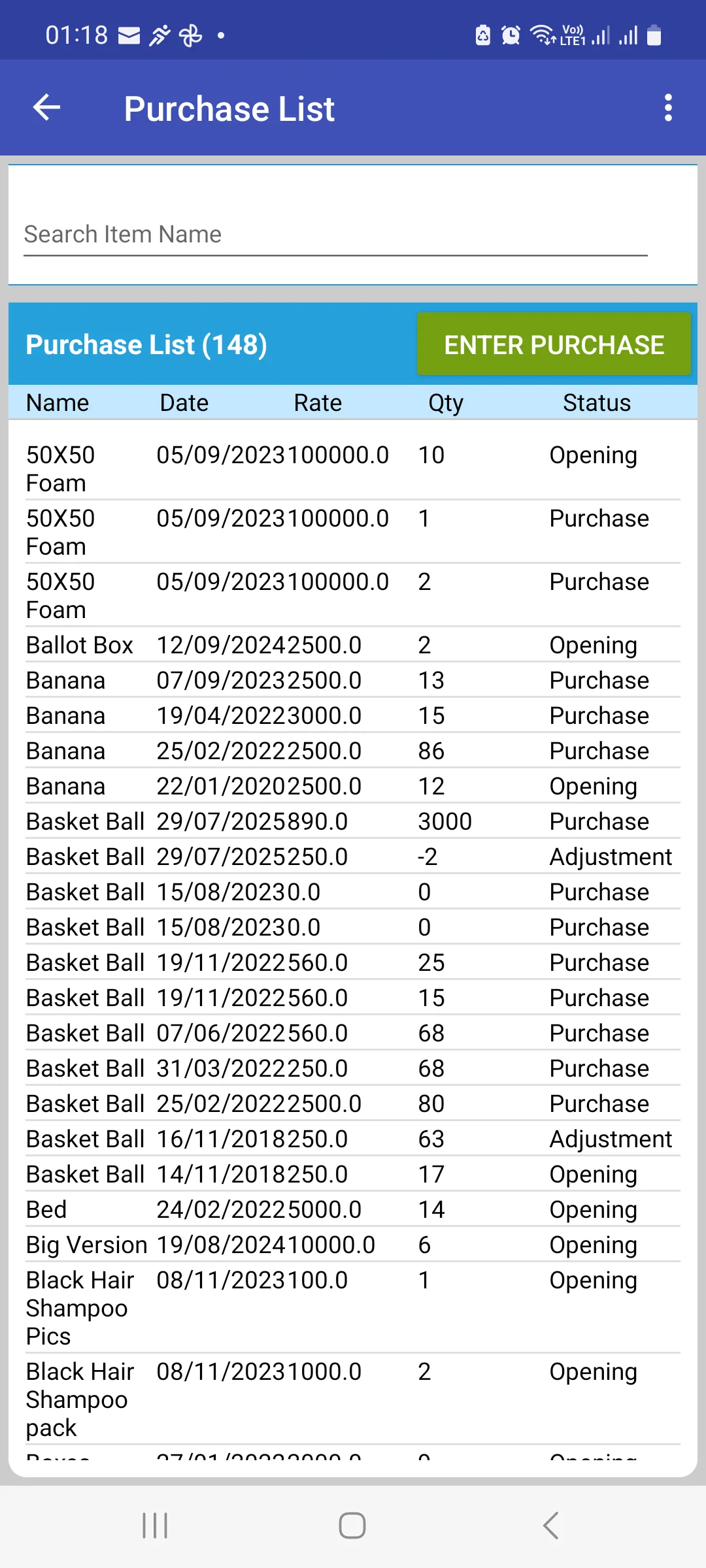
The Purchase List's Status column is the one to read: Opening (stock the item started with), Purchase (bought from a vendor, with a cost) and Adjustment (a correction). ENTER PURCHASE records a new delivery.
8. Customers
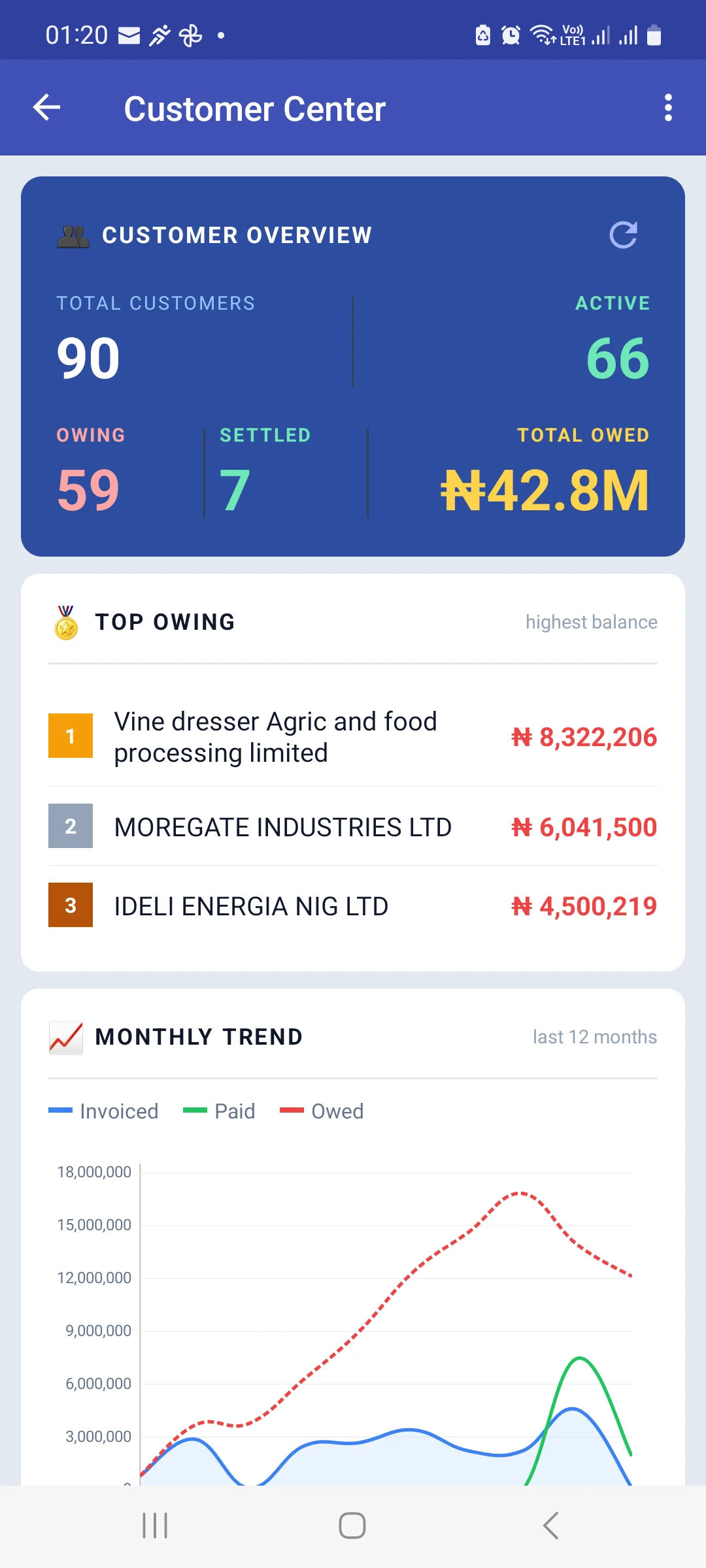
Customer Center gives you totals, a Top Owing ranking and a Monthly Trend chart plotting Invoiced, Paid and Owed together — the gap between the blue and green lines is your collection problem, drawn.
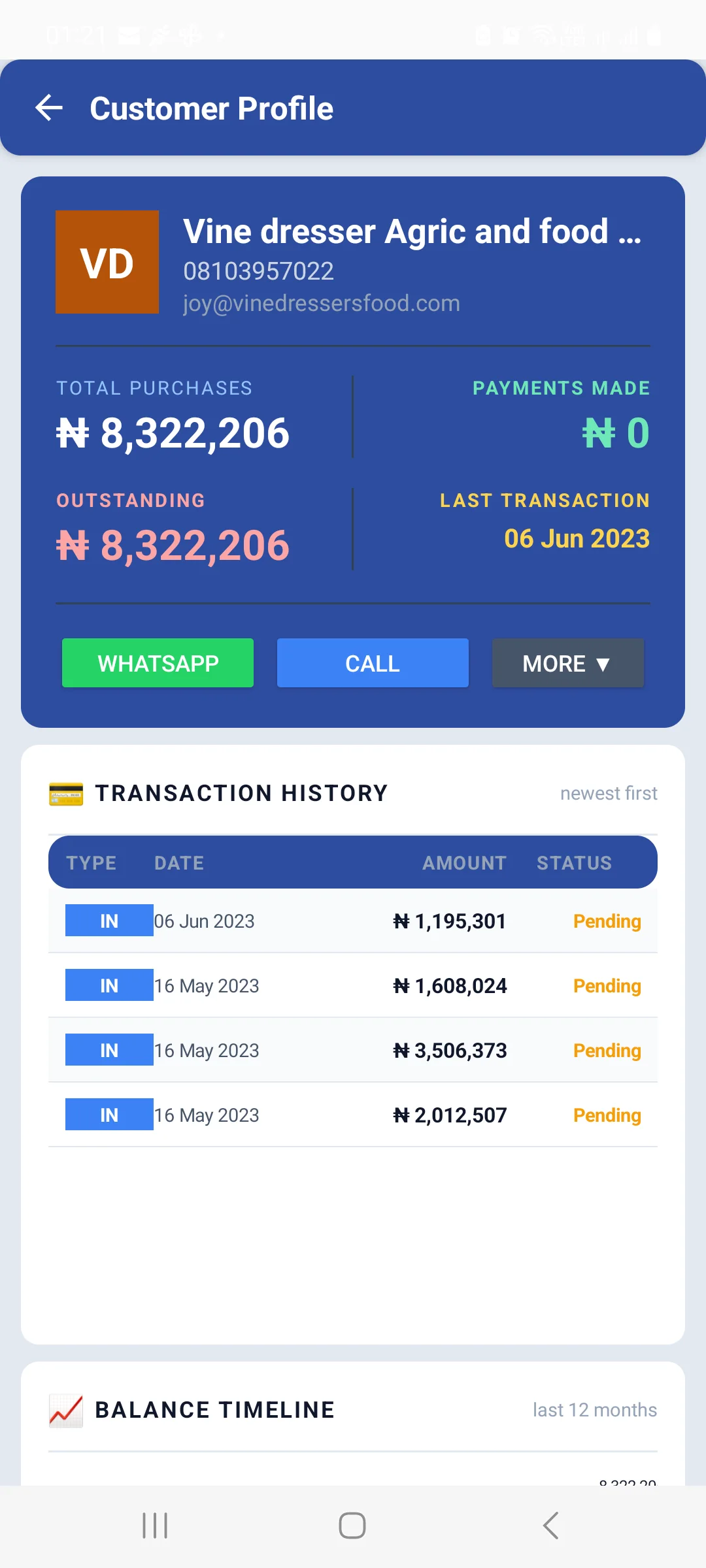
Tap any customer for their Profile: Total Purchases, Payments Made, Outstanding, Last Transaction, a Transaction History and a Balance Timeline. WHATSAPP and CALL sit right on the card — the app's real advantage over the desktop when chasing money.
Customers (below Customer Center) is the searchable list for adding and editing. Customer Payment records money received.
8.1 Customer Follow-Up on the phone
The same four audiences as the web — Open Balance, Gone Quiet, Bought Once, Birthdays — drawing on the same SMS unit balance, but the phone lays the numbers out more plainly.
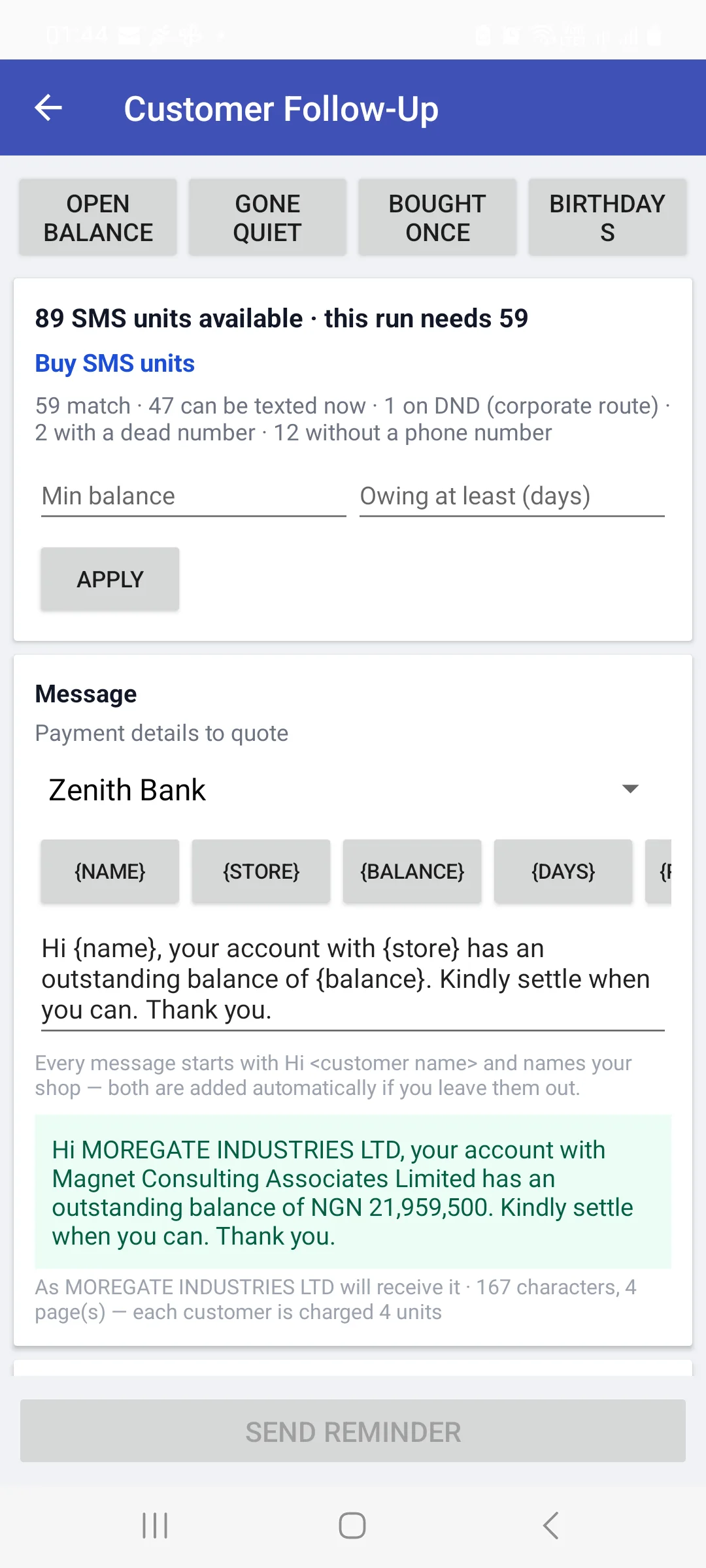
The line under the unit balance is the one to read:
59 match · 47 can be texted now · 1 on DND (corporate route) · 2 with a dead number · 12 without a phone number
That breaks the gap down further than the website does — the web tells you how many have no phone number, while the phone additionally separates DND numbers (reachable only on the costlier corporate route) from dead numbers (ones that have already failed delivery and are worth correcting on the customer's record).
Everything else works as documented in the Customer Follow-Up guide: filters, the Payment details to quote dropdown feeding {paymentdetails}, the token buttons, the automatic Hi <name> greeting, and a live preview against a real customer with the exact character and page count beneath it. Send Reminder stays disabled until there is something to send.
9. Scan a document
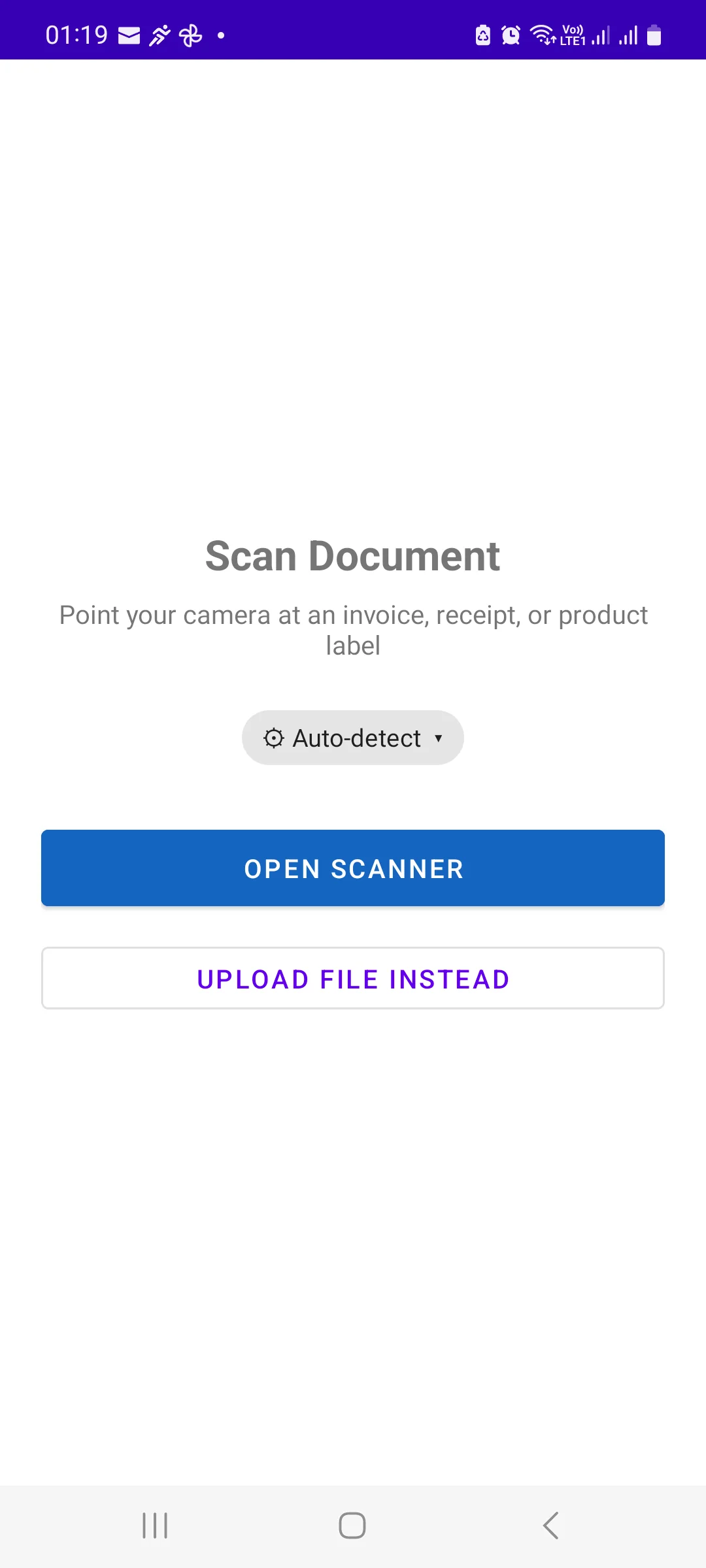
Photograph a written or printed sheet and the app reads the names and numbers off it. On Android the document type defaults to Auto-detect — tap it to state the type yourself when the sheet is ambiguous.
- Open Scanner uses the camera; Upload File Instead takes a photo already in the gallery.
- Nothing is saved until you have checked the result. Every line can be corrected, re-matched or removed first.
- Each photo costs a DocScan unit, so a long sheet costs by the page.
The review stage — matching read lines to your items, the prices-versus-quantities question, and the cross-checks that catch a dropped line — works the same as on the web and is documented in full in the Upload & Scan guide. Read that section before your first real scan; the traps are identical and they matter more here, because a phone photo of a creased counter book is exactly the input that loses lines.
10. Offline, sync and your data
The part of the app there is no web equivalent for, and the part worth understanding properly.
10.1 How it works
Every sale, payment, purchase and customer you enter is written to the phone immediately, whether or not there is a network. When a connection is available the app pushes those records to the server, and the ✓ Synced badge on Sale Center and Main Dashboard turns green.
10.2 The sync controls
| Menu item | What it does |
|---|---|
| Download (under Update From Web) | Pulls the current picture down from the server onto this phone — items, customers, prices and the rest. Use it after someone has been working on the web or another device. |
| Auto-Sync Interval (Settings) | How often the app syncs by itself. Shorter keeps devices closer together; longer saves battery and data. |
| Validate Data (Settings) | Checks the phone's own records for problems. Run it if figures look wrong before assuming the server is at fault. |
| Version (Settings) | Which build this phone runs. Have it ready when contacting support. |
10.3 When the phone and the web disagree
They will, occasionally, and it is almost always a sync gap rather than a fault. If the phone shows a different product count or stock value from the website, the phone is holding a different picture: run Download to pull the web's version, and confirm the ✓ Synced badge so anything entered on the phone has gone up. Only if a gap survives both is it worth raising.
11. Sales points and this device
A sales point is a till. On the web you pick one at each sign-in; on Android the device is bound to one, which is why a phone can keep selling with no network — it already knows which till it is.
- This Sales Point (Admin Management) shows and changes the till this device is registered to.
- Invoice numbers are stamped with the sales point, so you can tell a phone sale from a web sale in the Sales List.
- Two devices must not share one till. That is what the engagement rules on the web are protecting against, and it is why a lost or retired phone should be released by an admin rather than simply switched off.
12. Users, permissions and admin
| Menu item | Use |
|---|---|
| Admin User | The store's owner account. |
| Other Users | Staff accounts on this store. |
| User Permissions | What each staff member may do. The same catalogue of rights as the web, enforced identically here — a right removed on the web is removed on the phone. |
| Subscription / My Usage | Your plan, your usage-unit balance and top-ups. |
| Invite & Earn 500 Usage Units | Referral rewards. |
13. Reports
Seven reports, all available offline from the phone's own records: Sales, Daily Sales, Inventory Value, Profit And Loss, Expense, Tax and Customer Follow Up.
Daily Sales Report is the Android-only one, and it is the natural end-of-day tool: what this till took today, ready to reconcile against the cash drawer before you close.
Reports read the phone's data. If the phone hasn't synced, its reports describe the phone — not the business. Sync first, then report.
14. Settings
- Edit Shop — name, address, contact details and tax rate, as they appear on invoices.
- Auto-Sync Interval, Validate Data, Version — section 10.
- Payment Type (Sales group) — the payment methods offered at the till, and the bank or wallet details quoted on an unpaid invoice.
- Sign Out — ends the session on this device. Sync first: signing out with unsynced records leaves them stranded on the phone.
The app also prints to Bluetooth and thermal printers, which is what makes a phone a complete till — pair the printer in Android's own Bluetooth settings first, then select it in the app.
15. Android vs web — what's different
| Capability | Android | Web |
|---|---|---|
| Works with no internet | Yes — entered locally, synced later | No |
| Quick Sell / Easy Sales | Yes | No |
| Daily Sales Report | Yes | No |
| Auto-Sync Interval, Download, Validate Data | Yes | Not applicable |
| Camera scanning | Camera, in your hand | Upload a photo |
| WhatsApp / call a customer | One tap from their profile | Link only |
| Bluetooth / thermal printing | Yes | Via the PC's printer |
| Sales point | Bound to the device | Chosen at each sign-in |
| Consolidator (multi-store roll-up) | No — web only | Yes |
| Storefront setup and order management | Opens Wildfire | Full |
| Bulk spreadsheet upload | No | Yes |
In practice: sell on the phone, administer on the web. The phone is better at the counter, on a delivery round and in a market; the website is better for bulk data, the storefront, multi-store roll-ups and anything involving a spreadsheet.
16. Quick reference
| I want to… | Do this |
|---|---|
| Sell something fast | Sale Center → New Sale, or drawer → Quick Sell |
| Sell with full detail or quote | Drawer → Enter Sales / Quotation |
| Take money off an old debt | Sale Center → Collect Payment, or Customer Payment |
| Record a delivery | Sale Center → Add Stock, or Purchase List → ENTER PURCHASE |
| Enter a paper sheet | Sale Center → Scan Doc |
| Chase a customer now | Customer Center → tap them → WHATSAPP or CALL |
| Text a whole segment | Drawer → Customer Follow-Up (check the page count first — §8.1) |
| Check the day's takings | Reports → Daily Sales Report |
| Make sure nothing is stranded on the phone | Check the ✓ Synced badge |
| Pull down what was done on the web | Drawer → Download |
| See which till this phone is | Admin Management → This Sales Point |
If something looks wrong
- The badge isn't green. The phone has records the server hasn't got. Get onto Wi-Fi and let it sync before doing anything else.
- The phone shows different figures from the website. Run Download, then confirm the badge. A gap that survives both is worth reporting.
- A sale isn't on the customer's account. It was probably saved as Cash — walk-in rather than against them.
- Stock didn't drop. Check whether it was saved as a quotation rather than a sale.
- Staff can see something they shouldn't. Fix it under User Permissions — it applies on web and phone alike.
- The printer won't print. Pair it in Android's Bluetooth settings first; the app can only use a printer the phone already knows.
- Figures look wrong and sync is fine. Settings → Validate Data.
- An SMS run costs more than expected. Compare the page count against the same message on the web — see §8.1.