Shopper's Guide: ordering from a storefront
For customers buying from a shop's online store. No app, no account — just the link the shop sent you.
Shops that use MAT Smart Shop can open an online store (called Wildfire) and send you a link to it — by WhatsApp, SMS, Instagram or Facebook. The link opens in your phone or computer browser. You can browse, add items to a cart, and order in a few taps.
1. Opening the store
- Tap the link the shop sent. It may be a short link; it opens the shop's store in your browser.
- A link to a single product opens that product's page; Back to store takes you to everything else.
- If you see "This store is currently unavailable — The online store is temporarily closed", the shop has paused online orders. Try later or contact the shop directly.
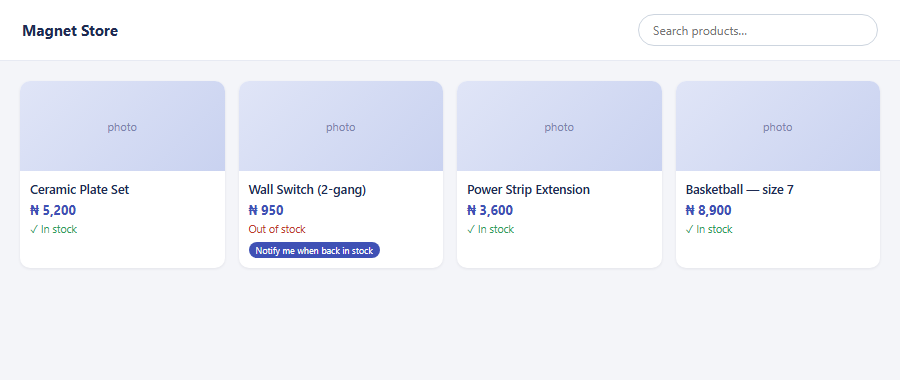
2. Finding products
- Search products… at the top finds items by name. The × clears the search.
- Shop by category / Explore Categories shows the shop's sections — tap one to see only those items.
- Featured items and offers may appear at the top, with Shop now. When the shop is running offers, an Offers strip lists what's on now.
- Explore Products lists everything; tap any product for its page.
3. A product's page
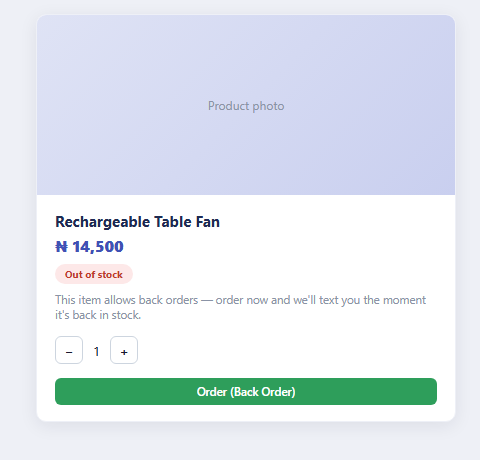
- Photo, name, description and price. A % OFF badge and a struck-out old price show a discount; a green ribbon shows a deal such as buy 2, get 1 free or 3 for 5,000. Ends in … tells you when an offer finishes — after that the normal price is back. Some offers are limited ("first 50 only" or a few per order).
- Tell me when it's on sale — on an item that isn't on offer, leave your phone number and press Text me. You get one text when the shop puts it on offer.
- Stock, where the shop shows it — e.g. In stock · 12 available.
- Add to cart. A box confirms Added to cart with Keep shopping or View cart.
- Ratings & Reviews from other buyers, and You might also like suggestions.
4. Out of stock and back orders
| You see | Meaning |
|---|---|
| Out of stock (button greyed out) | "This item is currently out of stock. Please check back later or contact the seller." |
| Available on back order and a Place back order button | You can order it now; the shop will get it in for you. The note says how long delivery takes at minimum ("Delivery takes a minimum of 7 days from the day you order"), or that "The seller will confirm a delivery date with you." |
If you place a back order, you'll receive a text when the item is back in stock — you don't need to keep checking.
5. Your cart
- Each item shows its price, the − / + quantity buttons and a remove button.
- Order summary: Subtotal; any offer savings; Delivery ("Calculated at next step"); Total. Prices are worked out by the shop's system, so what you see is what you pay.
- Proceed to checkout, or Continue shopping.
"Your cart is empty" means nothing has been added — or you've opened the store in a different browser from the one you shopped in.
6. Checking out: your details and delivery
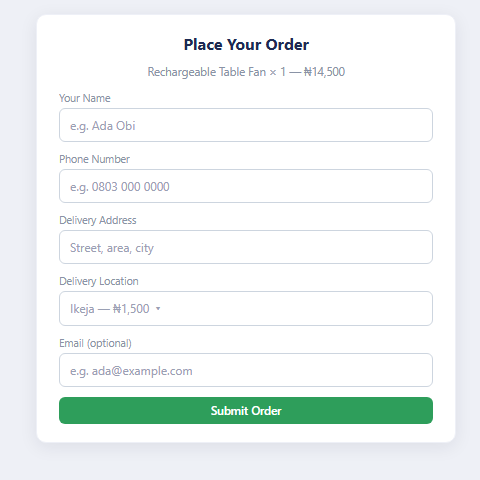
Checkout has three short steps, shown across the top: Details → Delivery → Payment.
- Your details — Full name, Email and Phone number. Use an email you can open now: you'll be asked to confirm the order from it.
- Delivery — where should we send it? Choose a Delivery location from the shop's list; its fee is shown beside it and added to your total. Pickup / not required means no delivery fee. Add your address and notes — house address, landmark, any instructions.
- Payment — section 7.
"Your details are kept private" — the shop uses them to process your order.
7. Paying
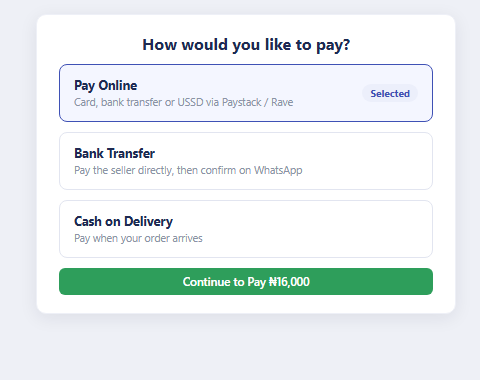
You'll see only the options the shop has switched on:
| Option | What happens |
|---|---|
| Place order / Pay on delivery | The order goes to the shop; you pay them directly — on delivery or as agreed. |
| Pay online | Pay by debit/credit card or bank through a secure payment page. Your payment goes straight to the shop. You'll see Payment sent with a Reference and the Amount paid — keep the reference. |
| Bank transfer | You're shown the shop's bank, account number and account name, and a transfer code. Make the transfer from your banking app, using the code as the narration if asked. |
| Order via WhatsApp | Opens WhatsApp with your order ready to send to the shop. |
Have a coupon code? Type it in the box and press Apply. If it works, it shows as its own Coupon line with the money off. If not, the message says why — for example the order is below the coupon's minimum, it has ended, or you have already used it. Some coupons don't apply to items already on offer.
Press Place order. If a coupon stopped working while you were checking out (it ended or ran out), you're told and the total is worked out again before anything is placed.
8. After you order: confirming it
- You'll see "Thank you — your order is in!" with your Order no., name and total.
- An email arrives. Click the button in it to confirm your order. This tells the shop the order is genuine.
- The confirmation page says Order confirmed — "The store has your confirmation and will get your order on its way."
There's no tracking page: the shop contacts you about delivery by phone, WhatsApp or email. Quote your order number whenever you get in touch.
9. Invoices from the shop
A shop may send you a link to your invoice (or a quotation) on WhatsApp — for example "Hello Adaora, see your invoice from <shop>. Click to view: …". The page opens with:
- A band at the top showing whether it is Paid, Part paid or Unpaid, the amount still to pay (or the total), and buttons: Pay, PDF, Print and Share.
- The invoice itself: the items, Sub-Total, Discount, Net, Tax, TOTAL, what you've Paid and the Balance, and the shop's bank details. A paid invoice carries a PAID stamp.
- Pay appears only while something is still owed. It opens the shop's own payment page, or the shop's online payment form where you enter the Amount and Pay online. "Your payment goes straight to the store, which then records it on this invoice."
- A quotation is a price offer, not a bill: it shows no Paid, Balance or Pay.
- "We could not find this invoice" — ask the shop to send it again.
Just paid and the page still shows a balance? The shop records your payment; ask them for the PDF, which always has the latest figures.
9.1 A payment link in a text
A shop may text you a short payment link. It opens a page with what you owe that shop, their bank details with a Copy button, buttons to WhatsApp or Call the shop, and — if the shop has one — Pay online. The link works for 30 days; after that the page says "This payment link has expired" — call the shop for a new one.
10. Reviews
On a product you've bought, Write a review: choose 1–5 stars, your name, the email or phone you ordered with, and your review → Submit review.
- Only people who actually ordered the item can review it — your email or phone is used only to check that, and is never shown.
- "We could not find an order for this item with that email or phone" — use the same details you ordered with.
- "This store is not taking reviews right now" — the shop has switched reviews off.
11. Loyalty cards and sharing
- Some shops reward repeat customers. The shop may send you a loyalty card link showing your Loyalty Points and Customer Balance, with Visit Store. Points are redeemed with the shop on a later purchase, on the shop's terms.
- Some shops run an affiliate or referral programme: share their product links with friends and you may earn a reward. The shop explains its own terms.
12. Staying safe
- Pay only through the store's own checkout, the Pay button on the invoice or payment link the store sent you, or the bank details the store itself shows you.
- Be wary of anyone who messages you separately asking you to pay into a different account "for the same order" — check with the shop by phone first.
- Never share card PINs or one-time passwords with anyone, including someone claiming to be the shop or MAT Smart Shop.
13. Questions and problems
| Problem | What to do |
|---|---|
| Wrong item, damaged goods, returns, refunds | Contact the shop — each shop handles its own returns. |
| Paid online but the shop says it hasn't seen it | Send them the payment Reference from the Payment sent page or your receipt. |
| Didn't get the confirmation email | Check Spam; otherwise contact the shop with your order number. |
| My coupon code doesn't work | Check the spelling, the order minimum and the dates. Ask the shop if it's still running. |
| The offer price disappeared from my cart | The offer ended or its limit was reached. The cart now shows the normal price. |
| The payment link says it has expired | Links last 30 days. Ask the shop for a new one or pay using their bank details. |
| The store says it's unavailable | The shop has paused online orders — contact them directly. |
| The price in the cart is different | The shop may have changed it. Ask the shop before paying. |
More in Merchant Storefront
- Set up your online store and publish products
- Share one product and manage incoming orders
- Offers & Coupons: timed sales, deals and coupon codes
- Show your store and products on Google
- Affiliate Marketing: let other people sell for you
- Seasonal Sales Playbook: Black Friday, Christmas and every festive season