Automatic messages: thank-yous, payment notes and date messages
Texts that go out by themselves - a thank-you after each purchase, a note when a customer pays what they owe, a message on a date you choose - plus one-customer texts and the WhatsApp button.
Customer Follow-Up's tabs (Open Balance, Gone Quiet, Bought Once, Birthdays) chase groups of customers on a schedule. Automatic Messages react to events: a sale, a payment, a date. Set one up once and every customer it applies to gets their own text at the right moment — you don't pick anyone.
12.1 Where to find it
| From… | What you get |
|---|---|
| Sales & Customers → Automatic Messages (also under Tools) | The full page: every message, its switch, and what went out. |
| The Sale saved box after a sale | A one-tap offer to start thanking customers — shown only while you have no purchase message yet (12.8). |
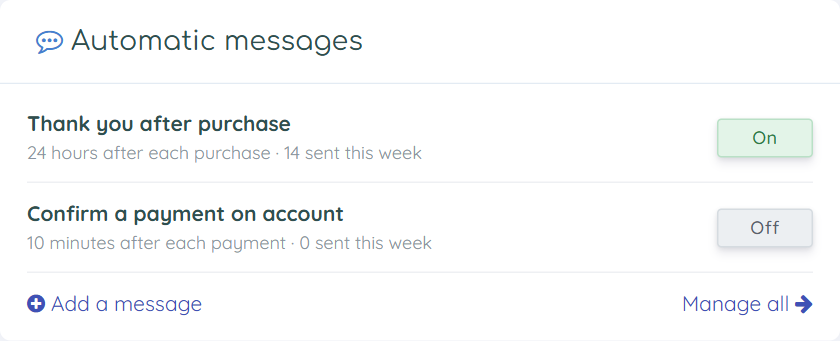
| The Automatic messages card on the dashboard | On/off switches and this week's count, without leaving the dashboard (12.8). |
| The Msg button on a customer's card | A one-off text to that one customer, on a date you choose (12.6). |
12.2 The page
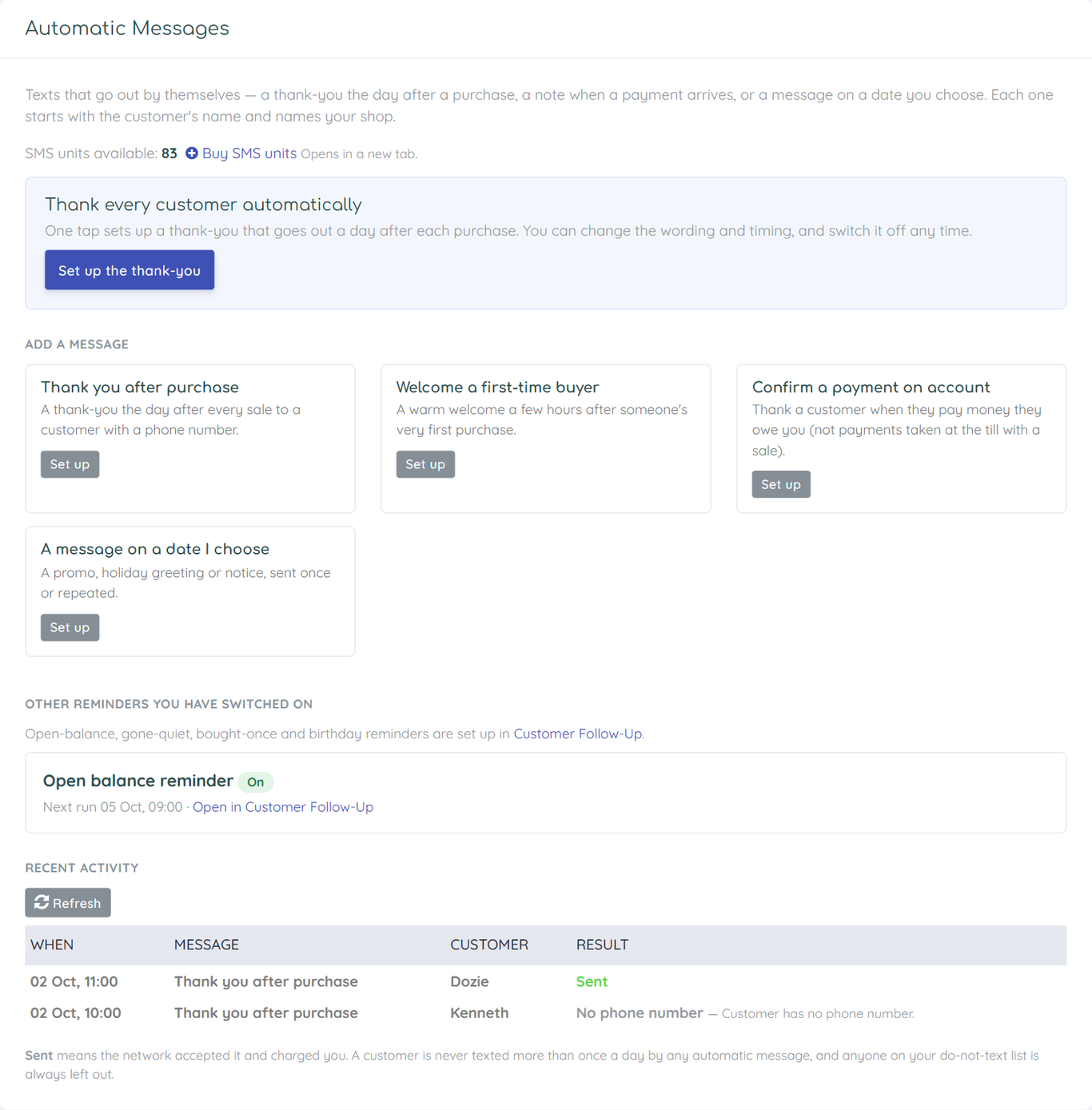
From top to bottom: your SMS units (with Buy SMS units), your messages once you have some, Add a message with the ready-made starting points, any Customer Follow-Up reminders you have switched on (they are still managed on their own tabs), and Recent activity.
12.3 Setting one up
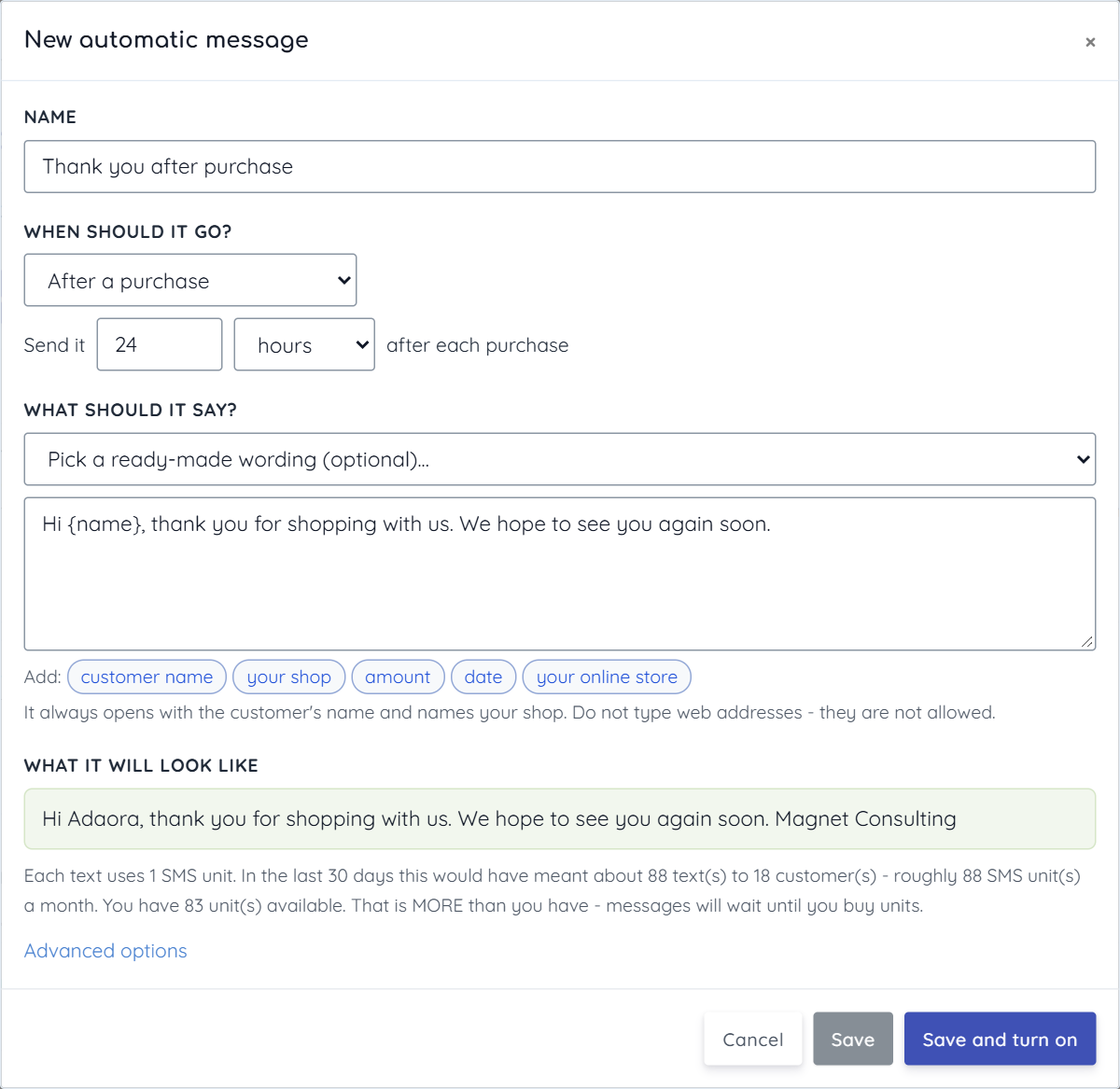
- Name — for you; customers never see it.
- When should it go? After a purchase — then Send it [24] [hours] after each purchase. Minutes, hours or days; 0 sends straight away. After a payment is received — a payment on account: money a customer pays towards what they owe. Money taken at the till with a sale does not count, so customers aren't texted for every cash sale. On a date I choose — pick the date and time, and whether it goes once, every week or every month. It goes to every customer with a phone number.
- What should it say? — pick a ready-made wording from the dropdown (the list changes with the kind of message: thank-yous after a purchase, payment notes after a payment, offers, new stock, order ready, holiday greetings and notices for a date), or write your own. If you've typed something, choosing a ready-made wording asks before replacing it.
- Use the buttons under the box to drop in the customer's name, your shop, the amount and date of the purchase or payment, the balance owed, a payment link, payment details, or your online store address (the buttons offered depend on the kind of message). You don't need to type a greeting or your shop's name — both are added automatically. Web addresses can't be typed; use your online store.
- What it will look like shows the finished text, and the line under it says what it costs: units per text, and roughly what a month would have cost based on the last 30 days.
- Save and turn on — you're shown the cost once more and asked to confirm, because from then on it sends by itself. Save keeps it switched off.
12.4 Advanced options
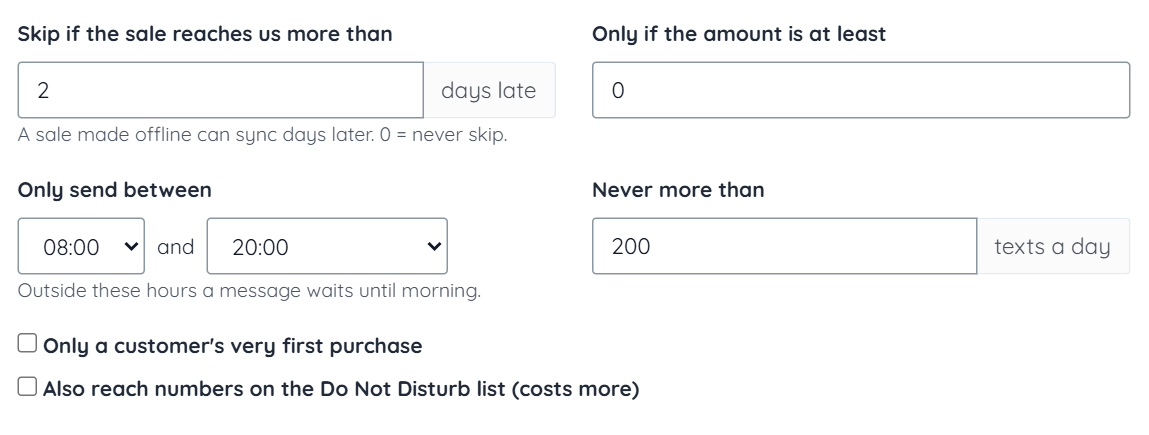
| Option | What it does |
|---|---|
| Skip if the sale reaches us more than N days late | A sale rung up on a phone with no signal reaches the server when it next syncs. A thank-you three weeks late is worse than none, so a sale that arrives more than N days after it was made is skipped. Default 2; 0 = never skip. |
| Only if the amount is at least | Don't spend a text on very small sales or payments. |
| Only send between | Quiet hours, in your shop's time. A message due at 2am waits until the start of the window. Default 08:00–20:00. |
| Never more than N texts a day | A ceiling for a busy day. Anything over it waits for tomorrow's allowance. |
| Only a customer's very first purchase | Turns a thank-you into a welcome for new customers. |
| Also reach numbers on the Do Not Disturb list | Same as on the Customer Follow-Up tabs (11.2) — reaches DND numbers on the corporate route, which costs more. |
12.5 Switching messages on and off
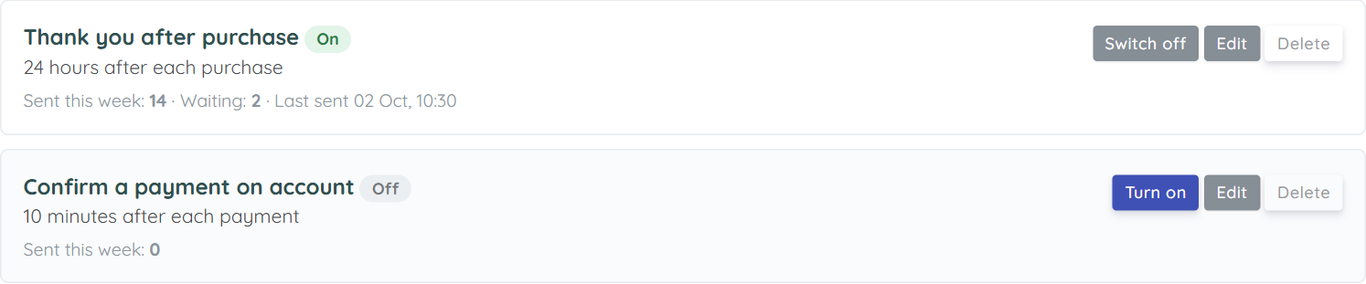
- Turn on shows what it will cost and asks you to confirm.
- Switch off stops it straight away. Any messages waiting to go out are cancelled; nothing already sent is affected.
- Edit opens the same form. Delete removes the message; what it already sent stays in Recent activity.
- Waiting means queued for later — for example a thank-you whose 24 hours aren't up, or a message held by quiet hours.
12.6 A message to one customer — and WhatsApp

In Customer Center, every customer with a phone number has two new buttons on their card (and the same in their profile panel):
- Msg — a text from your SMS units, on a date and time you choose.
- WhatsApp (green) — opens a WhatsApp chat with Hi <first name>, already typed. It uses your own WhatsApp, so it costs no SMS units. Numbers saved as 0803… are converted to the international form WhatsApp needs.
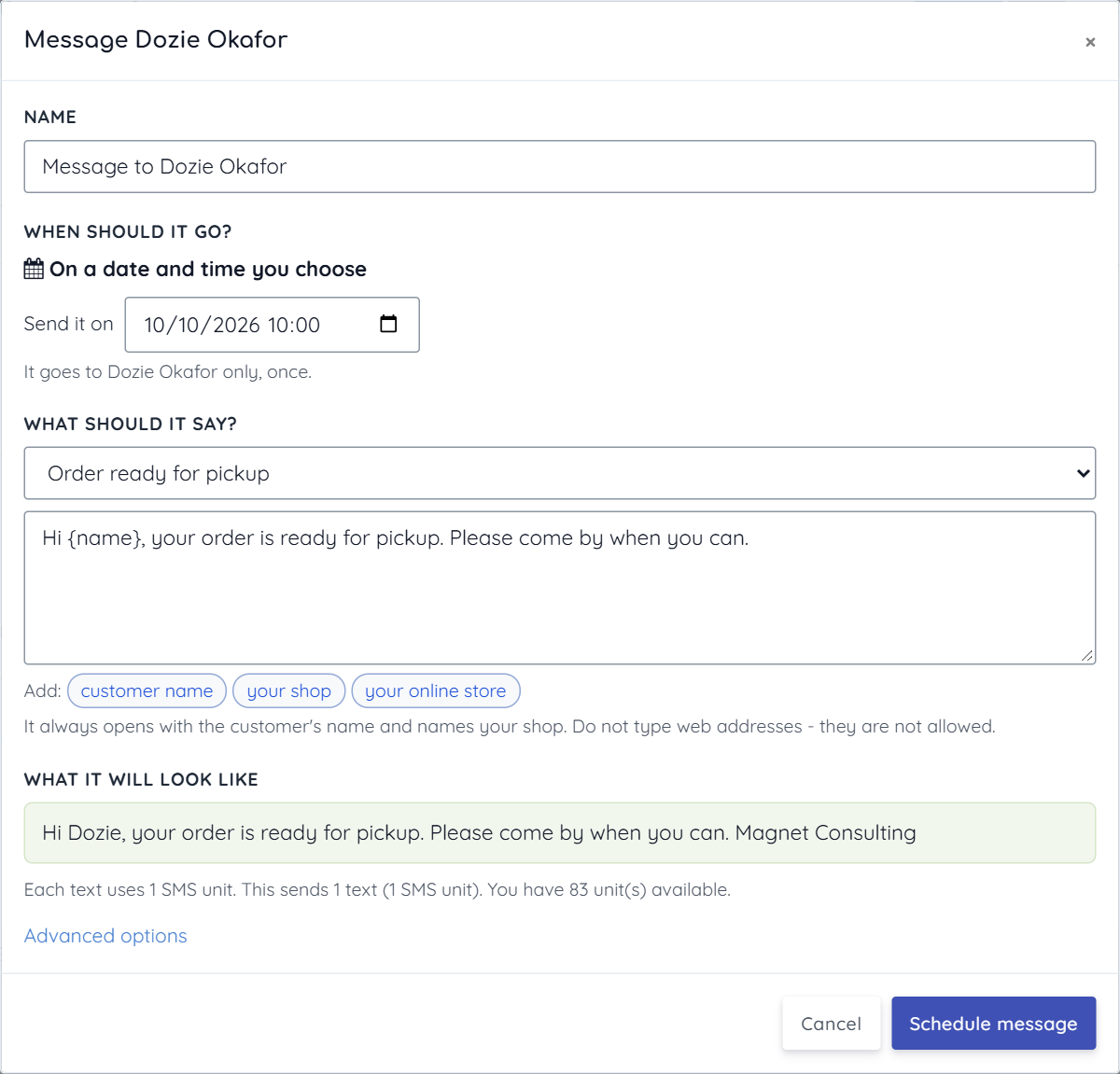
The form is the same one, simplified: it always goes on a date and time you choose, to that customer only, once. Pick a ready-made wording or write your own, choose when, and press Schedule message. To send it as soon as possible, choose a time a few minutes ahead — messages go out in the next 15-minute run, inside your sending hours.
12.7 Date messages to all customers

A date message goes to every customer with a phone number, so check the count before you turn it on. It respects Never more than N texts a day: a list bigger than that is spread over several days, and anything still unsent after 3 days is dropped (a greeting a week late does more harm than good). If the form warns you, raise the daily limit under Advanced options.
12.8 The prompt after a sale, and the dashboard card
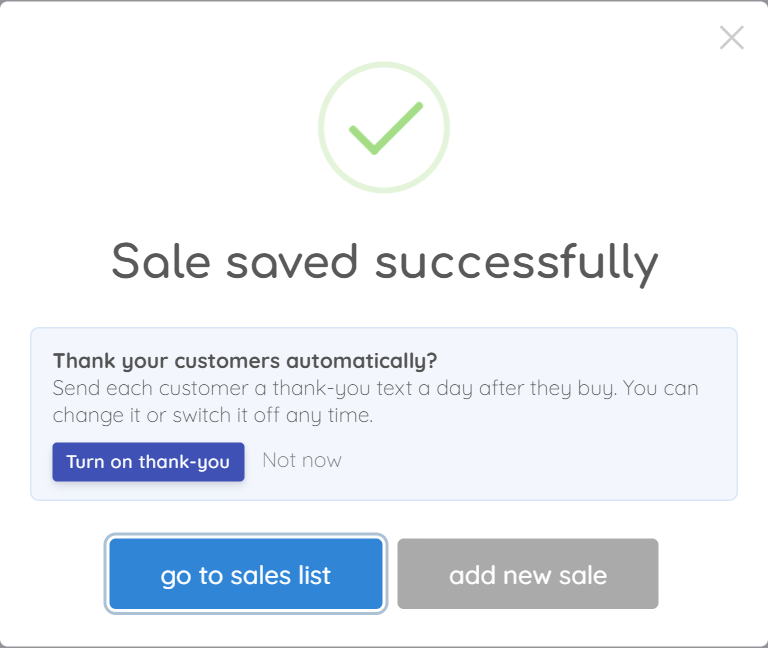
When you save a sale on New Sale & Quotation and you don't yet have a purchase message, the Sale saved box offers Turn on thank-you. It shows the cost and asks first, exactly like the page. Not now hides the offer for 30 days. Once you have any purchase message — on or off — it stops asking. (It appears after Save; Save and Generate Invoice goes straight to the invoice.)
12.9 Recent activity — what happened to each message

| Result | Means |
|---|---|
| Sent | Handed to the network, and charged. (Delivery is reported separately, as in section 9.) |
| Waiting to send | Its time hasn't come, or it's outside your sending hours, or over today's limit, or you're out of units. |
| Not delivered | The network refused it. Not charged. |
| Already texted today | The customer already had an automatic text today (from any message or reminder) — the one-a-day rule. |
| On your do-not-text list | You asked never to text them (Customer Follow-Up → Never text). |
| No phone number / Walk-in sale | Nobody to text. Add the number on the customer's record. |
| Too late to send | The sale reached the server later than your Skip if late setting, or the message waited more than 3 days. |
| Sale cancelled | The sale was deleted or put on hold before the message was due. |
| On the DND register / Number does not exist | See 11.2; correct a dead number on the customer's record. |
| Rule switched off | You switched the message off (or deleted it) before this one went. |