The Consolidator: every store on one dashboard
Group sales and profit, stock across outlets, moving stock between stores, and updating prices everywhere at once.
Transcript
The Consolidator brings every store you own onto one screen: sales, profit, stock and cash, side by side. Here's a tour.
There's no separate login. In your Smart Shop portal, under Tools, click Consolidator. It opens in a new tab, signs you in with the account you're already using, and greets you by name.
Across the top, four figures are added up across every linked store. Total Cash Collections follows the dates you pick. The other three, Money Owed to You, You Owe Vendors and Net Position, are balances as they stand today.
Below them, one chart puts your stores side by side: sales in blue, profit in green. A tall blue bar with a short green one is a margin question worth asking.
On the right, one tile per store with its name and Store Id. Top Performer marks the highest profit for the period, Needs Attention the lowest. It's a ranking, not a verdict. Hover a tile to visit that store.
Sales Summary shows what actually sold, one store per tab. Every line is ranked by quantity, the best seller is marked, and the total row stays pinned while you search. The calendar box picks the period.
Click Profit and Loss for the group view: one row per store, with sales, cost of sales, expenses and profit, and your group total on the bottom row. The Stores page shows the same table with its own date range.
View Stock answers the question that costs multi-branch shops the most: we're out of it here, does another branch have it? One row per product, one column per store. Products are matched by name, so name them the same way in every store.
Transfer Items is the only place that moves stock between stores. Choose the sending store, tick the items and quantities, choose the receiving store, then Validate and Save. Stock leaves one store and arrives in the other, recorded on both sides.
Update Prices changes selling prices across several stores at once, from an Excel file or a photo of a price list. Tick the stores, check the table of changes, and nothing changes until you confirm.
Transfer History keeps every transfer you've made. Click Details to see the items behind it.
To bring in another store, click Add A Store: pick one of your own, or link a partner's store with its admin login. That's the Consolidator: all your stores, one dashboard.
Start here
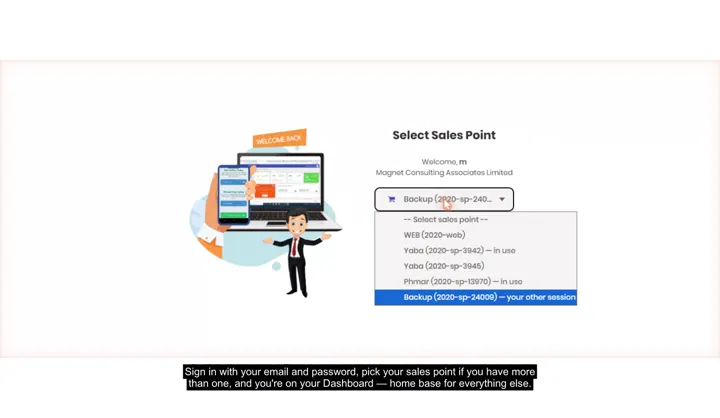 Your first week on the web app2:03 · From your verification email to your first sale, first storefront item and first follow-up.
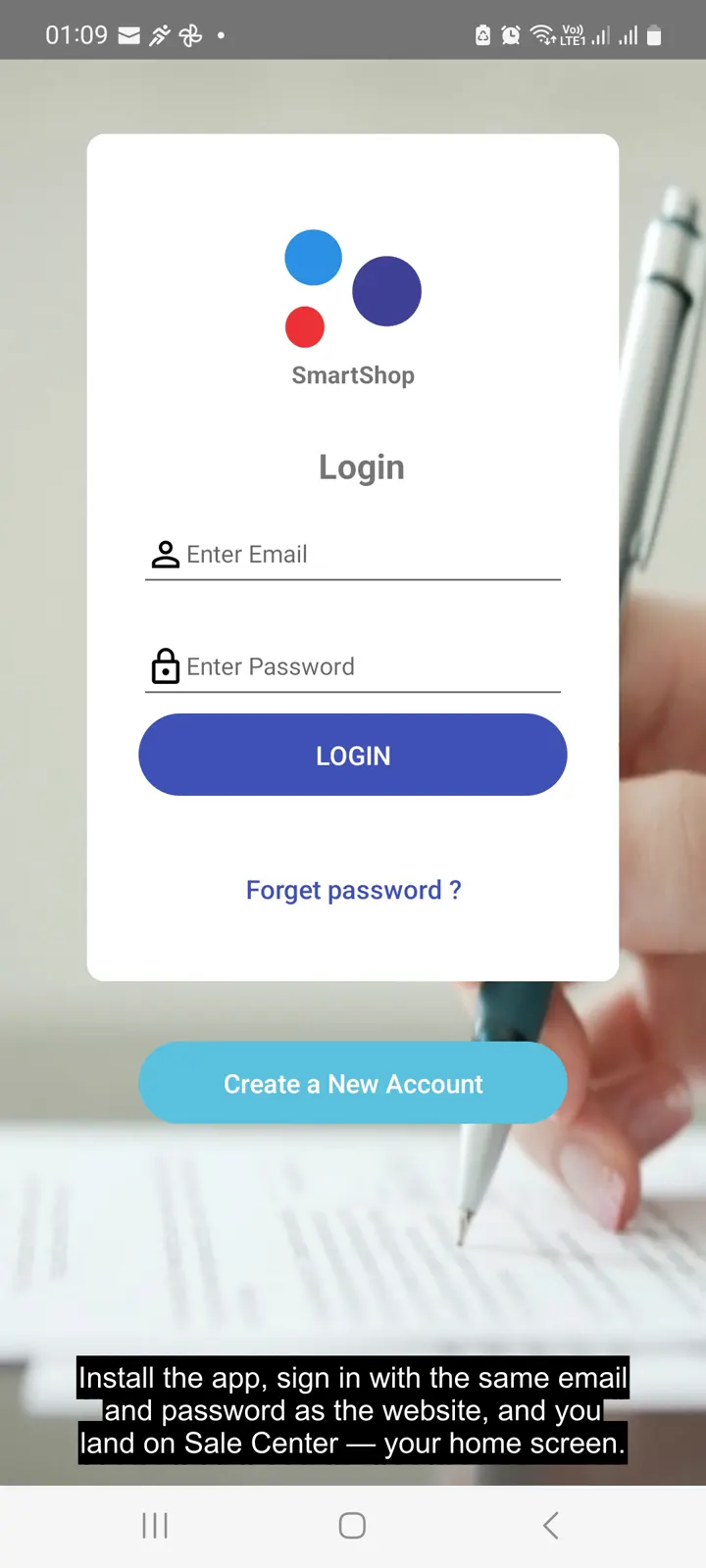 Your first week on the Android app3:38 · The same first-week walkthrough, run entirely from your phone.
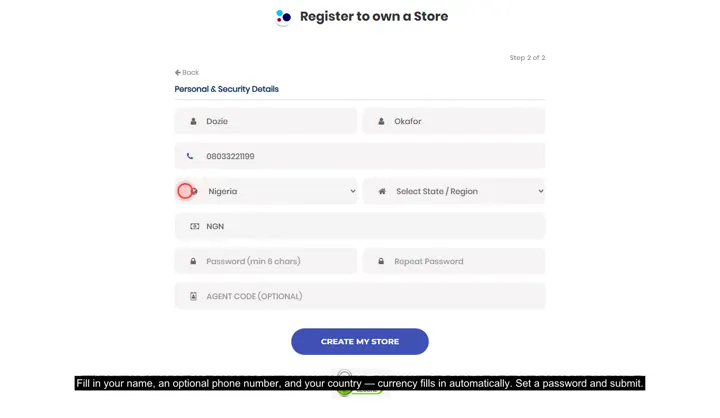 Create your store, sign in, and pick a till1:07 · Registering, the sales-point picker on login, and working across more than one store.
Point of sale, inventory and bookkeeping for multi-store retailers — online or offline.