Expenses, Vendors & Budgets
Everything that leaves the business: the bills you pay, the suppliers you owe, and the targets you set yourself.
Creating a vendor and recording a purchase against them.
A shop's profit is only as honest as its record of spending. MAT Smart Shop keeps that record in three connected places on the website:
- Expenses (left menu → OPERATIONS → Expenses) — rent, salaries, fuel, electricity, repairs: every cost that is not stock you resell.
- Vendors & Transactions (OPERATIONS → Vendors & Transactions) — the people and companies you buy from, and a running account of what you owe each of them.
- Budgets (SETTINGS → Budgets) — monthly targets for sales and for each kind of expense, with a month-by-month comparison against what actually happened.
1. How the pieces fit together
| You do this… | …and the system does this |
|---|---|
| Record an expense (bill ₦50,000, paid ₦50,000, vendor Cash) | The expense appears in the Expense List, the Expense Report and the Profit & Loss. Nothing is owed. |
| Record an expense with a part payment (bill ₦120,000, paid ₦40,000, vendor Bedmate Ltd) | Bedmate Ltd's balance goes up by ₦80,000. The full ₦120,000 still counts as an expense in the month you dated it. |
| Record a stock purchase on credit (Items & Purchases → Purchase & Adjustment) | The unpaid part of the delivery joins the supplier's balance as a PURCHASE line. (The stock and its cost are covered in the Items & Purchases guide.) |
| Make Payment to a vendor | A PAYMENT line reduces the vendor's balance. It does not create a second expense — the cost was already counted when the bill was entered. |
| Create a budget for Rent, January–June | The amount is split evenly across the six months, and each month's actual rent spending is compared with its share. |
2. Before you start: Expense Types, vendors and payment types
The Record expense form uses three lists. You can add to each of them from inside the form, but it is quicker to set the common ones up once:
| You need | Where it lives | Can you add one from inside Record expense? |
|---|---|---|
| Expense Types — the categories (Rent, Salaries, Transport…) | Expenses → Expense Types | Yes — type a new name in a line's type box and choose + Add new expense type. |
| Vendors — who you pay | Vendors & Transactions | Yes — type a new name in Paid to (vendor) and choose + Add new vendor. |
| Payment Types — how you paid (Cash, POS, Transfer to GTBank…) | SETTINGS → Payment Types | No — add it under SETTINGS → Payment Types first. |
Every store also has a built-in vendor called Cash. Use it for the countless small costs where the "vendor" doesn't matter — a bus fare, a bag of pure water, a photocopy. Cash cannot be edited or deleted, and it never carries a balance (see section 4.2).
3. Expense Types
OPERATIONS → Expenses → Expense Types lists the categories your spending is grouped under. They are yours to define: a pharmacy might use Rent, Staff Salaries, NAFDAC Fees, Generator Fuel, Transport; a boutique might add Packaging and Instagram Ads.
3.1 Creating types
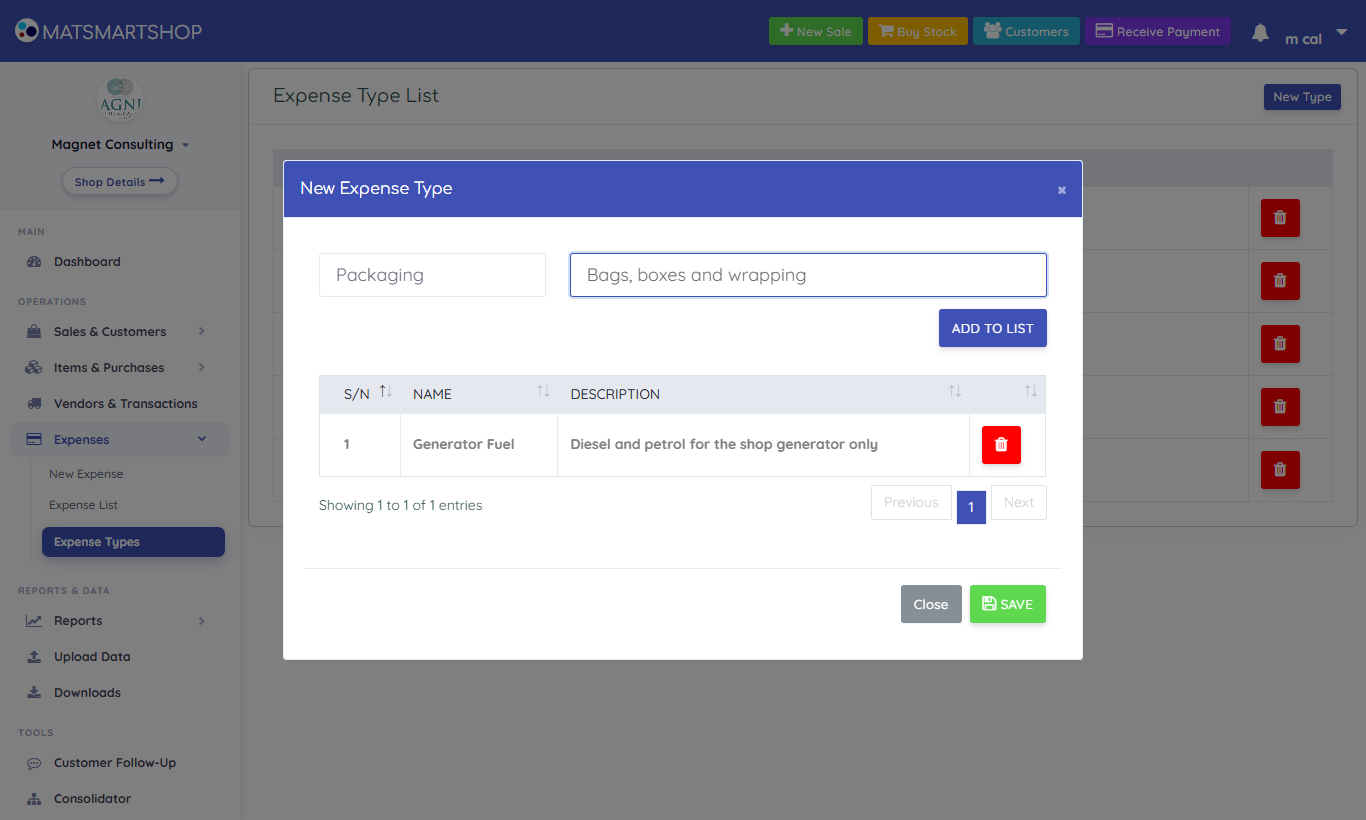
- Click New Type (top right).
- Type the name in Expense Class — e.g. Generator Fuel — and an optional Description (e.g. "Diesel and petrol for the shop generator only").
- Click ADD TO LIST. The type drops into the table below; repeat for as many as you want.
- Click SAVE once to create them all.
A name that already exists is refused with "Already exists", and a queued row can be removed with its red bin before you save.
3.2 Choosing good types
- Keep the list short — eight to fifteen types is plenty. Too many and staff pick at random; too few and the Expense Report can't tell you anything.
- Name by what the money is for, not who received it. "Transport" is a type; "Uber" is a vendor.
- Match your budgets. Expense budgets are set per type (section 12), so a type you want to control — Fuel, say — should be its own type rather than hidden inside "Miscellaneous".
3.3 Deleting a type
The red bin on a row deletes the type — but only if no expense uses it. If any does, you'll see "Transaction Exists" and nothing changes. There is no edit button: to rename a type that has history, create the new one and use it from now on.
4. Recording expenses
Open the form from OPERATIONS → Expenses → New Expense (it opens the Expenses page with the form already showing), or press Record expense at the top of the Expenses page.
One form holds one bill: one date, one vendor and one way of paying — with as many lines as the bill has. A landlord's invoice for rent and service charge is one form with two lines.
4.1 The fields
| Field | What to enter | Notes |
|---|---|---|
| Date | The day the cost was incurred. | This decides which month the expense falls in on every report and budget. Back-date freely — last Tuesday's diesel belongs to last Tuesday. A future date shows a warning. |
| Paid to (vendor) | Who you are paying. | Required. Use Cash for small costs with no named supplier. Type a new name and choose + Add new vendor — the vendor is added straight away. |
| Paid with | How you paid — Cash, POS, a bank account. | Needed when you paid something now. Cash is picked for you if you have a Cash payment type. |
| Transaction class | The branch, department or line of business this cost belongs to. | Only shown if your store uses Transaction Classes (SETTINGS → Transaction Class). Then it is required. |
| Lines | For each cost: choose the Expense type (What was it for? e.g. Rent, Fuel, Electricity…), add an optional Note, and type the Amount. | Type a new name in the type box and choose + Add new expense type to add it on the spot. Each line becomes one row on the Expense List, named after its type. The × removes a line. |
| Paid now | What you actually paid today, for the whole bill. | Follows the total until you change it. Untick Paid in full to pay part. Still to pay shows what goes on the vendor's account. For the Cash vendor it is locked to the total. |
4.2 How much did you pay today?
Paid now decides what happens to the vendor's account:
| Paid now | Effect on the vendor's balance | Typical case |
|---|---|---|
| = Total | No change — settled on the spot. | Fuel bought and paid at the pump. |
| Less than the total | Goes up by the difference (the Still to pay figure). | Painter paid half up front, half on completion. |
| 0 | Goes up by the whole bill. | Electricity bill received, to be paid next week. |
| More than the total | Refused: "Paid now … is more than the total". | Almost always a typing mistake. |
When you pay part of a bill with several lines, the payment is put against the lines in order, first line first, until it runs out.
4.3 Saving
- Press Save. The form checks for a date, a vendor, at least one line, an amount on every line, and a payment type if you paid anything.
- On success you'll see The expense was recorded and the list refreshes.
- Each line is saved on its own. If the connection drops part-way, the message Partly saved says how many went in; those lines are taken off the form — press Save again to send the rest. Nothing was recorded means no line was saved.
| Date | Vendor | Lines | Paid now | Result |
|---|---|---|---|---|
| 3 Mar | Cash | Transport ₦2,500 | ₦2,500 (locked) | Expense only. |
| 3 Mar | Total Filling Station | Generator Fuel ₦38,000 | ₦38,000 | Expense; vendor settled. |
| 4 Mar | Emeka Fridge Repairs | Repairs ₦60,000 | ₦25,000 | Expense ₦60,000; Emeka's balance +₦35,000. |
| 5 Mar | Landlord — Mrs Okafor | Rent ₦400,000 + Service charge ₦50,000 | ₦0 | Two expense rows; Mrs Okafor's balance +₦450,000. |
5. The Expense List
OPERATIONS → Expenses → Expense List opens the Expenses page.
- Dates — pick a period, or press All dates. The All expense types box shows one type only.
- Summary tiles — Total spent (compared with the period before), Expenses recorded, Biggest type (with its share of spending) and Average per day.
- Where the money went — a bar for each expense type in the period, biggest first.
- The table — Date, Expense type, Note, Paid to and Amount (the bill, not what you paid — open the vendor's account to see payments). Search looks in type, note and vendor; click a heading to sort.
- More — Expense types (add or remove types like Rent or Fuel), Expense report (totals by type for any period) and Export to CSV (the expenses in the period shown). Exports use usage units — see the Usage, Billing & Help guide.
Only expenses are listed here. Stock purchases and vendor payments live on each vendor's account (section 7) and in the Purchase & Adjustment List.
For totals by type and by period — compared with the previous period, with each type's expenses a click away — use REPORTS → Expense Report (covered in the Dashboards & Reports guide, section 19).
6. Vendors — the supplier list
OPERATIONS → Vendors & Transactions lists everyone you buy from or pay, with what you currently owe each.
6.1 Reading the list
| Column | Meaning |
|---|---|
| Vendor Name | As you entered it. Must be unique in your store. |
| Phone / Email / Address | Contact details. A dash means none recorded. |
| Balance | What you owe this vendor: every unpaid bill and unpaid purchase, less every payment you've made them. |
| Manage (gear) | View Transactions, Make Payment, Edit Vendor, Delete Vendor. |
6.2 Creating vendors
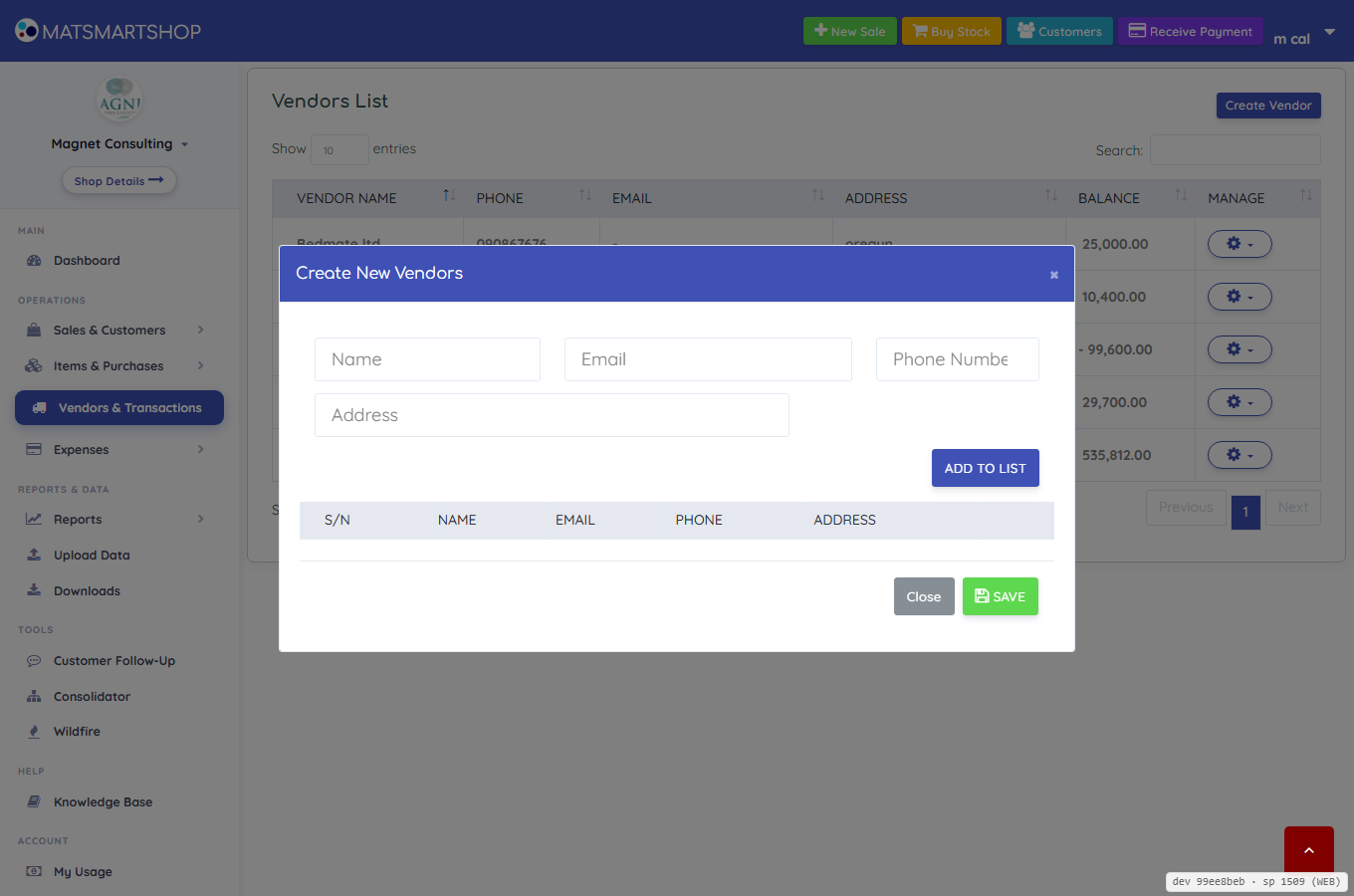
- Click Create Vendor.
- Enter the Name (required) and, if you have them, Email, Phone Number and Address.
- ADD TO LIST. Repeat for other vendors.
- SAVE. You'll see "n Vendor(s) saved successfully".
A name that already exists is refused ("vendor name already exists") — the check ignores capital letters, so "bedmate ltd" and "Bedmate Ltd" are treated as the same vendor.
You can also create a vendor without visiting this page: by typing a new name into Paid to (vendor) in Record expense.
6.3 Editing a vendor
Gear → Edit Vendor opens the same four fields. Change and SAVE. The vendor's history stays attached — renaming "Emeka" to "Emeka Fridge Repairs" relabels all of his past bills too.
6.4 Deleting a vendor
Gear → Delete Vendor removes the vendor only if they have no transactions. Otherwise you'll be told the vendor still has transactions and must have them deleted first. In practice: leave old suppliers in place. They cost nothing and keep your history readable.
The built-in Cash vendor has no Edit or Delete option.
7. A vendor's account (Vendor Details)
Gear → View Transactions opens Vendor Details: name — the vendor's complete running account, much like a bank passbook.
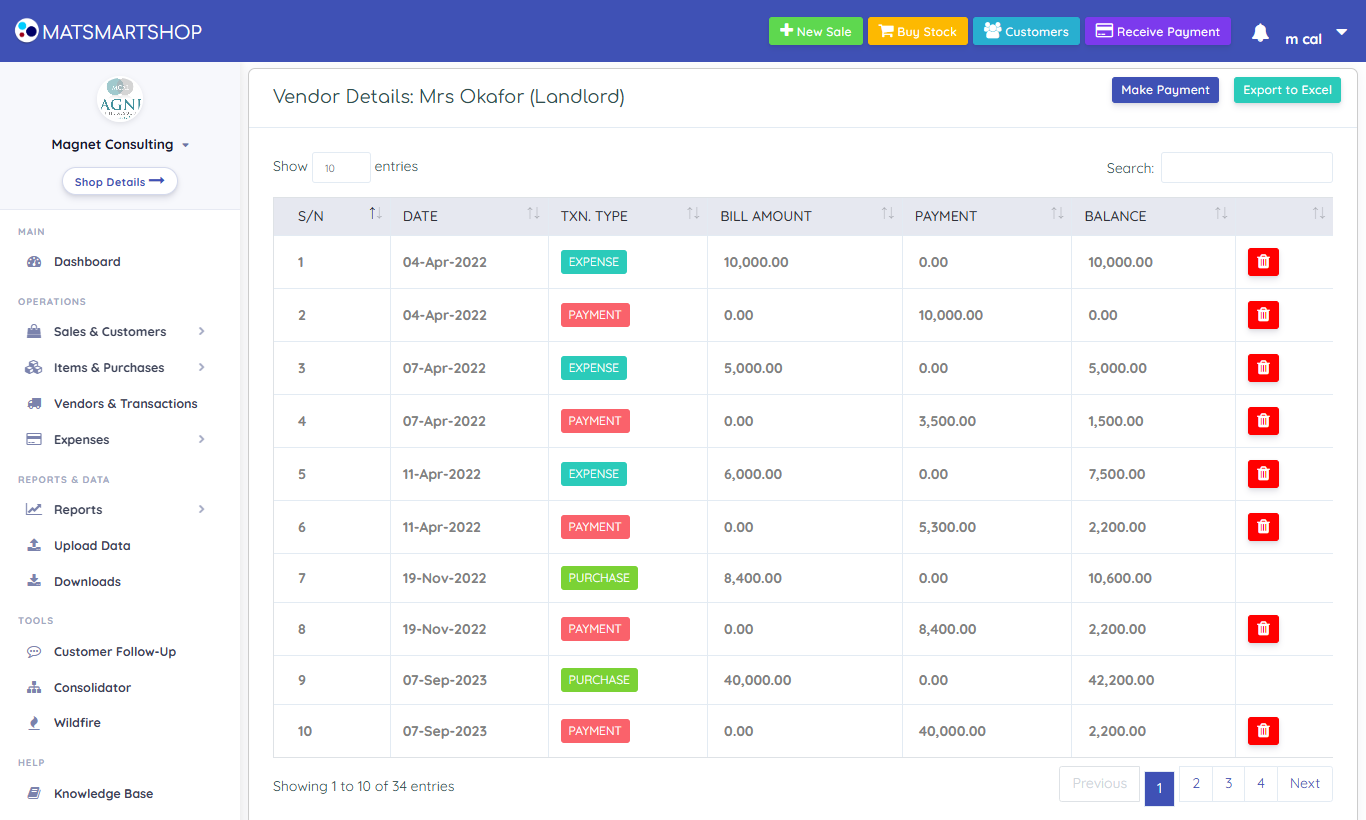
| Column | Meaning |
|---|---|
| Date | The date on the underlying expense, purchase or payment. |
| Txn. Type | EXPENSE — a bill entered with Record expense. PURCHASE — a stock delivery from Items & Purchases. PAYMENT — money you paid them through Make Payment. |
| Bill Amount | What the expense or purchase cost. Always 0 on a PAYMENT line. |
| Payment | What was paid on that line — the "Paid now" of an expense, or the paid amount of a purchase, or the whole of a PAYMENT. |
| Balance | The running total after this line: previous balance + bill − payment. |
The Total Balance box under the table is the vendor's balance as it stands now — the same figure shown in the Vendors List.
| Date | Type | Bill | Payment | Balance |
|---|---|---|---|---|
| 4 Mar | EXPENSE | 60,000 | 25,000 | 35,000 |
| 18 Mar | EXPENSE | 15,000 | 15,000 | 35,000 |
| 30 Mar | PAYMENT | 0 | 35,000 | 0 |
Export to Excel on this page downloads the account, line by line with the running balance — useful for agreeing figures with a supplier.
8. Paying a vendor
Open the form from the vendor's account (Make Payment button) or straight from the Vendors List (gear → Make Payment, which opens the account with the form already up).
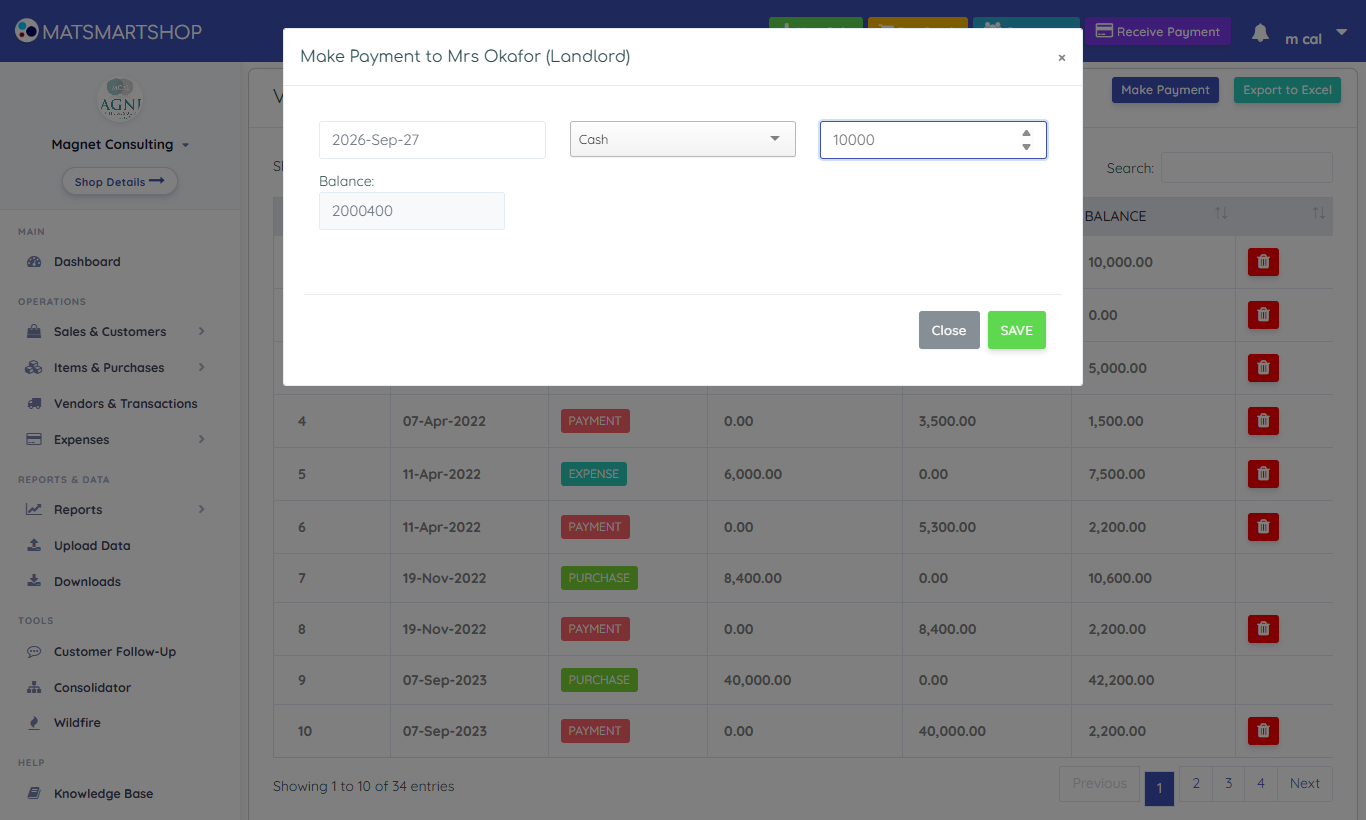
- Pick Date — the day the money left.
- Payment Type — how you paid.
- Amount — as you type, the read-only Balance box shows what the vendor will still be owed after this payment.
- SAVE. A red PAYMENT line appears on the account and the balance drops.
| The form refuses… | Because |
|---|---|
| No date | "Select a date". |
| An amount below 1 | "Input a valid amount." |
| No payment type | "Select a payment type." |
| More than the balance owed | "Amount cannot be more than balance." You can't pay a vendor ahead from this form — record a deposit as an expense or purchase with Amount Paid instead. |
9. Correcting mistakes
Expenses and payments cannot be edited — you delete the wrong entry and enter it again correctly.
| Mistake | Fix |
|---|---|
| Wrong amount, date, type or vendor on an expense | Expense List → bin on the row. The Delete this expense? box finds the payment saved with it and ticks Also delete the payment of … — leave it ticked so the vendor's account stays right. Then enter the expense again. If no payment is found and you paid on another day, delete that payment from the vendor's page. |
| Payment to a vendor entered wrongly or twice | Vendor Details → red bin on the PAYMENT line → confirm. Then re-enter it if needed. |
| An expense line on a vendor's account is wrong | The bin on an EXPENSE line in Vendor Details deletes that expense, exactly as the Expense List bin does. |
| A PURCHASE line is wrong | Purchase lines have no bin here — correct them from Items & Purchases → Purchase & Adjustment List, where the stock and cost are also put right. |
| Vendor name spelled wrongly | Gear → Edit Vendor. History follows the vendor. |
| Expense Type spelled wrongly | No edit. If it's unused, delete and recreate; if used, create the correct one and use it from now on. |
10. Approvals — who approves what
You can decide that big expenses need someone else's yes before they are recorded — for example, anything from ₦50,000 needs the manager or the owner. Until you set a rule, nothing needs approval and the Expenses page works as before.
10.1 Setting the rule
On the Expenses page press More → Approval rule. Only the owner, or someone allowed to change Settings, can change it.
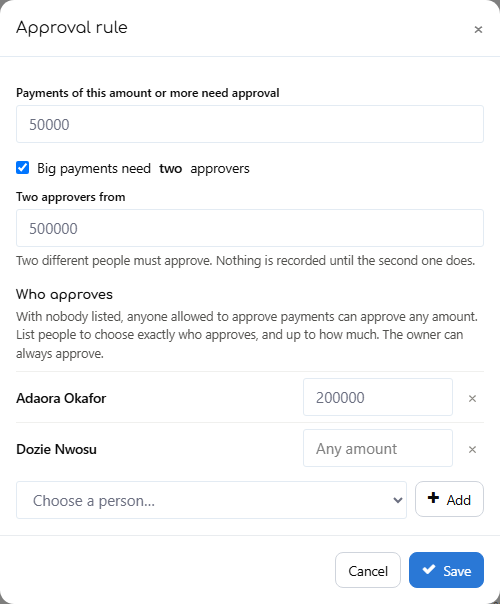
| Setting | What it means |
|---|---|
| Payments of this amount or more need approval | A form whose total reaches this amount must be approved before it is recorded. Leave it empty to switch approval off. |
| Big payments need two approvers | Tick it and choose the amount (it cannot be below the first one). From there, two different people must approve; nothing is recorded until the second one does. |
| Who approves | Choose a person who works in the shop and press Add, then type the most they may approve, or leave Any amount. The × takes them off. Someone whose login is switched off drops off the list by themselves. |
- Nobody listed: anyone given Approve Payments and Give Advances (section 15) may approve, any amount.
- People listed: only they approve, each up to their amount. Being on the list is enough — they don't also need the permission.
- The owner can always approve, any amount.
10.2 Sending an expense for approval
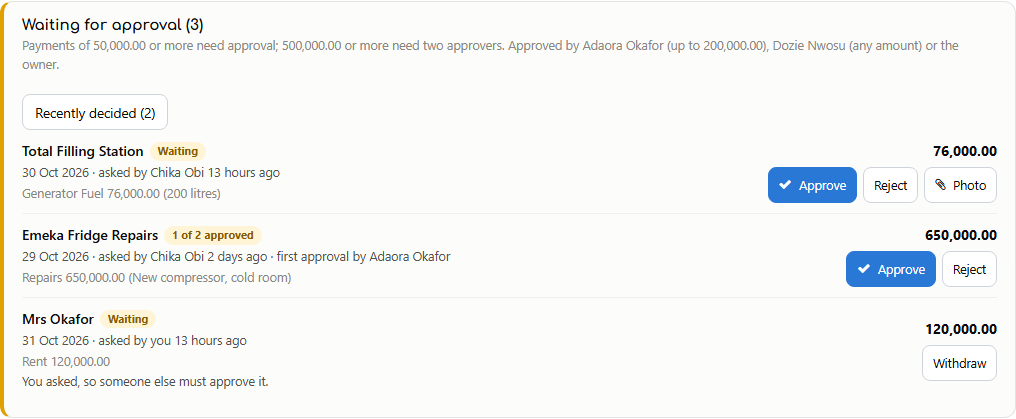
Fill in Record expense as usual. When the total reaches the approval amount, the Save button becomes Send for approval. Nothing is recorded yet — not in the Expense List, not on the vendor's account, not in Bank & Cash. The expense waits on the Waiting for approval card at the top of the Expenses page.
10.3 Approving, rejecting, withdrawing
| Button | Who sees it | What happens |
|---|---|---|
| Approve | An approver whose limit covers the amount, or the owner | The expense is recorded straight away, exactly as it was sent, with a voucher number (PV-000001…). If two approvers are needed, the first approval shows 1 of 2 approved and nothing is recorded until a different approver gives the second. |
| Reject | The same people | Type the reason. Nothing is recorded. It moves to Recently decided with the reason, so the person who asked can see why. |
| Withdraw | Only the person who asked | Takes the request back, even after a first approval. |
| Photo | Everyone who sees the card | Opens the receipt photo sent with the request, if there is one. |
- Nobody approves their own expense. Your own request shows "You asked, so someone else must approve it".
- One bigger than your limit shows "More than you can approve (up to …)".
- The rule in force when Approve is pressed is the one that counts.
11. Advances to staff
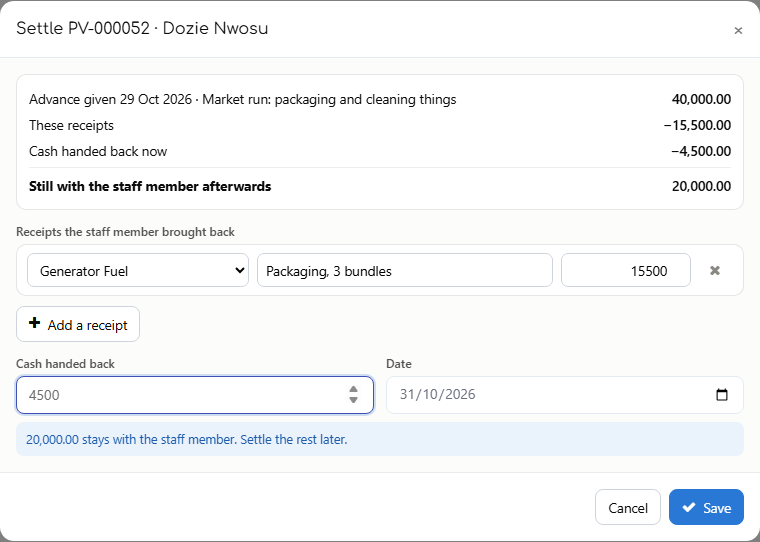
You hand Dozie ₦40,000 to buy packaging at the market. He comes back with receipts and some change. Record the cash when it goes out, and settle it when he is back. Open OPERATIONS → Expenses → Advances to Staff.
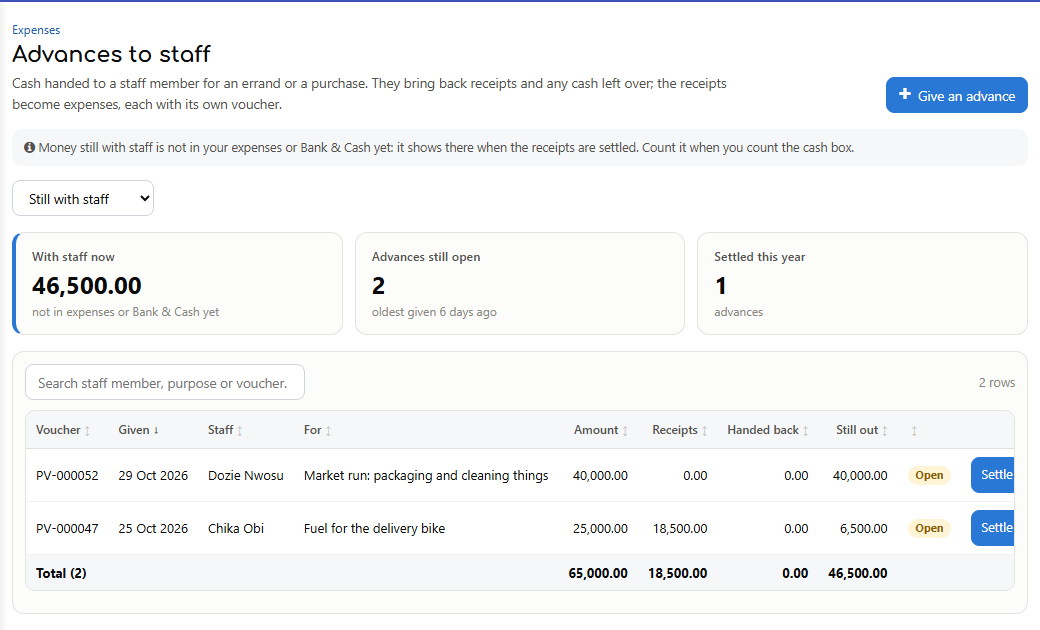
11.1 Giving an advance
- Press Give an advance.
- Staff member: pick one of your users, or type the name of someone without a login — a driver, a cleaner.
- Type the Amount, the Date, What it is for, and how it was paid (Paid with).
- Press Give advance. It gets a voucher number.
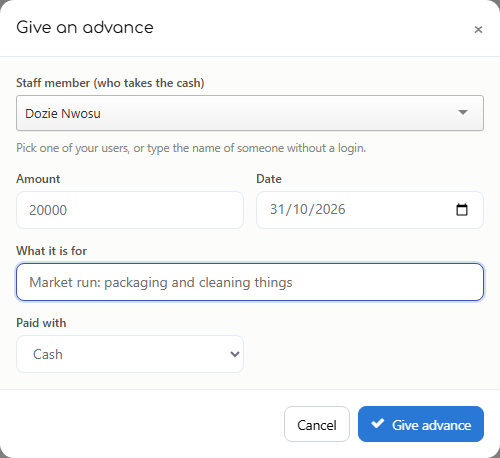
Giving an advance needs the Approve Payments and Give Advances permission — handing over the cash is the approval. It is not an expense yet: the money is "with staff" until the receipts come back.
11.2 Settling it
- Press Settle on the advance.
- Add one line per receipt: what it was for (the expense type), a note, and the amount. Add a receipt for more.
- Type any Cash handed back. The box at the top shows what stays with the staff member afterwards.
- Press Save. Each receipt becomes an expense with its own voucher and the note "(Advance PV-… - name)".
- Settle in parts if the receipts come in over several days.
- Spent more than the advance? That is allowed: the extra receipts pay the staff member back.
- Cancel an advance given by mistake — only while nothing has been settled or handed back.
12. Budgets — setting targets
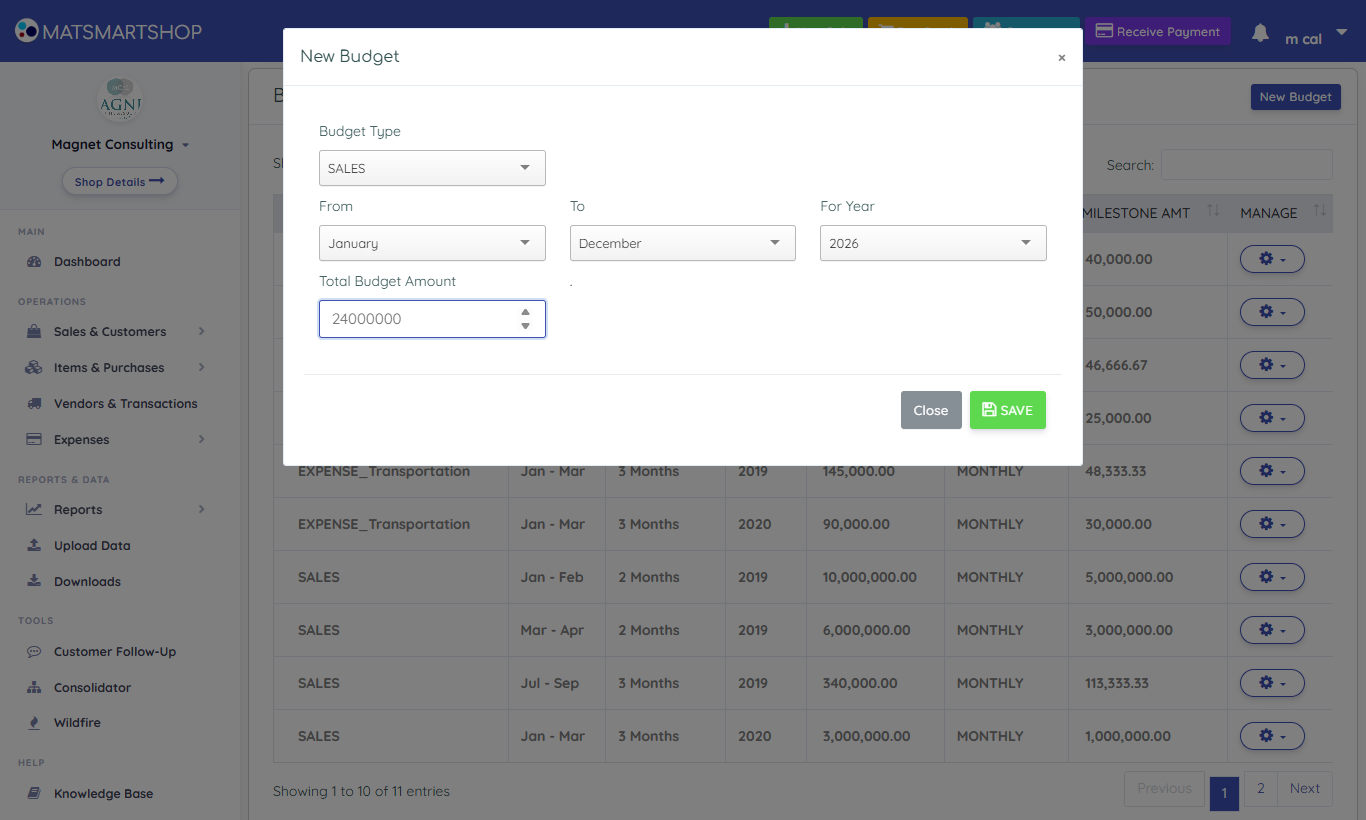
SETTINGS → Budgets lets you set a target for sales, or a spending limit for any Expense Type, across a run of months within one year. MAT Smart Shop then shows, month by month, how reality compared.
12.1 Creating a budget
- Click New Budget.
- Budget Type — SALES (a target to reach) or EXPENSE (a limit to stay under). Choosing EXPENSE reveals Expense Class: pick the Expense Type this limit applies to.
- From and To — the first and last month.
- For Year — this year or any of the next twelve.
- Total Budget Amount — the total for the whole period, not per month.
- SAVE.
| Rules to know | |
|---|---|
| One year per budget | A budget runs within a single calendar year. For a financial year that crosses January, create two: e.g. Jul–Dec 2026 and Jan–Jun 2027. |
| From must not be after To | The form doesn't stop you choosing November to February, but the result is meaningless. Always choose From ≤ To. |
| No overlaps | You can't create a second budget of the same kind whose start month falls inside an existing one for the same year — "A budget for the range exists already." A Rent budget and a Fuel budget for the same months are fine; two Rent budgets for March are not. |
| Uneven months | Because the split is even, seasonal businesses may prefer one budget per month (e.g. December alone with a bigger figure) rather than one long budget. |
12.2 Deleting a budget
Gear → Delete Budget. There is no edit — to change the amount or months, delete it and create it again. Deleting a budget touches nothing but the target; your sales and expenses are unaffected.
13. Reading a budget against reality
Gear → View Sales Budget (or View Expense Budget) opens a table with one row per month in the budget's period.
| Column | Sales budget | Expense budget |
|---|---|---|
| Actual | Net sales for that month — every saved sale (cash and credit alike), after discounts, excluding held sales. | Total bills of that Expense Type dated in that month. |
| Budgeted | That month's Milestone Amt (the even share). | |
| Variance | Actual − Budgeted. | |
| Variance (%) | Green when you beat the target, red when you fell short. | Green when you spent less than the limit, red when you overspent. |
| Month | Actual | Budgeted | Variance | Variance (%) |
|---|---|---|---|---|
| Jan | 1,150,000 | 1,000,000 | 150,000 | 15.00% |
| Feb | 870,000 | 1,000,000 | -130,000 | 13.00% |
"Actual sales" counts what was sold, not what was collected. A month full of credit sales can beat its target while cash is short — watch the Receipts report and Customer Center alongside it.
14. Where these figures show up elsewhere
| Screen | What it takes from here |
|---|---|
| Profit and Loss | The total of all expenses dated in the period, as one Expenses line, with the split by type beside the statement. Unpaid bills count in full — P&L measures cost incurred, not cash paid. |
| Expense Report | Expenses by type against the previous period; click a type to list its expenses. Expenses saved without a type are counted in the total and called out separately. |
| Dashboard | Expense totals feed the profit figures on the main dashboard. |
| Transaction Class Report | Profit and loss for one Transaction Class — its sales, a share of cost of sales, and the expenses tagged with it. |
| Android app | Expenses and Expense Classes can also be entered on the phone; they sync to the same records. |
| Notifications | The daily and weekly summaries include profit after expenses. |
| Bank & Cash | What you paid now on each expense and each vendor payment is money out of the payment type you chose — it shows in that account's history and in the month's Check with bank. See the Bank & Cash guide. |
15. Who can do what (permissions)
Owners see everything. For staff, the owner sets these permissions on Settings → User Management → User List → Edit (see the Store Setup, Users & Security guide, section 12). The Accountant role there ticks all of the expense and budget permissions; the Stock keeper role ticks the vendor ones.
| Area | Permissions | What a missing permission does |
|---|---|---|
| Expenses | View, Add, Edit, Delete | Without View the Expense List and Expense Report are missing from the menu and show "no access". Without Add, New Expense (menu) and Record expense (button) disappear. Without Delete, the bins disappear. |
| Expense Types | View, Add, Delete | Same pattern. |
| Budgets | View, Add, Delete, View Sales | Without View Sales, the "View … Budget" comparison is hidden. |
| Vendors | View, Add, Edit, Delete | The Vendors pages and What You Owe Vendors open with Vendors – View or Purchases – View (whoever buys stock picks vendors). Adding, changing and deleting vendors each need their own permission. |
| Paying a vendor / recording a vendor transaction | Expenses – Add, Purchases – Add or Vendors – Edit | Any one of them is enough. |
| Approvals and advances | Expenses – Approve Payments and Give Advances | Without it you cannot approve or reject (unless you are on the approval rule's list — section 10) and the Give an advance button is hidden. Settling an advance needs Expenses – Add. The Store manager role ticks it. |
16. Worked example: a month of spending
Adaora runs a provisions shop. Here is her March, start to finish.
- Set up once. Expense Types: Rent, Salaries, Generator Fuel, Transport, Repairs, Packaging. Vendors: Mrs Okafor (landlord), Total Filling Station, Emeka Fridge Repairs.
- Budget. New Budget → EXPENSE → Generator Fuel → Jan–Dec 2026 → ₦1,200,000 (₦100,000 a month). New Budget → SALES → Jan–Dec 2026 → ₦24,000,000 (₦2,000,000 a month).
- 1 March. Rent invoice arrives: Record expense → Paid to Mrs Okafor → line Rent ₦450,000 → untick Paid in full, Paid now 0. Mrs Okafor's balance: ₦450,000.
- Through the month. Each fuel run and bus fare goes in with the Cash vendor or Total, paid in full. Adaora enters the week's receipts every Saturday in one sitting — one Record expense per receipt, with a line for each thing on it.
- 12 March. Pays half the rent: Vendors → Mrs Okafor → Make Payment → ₦225,000 → Transfer. Balance: ₦225,000.
- 31 March. Pays the rest and staff salaries (Record expense → Cash → line Salaries → paid in full).
- Review. Budgets → Sales → View Sales Budget: March shows ₦2,240,000 against ₦2,000,000 — green 12%. Expense Report for March shows Generator Fuel at ₦118,000 — ₦18,000 over its ₦100,000 share, the cue to check the generator's hours. Vendors List: every balance back to 0.
17. Quick reference and troubleshooting
| I want to… | Do this |
|---|---|
| Record a bill I paid on the spot | Expenses → Record expense → leave Paid in full ticked |
| Record a bill I'll pay later | Record expense → a named vendor → untick Paid in full → Paid now = 0 (or the part paid) |
| Record one bill with several items on it | Record expense → add a line for each item (type, note, amount) |
| Pay off what I owe a supplier | Vendors & Transactions → gear → Make Payment |
| See everything with one supplier | Vendors & Transactions → gear → View Transactions |
| See what I owe everyone | Vendors & Transactions → Balance column |
| Add a spending category | Expenses → Expense Types → New Type, or type a new name in a line of Record expense |
| Fix a wrong expense | Expense List → bin (leave Also delete the payment ticked) → re-enter |
| Set a monthly sales target | Settings → Budgets → New Budget → SALES |
| Compare sales with target | Budgets → gear → View Sales Budget |
| Get my spending into Excel | Expense List → More → Export to CSV |
| See which costs are biggest | Expense List → Where the money went |
| Make big expenses need approval | Expenses → More → Approval rule → amount, approvers → Save |
| Approve or reject an expense | Expenses → Waiting for approval → Approve, or Reject with a reason |
| Give a staff member cash for an errand | Expenses → Advances to Staff → Give an advance |
| Record their receipts and change | Advances to Staff → Settle |
If something looks wrong
- "Please select a transaction class" but I don't use them. Your store has Transaction Classes switched on. Pick one, or ask the owner to switch classification off under SETTINGS → Transaction Class.
- Paid now won't let me type. You chose the Cash vendor, which is always paid in full. Choose a named vendor if you're paying later.
- A vendor's balance is negative. You've paid more than you were billed — look for a duplicated payment or an overpaid expense in their account.
- Make Payment says "Amount cannot be more than balance". You're trying to pay more than is owed. Check the Total Balance first.
- I can't delete a vendor or an Expense Type. It has transactions. Leave it in place.
- Profit looks too high. Expenses may be missing — or entered as stock purchases, which only become cost when sold.
- Profit looks too low in one month. Check expense dates: a year's insurance dated in one month lands entirely in that month. Consider entering it as twelve monthly expenses.
- The Record expense button is missing. You don't have the add right on Expenses. Ask the owner.
- Save says "Send for approval". The total reaches the approval amount (section 10). Send it, and someone else approves it.
- I can't approve a request. It is your own, it is more than your limit, or you are not on the approval rule's list. Ask the owner or another approver.
- "Approvals use usage units you have bought or earned". On the free plan, approvals cannot use the free monthly units. Buy some, or invite a shop to earn them.