Turning a counter book, delivery note or stock count into records — and the checks that catch a dropped line.
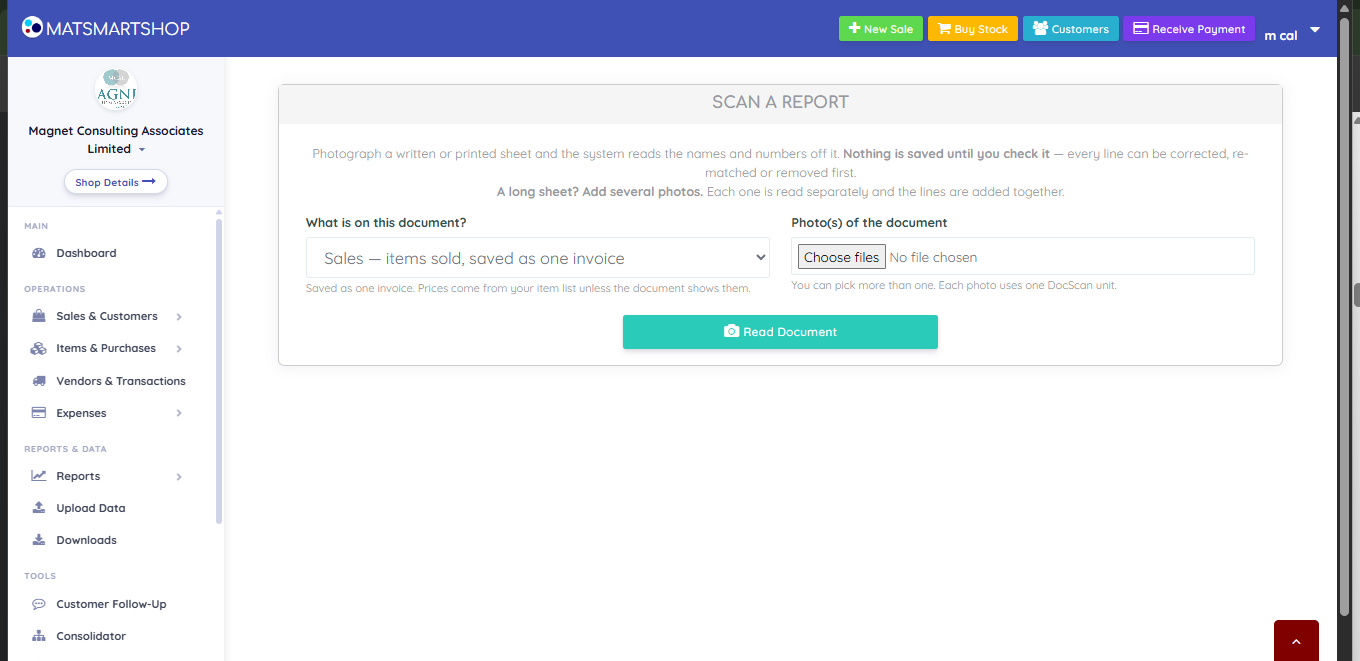
The scan screen — a document type, one or more photos, and Read Document.
Scan A Report photographs a written or printed sheet and reads the names and numbers off it, then hands you the same kind of preview a spreadsheet upload would. Nothing is saved until you check it.
Pick the document type — Sales, Stock adjustment, Purchase, Prices or Items — before you read. It decides what the numbers mean and which confirm button appears.
Photograph the sheet well: fill the frame, square on, even light, no glare, creases flattened. One page per photo — add more photos for more pages.
Press Read Document and wait a few seconds per photo.
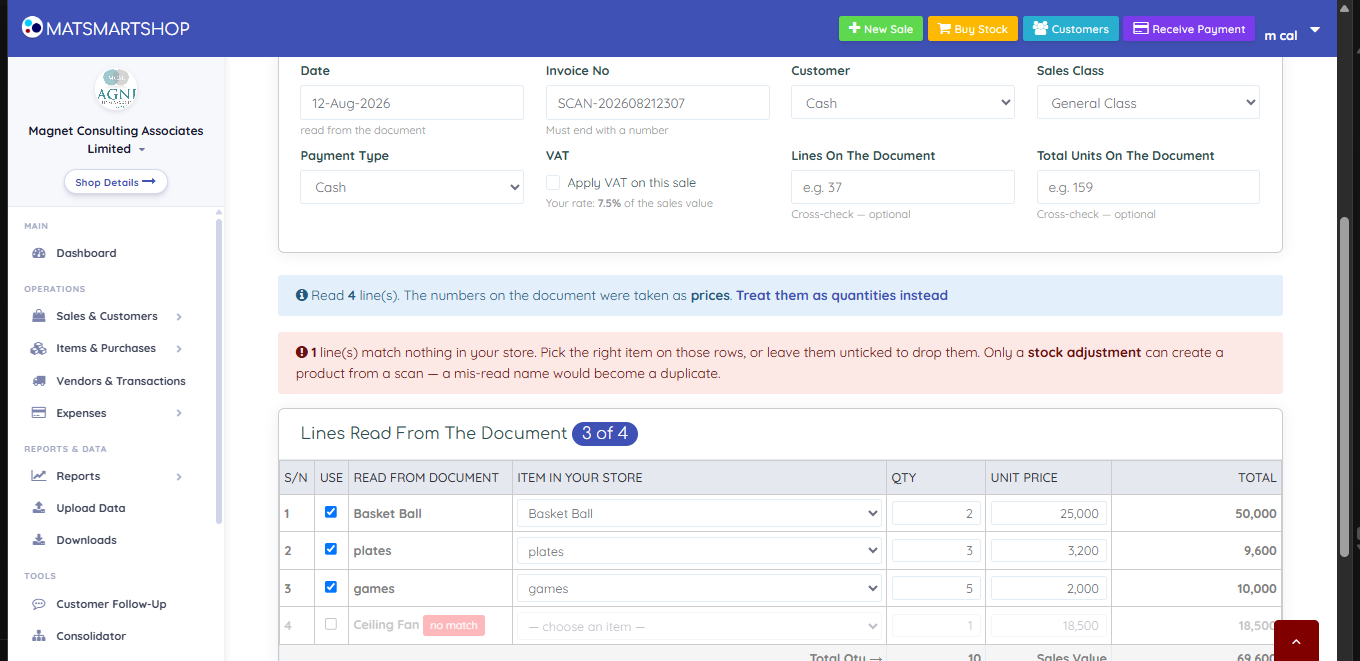
In the lines table, check each row’s match, quantity and price against the sheet. Untick a row to drop it, or fix the item match by hand.
Fill in Lines On The Document and Total Units On The Document as a cross-check, then press the confirm button.
The lines table — what was read, what it matched to, and what has been left out.
Only a stock adjustment scan can create a product — a mis-read name on any other scan would become a duplicate. An unmatched row is either matched by hand or dropped.
Watch the line above the table: "The numbers on the document were taken as prices — treat them as quantities instead." A stock count read as prices, or a price list read as quantities, is the most damaging scan mistake and the easiest to catch by checking the QTY column against the sheet.
If something looks wrong
The preview has fewer lines than the sheet — the reader dropped one. Re-photograph in better light, or use Add A Line.
A created product sells at zero — products created from a scan carry no cost and no selling price. Set both on the Item List.